

Inventory Holds
An Inventory Hold freezes a Location so that ShipStream will not allocate, pick, pack, or manifest its inventory. A hold always covers the entire Location — everything on the shelf is set aside, and any inventory that arrives at the Location while the hold is active (a delivery put-away, a committed put-away, a return) is automatically held as well. Held inventory remains physically present and counted as on-hand, but it is excluded from the availability that drives allocation — so it cannot back any new Shipment until the hold is released.
A Lot quarantine also covers off-shelf inventory attributed to that Lot. Processed quantities awaiting Put-Away and Picked quantities awaiting fulfillment are included in the held totals reported for the Lot, even though those units are not currently stored at a Location.
Holds are intended for the everyday situations that pull inventory out of the sellable pool without removing it from the warehouse: QC inspections, cycle counts in progress, damaged goods awaiting disposition, recalled lots, expired and near-expiring stock, contamination, customs/bond hold, and pending vendor returns. Each Hold is recorded against a Hold Reason that explains why the inventory is set aside, and every placement and release is logged in the Stock Movement Log with an audit trail.
How Holds Affect Inventory
Every Location, Stock Item, and Product carries a Qty Held quantity alongside the familiar Put-Away, Unreserved, and Reserved buckets. A held Location reports its full on-shelf quantity as Qty Held — Put-Away, Unreserved, and Reserved units alike — and inventory that arrives while the hold is active is counted as held the moment it lands. When the hold is released, availability is restored. The total On-Hand count never changes as a side effect of placing or releasing a hold — held units remain physically on the shelf.
Partial holds are not supported: a Location is either entirely on hold or not on hold at all. Each Location carries at most one active hold at a time. To set aside only part of a Location's inventory, first relocate the affected units to their own Location and hold that.
While a held Location contains inventory, its Lot cannot be changed or merged into a different Lot. Release the hold or relocate the inventory before changing which Lot it belongs to. You can still correct details such as the Lot Number, Expiration Date, or Origination Date on the existing Lot.
The advertised quantity used by integrations and the order processor automatically excludes held inventory, so Shopify, Amazon, and any other connected sales channel will see a lower availability the moment a hold is placed.
Hold Reasons
Hold Reasons are managed at System -> Operations -> Hold Reasons. ShipStream ships with a fixed set of system Hold Reasons that integrations and automated rules rely on. You can also create your own user-defined Hold Reasons for finer-grained reporting.
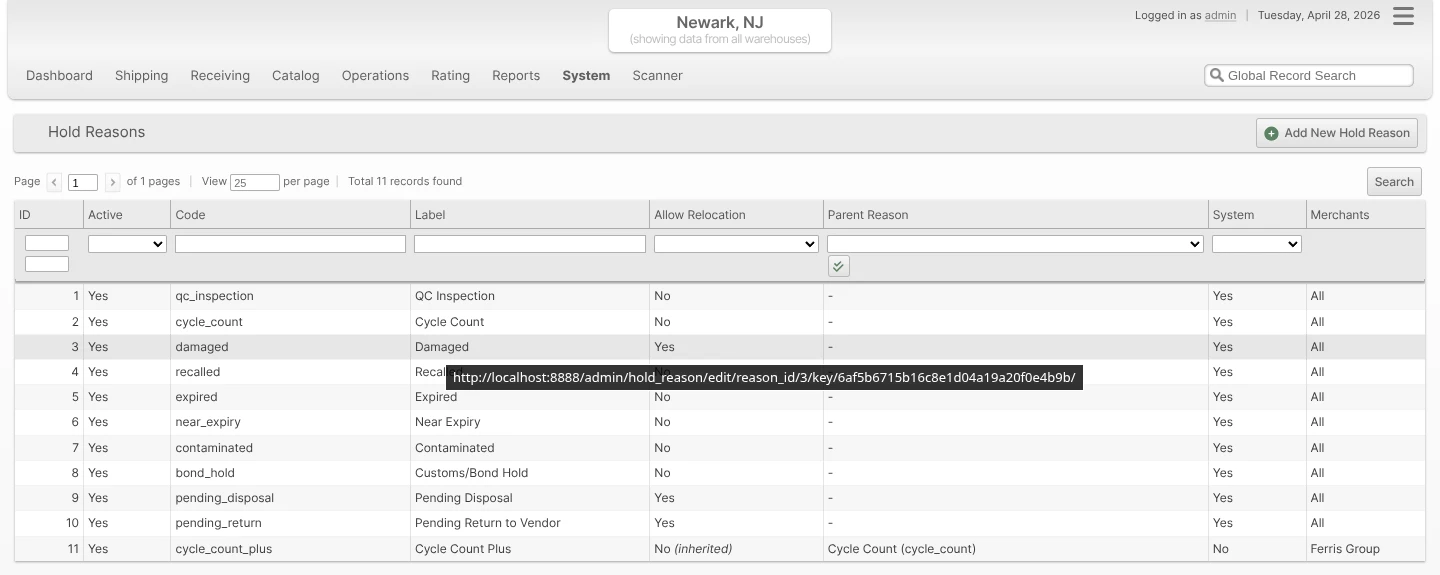
System Hold Reasons
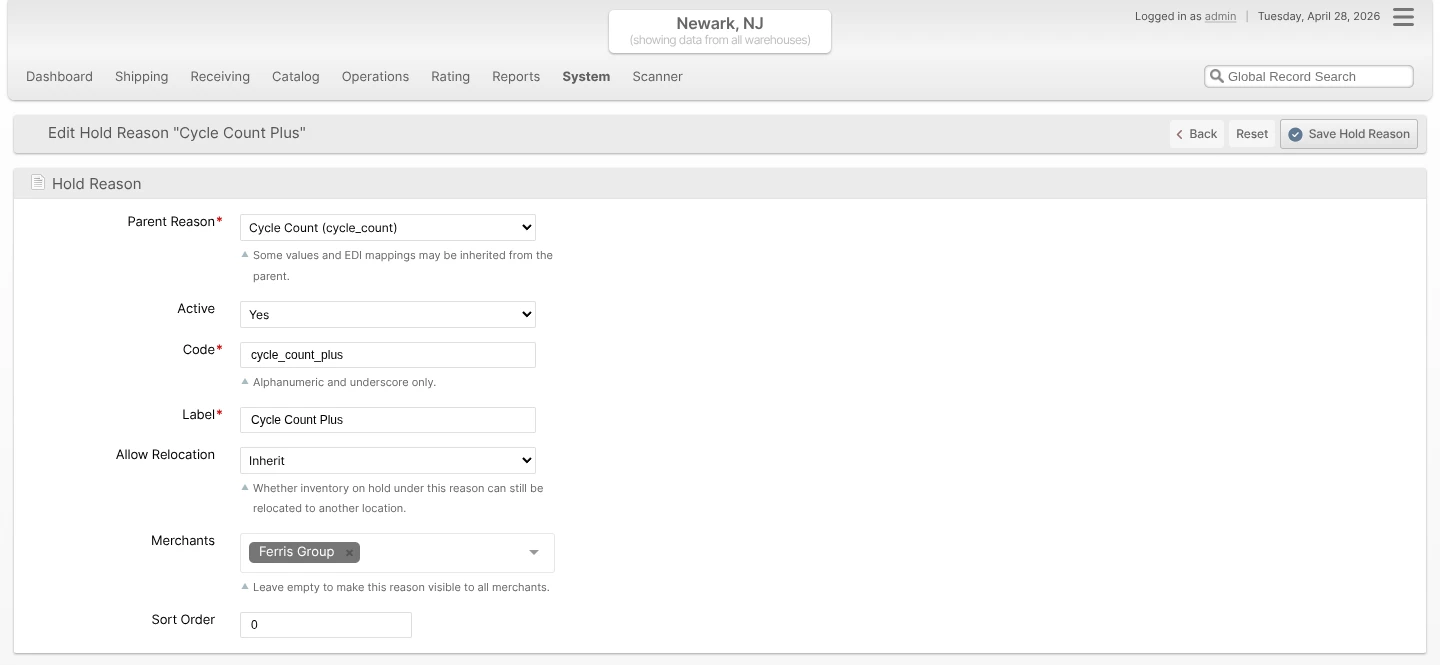
These reasons are seeded automatically and cannot be deleted. Their codes are immutable so EDI mappings and automation continue to work across upgrades. The Label, Active flag, Display Group, and Sort Order can still be edited.
- General (
general) — generic catch-all hold for inventory that should not ship, for any reason not covered by the more specific reasons below. - QC Inspection (
qc_inspection) — held while the item undergoes quality control checks. - Cycle Count (
cycle_count) — held while a count is in progress. - Damaged (
damaged) — physically damaged units awaiting disposition. - Recalled (
recalled) — vendor or manufacturer recall. - Expired (
expired) — lots past their expiration date. Placed automatically by the Automatic Hold on Expiration feature. - Near Expiry (
near_expiry) — lots within the configured days-before-expiration window. - Contaminated (
contaminated) — failed an inspection, awaiting destruction or recall. - Customs/Bond Hold (
bond_hold) — held under customs or bonded-warehouse rules. - Pending Disposal (
pending_disposal) — staged for disposal. - Pending Return to Vendor (
pending_return) — staged for an outbound return to the vendor.
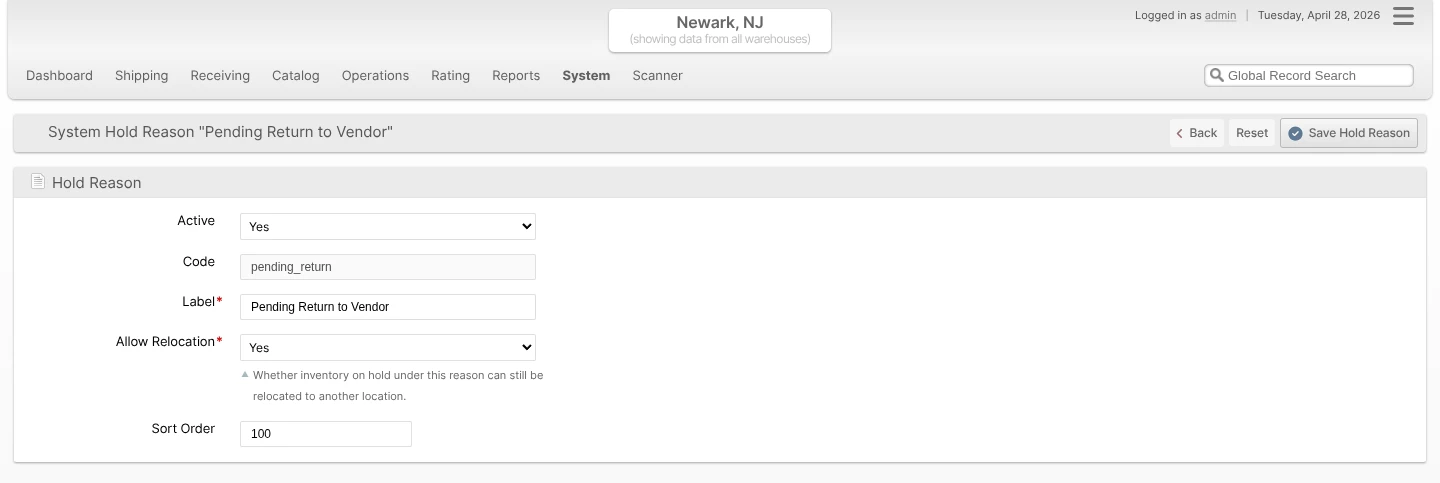
User-Defined Hold Reasons
To add a custom reason, click Add Hold Reason on the Hold Reasons grid. User-defined reasons are always nested under one system reason — pick the parent that best matches the EDI category and operational behavior you need. For example, you might create Cosmetic Damage and Functional Damage under the Damaged parent, or Customer Recall and Vendor Recall under Recalled.
The form fields are:
- Parent Reason - The system Hold Reason this user-defined reason inherits from. Required for user-defined reasons; hidden for system reasons.
- Active - When set to No, the reason cannot be selected when placing new holds. Existing holds keep working.
- Code - Internal identifier (alphanumeric and underscore). Used by integrations and EDI mappings. Read-only for system reasons.
- Label - Human-readable name shown across the Admin UI, Client UI, and grids.
- Display Group - Short label (max 25 characters) used to group held quantity into named columns on the Product Inventory Report and other inventory grids. Defaults to Hold. Type any value or pick from the datalist (Hold, Review, Expired, Unsellable, plus any value already saved on another reason). Reasons that share a Display Group fold into the same column.
- Allow Relocation - Whether warehouse staff are allowed to relocate inventory that is on hold for this reason.
- Yes - Relocation is allowed (with a warning). Held inventory stays on hold at the destination.
- No - Relocation is blocked.
- Inherit - User-defined only. Use the parent's setting at runtime.
- Merchants - User-defined only. Select the Merchants this reason should be visible to, or leave empty to expose the reason to every Merchant. Check Exclude next to the field to invert the selection — when Exclude is enabled, the selected Merchants are hidden from this reason and every other Merchant can see it.
- Sort Order - Determines ordering in dropdowns and the grid.
EDI Quantity Qualifier and Adjustment Reason codes for held inventory are configured per-subscription on the SPS Commerce integration — there is no EDI Code field on the Hold Reason itself.
Placing a Location Hold
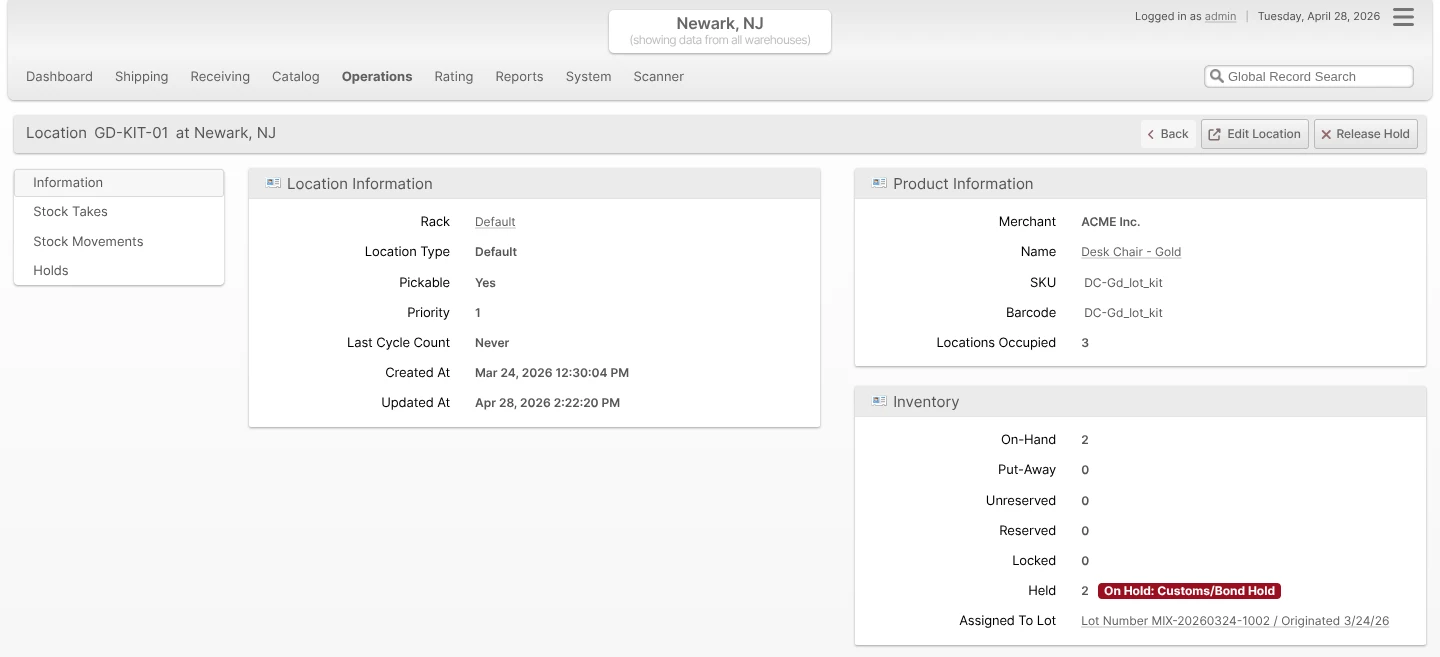
Use a Location Hold when a specific Location's inventory needs to be set aside — for example, while a counter investigates a discrepancy, or when staff find damaged units in a single location.
- Open the Location's view page and click Hold Inventory in the page header. Clicking a Location opens that page from anywhere it is listed — the Locations grid at Operations -> Warehouse -> Locations, the Locations list on a Rack, the Operations -> Cycle Count grid, a Lot's Holds tab, or a Stock Take — and a Product's Inventory tab links to it with View Location.
- Choose a Hold Reason. The dialog shows the full on-shelf quantity that will be placed on hold — partial holds are not supported, so there is no quantity to enter.
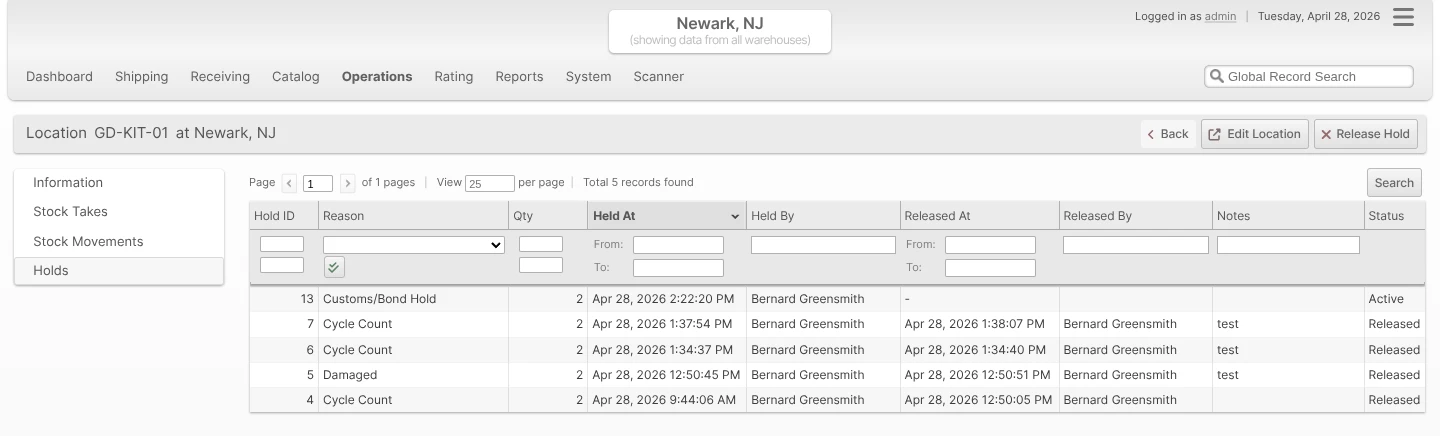
- (Optional) Add a Note explaining the hold. The note is shown in the Holds tab on the Location and on the Inventory Holds grid.
- Click Place Hold.
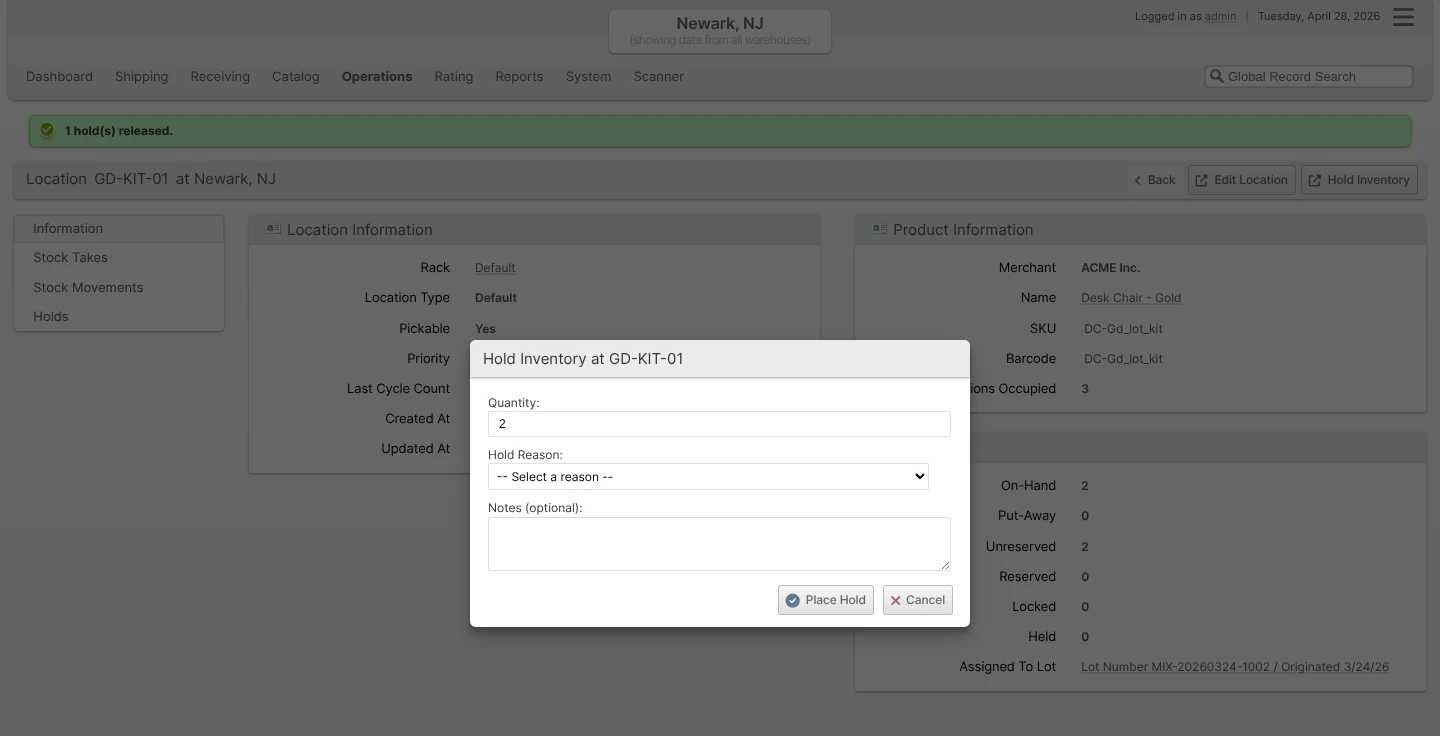
The entire on-shelf quantity moves to Qty Held, the Location is annotated with an On Hold badge, and any active Reservations at the Location are unreserved and rerouted via Order Allocation. The hold appears on the Location's Holds tab and on the centralized Inventory Holds grid.
Quarantining an Entire Lot
When a recall, contamination event, or near-expiry sweep affects every unit of a Lot, use Quarantine Lot to place a hold on every Location holding that Lot across all Warehouses in one action.
- Open Catalog -> Lots/Expirations and click the Lot you want to quarantine.
- Click Quarantine Lot in the page header. The popup states that the action applies across all Warehouses and confirms the total units for the Lot and the number of Locations that currently contain holdable inventory.
- Choose a Hold Reason and (optionally) add a Note.
- Click Quarantine Lot to apply.
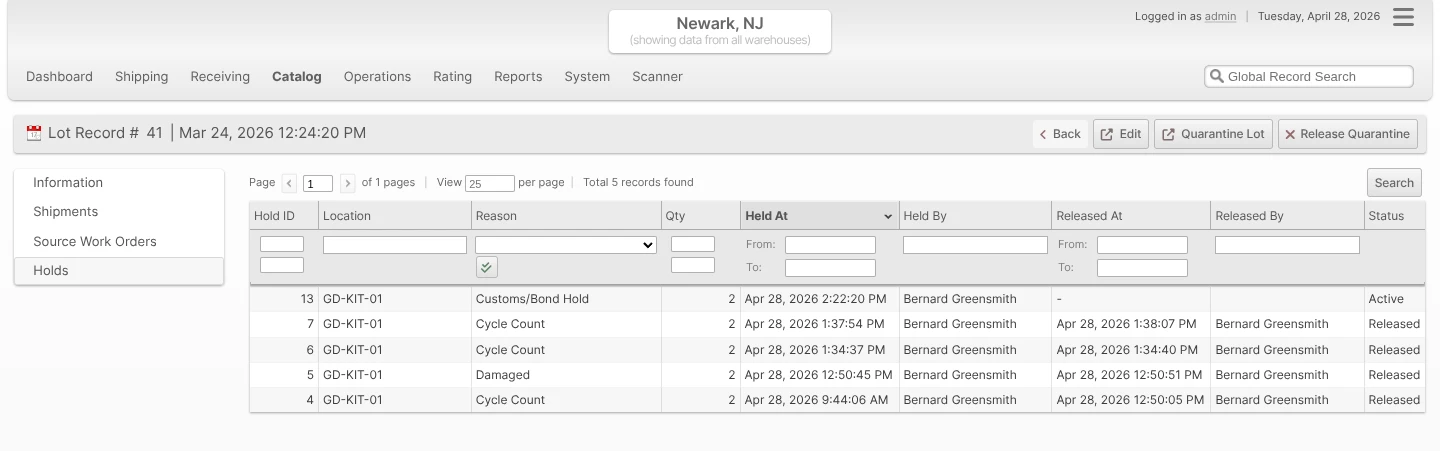
Behind the scenes ShipStream creates one Hold record per affected Location across all Warehouses, each linked to the Lot. The set behaves as a single quarantine for the purpose of release: clicking Release Quarantine on the Lot view releases every active Hold attached to that Lot in one action.
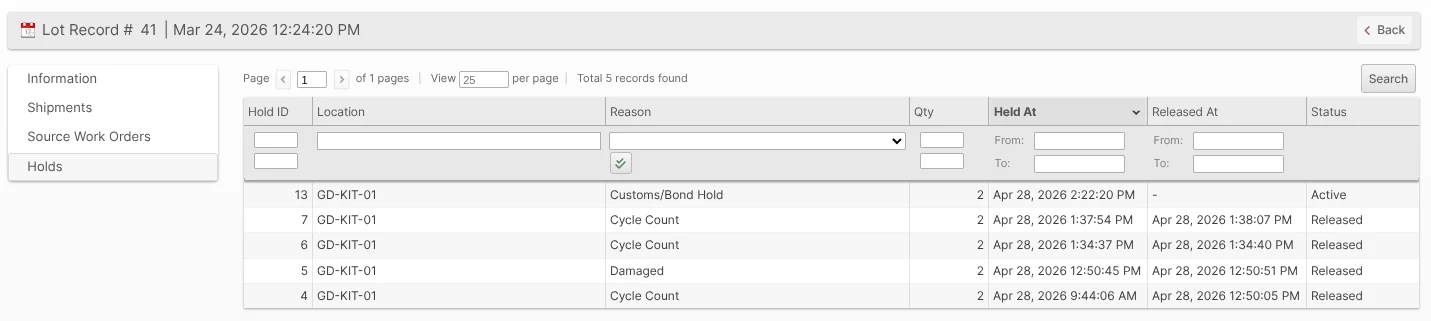
The Lot view displays a Hold Status badge while the quarantine is active. Its Inventory section reports Lot totals for the current Warehouse scope and shows a separate row for each Hold Reason Display Group. The quarantine also covers the Lot's off-shelf Processed and Picked quantities, so a Display Group's held total can be greater than the quantity currently shown across the affected Locations. ShipStream keeps the quarantined Lot active and visible even when all of its quantities are zero, allowing you to see and release the quarantine without inventory first having to return to the Lot.
BOM Lineage Cascade
Lot quarantines can optionally cascade across kitting and de-kitting lineage. This matters most for recalls of food, medical, or hazardous products: quarantining a kit Lot also catches any component Lots that were de-kitted from it, and quarantining a component Lot catches any kit Lots assembled with it.
When cascade is requested, ShipStream traverses the Work Order lineage:
- Forward — from a kit Lot to every component Lot produced when that kit was de-kitted.
- Backward — from a component Lot to every kit Lot assembled using it.
Both directions are walked recursively, so a multi-level lineage (de-kit -> re-kit -> de-kit again) is fully covered. Cross-Merchant lineage is intentionally skipped: a recall on one Merchant's Lot will never cascade onto a different Merchant's inventory.
POST /v1/inventory/holds@lot with cascade_bom=true, or the equivalent Merchant API method). The Admin UI Quarantine Lot popup always quarantines exactly the selected Lot — operators handling a recall that crosses kit/component boundaries should release the cascaded children individually, or trigger the cascade through an integration.Releasing a Hold
Holds can be released from a Location, from a Lot, or from the centralized grid. The held Quantity normally moves back to Unreserved and the Stock Movement Log records a release entry. If an independent Location hold is released while its Lot remains quarantined, the quarantine hold takes over immediately and the Quantity remains held.
- From a Location view page — click Release Hold to release every active hold at that Location.
- From a Lot view page — click Release Quarantine to release every active hold linked to that Lot across every affected Location.
- From Catalog -> Inventory Holds — select one or more rows and choose Release Selected Holds from the mass-action menu.
Automatic Release
A hold exists to freeze inventory, so when a held Location is completely emptied — for example the units are relocated away, or an authorized workflow removes the last of them — ShipStream releases the hold automatically shortly afterward so the empty Location can be reused. The automatic release is logged exactly like a manual one.
Similarly, if an operator puts new inventory away to a held Location that has been sitting empty, the Scanner treats the leftover hold as stale: it releases the hold without requiring confirmation, then applies the governing Lot quarantine if one exists. Putting away to a held Location that still contains inventory keeps the Location hold — the new units join the Location and are frozen with it after the operator acknowledges that warning.
Inventory Holds Grid
The centralized Holds grid lives at Catalog -> Inventory Holds. It defaults to showing every active Hold across every Warehouse you have access to, with the following columns:
Hold ID, Status (Active / Released), Group (Display Group), Warehouse (when you have access to multiple), Merchant (when not in single-website mode), Location, SKU, Product Name, Hold Reason, Qty Held, Lot Number, Expiration, Held Since, Held By, Notes.
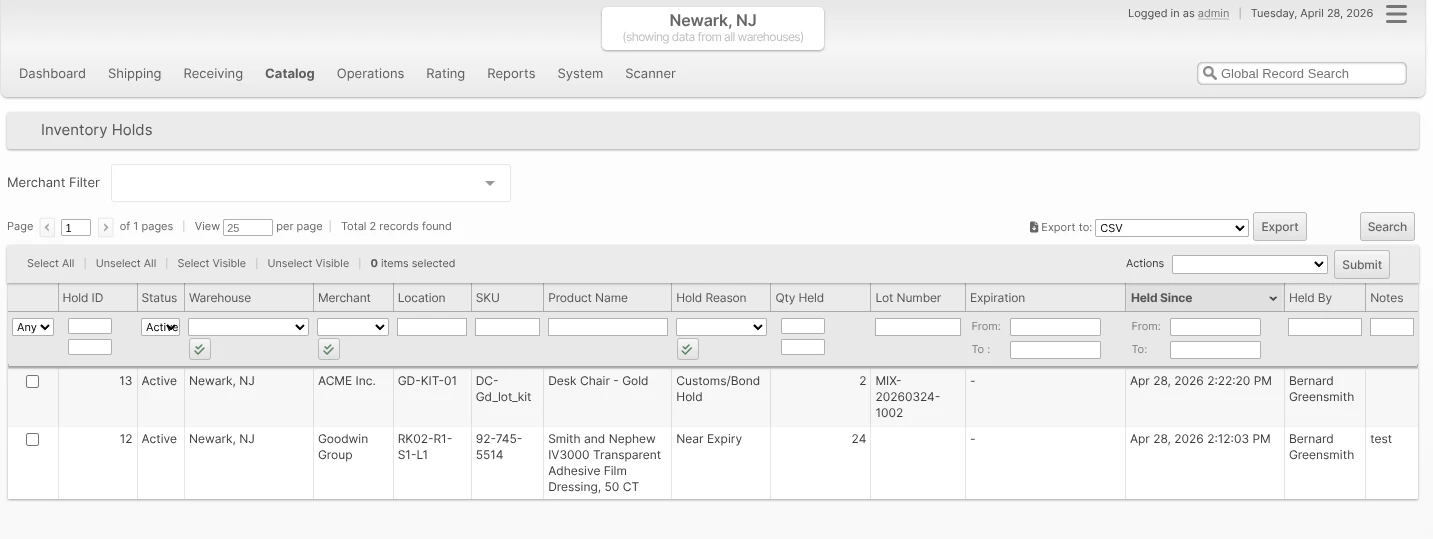
Filters work the same as any other ShipStream grid. Common filtered views:
- Status: Released — audit historical holds, including who placed and released them.
- Group: Expired — see only the inventory currently held under the Expired Display Group, regardless of which underlying Reason was used.
- Hold Reason: Damaged — drill into one specific reason.
- Held Since: last 24h — find brand-new holds, useful in a recall response.
Click any row to open the Location view for that hold. Mass actions support Release Selected Holds; CSV and Excel exports are available from the Export menu.
Active Holds on the Product Inventory tab
Each Product's Inventory tab gains an Inventory Report that breaks Qty Held into one column per Display Group between Picked and On Hand, plus a summary box at the top of the report showing the per-group held totals next to Qty On Hand, Qty Backordered, and Qty Advertised. Below the report, an Active Holds mini-grid lists the currently-active holds on that Product (Warehouse, Status, Reason, Lot Number, Expiration, Location, Held At, Held By, Quantity) so you do not have to leave the Product page to see what is held and why.
Holds in the Client Portal
Merchants get a read-only view of holds on their own inventory at Stock -> Inventory Holds in the Client UI. The grid shows the same Hold information as the Admin UI but excludes any internal Admin user names — only Client user attributions appear in the Held By column. A Merchant cannot place new holds, release existing ones, or manage Hold Reasons.

The Client Product Inventory tab also mirrors the admin layout: per-Display-Group breakdown columns between Picked and On Hand, and the per-group totals beside Qty On Hand and Qty Advertised in the summary box. The Client Lot view displays a read-only Hold Status badge and the same Lot totals and per-Display-Group rows in its Inventory section. A Holds tab shows which Locations of a Lot are currently quarantined and why.
Holds in the Scanner UI
Warehouse operators do not place or release holds from the Scanner — that remains an Admin function. The Scanner is hold-aware in four flows:
- Picking — Order Allocation routes around held inventory, so picks normally never target a held Location. When a hold is placed after a Shipment or Batch was already assigned its pick Locations, the Scanner protects the operator: the pick shows a warning banner ("Location X is on hold and cannot be picked."), the affected item is badged with its Hold Reason, confirming the Product is disabled, and the instructions direct the operator not to scan or pick the item while the Location is held. In a Batch, the message also suggests releasing the hold or removing the Shipment from the Batch.
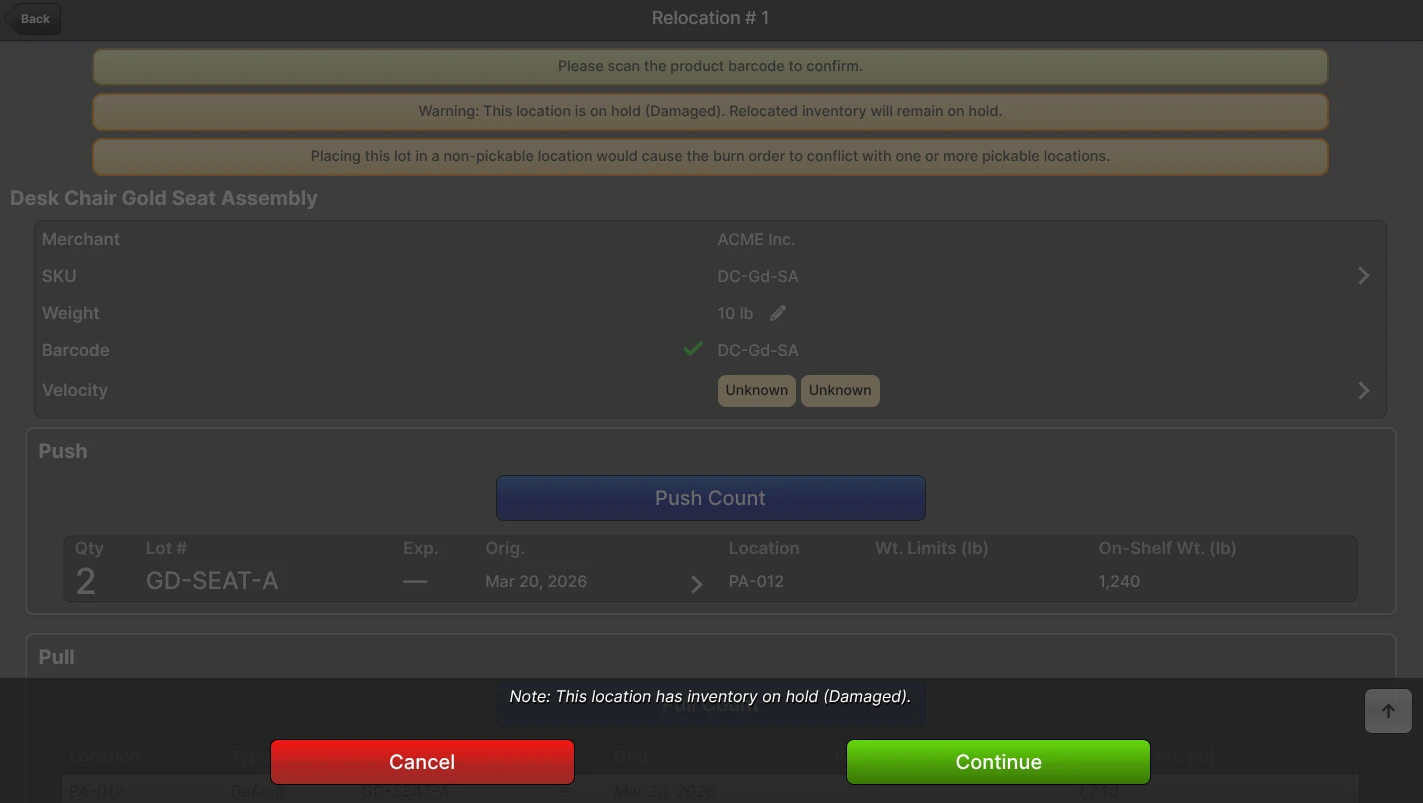
- Relocation — When the source Location is on hold for a reason whose Allow Relocation is No, the Scanner blocks the pull with a buzzer and the message "This location is on hold (Reason). Relocation is not permitted.". When the reason allows relocation, the Scanner shows a warning and the hold travels with the moved units: a partial move splits the hold (the source stays held on whatever remains and releases automatically once drained), and the destination is held under the same reason — merging into an existing same-reason hold if one is present. Held inventory can only move onto an empty Location or one already held under the same reason; moving it onto a different-reason hold or mixing held and unheld stock in one Location is hard-blocked with a buzzer. See Relocating Held Inventory for the operator workflow.
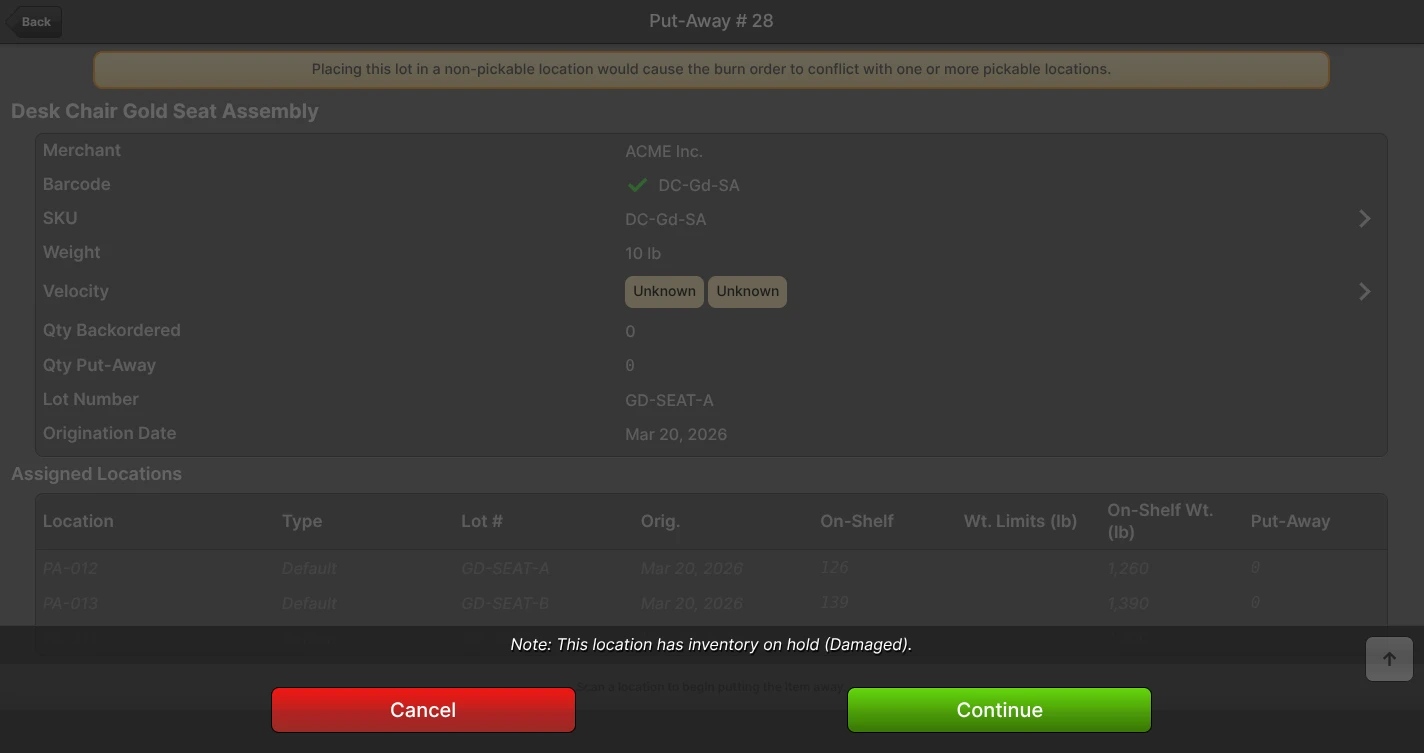
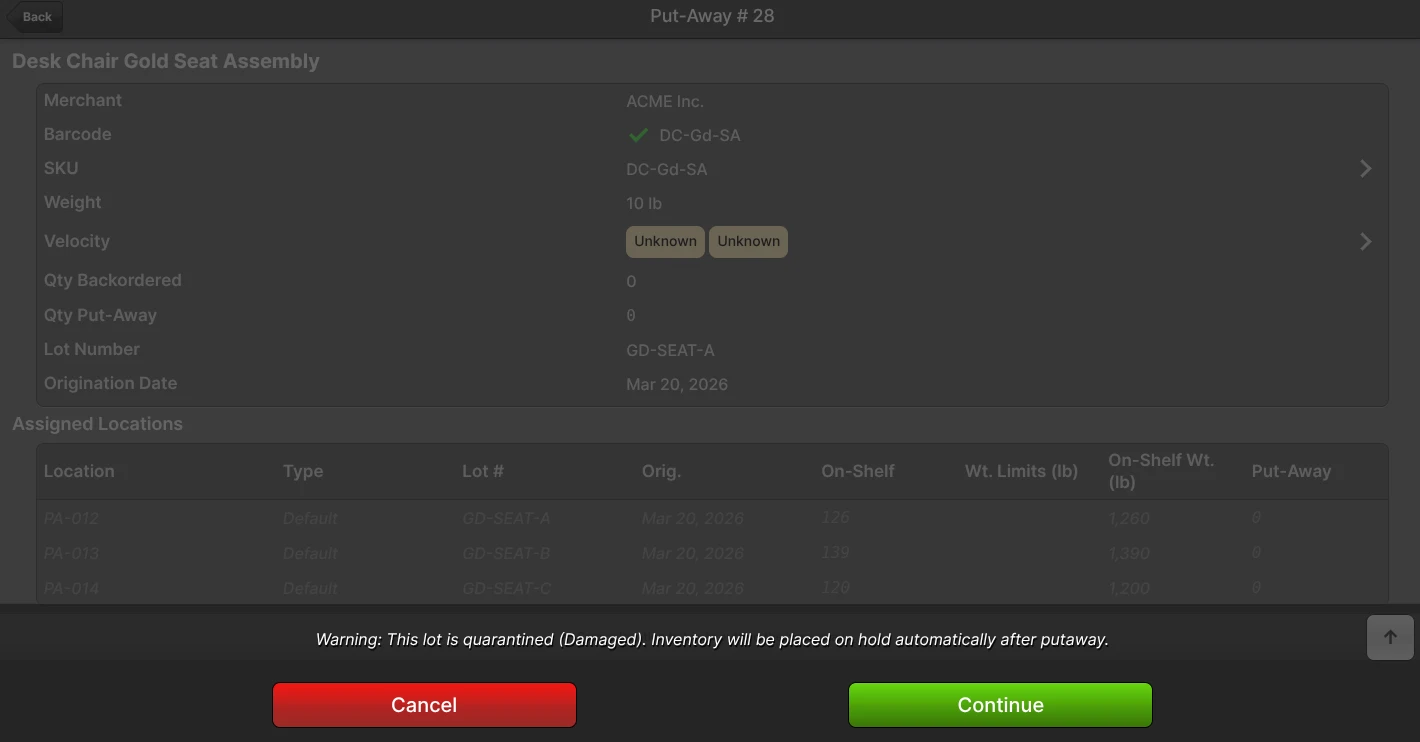
- Putaway — Putting away to a populated held Location is allowed after the operator acknowledges the Location hold warning; the new units join the Location and are frozen by that hold. An empty stale Location hold is released without confirmation. Putting away inventory of a quarantined Lot is also allowed (the priority is to clear the dock). The Scanner shows only the hold that will govern the arriving inventory: a populated Location hold takes precedence, an applicable Lot quarantine warns that the units will be held automatically, and an explicit Location exemption produces no hold warning.
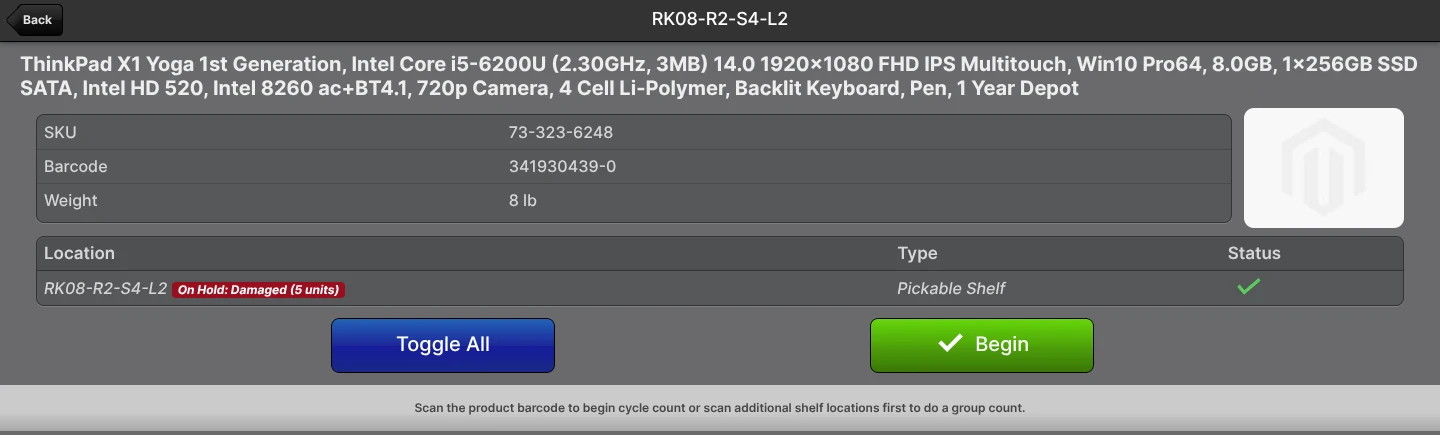
- Cycle Count — When a Location carries an active hold, the location row displays an inline On Hold: Reason badge and the count comment shows the On Hold quantity. You can count the Location up when extra units are found; the additional units remain held and do not increase advertised availability. You cannot count a held Location down. Release the hold or, when the Hold Reason permits it, use Relocation to remove held inventory rather than counting it away. A count also cannot move the inventory onto a different Lot while the Location is held.
Packing and Manifesting do not need any Scanner-specific handling — the model layer blocks Packing in every entry point (Scanner, Admin, Bulk Fulfill) if a Lot becomes quarantined after the Shipment was picked. The Packing rejection message identifies the held Lot and Reason.
Permissions
Hold-related permissions live under two ACL paths:
- Catalog -> Inventory Holds - Grants access to the Inventory Holds grid, the Holds tab on Location and Lot view pages, and the Hold Inventory / Quarantine Lot buttons.
- Catalog -> Inventory Holds -> Release Holds (sub-permission) - Grants access to Release Hold, Release Quarantine, and the grid's mass-action release.
- System -> Operations -> Hold Reasons - Grants access to the Hold Reasons CRUD page.
Configure these on each User Role as appropriate.
API Access
qty_held is exposed on every existing inventory endpoint of the Merchant API and Global API alongside the familiar quantity buckets.
Merchant API additions:
inventory.listandinventory.detailedaccept awithHeldBreakdown=trueflag that adds aqty_held_by_reasonrollup (keyed by parent system Reason code) and, when user-defined Reasons are in play, aqty_held_by_user_reasonmap nested under each parent code. The rollup shape stays stable regardless of which user-defined Reasons you have configured.inventory.lotsreturns per-Lotqty_processed,qty_putaway,qty_unreserved(with the deprecatedqty_availablealias),qty_reserved,qty_held,qty_picked, andqty_on_handtotals, plusis_on_hold,hold_reason,qty_held_by_reason, anddetailedWarehouse quantities.inventory.holdSearchsearches active and released holds with filters for SKU, warehouse, reason code, lot, status, and date range, with standard pagination.inventory.holdReasonsreturns the list of currently-active, Merchant-scoped Hold Reasons (code,label,display_group) so integrations can render Reason dropdowns without hard-coding the catalog.
Global API additions:
qty_heldis added toGET /v1/inventory/levels/totaland/warehouse.GET /v1/inventory/holdslists holds across all merchants with filters for merchant, warehouse, product, lot, reason, status, and held-at date range.POST /v1/inventory/holds@locationandholds@lotplace location- and lot-scope holds; the lot endpoint acceptscascade_bom=trueto walk BOM lineage.POST /v1/inventory/holds/{id}/releaseandholds@lot/{lot_id}/releaserelease a single hold or every active hold for a lot.GET /v1/inventory/hold-reasonsexposes the cross-merchant Hold Reason catalog.
Hold Reasons are also exposed through System -> Enumerations under the Catalog -> Hold Reasons category for any integration that already consumes the Enumerations feed.
EDI Reporting
The SPS Commerce integration reports held inventory on outbound EDI 846 (Inventory Advice) and EDI 947 (Warehouse Inventory Adjustment Advice) documents. Each subscription carries two reason-code maps — one for 846 Quantity Qualifier codes, one for 947 Adjustment Reason codes — that translate ShipStream Hold Reasons into the codes your trading partner expects. See the Hold Reason EDI Mappings section of the SPS Commerce integration page for the full default tables and instructions for overriding the maps per subscription.
See Also
- Lots/Expirations Tracking - especially the Automatic Hold on Expiration section for the daily expiry sweep.
- Stock Movement Log - audit trail for every hold placement and release.
- Relocations - hold splitting and merging, the no-mixing rule, and the SKU-conversion guard for held inventory.
- Cycle Count and Inventory Adjustments - how cycle counts behave at locations with held inventory.