

Import Bill of Materials
ShipStream allows users to import Bill of Materials from CSV, Excel, or JSON Lines files. This article explains the following topics:
Start Bill of Materials Import Task
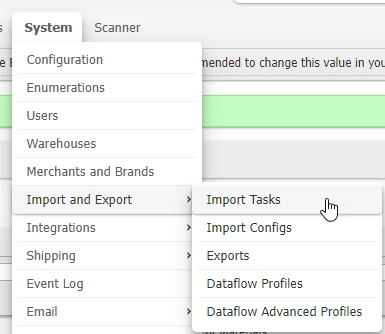
- Navigate to System > Import and Export > Import Tasks.
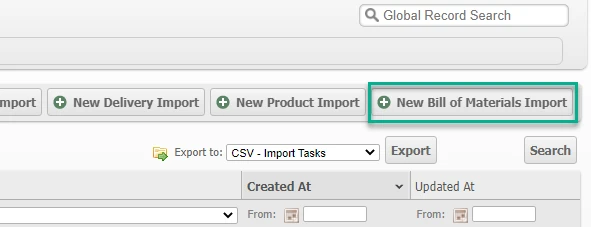
- Click New Bill of Materials Import.
- On the "New Bill of Materials Import Task" page, choose the Merchant Name associated with the BOM products. This field only appears when more than one Merchant exists.
- Click Choose File next to File to select your BOM import file. Allowed file types are xls, xlsx, csv, txt, json, gz, and bz2. If you do not yet have a file, follow the instructions to Format the Import File.
- Only one option for Handle Duplicates is supported for Bill of Materials. "Create" creates the BOM regardless of whether a BOM already exists for the SKU.
- To receive an email notification when the BOM Import Task is complete, set Send Email on Complete to "Yes" and confirm the Email address, which defaults to your own. The BOM Import Task can take a moment when importing large files.
- Click Import. The "Import Status" progress bar shows the progress of the Import Task, and you are taken to the "View Import Task" page once it completes.
Import Bill of Materials Troubleshooting
If your Import Task fails, there will likely be an error included on the task page. This can occur if a BOM component can not be found, or if there is a typo in the attribute names.
- From the Progress page, click View Import Task. Or if you are on the Import Tasks grid, click the Import Task.

- Click the Records tab.
- The error message will appear in the Parse Error or Submit Error column. You can click the record to view the specific error message.
Format the Import File
The "New Bill of Materials Import Task" page links to a sample template in each supported format, or you can create a file from scratch. Click CSV (Comma-Separated Values), Microsoft Excel, or JSON Lines to download a sample, or click View Documentation for the complete format reference.
In CSV and Excel files, each row represents one BOM component. Rows with the same id are combined into the same BOM, and the BOM-level (non-component) fields do not need to be repeated on every row of that BOM. In JSON Lines files, each line represents one BOM, and its components are listed in a components array where each entry has a sku and a qty.
To better understand the attributes, please see the table below.
BOM Attributes
The following table contains examples and definitions for import file BOM attributes.
General
| Attribute ID | Description | Example |
|---|---|---|
| id | The "id" column is not stored but is required to associate multiple rows in the import file as belonging to the same record. All rows belonging to the same BOM must have the same id and the id must not be used to describe multiple BOMs in the same import file. | 1 |
| name | The "Name" attribute. A descriptive, but not necessarily unique, identifier for the BOM product. *Required | Generic Parts Pack |
| sku | The "SKU" attribute. A unique identifier for the resulting BOM product to be created or modified (if exists). | BOM-PARENT-001 |
| yield_qty | Quantity produced after "Bill of Material" is performed. *Required | 2 |
| is_kit_on_demand | Set this flag "yes" if items are picked when the order is fulfilled. This is done during the picking process. | yes |
| is_kit_to_stock | Set this flag to "yes" if items are assembled, barcoded, and stocked on shelf. | yes |
| assembly_instructions | Instructions displayed to the scanner user at the Work Order screen | Cover with plastic protection. |
| priority | If multiple BOMs are defined for a SKU, then they will be processed in ascending order of this field. An integer. | 0 |
| component_sku | The product SKU of the component. | component-A |
| component_qty | The quantity of the component item consumed by the BOM. A positive integer. | 1 |