

Packing Instructions
Packing Instructions allow additional information to be attached to an order regarding how it should be packed as well as PDF documents which should be printed and inserted/affixed to an order during packing. Some examples where this feature may be useful would include:
- Bill of Lading for LTL or other pre-paid shipping label
- Box content information for FBA shipments to Amazon
- Customized promotional material (order-specific)
- Instructions regarding which size box to use
- Instructions regarding special handling of items (e.g. "Do not stack")
Packing Instructions can be added via the Admin or Client UI during order creation or after, as well as through the API.
Add Packing Instructions
From the Order page when creating a new Order click the Add button on the Packing Instructions header, or from an existing order click Edit in the Packing Instructions section.
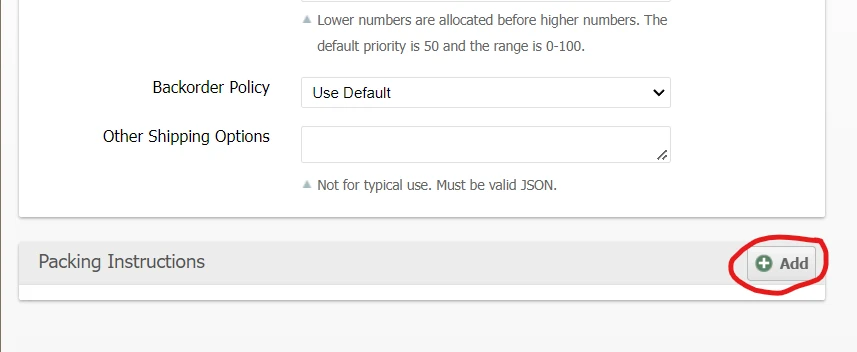
Then proceed to fill the form fields. You may click Add multiple times to add additional Packing Instructions as needed.
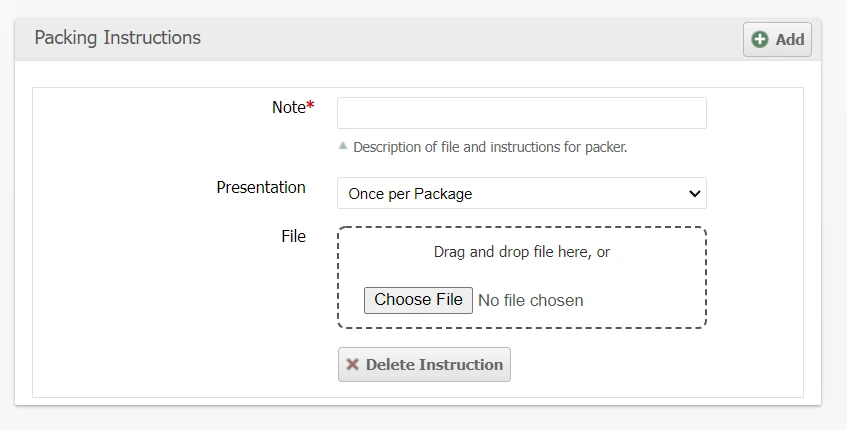
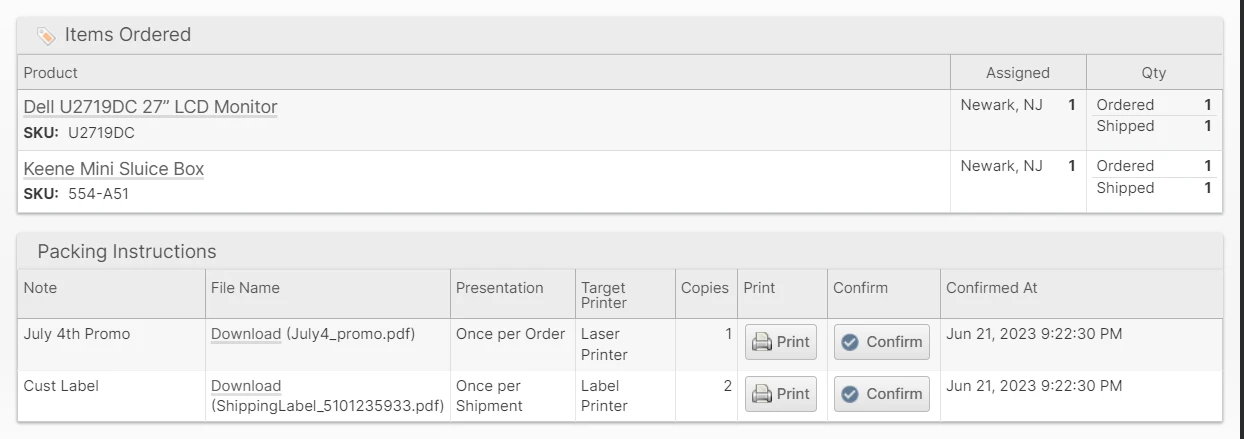
Each Packing Instruction will have a "Note" which will be displayed to the packer in a modal notification requiring a confirmation from the packer. The Packing Instruction "Presentation" has three options which determine the timing of this notification and how many confirmations are required to satisfy the Packing Instruction.
- Once per Order (the first package of the first shipment)
- Once per Shipment (the first package of each shipment)
- Once per Package (each package of each shipment)
Print Jobs
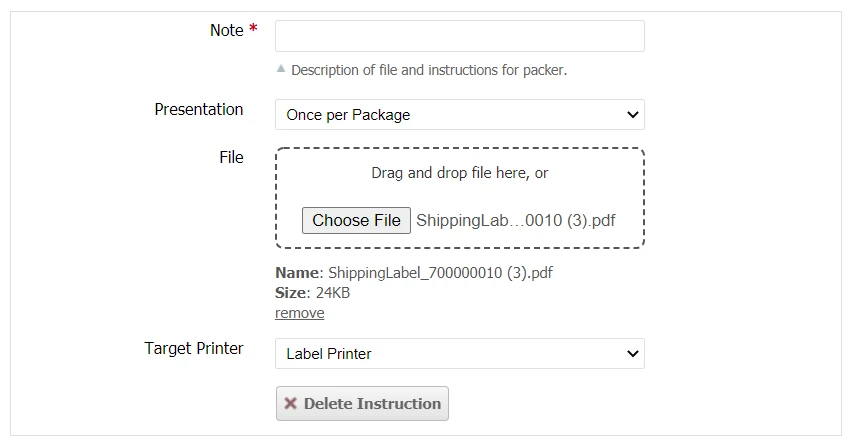
If a File is added, the "Target Printer" specified will determine which printer type the print job will be sent to. The "Presentation" will also determine how many copies of the file to send to the printer depending on how many shipments or packages are used to complete the order.
Scanner UI
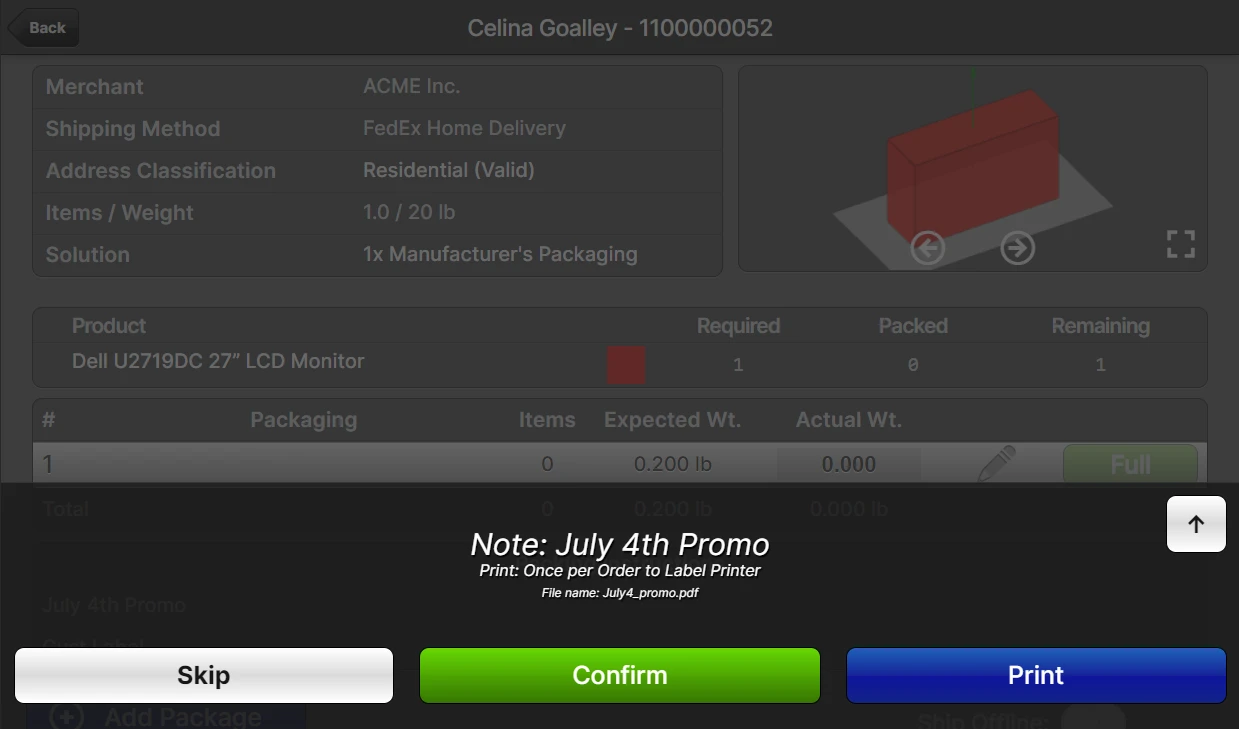
The Packing Instruction Note will be presented to the packer in the Scanner UI the appropriate number of times based on the Presentation option. If a file was attached, the user may tap Print to immediately print the document to the selected printer based on the Target Printer type.
The user must then tap either Confirm to acknowledge the instruction was followed or Skip to dismiss the dialog without confirming.
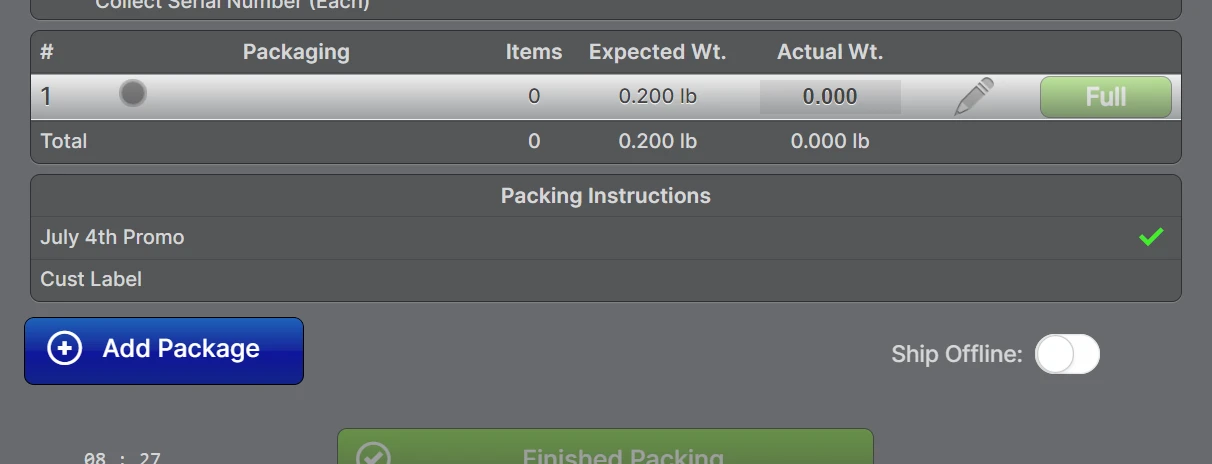
The timestamp at which the user finished packing will be recorded and visible on the order page.
Scripts
Packing Instructions can also be attached to orders through the API and using a Before Create Order Script with the order.options.instructions field.