

Rate Groups and Plans
A Rate Group consists of a set of Rate Plans. A Rate Plan consists of a set of monetary amounts that are applicable to one or more given address classifications, and one or more shipping services for a given carrier. Having at least one Rate Group with a complete set of Rate Plans forms the foundation for ShipStream's Rate Shopping system.
Overview
A Rate Group and a Base Rate Group allow you to group multiple Rate Plans together and reference them as a single unit. For example, if you wish to offer clients three different pricing tiers, each tailored to different target markets, you could create three separate rate groups.
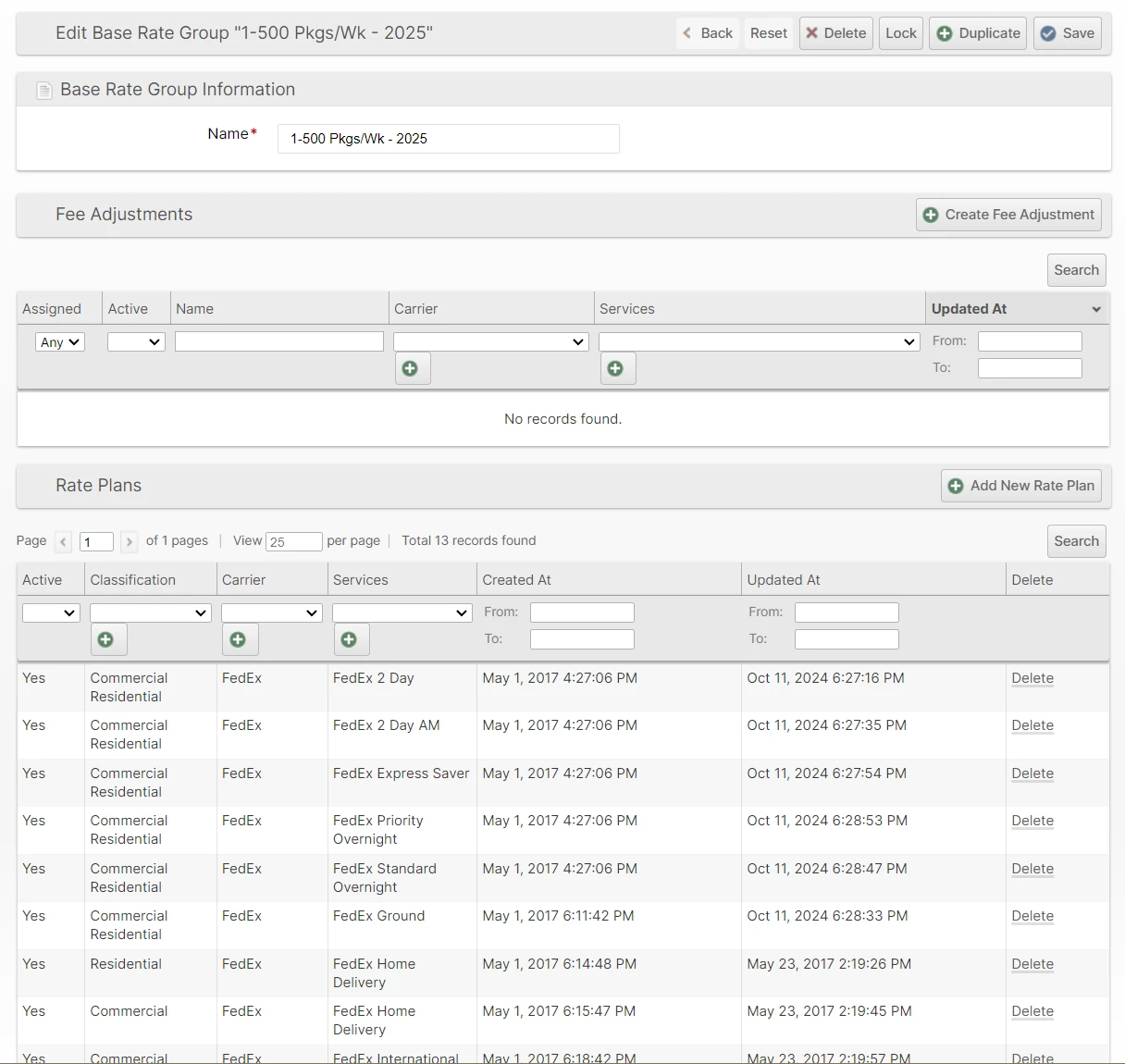
A Rate Plan is the building block of Rate Groups. You will need to create a new Rate Plan for each shipping service you want to include in your rate shopping experience.
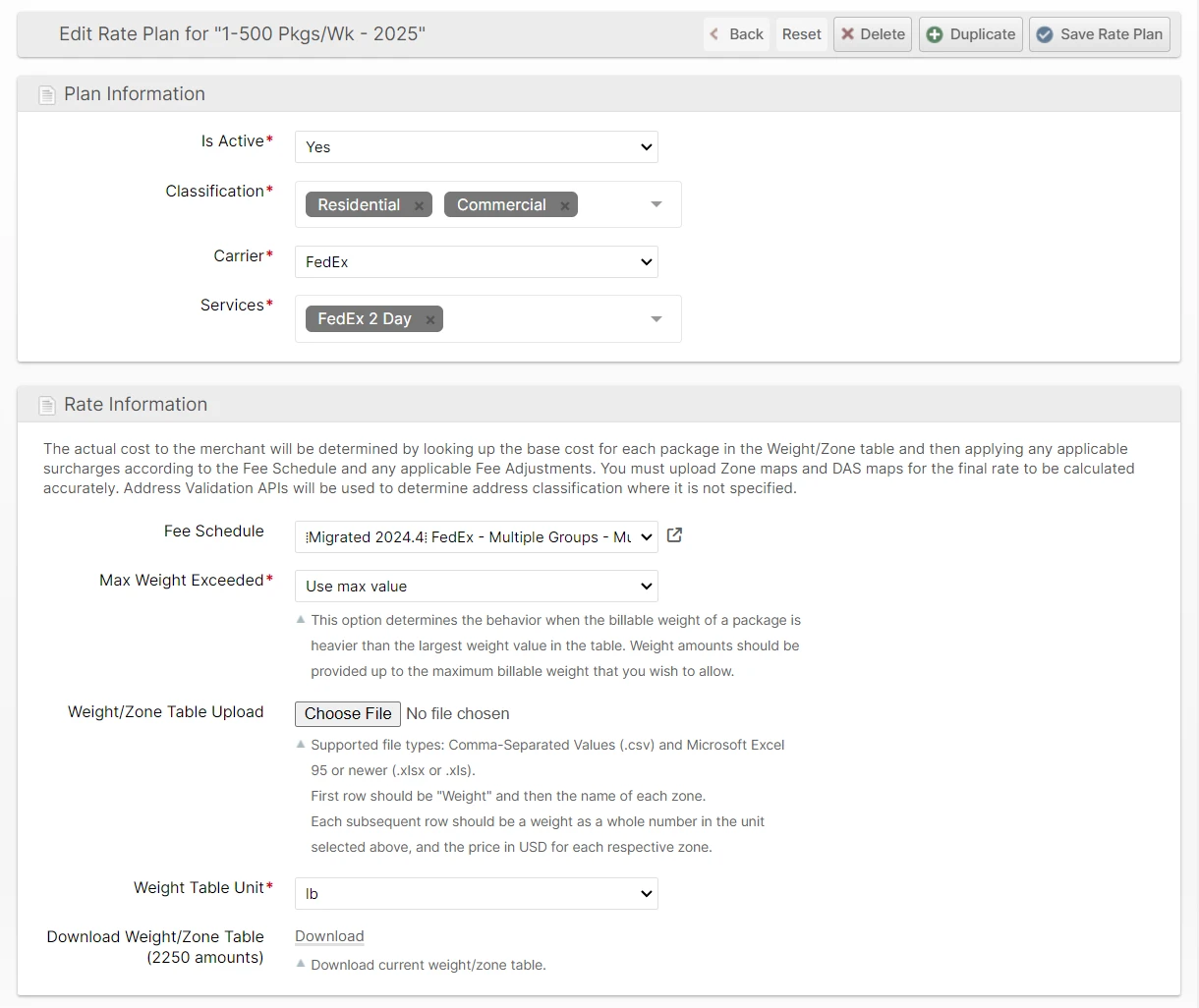
Rate Plans usually use a Weight/Zone table to define the base cost of a shipping charge. Since the Zone is an approximation of distance, the same Rate Plan can be used for multiple warehouses with the difference in distance between an origin and a destination being accounted for by the Zone Maps. USPS Cubic Rate Plans use the same table format, but the first column represents cubic-foot tiers instead of package weight.
Weight/Zone Table Example
The first column is the single-package weight at which the rate will apply, and each additional column contains the zone name in the header row and the cost amount corresponding to each package weight.
| Weight | Zone 1 | Zone 2 | Zone 3 | Zone 4 | Zone 5 | Zone 6 |
|---|---|---|---|---|---|---|
| 1 | $5.95 | $5.95 | $6.46 | $6.56 | $6.73 | $6.86 |
| 2 | $6.52 | $6.52 | $6.6 | $6.83 | $8.15 | $9.19 |
| 3 | $6.61 | $6.61 | $7.38 | $7.86 | $9.5 | $11.81 |
| 4 | $6.83 | $6.83 | $7.62 | $8.72 | $10.5 | $13.77 |
| 5 | $7.17 | $7.17 | $8.01 | $9.19 | $10.95 | $15.68 |
| 6 | $7.52 | $7.52 | $8.44 | $9.54 | $13.64 | $17.59 |
| ... | ... | ... | ... | ... | ... | ... |
USPS Cubic Pricing
When the Carrier is USPS, the Rate Plan form shows a Pricing Type field.
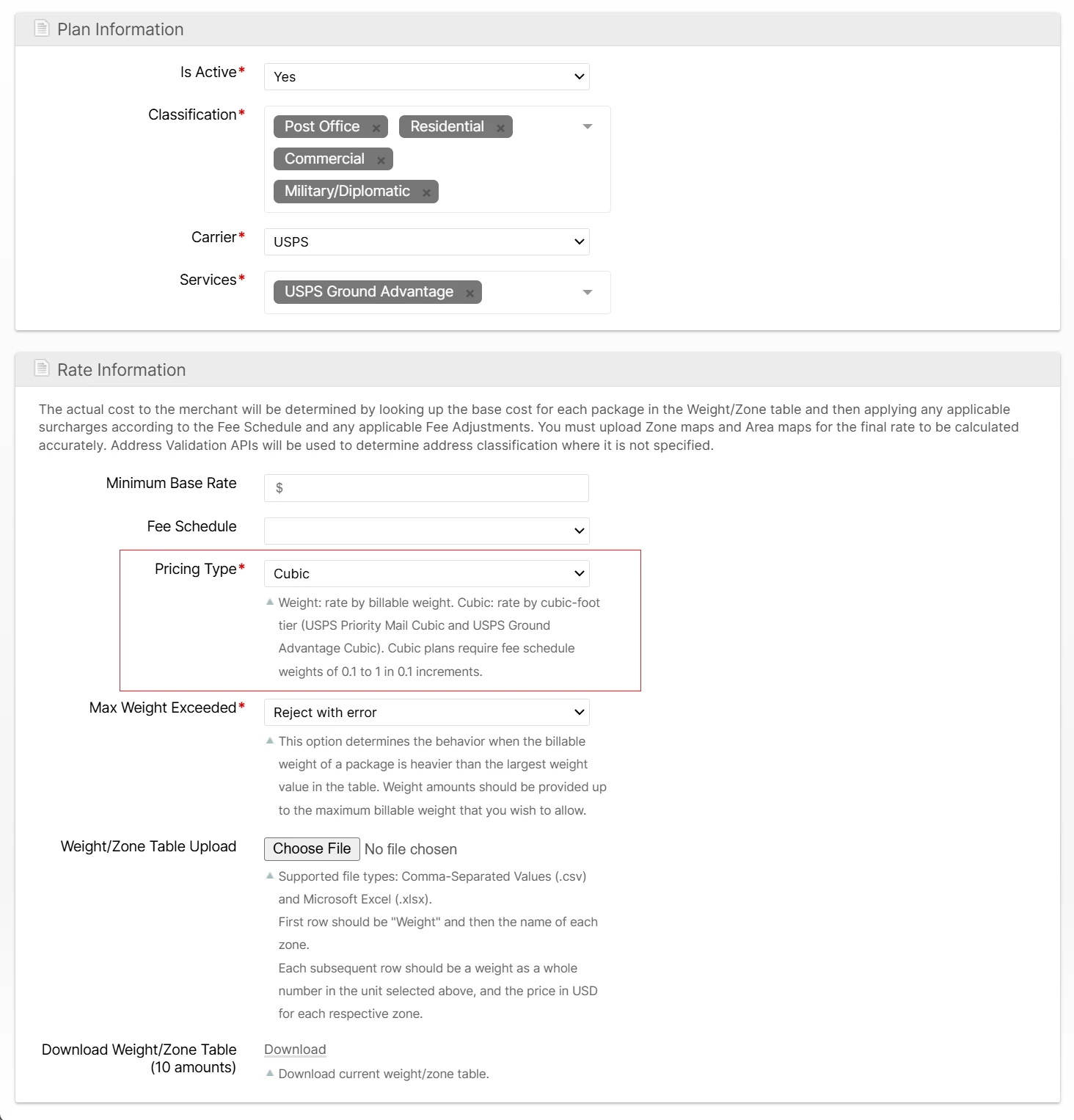
- Weight - Rates packages by billable weight. This is the default for existing and new Rate Plans.
- Cubic - Rates eligible USPS Priority Mail Cubic and USPS Ground Advantage Cubic packages by cubic-foot tier.
For a Cubic Rate Plan, upload the same Zone table layout you use for Weight plans, but enter cubic tiers in the first column instead of whole pounds:
- USPS Priority Mail Cubic accepts 0.10, 0.20, 0.30, 0.40, and 0.50.
- USPS Ground Advantage Cubic accepts 0.10 through 1.00 in 0.10 increments.
ShipStream validates the uploaded table for the selected Pricing Type. Weight plans require whole-number weight rows, and Cubic plans require exact cubic-tier rows so ShipStream can match the package to the correct tier without rounding your rate table.
If you change the Pricing Type on an existing Rate Plan that already has table rows, upload a replacement table in the same save. ShipStream blocks the change without a replacement table because the existing first-column values would mean different things under the new Pricing Type.
USPS Cubic pricing is applied package-by-package when the package is eligible for the selected USPS service. The package must be 20 lb or less, have no side longer than 18 inches after USPS quarter-inch round-down rules, and fit within the service's cubic or soft-pack limits. See USPS DMM 223 and DMM 283 for the carrier rules. If a package is not eligible for a Cubic Rate Plan, ShipStream continues looking for a matching Weight Rate Plan so Rate Shopping can still return a usable rate.
When you use Rating > Rate Calculator to test a package that resolves to a Cubic Rate Plan, the Query Result section shows Pricing Type and Cubic Tier so you can confirm which tier selected the base amount.
Rate Groups vs Base Rate Groups
To reduce data duplication and entry overhead, you can use a Base Rate Group and then other Rate Groups may inherit the Rate Plans from this group using the Inherit Plans From option. A Base Rate Group cannot be used directly in a Merchant Rate, so their only purpose is for being referenced by the Inherit Plans From option of one or more Rate Groups.
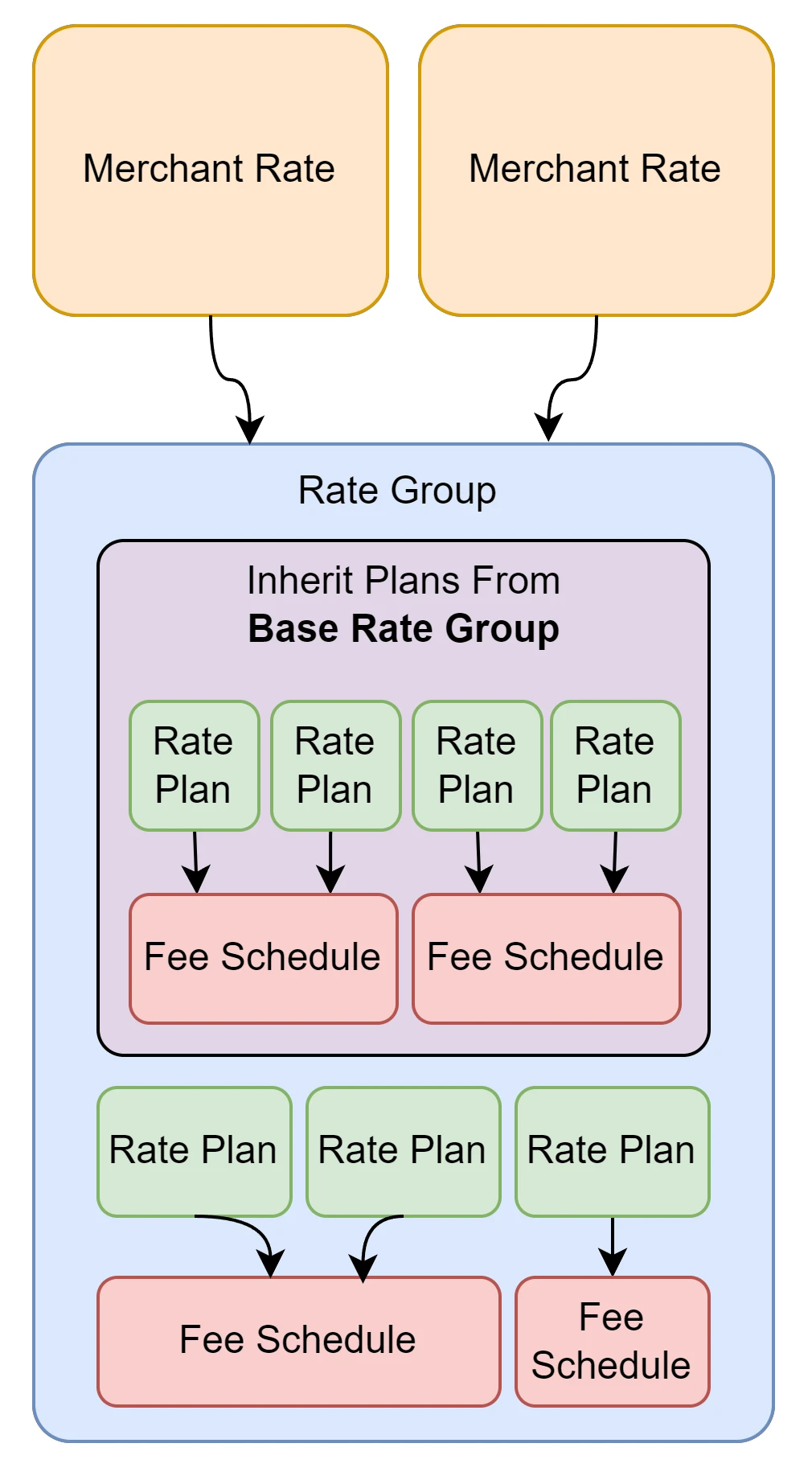
When a rating query is being processed, ShipStream will seek to locate a Rate Plan that meets the criteria of the address classification and shipping method. For this purpose, the Custom Rate Plans defined in a Rate Group will override the Rate Plans inherited from the Base Rate Group.
However, overriding rate plans is not the only purpose of using a base rate group. You can also use multiple rate groups which inherit from the same Base Rate Group but have different Fee Adjustments.
Add a Base Rate Group
Follow these instructions to create a Base Rate Group.
- Navigate to Rating > Rate Groups
- Click Base Rate Groups
- Click Add New Base Rate Group
- Enter an informative Name (or something simple like "Default") and click Save
Add Rate Plans for each shipping service by repeating the steps below for each shipping service:
Click Add New Rate Plan
New plans are Active by default. You can manipulate the Active status of rate plans that would otherwise overlap to set up and test new rate plans for the same service without clobbering existing data.Select the appropriate address Classification options to which the plan will apply
There is a Residential Surcharge fee type, so if the residential surcharge is a flat fee, you do not need to upload two separate tables for Commercial and Residential. In this case, you should upload only one rate plan and add a Residential Surcharge to the Fee Schedule.- Select the Carrier and the Services (only select multiple services if they share the exact same fee structure)
- If the Carrier is USPS, choose the Pricing Type. Use Weight for standard Weight/Zone tables, or Cubic for USPS Cubic tables.
- Choose a Fee Schedule (These are best created in advance, but they are optional, so you can come back and select one later but don't forget!)
- Choose the desired behavior for Max Weight Exceeded
- Click Choose File to select a file containing the Weight/Zone amounts, or cubic tier/Zone amounts for a USPS Cubic Rate Plan
- If the Weight Table Unit field is visible, select the unit assumed in the weight column of the table. This field is used for Weight plans and is hidden for Cubic plans.
- Click Save Rate Plan
Add a Rate Group
- Navigate to Rating > Rate Groups
- Click Add New Rate Group
- Enter an informative Name for your rate group
- Optionally, choose a group for Inherit Plans From to re-use the plans from a Base Rate Group
- Click Save
Add Rate Plans for each shipping service by repeating the steps below for each shipping service:
Click Add New Rate Plan
New plans are Active by default. You can manipulate the Active status of rate plans that would otherwise overlap to set up and test new rate plans for the same service without clobbering existing data.Select the appropriate address Classification options to which the plan will apply
There is a Residential Surcharge fee type, so if the residential surcharge is a flat fee, you do not need to upload two separate tables for Commercial and Residential. In this case, you should upload only one rate plan and add a Residential Surcharge to the Fee Schedule.- Select the Carrier and the Services (only select multiple services if they share the exact same fee structure)
- If the Carrier is USPS, choose the Pricing Type. Use Weight for standard Weight/Zone tables, or Cubic for USPS Cubic tables.
- Choose a Fee Schedule (These are best created in advance, but they are optional, so you can come back and select one later but don't forget!)
- Choose the desired behavior for Max Weight Exceeded
- Click Choose File to select a file containing the Weight/Zone amounts, or cubic tier/Zone amounts for a USPS Cubic Rate Plan
- If the Weight Table Unit field is visible, select the unit assumed in the weight column of the table. This field is used for Weight plans and is hidden for Cubic plans.
- Click Save Rate Plan