
Cycle Count and Inventory Adjustments
Cycle counting is the process of physically counting the inventory at a location and reconciling it against the quantity ShipStream has on record. It is the primary tool for detecting and correcting discrepancies — shrinkage, mispicks, receiving errors — without shutting down warehouse operations for a full physical inventory.
Every cycle count, whether performed via the Scanner or the Admin UI, is recorded as a Stock Take with a full audit trail: what was expected, what was counted, who counted it, and what happened next. Depending on your configuration, variances can be applied automatically or held for review by a supervisor before any inventory adjustment is made.
Performing a Cycle Count via the Scanner
The Scanner is the recommended way to perform cycle counts. From the Scanner menu, navigate to Cycle Count. Scan or type the barcode of the location you want to count. The Scanner will show you the product assigned to that location and prompt you to enter the quantity currently on the shelf.
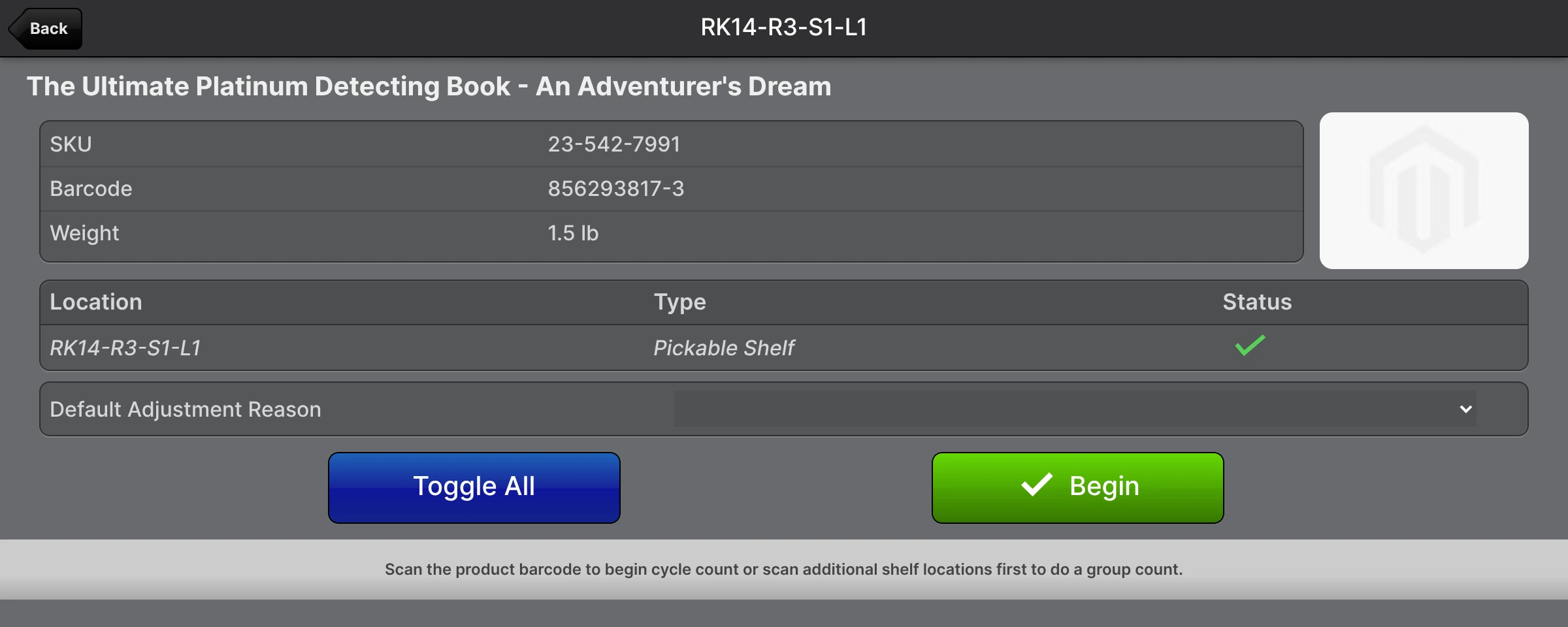
After submitting a count, the Scanner creates a Stock Take record:
- If the quantity you entered matches the system quantity, the take is recorded with status Same and no inventory adjustment occurs.
- If the quantity differs, the take is recorded with status Different. Whether the variance is immediately applied to inventory or held for supervisor review depends on whether Require Cycle Count Validation is enabled (see Cycle Count Validation below).
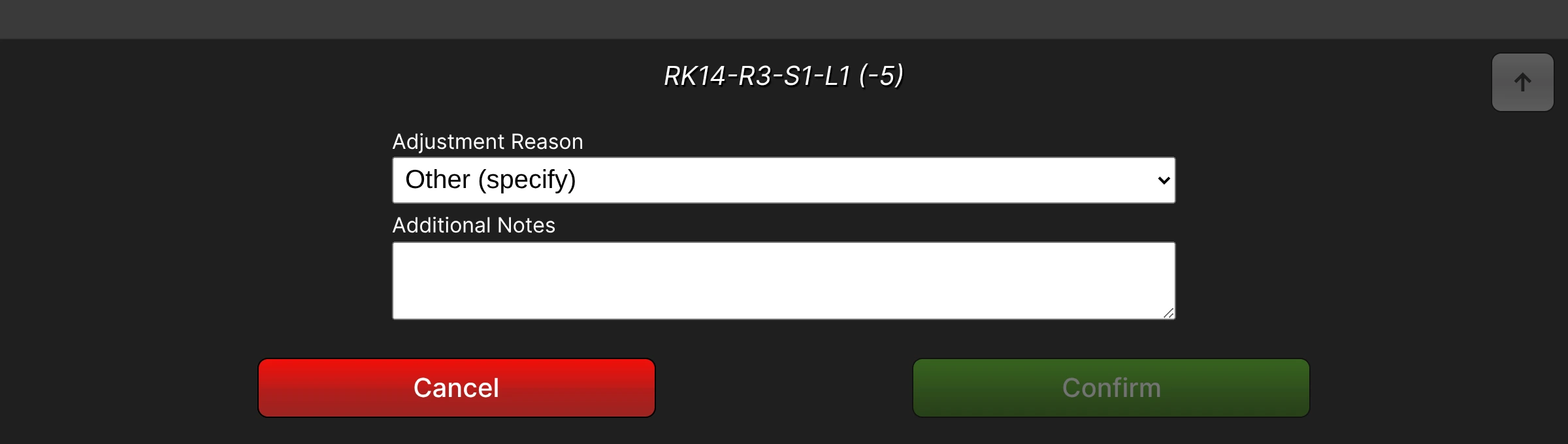
When Require reason for stock adjustment is enabled, the Scanner lets you set a default Adjustment Reason for your counting session so you do not have to choose one for every variance, and you can override the reason on any individual count that needs a different one. A short note is only requested when you pick a reason that requires one (such as Shrinkage or Other), keeping the counting flow fast.
Stock Take History
Every count is saved permanently as a Stock Take, giving you a complete record of cycle count activity across your warehouse. You can view all takes at Operations → Cycle Count → Stock Takes.
The grid is filterable by warehouse, location, SKU, status, Adjustment Reason, counted-by user, and date range, making it straightforward to review count activity for a specific merchant, a specific location, or a specific time period. Clicking a row opens the Stock Take detail page showing the full count record.
Location View Page
The Location View page summarizes everything you need to know about a Location at a glance: location details, the assigned Product, current inventory quantities, and the three most recent stock takes. Clicking a Location opens this page from anywhere it is listed — the Operations → Cycle Count grid, the Locations grid at Operations → Warehouse → Locations, the Locations list on a Rack, the Inventory Holds grid, a Lot, a Stock Take, or the Stock Movement tab on a Product or an Order — and a Product's Inventory tab links to it with View Location.
Beside the Information summary, three more tabs — Stock Takes, Stock Movements, and Holds — provide access to the full count history, every stock movement record, and the hold history for that Location. In the top-right, Edit Location opens the location edit form if you need to update location settings, and Hold Inventory (or Release Hold, when the Location is already held) places and releases an Inventory Hold. Back returns you to the page you arrived from, so you land back on the grid, Lot, Stock Take or Product you were working in rather than somewhere else.
Cycle Count Validation {#validation}
By default, a count with a variance is applied immediately: the inventory quantity at the location is adjusted right away and a stock movement is logged. If you want a supervisor to review variances before they affect inventory, enable Require Cycle Count Validation at System → Configuration → Stock → Cycle Count.
When validation is enabled:
- Counts with no variance (Same) are recorded and considered complete — no review is needed.
- Counts with a variance (Different) are held in a pending state. The inventory quantity is not changed until a validator acts on the take.
A validator with the Cycle Count → Validate permission can open a pending take from the Stock Takes grid and take one of three actions:
- Approve — accepts the count as correct and applies the variance to inventory. When Require reason for stock adjustment is enabled, the validator selects an Adjustment Reason as part of approving, since this is the point at which the inventory actually changes. Any other pending takes for the same location from other users are automatically superseded (closed with no adjustment).
- Reject — dismisses the variance with an optional comment. The existing inventory quantity is left unchanged; the original system quantity is assumed correct.
- Update — rejects the original take and records a new corrected quantity on the validator's behalf, which is applied immediately. Use this when the validator physically recounts the location and finds a different quantity than what was originally submitted.
Self-Approval
By default, the user who performed the count cannot also approve their own take (Allow Self-Approval: No). This enforces a true two-person review: one person counts, a different person approves. A user with the Cycle Count → Validate → Self-Approval permission can override this restriction, which is useful for giving full administrators the ability to manage their own corrections when needed.
Multiple Pending Takes
A user may only have one pending take per location at a time. If a user submits a new count for a location where they already have a pending take, the earlier take is automatically superseded (rejected) and the new count becomes the active pending take. This prevents stale counts from accumulating from the same counter.
Multiple pending takes from different users can coexist for the same location. Approving any one of them supersedes all others.
Adjusting Inventory via the Admin UI
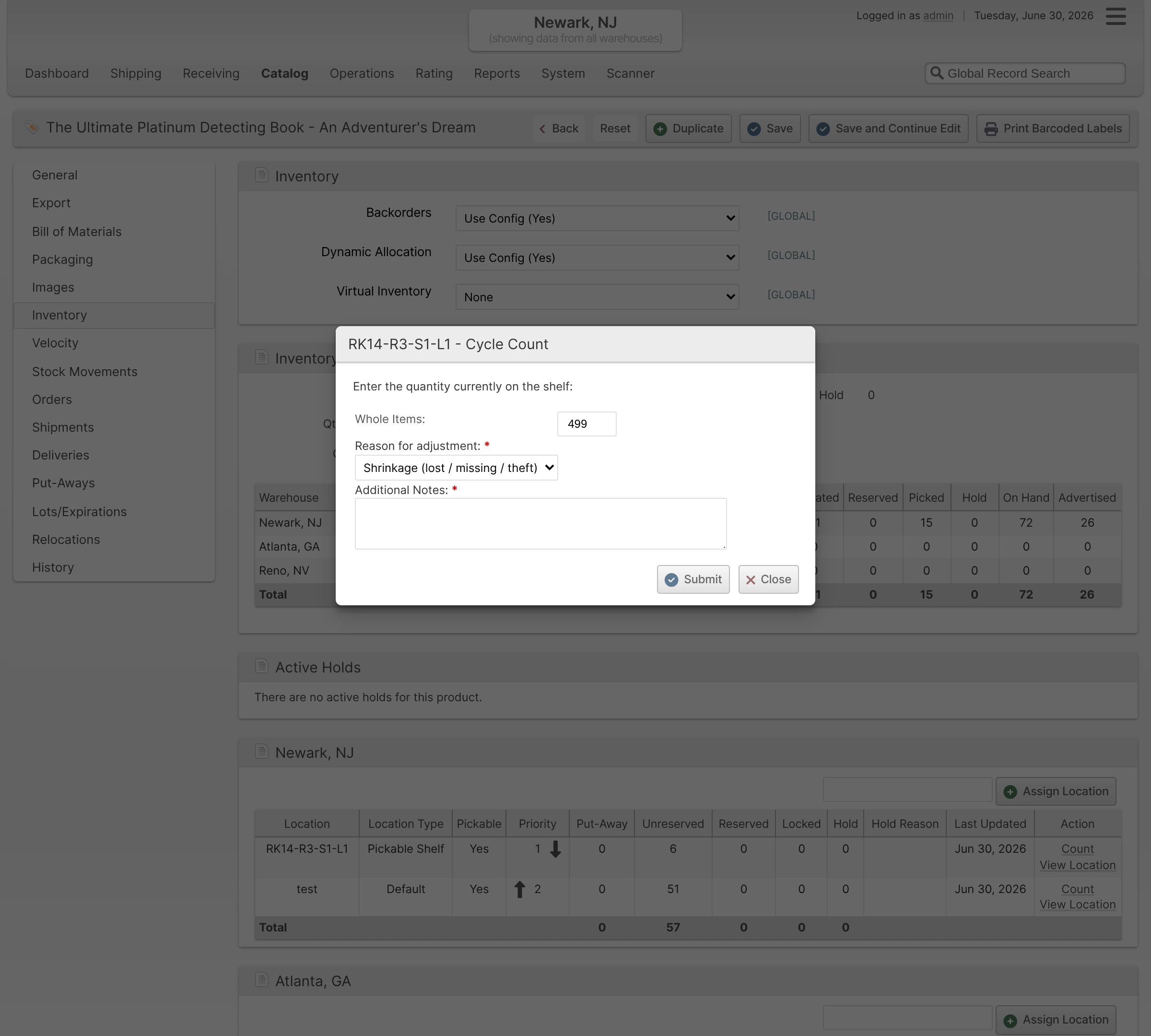
If you need to correct an inventory quantity from the Admin UI without using the Scanner, you can do so from the product's Inventory tab.
- Find the product in Catalog → Products (or use the Global Record Search in the top-right to search by product name, SKU, or barcode).
- Open the product and click the Inventory tab in the left-side menu.
- Scroll down to the warehouse panel that contains the location you want to adjust.
In the location row, click Count in the Action column.
SCREENSHOT: Product Inventory tab showing the Newark, NJ warehouse panel with location SH-L1 row and the "Count" and "View Location" links visible in the Action column- A dialog appears. In the Whole Items field, enter the total quantity currently on the shelf at that location (not the adjustment amount — the full count).
Choose an Adjustment Reason from the dropdown — for example, Cycle Count Variance, Found / Located, Damaged, or Shrinkage. This classifies why the inventory changed so the adjustment can be reported on and reconciled. A few reasons (such as Shrinkage and Other) also prompt you to enter a short note explaining the change.
A reason is required when Require reason for stock adjustment is enabled for the Merchant (see the note below). When it is not enabled the dropdown still appears but may be left unset.- Optionally, add Additional notes to give other users more context about the change. (When a reason that requires a note is selected, this field becomes required.)
- Click Submit.