

Amazon Selling Partner
With the Amazon Selling Partner Merchant Integration you can create labels through ShipStream on your own Amazon Selling Partner account. This is referred to by Amazon as "Buy Shipping" and is a requirement if you are in the Seller Fulfilled Prime program. In a nutshell, ShipStream will use your Seller Central account to buy shipping for your Amazon orders and receive and print the label using a completely seamless integration.
Authorize ShipStream
In order to use Amazon's "Buy Shipping" API the seller must first authorize ShipStream to act on their behalf.
- Navigate to System > Integrations > Merchant Integrations.
- Click Add New Subscription.
- Choose the Merchant to which the Amazon Seller Central account belongs.
- Click the Amazon Selling Partner plugin.
- Configure the plugin as needed and click Save Subscription. You may modify the configuration later.
- Click the Authorize button.
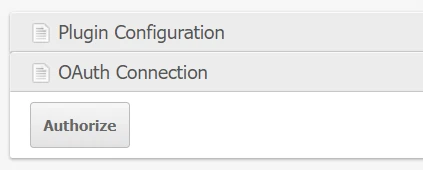
- Your browser will navigate you to the Amazon Seller Central site for authorization. Verify that the information looks correct and click Confirm to continue.
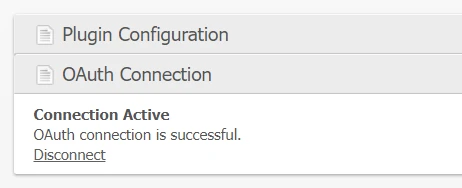
- You will be redirected back to ShipStream and the account should now be authorized. This can be verified by the text Connection Active in the OAuth Connection section of the subscription page.
Service Selection
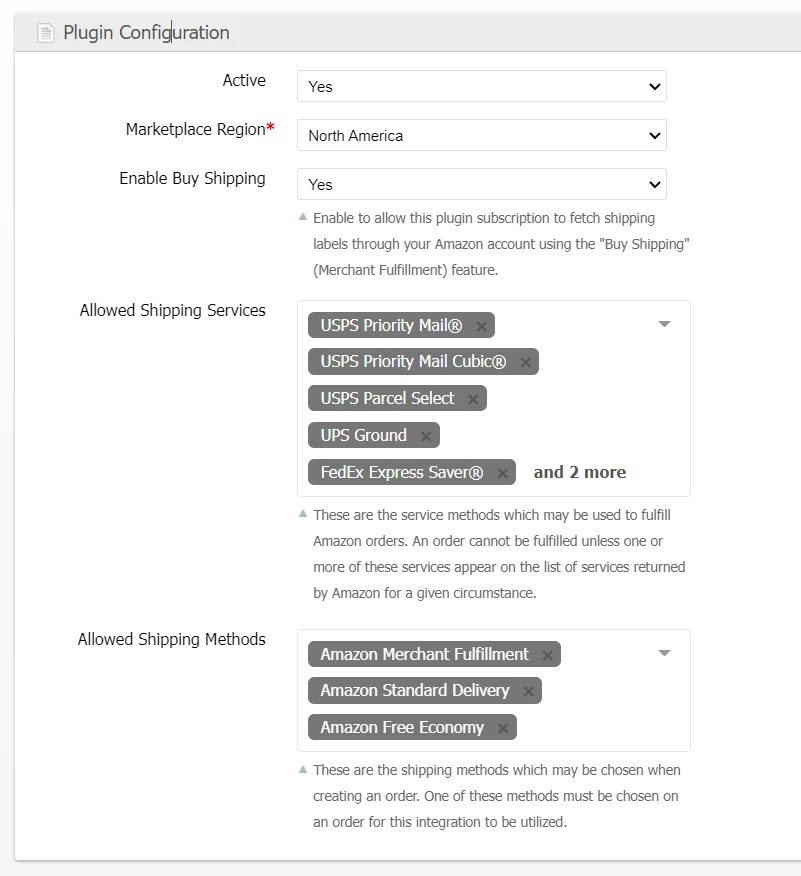
When using Amazon's "Buy Shipping" API which is what happens when the packing operation for a shipment is completed, the process will first request a list of all "eligible" shipping services. This list is determined by Amazon and is outside of the control of ShipStream. However, ShipStream gives you control over which of the provided services should be chosen automatically via the "Allowed Shipping Services" field in the "Plugin Configuration":
If none of the "eligible" services presented by Amazon are allowed by your ShipStream configuration you will receive an error like this:
In this case the shipment cannot be completed via the Amazon API until the configuration is updated to allow an eligible service to be selected. Alternatively, the shipment will have to be completed offline or using a non-Amazon shipping method and it will be up to the user to make sure the tracking number is relayed back to Amazon.
Preferred Carrier
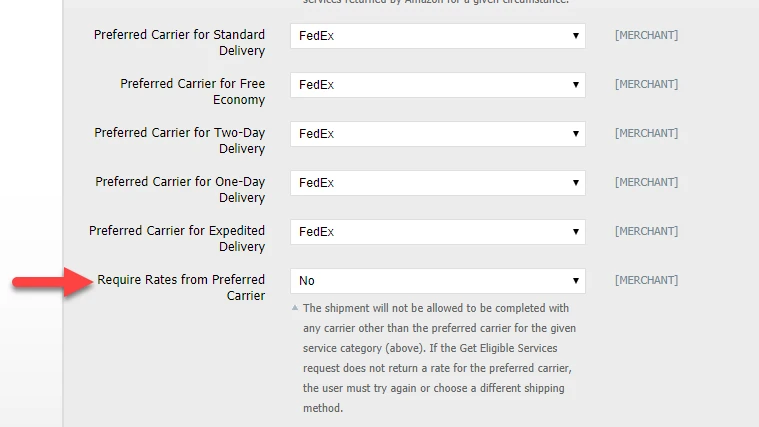
Generally, ShipStream will choose the cheapest option presented by Amazon. If you are using your own shipping account on Amazon or you have other factors that affect which carrier you prefer to use, you may wish to designate one carrier as the "Preferred Carrier". You can then set a threshold that will determine how much more expensive the next cheapest option must be before using a carrier other than the Preferred Carrier.
- System > Configuration > Shipping Methods > Amazon Selling Partner
To completely prevent ShipStream from choosing a carrier that is not the Preferred Carrier, you can choose "Require Rates from Preferred Carrier".
Excluded Services
For advanced cases, you may wish to further refine the list of eligible services on a per-order basis. This can be accomplished by using the key "Other Shipping Options" field of the order which is a JSON object. Specify a key called "amazon_excluded_services" and the value must be an array of strings. These strings can be either a specific Amazon service or a PCRE-compatible regular expression using / as the delimiter. Any services matching any of the provided strings will be excluded from that order.
{
  "amazon_excluded_services": ["/^UPS/"]
}
This is most likely useful to add using a "Before Create Order Script":
// Do not ship orders submitted on Friday via UPS
if (order.timestamp.format('l') === "Friday") {
  order.options.other_shipping_options = {
    "amazon_excluded_services": ["/^UPS/"]
  }
}
List of Amazon Shipping Services
The following is a list of the known/supported Amazon Shipping Services.
[
    [
        'ShippingServiceName' => 'USPS Priority Mail Express®',
        'CarrierName'         => 'USPS',
        'ShippingServiceId'   => 'USPS_PTP_EXP',
    ],
    [
        'ShippingServiceName' => 'USPS Priority Mail Express Legal Flat Rate Envelope',
        'CarrierName'         => 'USPS',
        'ShippingServiceId'   => 'USPS_PTP_EXP_LFRE',
    ],
    [
        'ShippingServiceName' => 'USPS Priority Mail Express Padded Flat Rate Envelope',
        'CarrierName'         => 'USPS',
        'ShippingServiceId'   => 'USPS_PTP_EXP_PFRE',
    ],
    [
        'ShippingServiceName' => 'USPS Priority Mail®',
        'CarrierName'         => 'USPS',
        'ShippingServiceId'   => 'USPS_PTP_PRI',
    ],
    [
        'ShippingServiceName' => 'USPS Priority Mail Cubic®',
        'CarrierName'         => 'USPS',
        'ShippingServiceId'   => 'USPS_PTP_PRI_CUBIC',
    ],
    [
        'ShippingServiceName' => 'USPS Priority Mail® Large Flat Rate Box',
        'CarrierName'         => 'USPS',
        'ShippingServiceId'   => 'USPS_PTP_PRI_LFRB',
    ],
    [
        'ShippingServiceName' => 'USPS Priority Mail Legal Flat Rate Envelope',
        'CarrierName'         => 'USPS',
        'ShippingServiceId'   => 'USPS_PTP_PRI_LFRE',
    ],
    [
        'ShippingServiceName' => 'USPS Priority Mail® Flat Rate Box',
        'CarrierName'         => 'USPS',
        'ShippingServiceId'   => 'USPS_PTP_PRI_MFRB',
    ],
    [
        'ShippingServiceName' => 'USPS Priority Mail Padded Flat Rate Envelope',
        'CarrierName'         => 'USPS',
        'ShippingServiceId'   => 'USPS_PTP_PRI_PFRE',
    ],
    [
        'ShippingServiceName' => 'USPS Parcel Select',
        'CarrierName'         => 'USPS',
        'ShippingServiceId'   => 'USPS_PTP_PSBN',
    ],
    [
        'ShippingServiceName' => 'UPS Ground',
        'CarrierName'         => 'UPS',
        'ShippingServiceId'   => 'UPS_PTP_GND',
    ],
    [
        'ShippingServiceName' => 'UPS 2nd Day Air',
        'CarrierName'         => 'UPS',
        'ShippingServiceId'   => 'UPS_PTP_2ND_DAY_AIR',
    ],
    [
        'ShippingServiceName' => 'UPS Next Day Air',
        'CarrierName'         => 'UPS',
        'ShippingServiceId'   => 'UPS_PTP_NEXT_DAY_AIR',
    ],
    [
        'ShippingServiceName' => 'UPS Next Day Air (Saturday)',
        'CarrierName'         => 'UPS',
        'ShippingServiceId'   => 'UPS_PTP_NEXT_DAY_AIR_SAT',
    ],
    [
        'ShippingServiceName' => 'UPS Next Day Air Saver',
        'CarrierName'         => 'UPS',
        'ShippingServiceId'   => 'UPS_PTP_NEXT_DAY_AIR_SAVER',
    ],
    [
        'ShippingServiceName' => 'FedEx Priority Overnight®',
        'CarrierName'         => 'FEDEX',
        'ShippingServiceId'   => 'FEDEX_PTP_PRIORITY_OVERNIGHT',
    ],
    [
        'ShippingServiceName' => 'FedEx Priority Overnight® (Saturday)',
        'CarrierName'         => 'FEDEX',
        'ShippingServiceId'   => 'FEDEX_PTP_PRI_OVERNIGHT_SAT',
    ],
    [
        'ShippingServiceName' => 'FedEx Standard Overnight®',
        'CarrierName'         => 'FEDEX',
        'ShippingServiceId'   => 'FEDEX_PTP_STANDARD_OVERNIGHT',
    ],
    [
        'ShippingServiceName' => 'FedEx 2Day®A.M.',
        'CarrierName'         => 'FEDEX',
        'ShippingServiceId'   => 'FEDEX_PTP_SECOND_DAY_AM',
    ],
    [
        'ShippingServiceName' => 'FedEx 2Day®',
        'CarrierName'         => 'FEDEX',
        'ShippingServiceId'   => 'FEDEX_PTP_SECOND_DAY',
    ],
    [
        'ShippingServiceName' => 'FedEx Express Saver®',
        'CarrierName'         => 'FEDEX',
        'ShippingServiceId'   => 'FEDEX_PTP_EXPRESS_SAVER',
    ],
    [
        'ShippingServiceName' => 'FedEx Home Delivery®',
        'CarrierName'         => 'FEDEX',
        'ShippingServiceId'   => 'FEDEX_PTP_HOME_DELIVERY',
    ],
    [
        'ShippingServiceName' => 'FedEx Ground®',
        'CarrierName'         => 'FEDEX',
        'ShippingServiceId'   => 'FEDEX_PTP_GROUND',
    ],
    //
    // International Methods
    //
    [
        'ShippingServiceName' => 'DHL Express International',
        'CarrierName'         => 'DHLMX',
        'ShippingServiceId'   => 'DHLMX_PTP_PACKAGE_EXPRESS',
    ],
    [
        'ShippingServiceName' => 'USPS First Class International',
        'CarrierName'         => 'USPS',
        'ShippingServiceId'   => 'USPS_PTP_FC_INTL',
    ],
    [
        'ShippingServiceName' => 'USPS Priority Mail International',
        'CarrierName'         => 'USPS',
        'ShippingServiceId'   => 'USPS_PTP_PRI_INTL',
    ],
    [
        'ShippingServiceName' => 'USPS Priority Mail Express International',
        'CarrierName'         => 'USPS',
        'ShippingServiceId'   => 'USPS_PTP_EXP_INTL',
    ],
];
Amazon Shipping (v2)
ShipStream can buy Amazon labels with one of two Amazon APIs. Merchant Fulfillment (v0) is the default and works as described above. Amazon Shipping (v2) buys labels from the rates Amazon offers for the whole Shipment, chooses among them with your own prices, and can buy shipping for the Orders of other sellers when your Amazon connection belongs to a 3PL that Amazon has enrolled for this.
Labels keep the API and the Amazon connection that bought them, so you can switch between the two APIs at any time: a label bought with either API can still be voided after the setting changes. ShipStream also tracks the labels it bought with Amazon Shipping (v2) through Amazon; labels bought with Merchant Fulfillment (v0) keep their previous behaviour and are not tracked through Amazon.
Amazon Shipping (v2) ships normal goods only. A package with regulated goods — fully regulated hazmat, ORM-D, limited quantity, small quantity or lithium batteries — is rejected before the label is bought, because Amazon requires dangerous goods declarations that ShipStream does not provide. Use another carrier for those Shipments.
Settings
Navigate to System -> Configuration -> Shipping Methods -> Amazon Selling Partner. These settings can be set for all Merchants or for each Merchant.
| Setting | Description |
|---|---|
| Shipping API | Choose Amazon Shipping (v2) to use the settings below. Existing sites stay on Merchant Fulfillment (v0) until you change it. |
| Connection Profile | Seller (own orders) buys shipping for the Orders of the connected seller. Choose 3PL (orders of other sellers) only for an Amazon connection that Amazon has enrolled to buy shipping for other sellers. |
| Linked Carrier Accounts | 3PL only. The carrier accounts linked to your Amazon connection. Select the Merchant and clear Use Global for this field when configuring a Merchant override. Click Discover Linked Carrier Accounts and then save the configuration. Only one account per carrier is supported. Discover them again after reconnecting the Amazon account or changing the Amazon Shipping Business. |
| Amazon Shipping Business | The Amazon shipping business of the marketplace region of your Amazon connection, e.g. AmazonShipping_US for North America. The Far East region is not supported. |
| Rate Source | The prices used to choose among the rates Amazon offers: Internal rates only - your Rate Tables for the matching carrier service. A service without a matching rate stops the label.Internal rates with Amazon fallback - your Rate Tables, or Amazon's price for a service that has no matching shipping method, rate plan, zone or fee schedule.Amazon rates only - the prices Amazon returns. |
| OTDR Protection Premium Type | Whether the maximum premium below is a Fixed amount per package or a Percent of the package baseline price. |
| Maximum OTDR Protection Premium | The most each package may cost above its baseline price to buy a rate that includes OTDR protection. Use 0 to buy protection only when it costs no more than the baseline. |
| Order Item Ref Check | Click Check Open Orders to list the open Orders with an Amazon shipping method that are missing an Order Item Ref. If the list is long, click Check More Orders until ShipStream reports that all open Orders were checked. |
For a 3PL connection, each Merchant's plugin subscription names the seller who owns the Orders in the Seller ID Override field. Contact ShipStream support to have this field enabled on your instance.
Order Item Ref
Amazon Shipping (v2) identifies each shipped item by its Amazon order item ID, so every Order item must have an Order Item Ref (order_item_ref when submitting Orders with the API). ShipStream rejects an Order, or a change of the shipping method to an Amazon method, when an item has no Order Item Ref and the Merchant uses Amazon Shipping (v2). Packaging items are not sent to Amazon and do not need one. Items are sent to Amazon in ordered quantities, so a kit of three Products ordered twice is sent as a quantity of 2.
Before switching an existing Merchant to Amazon Shipping (v2), use Order Item Ref Check to find and correct the open Orders that would be rejected.
Choosing a Rate and OTDR Protection
Amazon marks some rates as protecting your On-Time Delivery Rate (OTDR). ShipStream buys this protection only within the premium you allow for each package:
- All packages of a Shipment always ship with the same carrier service family (for example, UPS services together, or FedEx Ground separately from FedEx Express), so ShipStream only considers complete Shipments.
- The baseline is the cheapest complete Shipment. The baseline price of each package is its price in that Shipment.
- A package may use a protected rate that costs at most its baseline price plus its own premium limit. A package without protection may never cost more than its baseline price. The allowance of one package is never given to another.
- Among the Shipments that satisfy these limits, ShipStream chooses the one with the most protected packages, then the lowest total price.
For example, with a Fixed amount per package of $2 and two packages:
| Rates offered (package 1, package 2) | Result |
|---|---|
| FedEx $10 unprotected, $10 protected; UPS $13 protected, $10 protected | FedEx for $20 with one protected package. UPS would protect both packages, but package 1 would cost $3 more than its baseline. |
| FedEx $10 unprotected, $10 unprotected; UPS $11 protected, $11 unprotected | FedEx for $20 without protection. UPS package 2 would cost more than its baseline without being protected. |
With a Percent of the package baseline price of 5%, when carrier X offers $10 and $20, carrier Y offers $20 and $10, and carrier Z offers a protected $21 and an unprotected $10, both X and Y are $30 baselines. Against Y's baseline, Z's package 1 costs $1 more than its $20 baseline, which is within 5%, so ShipStream buys Z for $31 with one protected package.
For a single package with a $10 baseline and a 20% limit, a protected $12 rate is bought, but a protected $12.01 rate is not and the $10 rate is bought instead. Each Shipment's comments list the offered rates, their prices and protection, and why a rate was chosen or rejected.
Amazon Orders
There are a few requirements that an order must meet to allow ShipStream to call the Amazon MWS for shipping labels.
Amazon Order ID
When the Amazon Order is provided to ShipStream it must include the Amazon Order ID which matches the pattern "NNN-NNNNNNN-NNNNNNN" entered by itself into one of these fields:
| User Portal | API |
|---|---|
| Order # | unique_id |
| Order Ref # | order_ref |
Other Shipping Options:{ "amazon_order_id": "VALUE" } | { other_shipping_options: { "amazon_order_id": "VALUE" }} |
Amazon ASIN or Seller SKU
The Amazon line items must have their Amazon ASIN or Seller SKU match one of these ShipStream fields:
| User Portal | API |
|---|---|
| Product SKU | sku |
| Product Vendor SKU | vendor_sku |
| Product External ID | external_id |
order_item_ref(submitted to order.create) |
Shipping Method
The ShipStream Order will need to use one of ShipStream's "Amazon Merchant Fulfillment" shipping methods.
| Description | Code |
|---|---|
| Amazon Merchant Fulfillment | amazon_ANY |
| Amazon Standard Delivery | amazon_Standard |
| Amazon Free Economy | amazon_FreeEconomy |
| Amazon Two-Day Delivery | amazon_SecondDay |
| Amazon One-Day Delivery | amazon_NextDay |
| Amazon Expedited Delivery | amazon_Expedited |