

Scripting Basics
ShipStream utilizes an embedded JavaScript interpreter in many places to allow the user to define advanced business logic and customizations. The interpreter is an implementation of the 6th edition of ECMAScript known commonly as ES6 or ES2015.
See the more detailed guides for additional information about writing specific types of scripts:
- Before Create Order Scripts (BCO)
- Preprocess Packing Solution Scripts (PPS)
- Packing Start Scripts
- Ready to Ship Time Scripts (RST)
- Picking Class Shipment Matching Scripts
- Batching Priority Scripts
- Common Expression Language (CEL)
How to Create a Script
- Navigate to System > Scripts.
- Click Create New Script at the top right.
- Select the Merchant to which the script will be applicable or "--All Merchants--" to have the script apply to all merchants.
- Enter a brief description for the script so you can easily identify it. This description will also appear in the order's History tab if the script has an error or prints any output.
- Select the script Type.
- Change the Is Active field to Yes if you wish to use the script after it is saved, or leave it as No to disable it for now.
- Set a Sort Order if using multiple scripts to control the order in which the scripts are applied. Lower numbers will run before a script with a higher number.
- Click Save.
Version History
ShipStream keeps a permanent, read-only record of each script. Nothing in the admin or the client portal can edit, restore, or delete a version.
A version is recorded when you:
- Create a script
- Save a change, including turning Is Active on or off
- Archive a merchant, which deactivates that merchant's scripts
- Delete a script — the version stores the script's final state
Saving a script without changing anything does not add a version. The script's last-saved user and time still update; the author and time on a version identify the change that created that version.
Scripts that already existed when version history was added start with a Baseline version. The author and time on that version are the last person who edited the script and the time of that update, not the person who originally created it.
On System > Scripts, open a script to see its versions. The list includes Version, Operation, Description, Is Active, Author, and Created At. In the admin panel it also shows IP Address; the client portal does not. Click a row to view that version's script text.
Administrators also have a Version History button on System > Scripts. It opens every version, including deleted scripts. Filter Operation to Deleted to find those, or filter by Script ID. That list has the same columns plus Script ID and Merchant Name (when there is more than one merchant). Opening a deleted script's version and clicking Back shows the history for that script. Click Back again to return to the Scripts page.
Client users see versions only for their own merchant.
Javascript Editor
On pages where a user may define a script the script is submitted in a text field that has some basic syntax highlighting and validation features.
Syntax Errors
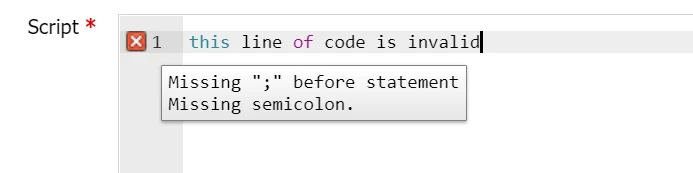
If the script contains syntactical errors code then an indicator will appear on the line number where the error is detected. Hover your cursor over the icon to see more information. All errors and warnings must be addressed before the script can be saved.
Logical Errors
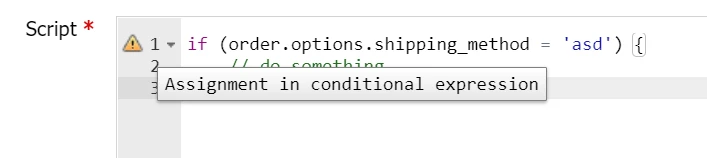
The built-in editor can detect many potential problems which are not syntactical. It is recommended not to ignore these warnings as they very likely are an indicator that the script will throw a logical error or not behave as expected.
ESLint Configuration
The Javascript editor for field supports basic ESLint Rules which you can enable or disable or override the defaults using comment blocks. For example, to enable warnings requiring all lines to be terminated with semicolons you could add /* eslint semi: "always" */ on a separate line in the script.
Debugging
All scripts support a print() function. This can take any arguments of any type and will cause the interpreter to "output" some information. This information will typically be captured by ShipStream and reported in an order's history or some other location relevant to the scope of the script. In general, use the print statement to provide the end users with useful information about what affect your script had or to debug your scripts.
if (order.address.country != 'MX') {
    order.options.shipping_method = 'fedex_INTERNATIONAL_ECONOMY'
    print('Forced order to Mexico to be shipped via FedEx International Economy')
}
Limits
Each time a script runs it has a time limit and a memory limit. The memory limit covers all of the data the script works with, including the Order or other data it is given, so a script for a very large Order can reach it even if it creates little data of its own:
- Time: 1 second for scripts created under System > Scripts, for Picking Class matching scripts and for Packing Start scripts. Some integration scripts have 10 seconds, such as the Shipment, Order Ack, Shipment Advice and Receipt Advice Transform Scripts of the SPS Commerce integration. The Order Transform Script of an integration has 1 second.
- Memory: 16 MB by default.
- Create Batch Scripts: the Create Batch Script setting, which runs when a new batch is created, is the exception and always has 20 seconds and 8 MB.
If a script exceeds either limit it is stopped and the error is recorded in the same places as other script errors, such as the order's History tab.