

Social Login
Social Login lets admin users sign in to ShipStream using Google or Microsoft Entra ID (formerly Azure AD) instead of (or in addition to) a username and password. Combined with the Required Domains list, this makes your identity provider the source of truth for ShipStream access — disabling a user in Google Workspace or Entra ID also blocks their ShipStream login, removing a step from your offboarding process.
Each provider is configured independently, so you can roll out Google without enabling Microsoft (or vice versa). Existing username/password and Login via Badge flows remain available alongside Social Login.
Configuring Providers
All Social Login settings live at System -> Configuration -> Advanced -> Social Login.
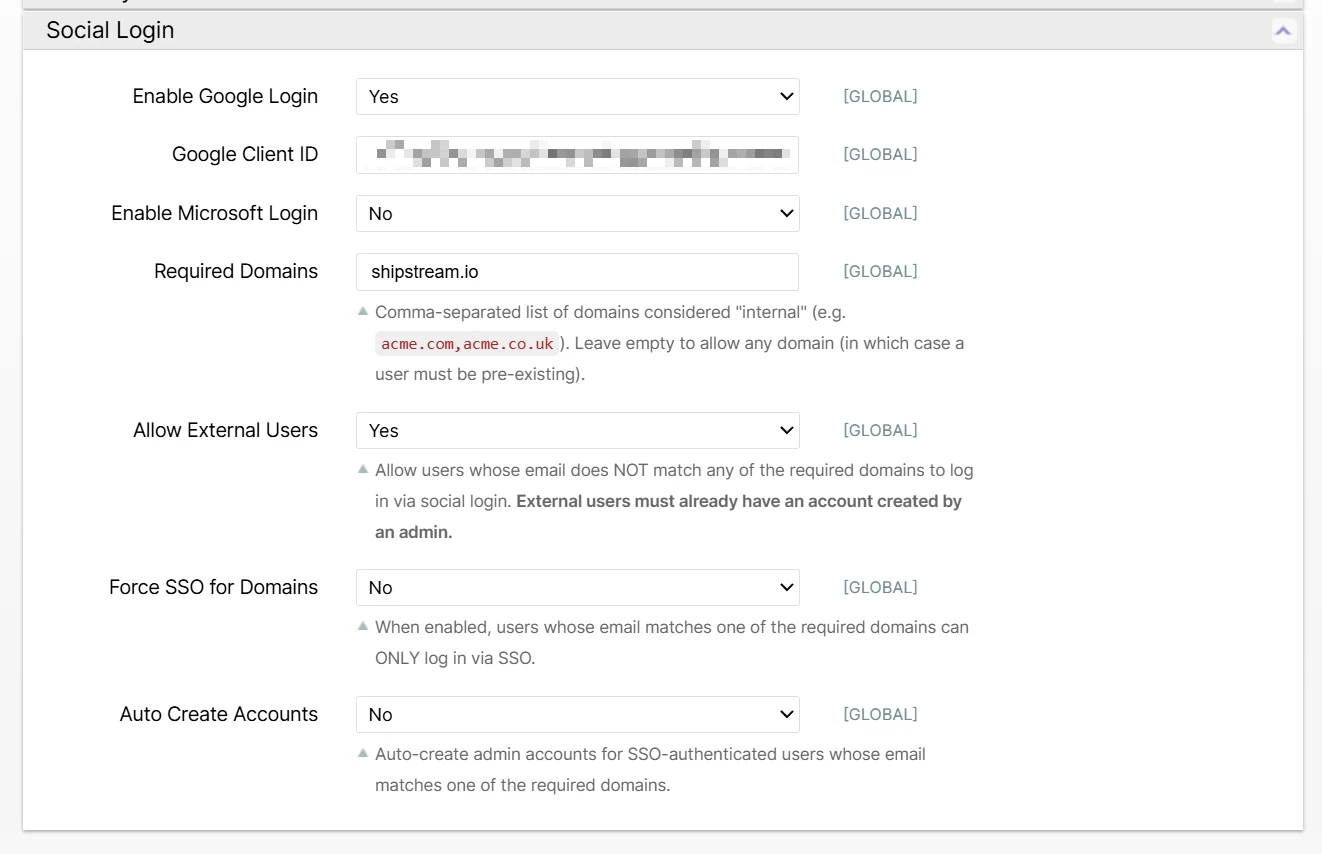
- In Google Cloud Console, open APIs & Services -> OAuth consent screen and confirm the app is configured for your organization.
- Open APIs & Services -> Credentials and click Create Credentials -> OAuth client ID.
- Choose Web application as the application type.
- Add your ShipStream admin origin as an Authorized JavaScript origin. For example, if you sign in at
https://example.shipstream.app/admin, enterhttps://example.shipstream.app. - Add your Google callback URL as an Authorized redirect URI:
https://your-shipstream-host/admin/social/googleCallback/. - Copy the generated Client ID.
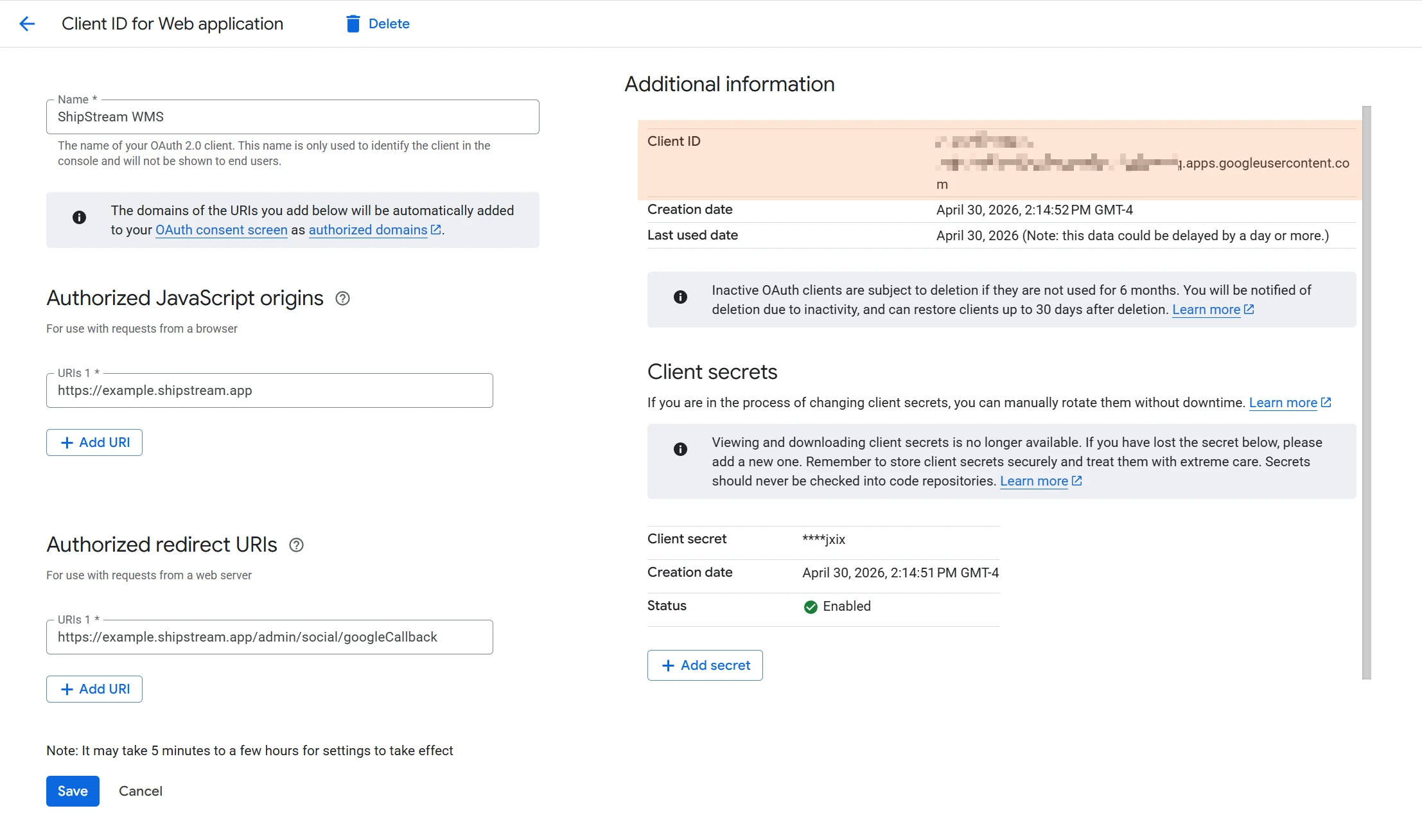
- In ShipStream, set Enable Google Login to Yes.
- Paste the Google Client ID into the Google Client ID field.
- Click Save Config.
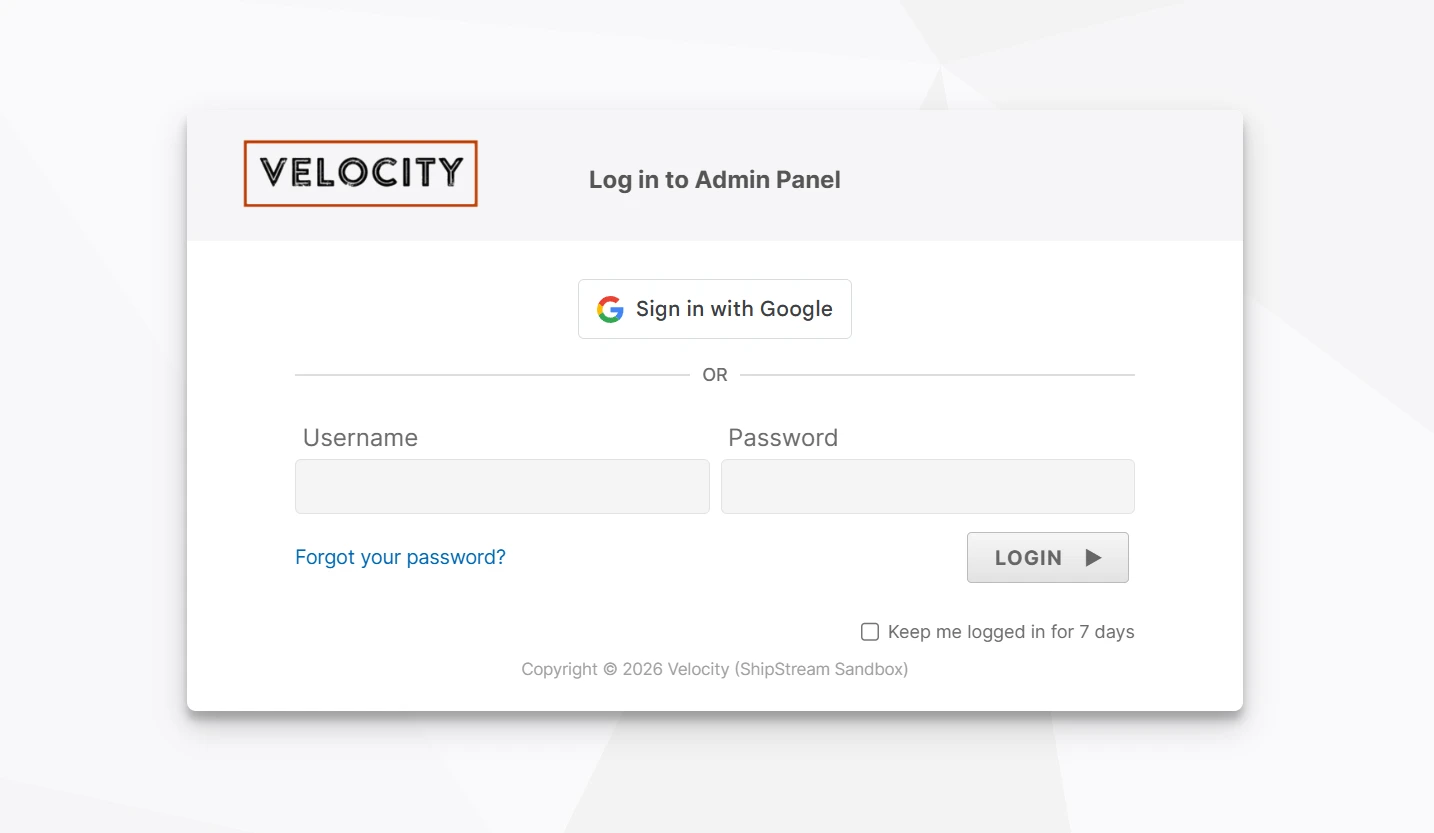
A Sign in with Google button will appear on the admin login page on the next page load.
Microsoft Entra ID
- In Microsoft Entra admin center, open Identity -> Applications -> App registrations and click New registration.
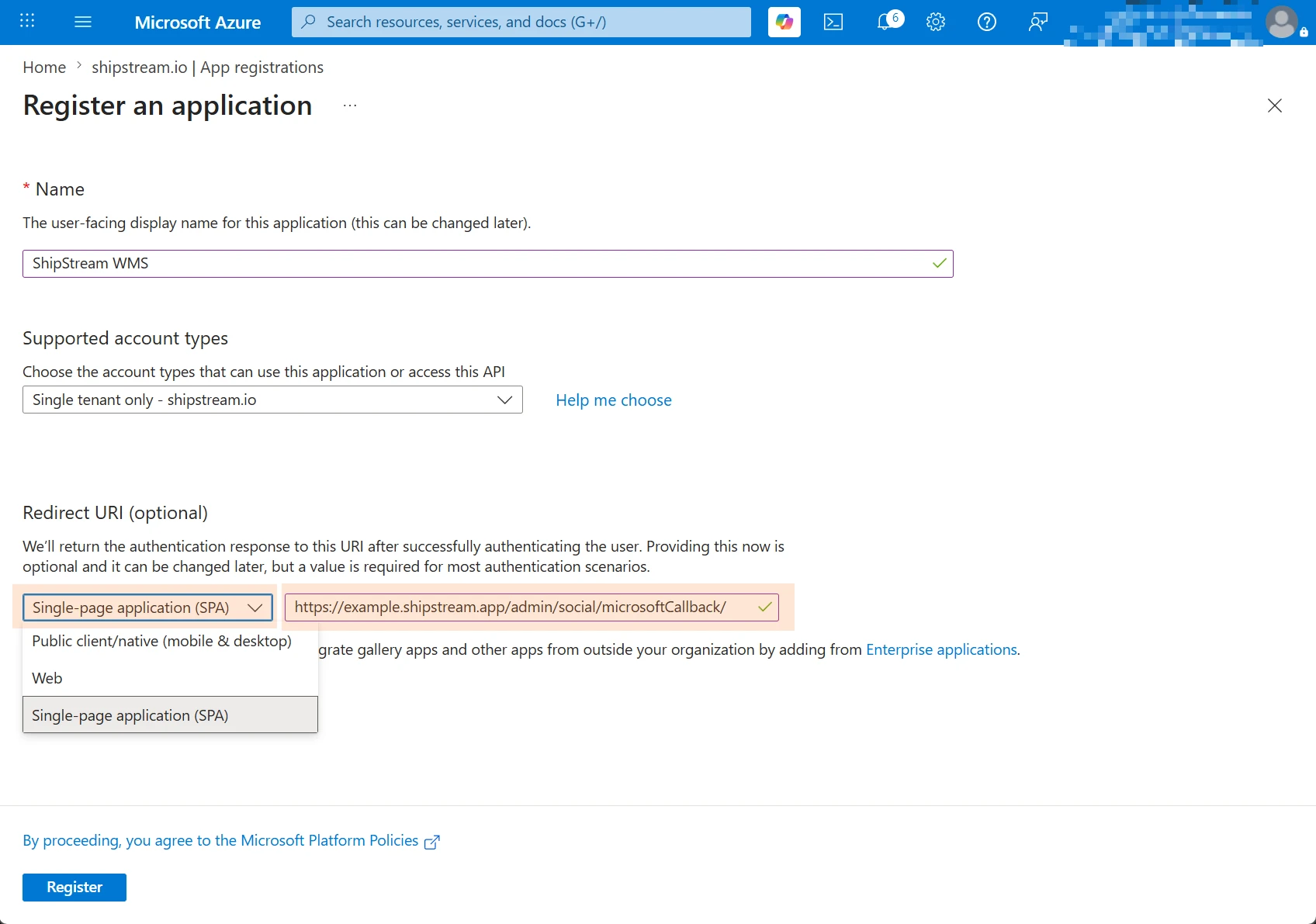
- Enter a name such as ShipStream Admin Login.
- Choose who can use the application. For most organizations, choose Accounts in this organizational directory only. Choose a broader option only if you want to allow multiple Entra tenants or personal Microsoft accounts.
- Set the redirect URI platform to Single-page application (SPA) and add your Microsoft callback URL:
https://your-shipstream-host/admin/social/microsoftCallback/. If you plan to use End Social Login Session on Sign Out (see Shared devices), also add the admin login URL:https://your-shipstream-host/admin/index/login/. ShipStream uses the login URL after sign-out so Microsoft can return the browser to the login page. If it is missing, Microsoft still ends the session and shows its own signed-out page.
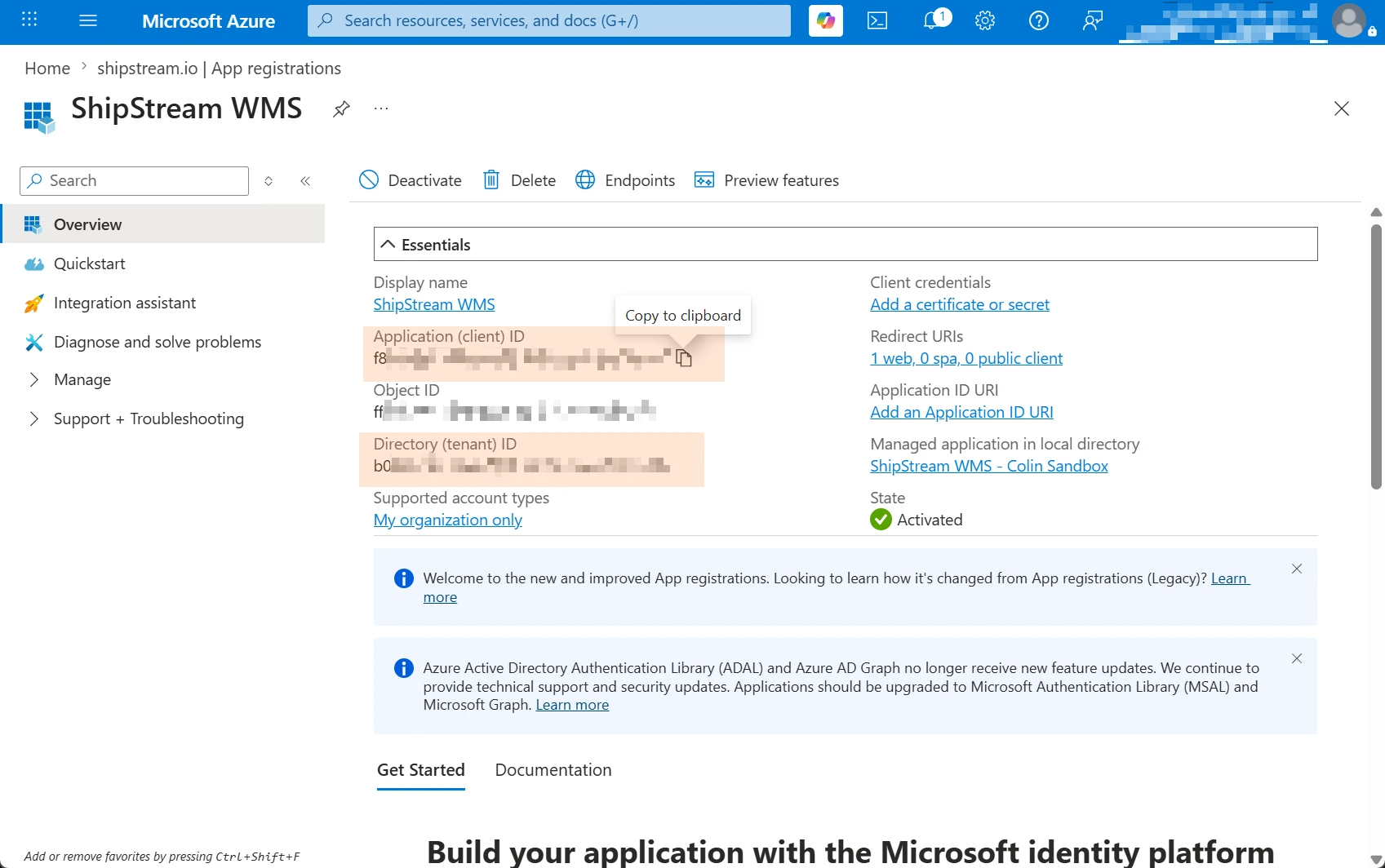
- After creating the app registration, copy the Application (client) ID.
- If prompted under Authentication, make sure ID tokens are enabled for the application.
- If you plan to use End Social Login Session on Sign Out, open Token configuration, click Add optional claim, choose the ID token type and select login_hint. Without this claim, Microsoft asks which account to sign out of instead of ending the session immediately.
- In ShipStream, set Enable Microsoft Login to Yes.
- Paste the Application (client) ID into the Microsoft Client ID field.
- Fill in Microsoft Allowed Tenants with one or more Entra tenant IDs (GUIDs), separated by commas. ID tokens are accepted only when the token's tenant claim matches this allow-list.
- Set Allow Personal Microsoft Accounts to Yes if you also want to permit sign-in with personal Microsoft accounts (MSAs). Leave it No if only your organization's Entra accounts should be allowed.
- Click Save Config.
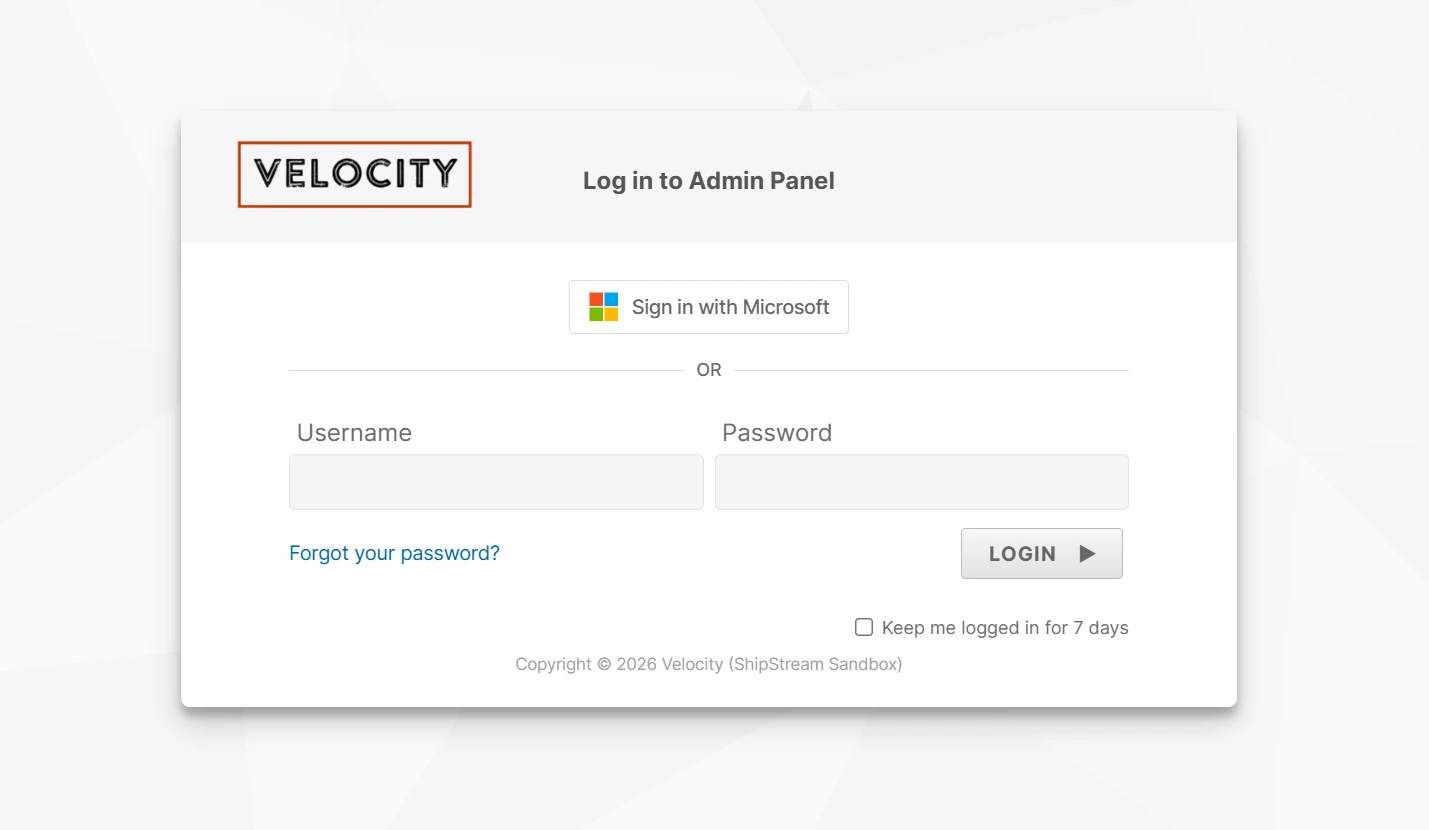
A Sign in with Microsoft button will appear on the admin login page on the next page load.
Select Sign in with Microsoft to open Microsoft's sign-in page in the same tab. After you sign in, you return to ShipStream automatically. If sign-in cannot be completed on the return page, select Back to Login to try again.
Shared devices
Google and Microsoft keep their own sessions in the browser, separate from ShipStream. On a shared device, that leftover session can sign the next person in as the previous user. Both sign-in buttons therefore always ask which account to use instead of signing in silently.
For Microsoft, ShipStream can go further and end the Microsoft session itself. Edit the User Role used on the shared device and set End Social Login Session on Sign Out to Yes. When a user signs in with Microsoft and then selects Sign Out in ShipStream, ShipStream also ends the Microsoft session in that browser. This happens when any role assigned to the user has the option set, and only on an explicit sign-out — not when a session expires or when another user signs in with a badge on the same device.
Microsoft also keeps a list of every account that has signed in on a browser and offers it as a picker on the next sign-in. ShipStream cannot remove accounts from that list, so it avoids it instead: once a user with any role that has End Social Login Session on Sign Out signs in on a browser, ShipStream marks that browser as a shared device and later Microsoft sign-ins there go straight to the credentials form. The mark survives sign-out and is removed the next time a user without the option signs in on that browser, so a personal computer reverts to the account picker on its own.
Microsoft's Stay signed in? prompt is controlled by Entra, not by ShipStream. To remove it on shared devices, create a Conditional Access policy in Entra that targets the ShipStream app registration (and, if you like, only the shared-device users or location) with Session -> Persistent browser session -> Never persistent. Setting Show option to remain signed in to No under Company branding removes the prompt for the whole tenant instead.
Google offers no way for ShipStream to end its session, so this option has no effect on Google sign-in.
Required Domains
The Required Domains field is a comma-separated list of email domains that ShipStream considers "internal" — for example, acme.com,acme.co.uk. Required Domains drive three related controls. Leave the field empty to allow Social Login from any domain (in which case a matching ShipStream User must already exist).
Allow External Users
When Required Domains is set, the Allow External Users option controls whether users whose email does NOT match any required domain can log in via Social Login.
- Yes — users from outside the required domains may sign in, but only if an admin has already created a matching ShipStream User account for them.
- No — only users whose email matches a required domain can sign in via Social Login.
Force SSO for Domains
When Force SSO for Domains is Yes, users whose email matches one of the Required Domains can ONLY sign in via Social Login — password login is disabled for those accounts. Super-admins are exempt so that a misconfigured identity provider can still be recovered.
Auto Create Accounts
When Auto Create Accounts is Yes, ShipStream automatically creates an admin User the first time a user with an internal-domain email signs in via Social Login. The new account is assigned to the Primary User Group and to the role you choose in Auto Created Accounts Role.
- The username is derived from the email's local part (with a numeric suffix if the username is taken).
- The full name is taken from the identity provider when available.
- Auto-creation only fires for emails matching the Required Domains. External users still need an admin-created account.
Social Identities on User Pages
Each linked Google or Microsoft account is recorded as a Social Identity on the corresponding ShipStream User. Users see their own linked identities at the bottom of System -> My Account, and administrators see any user's identities at the bottom of the User Information tab on the User edit page.
Each identity row shows the Provider, the Provider Email (the email returned by the identity provider, which may differ from the ShipStream account email), and the date the identity was first linked. Click Unlink on a row to remove that identity.
A new social identity is linked automatically the first time a user signs in via Social Login, provided the provider's email matches an existing ShipStream User (or auto-create is enabled). After the first sign-in, ShipStream identifies the user by the provider's stable identifier rather than the email, so changing the email at the provider does not break the link.