

Adding Printer and Scale Devices
With a Device Service connected and displayed on Device Hub, you may only modify the devices from Device Hub.
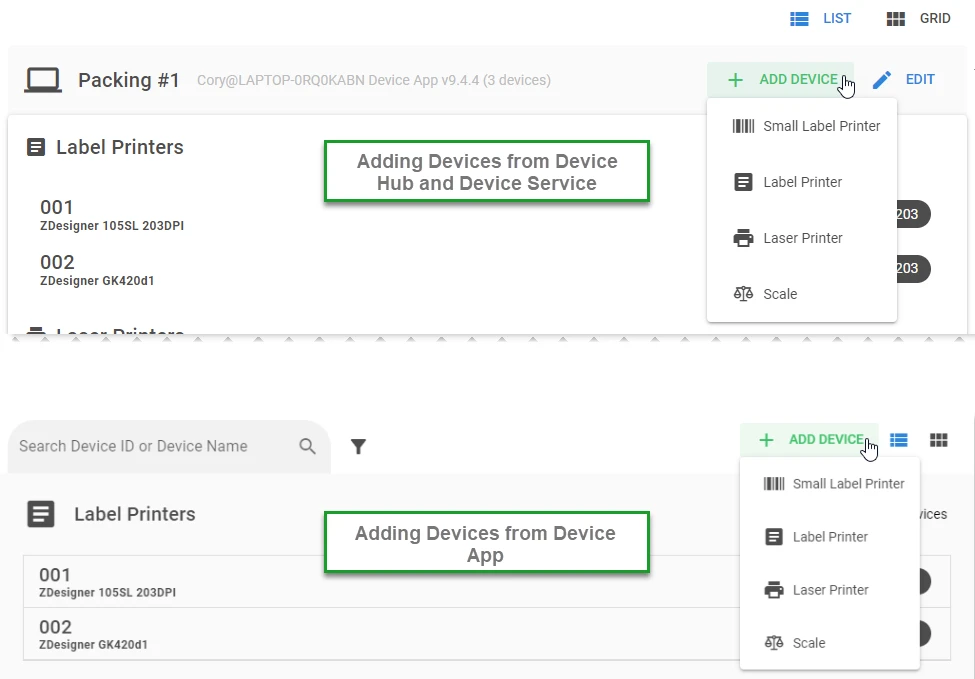
With a Device App connected and displayed on Device Hub, you can either add devices from the Device Hub or from the Device App on the machine that is connected to the printers/scales.
Adding Printers
- Click "+ Add Device" at the top right of the connected machine in Device Hub. In the Device App this is simply at the top right of the window.
- You will notice the Client field will already be set on the Machine label you clicked "Add Device" from. Otherwise set this to the desired Machine Label.
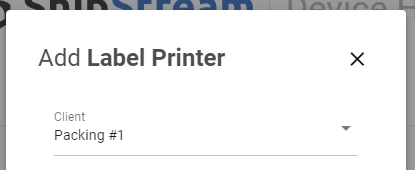
The Device ID needs to be unique, so it may be a good idea to use numbers such as "001", "002", etc.
The Device ID is used within the ShipStream WMS. For example, "LABEL:001" within ShipStream would correspond to a label printer with the Device ID "001".The Device dropdown will show available printers to choose from. If it is not visible in the dropdown menu, verify that it is installed correctly by visiting your Printers and Scanners settings in Windows. Only devices detected by Windows and with drivers installed correctly will be available to the Device Hub.
Changing the printer name in Windows will cause the printer to not be recognized in the Device Hub and will show an error when trying to print to it.- Advanced Options includes Paper Type and DPI for Label Printers and Paper Type, Color, and Paper Source for Laser Printers.
- Tags are used for filtering in the Device Hub or Device App UI but have no effect on the device itself.
- Click Save and your device should appear on the list.
Adding Scales
- Click "+ Add Device" at the top right of the connected machine in Device Hub. In the Device App this is simply at the top right of the window.
- Choose the Scale device type from the menu. You will notice the Client field will already be set on the Machine label you clicked "Add Device" from.
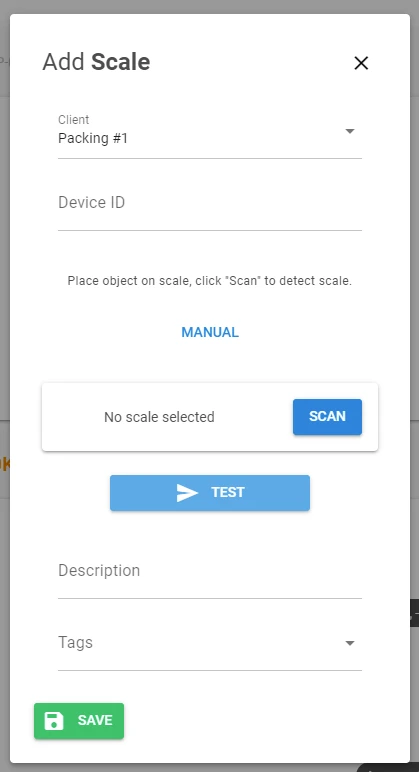
A dialog will appear with the following properties:
- Device ID — must be unique. Use numbers like "001", "002", etc.
The Device ID is used within the ShipStream WMS. For example, "SCALE:001" within ShipStream would correspond to a scale with the Device ID "001".
- Scan — if the selected client has a scale or scales connected with a weight reading, clicking Scan will automatically detect it and return a list of scales and their weight readings.
- Manual — allows the user to manually select a USB or Serial scale from the Connection Type field.
- Port
- USB scales: a numeric value (e.g. "1").
- Serial scales: a COM port dropdown menu.
You can display your valid serial COM port numbers in Windows using the Windows PowerShell, and entering the command:
Get-WMIObject Win32_SerialPort | Select-Object Name,DeviceID,Description
- Baudrate (Serial only) — usually 9600.
- Print Command (Serial only) — a single capital letter, device-specific. Common values: H, W, S, or P.
- Terminator (Serial only) — a dropdown of terminator characters depending on your scale device. Options:
- -CR
- -LF
- -ETX
- CR
- CR-ETX
- LF
- CRLF
- CRLF-LF
- Tags — used for filtering in the Device Hub or Device App UI but have no effect on the device itself.
Users may click Test to see if their selected settings yield a successful response from the scale device. The response is logged in the Event Logs page.
- Device ID — must be unique. Use numbers like "001", "002", etc.
- Click Save and your device should appear on the list.