

Packing Solutions
A "Packing Solution" represents a set of one or more specific containers that is presumed to be a valid solution to packing a set of items with known physical properties and restrictions. Put simply, it is an answer to "how can I pack these items into one or more boxes"?
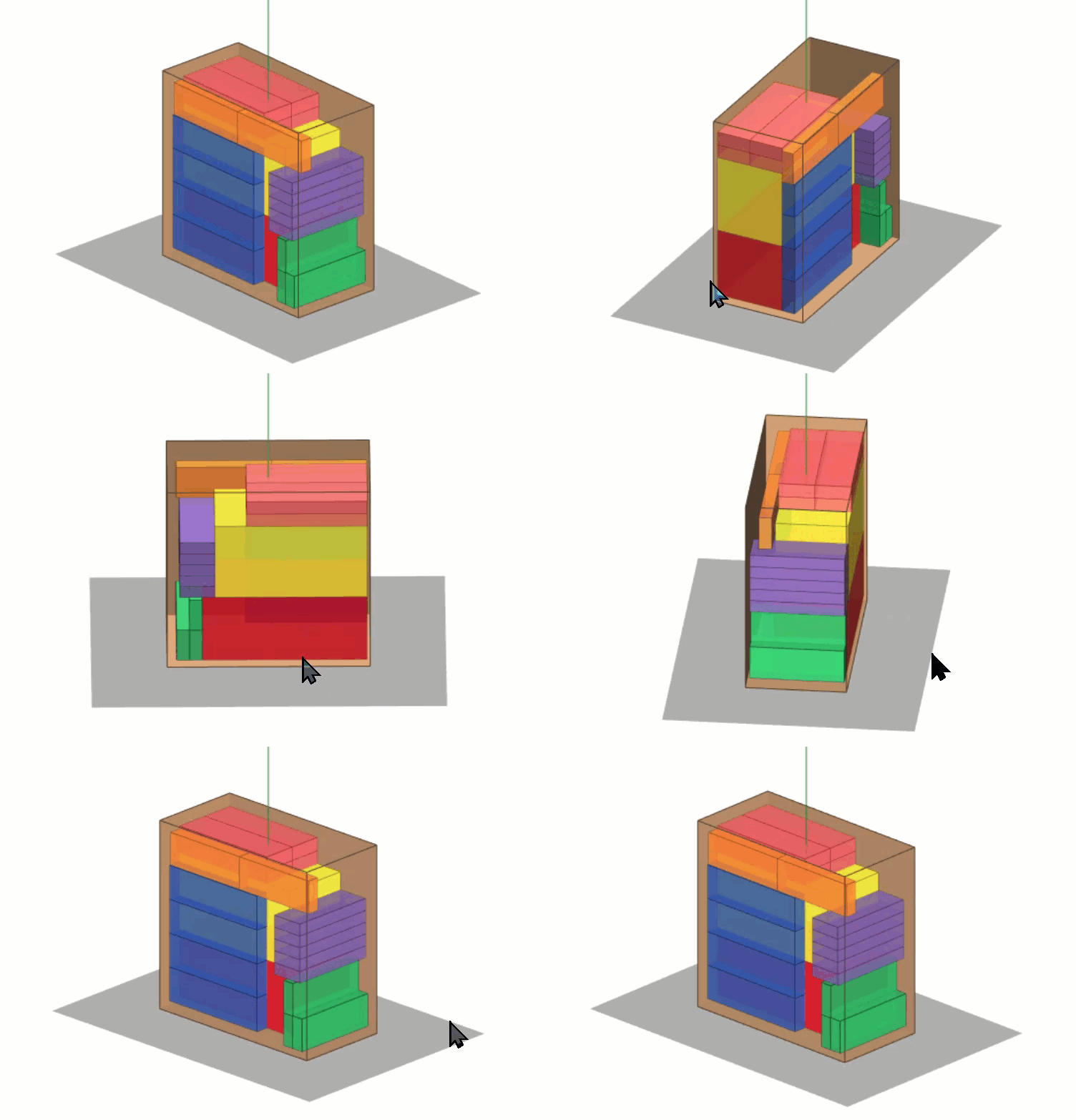
There are many inputs to this question and multiple possible answers. Any tiny change to these inputs can theoretically cause an otherwise valid result to either no longer be valid or no longer be optimal.
ShipStream's Packing Solution feature makes it easy to harness the power of modern computing without tying your hands to it by combining multiple advanced computational algorithms, training with historical and real-time user-generated data and advanced features for handling special cases.
Inputs
The inputs to the Packing Solution algorithms include:
- Product Attributes
- Length
- Width
- Height
- Weight
- Goods Type
- Regulation
- Requires Packaging
- Can Contain Other Items
- Valid Containers
- Special Supplies
- Bulk Quantity
- Unit Quantity
- Max Per Package
- Ship Separately
- Ship Separate Tag
- Can Tip
- Container Attributes
- Length
- Width
- Height
- Weight
- Weight Capacity
- Satisfies Overbox
- Container Style
- Use for Bin Packing
- Infill Attributes (one Infill is chosen for a group of items based on priority. See Infill)
- Allow for Merchants/Stores
- Disallow for Merchants/Stores
- Minimum Thickness Each Side
- Minimum Thickness Top and Bottom
- Infill Priority
- System > Configuration
- Shipping > Packing Solutions > General > Enable Shipment Cost Model
- Shipping > Packing Solutions > Infill
- Shipping > Packing Solutions > Containers
- Shipping > Packing Solutions > Max Package Weight > *
- Shipping > Packing Solutions > ShipStream Packer > Enabled
- Shipping > Packing Solutions > ShipStream Packer > Strategy
- Shipping > Packing Solutions > ShipStream Packer > Allow Angled Placement
- Shipping > Packing Solutions > ShipStream Packer > Search Time Limit
- Shipping > Packing Solutions > ShipStream Packer > Maximum Concurrent Thorough Searches (Global scope only; applies to the whole installation)
The process of generating Packing Solutions can be seen on the Order Processing Loop highlighted in red:

Creating Packing Solutions
Since there is no one-size fits all, ShipStream expects that multiple Packing Solutions may exist for a given set of items and that the user may wish to choose their "Preferred" solution or let the system choose one. The possible sources for a Packing Solution are:
- Training from historical data (a user completes packing a shipment)
- ShipStream Packer - ShipStream's built-in bin-packing algorithm, which runs a Thorough search first and a Fast search as a backup (see ShipStream Packer)
- User-provided solutions created via the ShipStream API
If there are multiple solutions available, a solution marked "Preferred" and then the solution's priority still come first. Among the rest, when Enable Shipment Cost Model is on (the default) ShipStream chooses the solution with the lowest estimated shipment cost, then the one with the fewest packages, then the one with the lowest amount of "void space", which is the container volume minus the volume of all of the items. When it is off, ShipStream chooses the solution with the fewest packages and then the lowest void space. See Shipment Cost Model for how the estimate is calculated.
If there are no providers available or all providers fail to provide a solution the system will fall back to using the Max Package Weight limits to divide items by weight.
Enable the Packing Solution Providers you wish to use in the Configuration under Shipping > Packing Solutions.
If ShipStream chooses a Packing Solution that does not work in practice for some reason, there are a few different options described below:
- Choose another "Preferred" Packing Solution
- Disable a Packing Solution
- Override a Packing Solution
- Preprocess Scripts
Choose another "Preferred" Packing Solution
You can override the normal prioritization of Packing Solutions by clicking "Make Preferred" on a Packing Solution page. There is no "Preferred" solution by default so this flag is only set when a user chooses it. This will cause that solution to remain the preferred solution for that exact set of items until another solution for the same set of items is marked as the preferred solution. If there are multiple solutions available for a set of items you can see the alternatives by clicking the "Alternatives" tab. The flag is ignored while the provider that created the solution is disabled (see Solutions from a Disabled Provider).
Disable a Packing Solution
If the system happens to generate a solution that is invalid the user can Override the chosen solution in the Packing UI and choose "Disable solution" or on the Packing Solution page click "Disable". This will prevent it from ever being used again. Packing Solutions are normally not deleted by users as they are kept for historical reference and cleaned up automatically if stale.
The rules around disabling Packing Solutions with respect to related solutions are:
- Disabling a child will always disable its parents
- Enabling a child will enable its parents only if all of the parent's children are enabled
- Enabling a parent will enable all children, and will also enable other parents sharing children in common if all of their children become enabled
- Disabling a parent does not affect any other solutions
- Disabling or enabling a solution will also copy that status to all other solutions with the same solution signature. The relatives of those solutions are then also updated according to the rules above
Packing Solution Overrides
In the Packing UI, if a Shipment has a Packing Solution, the packer will be required to scan the container barcode for the container specified by the Solution to confirm. If the packer scans a different container there are two different behaviors based on the "Require Manual Packing Solutions Override" configuration under System > Configuration > Warehouse > Scanner > Packing (Parcel) or Packing (Freight), matching the shipment's type.
Manual override vs Automatic override
If "Require Manual Packing Solutions Override" is "No", the Packing Solution will automatically be overridden with a new Packing Solution using the container(s) scanned by the packer and this new solution may or may not become the preferred solution depending on the priority and properties of the alternative solutions.
If "Require Manual Packing Solutions Override" is "Yes", the packer will be required to submit an override.
The reasons that a packer may choose for an override may be configured at Packing Solution Override Options under System > Configuration > Warehouse > Scanner > Packing (Parcel) or Packing (Freight).
Creating a Packing Solution Override
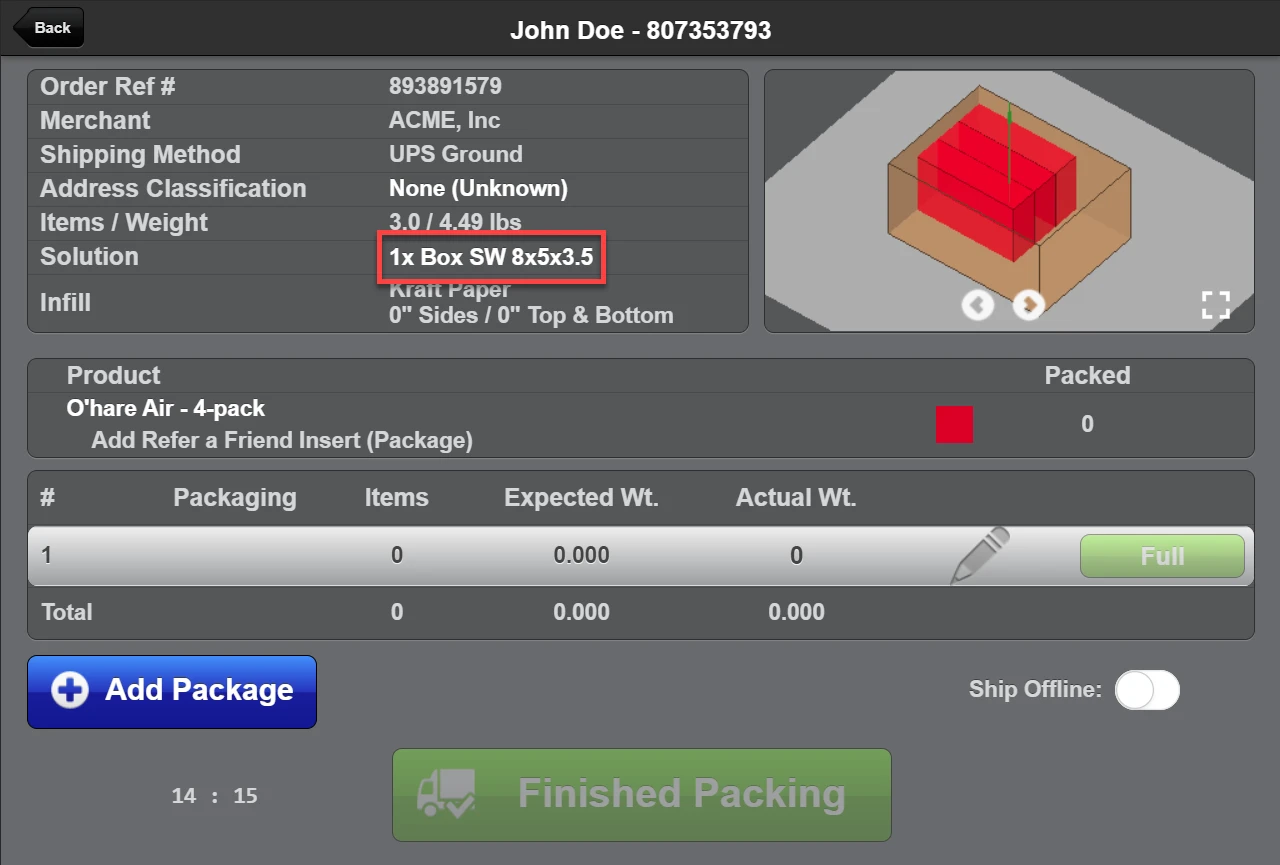
If a packer encounters a Packing Solution that is sub-optimal for a shipment they may create an Override by tapping the current Packing Solution (indicated in the red box below) and then tapping "Override". The packer must then proceed to specify a reason for the override and choose an alternative Packing Solution, if there is one, or choose "Create New Solution".
The packer may choose to "Disable solution" to prevent the overridden solution from being assigned to shipments in the future. This will immediately take effect on all other shipments that would have used the overridden solution.
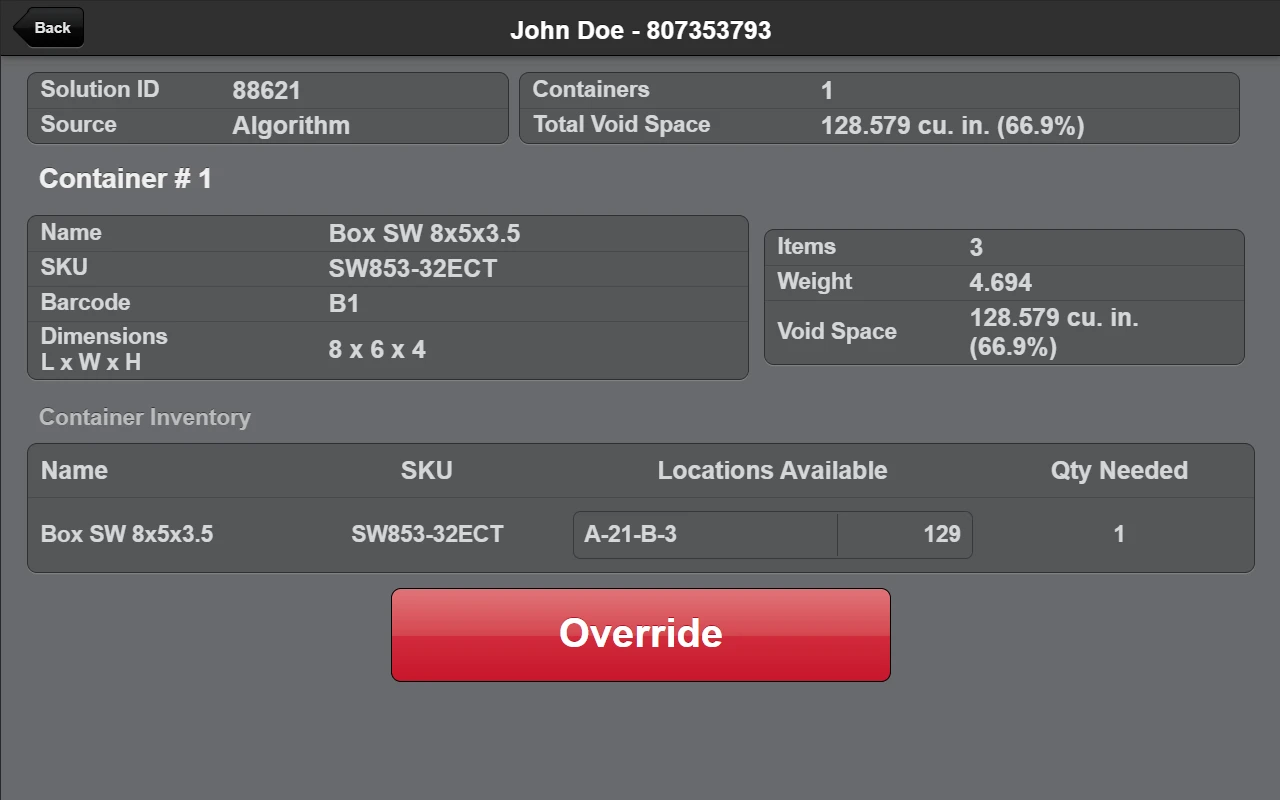
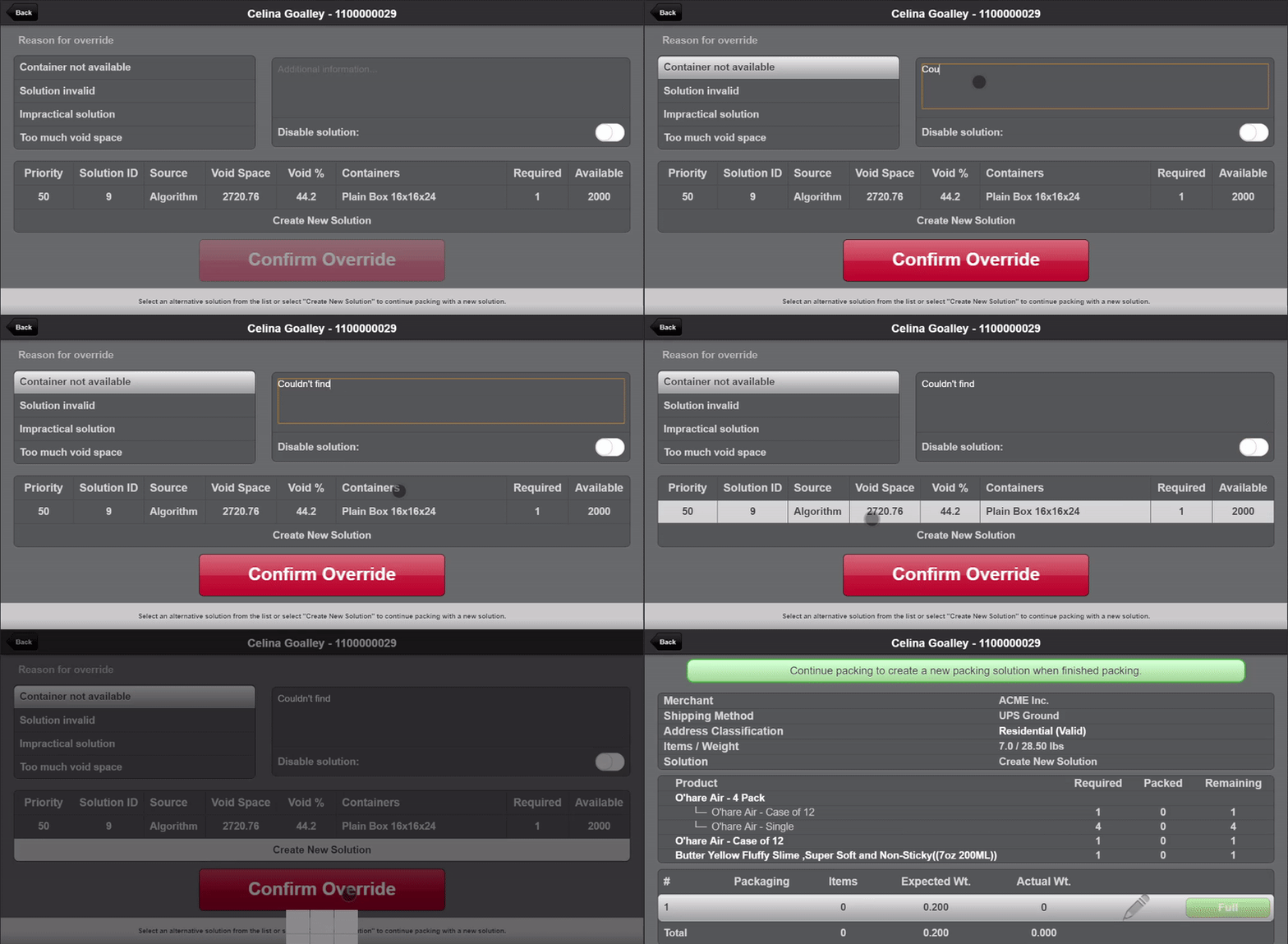
A history of all overrides, whether manual or automatic, is available under "Shipping > Packing Solution Overrides".
Preprocess Scripts
There can be any number of reasons that you may want a different behavior than is provided by the dimension-based algorithms. For example you may want to ensure that a specific combination of products always is packed with each other or separately or in a specific set of containers. In this case you will likely want to use a Preprocess Packing Solution Script.
ShipStream Packer
ShipStream Packer is the default Packing Solution provider. It has two search strategies:
- Thorough - Compares many candidate packings and keeps the best one it finds, so it typically uses fewer or cheaper cartons and leaves fewer items resting on less than half of their base. It appears as ShipStream Packer (Thorough) wherever providers are listed, such as the Create Packing Solution mass action.
- Fast - The quicker search that ShipStream Packer used before Thorough was added, now running on an upgraded packing library that fits some sets of items into fewer or smaller cartons than before. It appears as ShipStream Packer.
With the default Strategy of Auto, ShipStream Packer runs Thorough first and runs Fast only when Thorough fails: when it errors, finds no solution, leaves items that need a container unpacked, no Thorough search slot is free (see Maximum Concurrent Thorough Searches below), or the items are resolved while an order or Shipment is being saved (see below). Fast is then tried right away and supplies the solution when it can pack the items; items that fit no container are unpackable, as they were before. A set of items that already has a Fast solution, including one created before Thorough was available, gets a Thorough solution the next time it is resolved, even when the Fast solution's void percentage is below the Void Percentage Threshold. Once a valid Thorough solution exists, the automatic resolution does not run Fast again for those items. Choosing ShipStream Packer (Fast) in the Create Packing Solution mass action is an explicit choice and always creates or reuses a Fast solution, even when a Thorough solution exists.
When Thorough reaches the Search Time Limit with every item packed, the best packing it found is kept; that is not a failure. When a Thorough search fails in a way that would happen again no matter how long it searched, such as an item that fits no parcel container, ShipStream remembers the failure for up to 24 hours and does not run Thorough for those items again in that time; only Fast is tried. Other failures are not remembered, so the next time the items are resolved Thorough searches again: a busy search slot, a database error, or a search that used up the time limit and still left items unpacked.
When Strategy is Fast, Thorough never runs, so choosing ShipStream Packer (Thorough) in the Create Packing Solution mass action then creates nothing.
Thorough never uses a pallet unless every container offered is a pallet (pallet mode). Under Auto, every Fast search for a request that is not in pallet mode, whether it runs as the backup for Thorough or because a Preprocess Packing Solution Script asked for box_packer, first tries without pallets, and tries again with pallets only when an item that requires packaging fits no other container. With Strategy set to Fast, Fast has no pallet-free first pass and uses pallets marked Use for Bin Packing: Yes as it did before.
Angled Placement
When Allow Angled Placement is on (the default), ShipStream Packer may turn an item flat on the carton floor at an angle, so that an item slightly too long for a carton lies diagonally across it instead of forcing a larger carton. This applies to both strategies. See Angled Items in the 3D Viewer for how angled items are shown to packers.
Some items are always placed square because ShipStream Packer checks a restriction as it places them, and it only tries an angle for items without such a check:
- An item that may not use one of the containers being packed into, for example because its Product's Valid Containers exclude that container.
- An item whose Product has a Max Per Package limit that the requested quantities exceed.
An item whose Valid Containers include every container being packed into, or whose Max Per Package limit is not exceeded, can still be angled.
ShipStream Packer Settings
These settings are under System > Configuration > Shipping > Packing Solutions > ShipStream Packer and are visible only to Super Admins.
| Setting | Default | Description |
|---|---|---|
| Strategy | Auto | Auto runs Thorough first and Fast only if Thorough fails. Fast runs only Fast, which turns Thorough off; existing Thorough solutions are then set aside (see Solutions from a Disabled Provider). Can be set per Merchant. |
| Allow Angled Placement | Yes | Lets both strategies place items at an angle (see Angled Placement for the items that stay square). Can be set per Merchant. |
| Search Time Limit | 1 | Seconds of searching allowed for one Thorough request, shared by all of its item groups and passes. A search that reaches the limit keeps the best result found so far. When the time is used up before a later item group or the Fallback Only container pass starts, that pass still gets a minimal slice of time. If the time runs out with items still unpacked, Fast packs them and Thorough searches again the next time the items are resolved. The limit is approximate: a packing that has already started is completed, and the further comparisons that remain are skipped once the time is up. Can be set per Merchant. |
| Maximum Concurrent Thorough Searches | 2 | How many Thorough searches may run at the same time across the whole installation. When every slot is busy, a set of items is packed with Fast right away and gets its Thorough solution the next time it is resolved. Available at the Global scope only and cannot be set per Merchant. |
To get as close as possible to how ShipStream Packer worked before Thorough was added, set Strategy to Fast, Allow Angled Placement to No, and Enable Shipment Cost Model to No. This stops new Thorough solutions and new angled placements, sets aside the existing Thorough solutions, and restores the previous way of choosing between solutions. Existing Fast solutions that already contain angled items stay in use until they are disabled or replaced. Fast still runs on an upgraded packing library, so the carton chosen for some sets of items can differ from before because the library packs them more efficiently. Existing stored Packing Solutions are not changed.
Thorough runs only when a set of items is resolved: during normal order and Shipment processing (including Preprocess Packing Solution Scripts), rate quoting, the background refresh of open Shipments after a new solution is stored, and the Create Packing Solution mass action. ShipStream does not re-solve existing Packing Solutions in bulk. Together with the concurrency limit, this keeps the extra searching after an update spread out over normal order traffic.
A Thorough search never runs while an order or Shipment is being saved, because the search can take seconds and the order would stay locked meanwhile. When a set of items without a Thorough solution is resolved at that point, for example when an order is processed into Shipments, Fast packs it right away and a background refresh then runs Thorough, replacing the Shipment's solution when the Thorough solution is better. Likewise, disabling, enabling or making a solution preferred in the Admin UI never waits for a search.
Solutions from a Disabled Provider
Once a provider is disabled for a Merchant, the Packing Solutions it created earlier are no longer chosen as the best solution for their items. This applies only to solutions created by a Packing Solution provider; solutions created by users, through the API, from packing history, at packing, or by a script are never set aside. This takes effect as soon as a provider is disabled, including when a Super Admin sets Strategy to Fast, which turns off Thorough and so sets aside the solutions it created. A "Preferred" flag on such a solution is ignored, Make Preferred is not offered for it, and the Scanner UI no longer offers it as an alternative when a packer overrides a Packing Solution. Nothing is deleted or changed: enabling the provider again, or setting Strategy back to Auto, makes its solutions available again, including their "Preferred" flag.
Shipment Cost Model
Enable Shipment Cost Model is under System > Configuration > Shipping > Packing Solutions > General. It is on by default, can be turned off per Merchant, and can be changed by any role with access to the Packing Solutions configuration.
When it is on, ShipStream estimates the cost of shipping each solution and uses the estimate in two ways: Thorough searches for the packing with the lowest estimated cost, and among solutions with the same Preferred status and priority the lowest estimate wins, ahead of the number of packages and void space (see Creating Packing Solutions). The estimate for each package is the container's billing amount plus $9.83 plus $0.50 per billable pound, where the billable weight is the greater of the actual weight (items plus the empty container) and the dimensional weight (outer volume in cubic inches divided by 139).
When it is off, Thorough looks for the fewest packages and then the smallest total volume, and solutions are chosen by the fewest packages and then the lowest void space. This may use fewer cartons, but usually costs more to ship.
Similar Products
The system will use all the inputs listed above in the Inputs > Product Attributes to identify a product and recognize similar products. Packing Solutions created for one set of products are also valid for all of the other sets of products which share all the same values in these attributes and belong to the same Merchant. For example, if multiple variations of a SKU exist with different colors, the training for one color would apply to the other colors as well assuming all of the important attributes were equal.
Client UI View
In the Client UI the Packaging Solution is shown on a Shipment's Container view. Before a Shipment is marked Packed the view will show the suggested Container's info:
- Name
- SKU
- Dimensions
- Items — the number of line items that should be placed in this container
- Weight — the calculated weight of all the line items
- Volume — the total interior volume of the container in cubic inches
- Void Space — the void space in cubic inches and the percentage of void space
There will also be a button, Show Container, that will show the 3D viewer if the Packing Solution was created by the System.
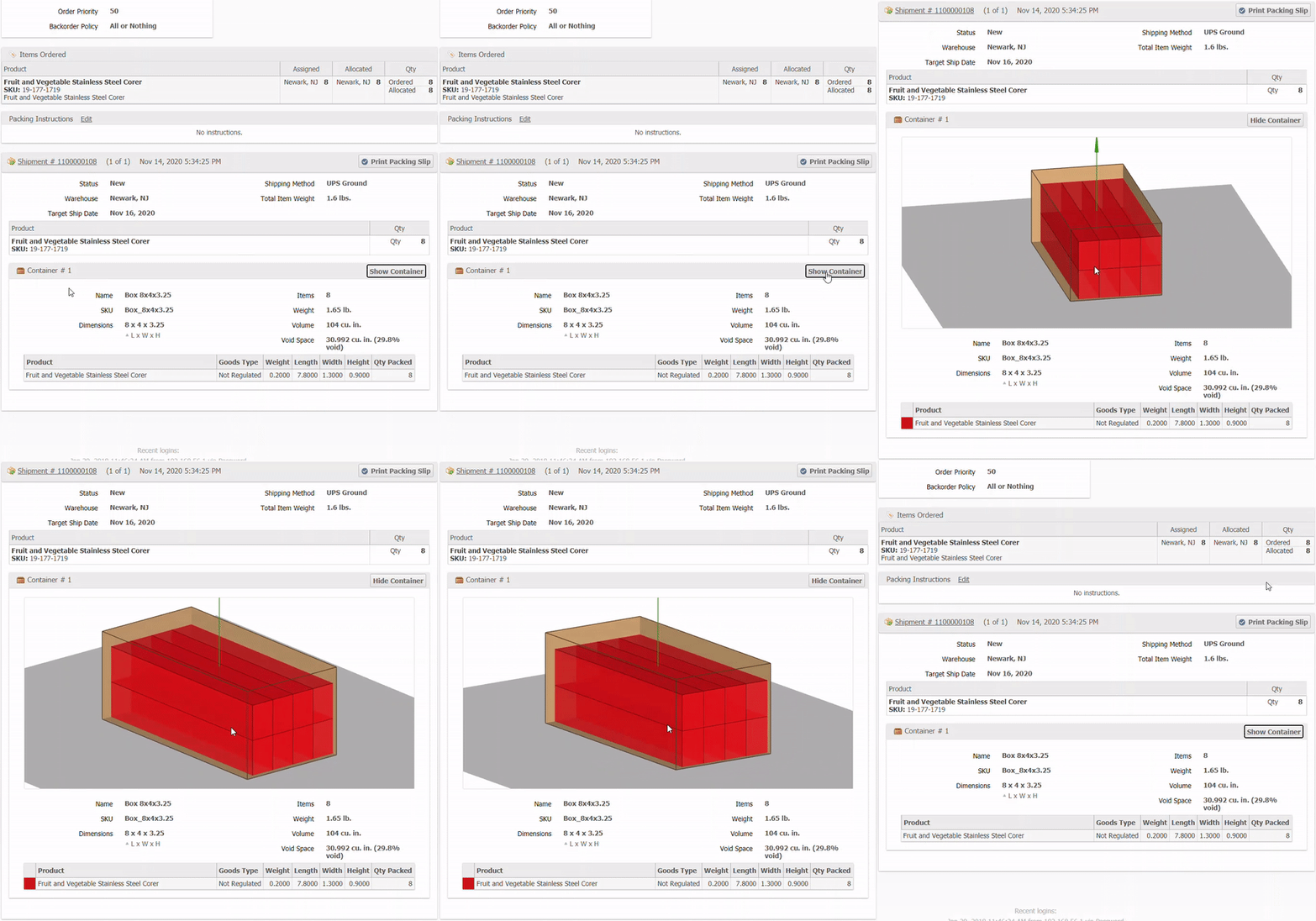
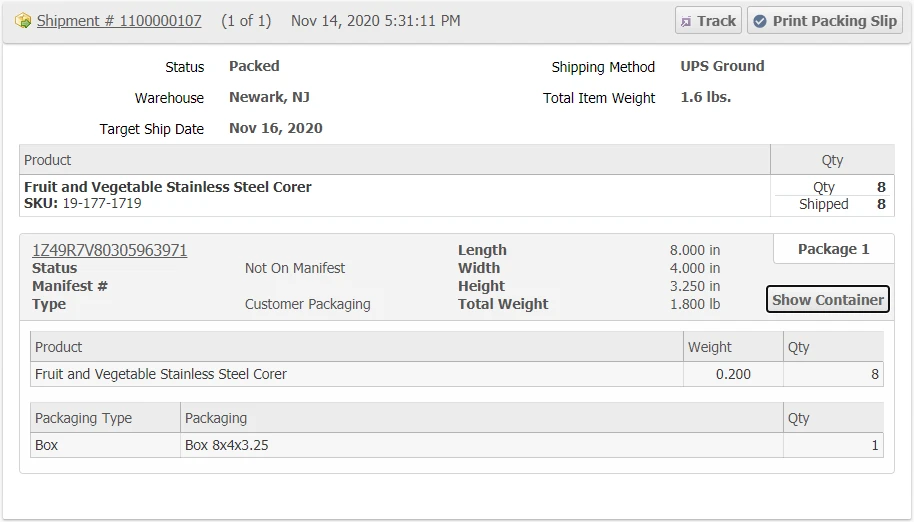
After the Shipment is marked as packed the view will change slightly so that to view any of the Container info the user will have to click the Show Container button. Clicking on the button will show the 3D view and the Container info. However if the Packing Solution was created by a Packer or by Training from a prior Order, then only the Container info will be shown without the 3D viewer.
Angled Items in the 3D Viewer
An angled item is an item that ShipStream Packer placed flat on the carton floor but turned about its vertical axis, so it lies diagonally across the carton instead of square to its sides (see Angled Placement). Angled items appear at their angle in every 3D viewer: the Packing Solution page in the Admin UI, the packing screen in the Scanner UI, and the Order and Shipment container views in the Client UI.
Each angled item carries a label with its angle in degrees, such as 31.6°, so the packer can turn the item by the same amount when placing it. The label stays visible without hovering, so it can be read on Scanner devices. Items without a label are placed square, as before. Packing Solutions created before angled placement was available look exactly as they did.
An item that may not use one of the containers being packed into, or whose Max Per Package limit is exceeded by the requested quantities, always appears square, because ShipStream Packer never angles an item whose placement it has to check against those restrictions (see Angled Placement).
Freight (LTL) - Pallet Mode
It is possible to configure the system to utilize Packing Solutions for LTL shipments as well as parcel.
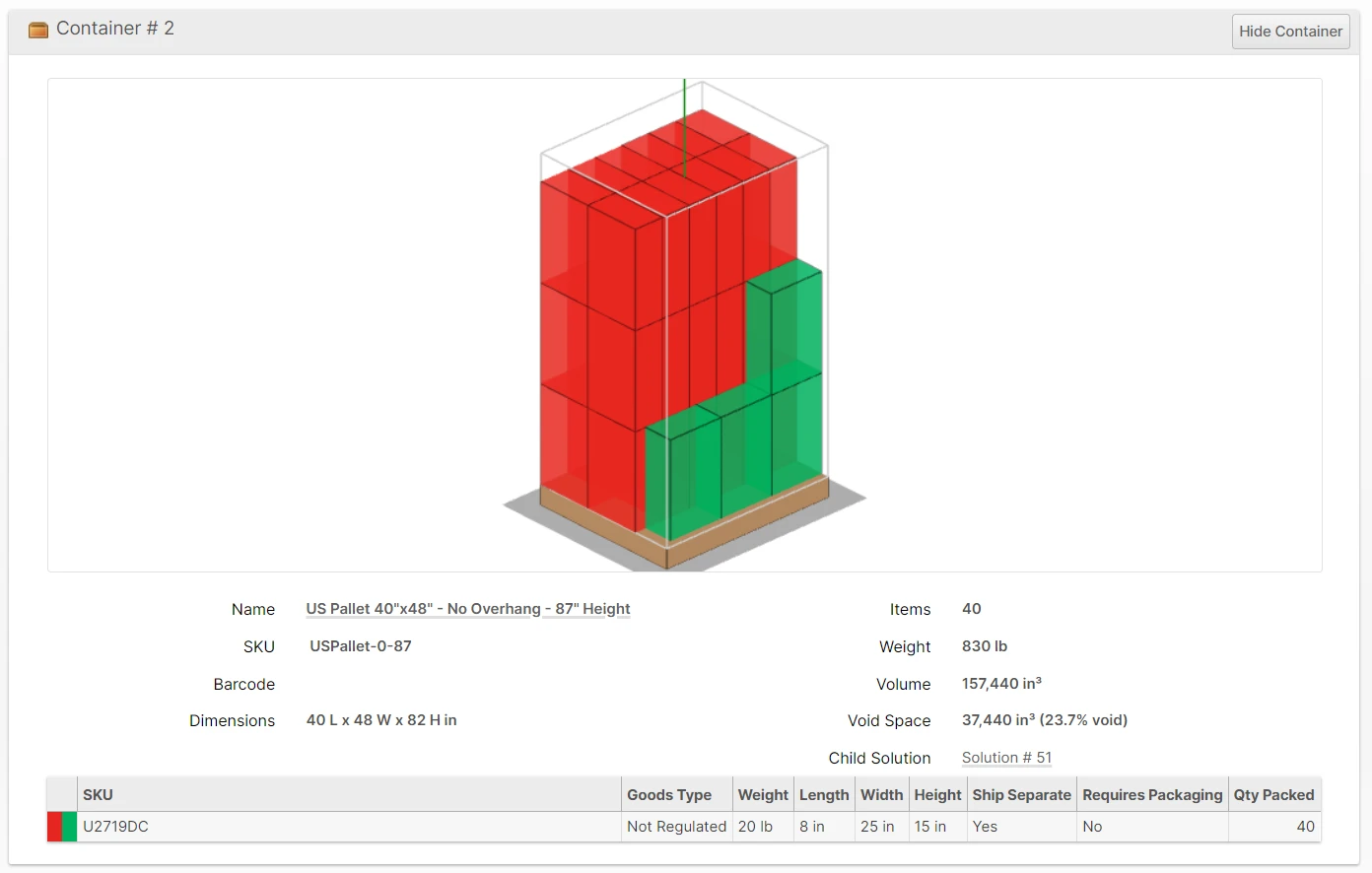
Please follow these steps:
- Add your "Pallet" containers (Packaging Features).
- Add a Preprocess Packing Solutions Script to apply pallet mode.
- Submit orders or regenerate shipments.
Step 1: Add your Pallet containers
Create one or more Containers to use for pallet mode. Do not create more than are necessary to get a decent result as you could bump into complexity limitations. It is recommended to start with three pallet sizes. For example: 40x48x24, 40x48x48 and 40x48x87.
Example Packaging Feature properties:
- Name: US Wood Pallet - No Overhang - 24" Max Height
- SKU: USPallet-0-24
- Weight: 35 lb
- Dimensions: 40l x 48w x 19h inches (subtract 5 inches of height for the pallet itself)
- Satisfies Overbox: Yes
- Use for Bin Packing: No (or set Allowed Shipping Methods)
- Weight Capacity: 3000 lb
- Container Style: Pallet (this is key)
- Manage Stock: No
Duplicate and adjust for each size needed. Note the SKUs you created for the next step.
Step 2: Add a Preprocess Packing Solution Script
As the parcel containers and weight limits are not conducive to LTL, we will need to override this for LTL shipments using a PPS Script. You could use any other criteria, but in this example we will enable pallet mode for shipments with an External Shipping Method with the code external_ltl .
See System > Enumerations > Shipping > Shipping Methods for a list of possible values for request.shipping_method.
Example Script
Navigate to System > Scripts and create a script of type Proprocess Packing Solutions similar to the one below, adjusting to suit your needs.
if (request.shipping_method === 'external_ltl') {
  let bucket = ShipStream.createBucket()
  items.forEach(item => bucket.addItem(item))
  bucket.addComment('Apply palletization up to 3000 pounds per pallet.')
  bucket.setContainers(['USPallet-0-24','USPallet-0-40','USPallet-0-87'])
  bucket.setMaxPackageWeight(3000,'lb',true)
  bucket.setInfill(false)
  bucket.setProviders(['thorough'])
}
This script does the following:
- Puts all items into a single bucket (it will be split as appropriate)
- Overrides the Packing Solution defaults to set a higher max weight
- Disables the default infill
- Overrides the set of valid containers to the ones created in step 1.
- Requests a solution from ShipStream Packer Thorough, with Fast as its backup (or Fast only when Strategy is Fast).
In pallet mode, Thorough requires every box to be fully supported, so no box overhangs the box or pallet below it.
setContainers() method have the Container Style: Pallet attribute set. If set successfully you will see that the Packing Solutions visualizations show a pallet instead of a normal box.Step 3: Submit orders or regenerate shipments
Submit an order with the criteria identified by your PPS script (for example the shipping method assigned matches the one in the script) and observe the results.
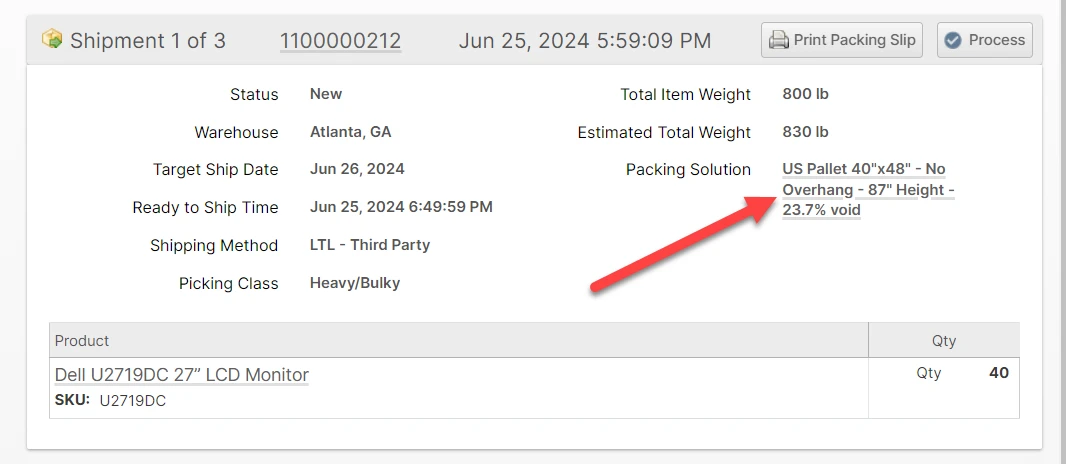
Check the History tab to confirm that your script applied as expected.

If you make changes to the containers or scripts and want them to apply to your existing shipments that have not begun picking, you can either hold and unhold the order, or use the Regenerate Shipments mass action on the Orders grid to immediately reprocess the shipments which may result in a different outcome including more/fewer shipments or different containers chosen.