
Legacy Client Migration Guide
Users who have printers or scales setup prior to ShipStream release 2022.2 will have setup those devices on what is now referred to as the Legacy Client. These clients can connect to the Device Hub and are displayed in the machine list with an orange header.
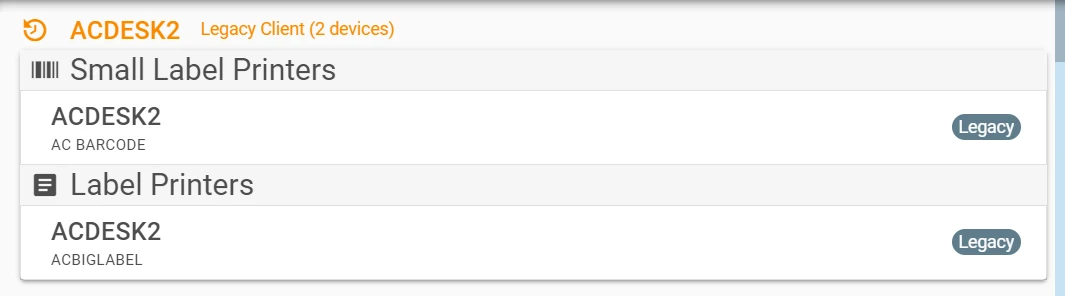
Legacy Clients may continue to receive print and scale tasks for their connected devices but it is strongly recommended to upgrade them as soon as possible by:
- Installing and registering either the the Device App or Device Service on the same computer, and then
- Uninstalling the Legacy Client
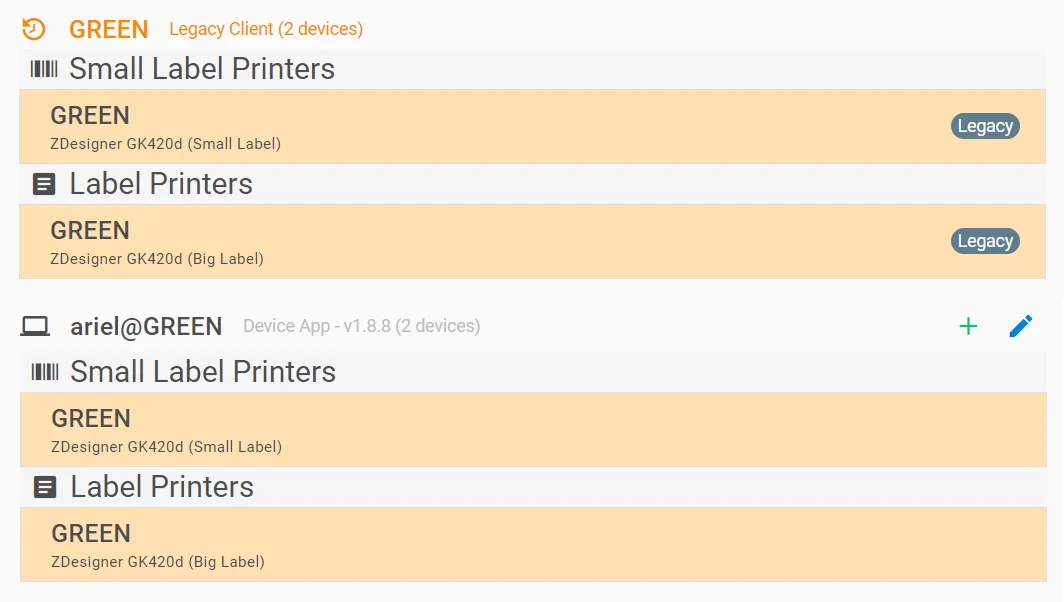
Once the new client has been installed, the devices will automaticallybe added to the newly registered machine with the same name and you should now see your Legacy Devices (highlighted in orange) duplicated into your new Device Service/App instance on the Device Hub as shown below. The individual devices will be highlighted in gold because they have conflicting resource identifiers.
Uninstall the Legacy Client
The normal uninstall method for the Legacy Client fails because the Windows services are not stopped properly by the uninstaller. Howerver, we have proviede an uninstaller that can be run in four easy steps:
Copy this text to your clipboard:
Start-Process powershell.exe -ArgumentList "-NoExit -NoProfile -ExecutionPolicy Bypass -Command `"iwr https://shipstream-hub.s3.us-east-2.amazonaws.com/legacy-removal.ps1 -useb | iex`"" -Verb RunAs- Open Windows PowerShell (Admin) by pressing Windows+X then A. Alternatively, you may search the Start Menu for "PowerShell" and click Run as Administrator.
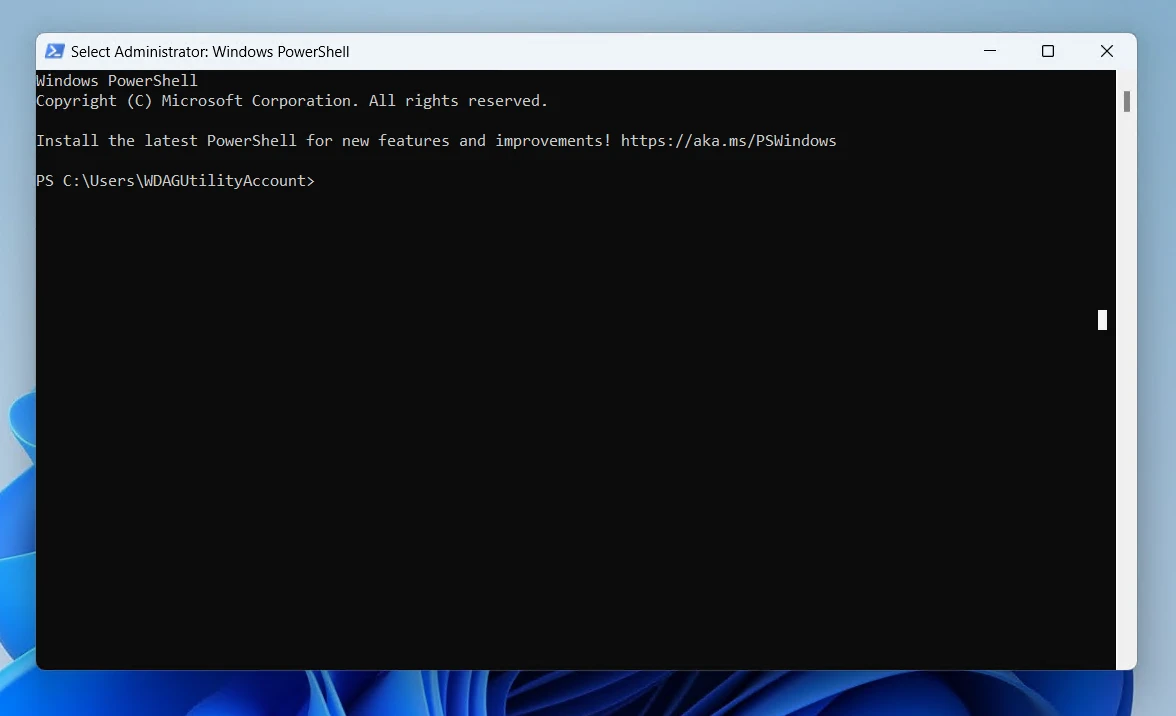
- Press Ctrl+V to paste the text from step 1, then press Enter to run the command. (do not click inside the black area as it may replace your clipboard contents)
- Click Yes if prompted with "Are you sure you want to completely remove ShipStream Client and all of its components?" and then OK. (you may not receive this prompt if the uninstaller was run once before)
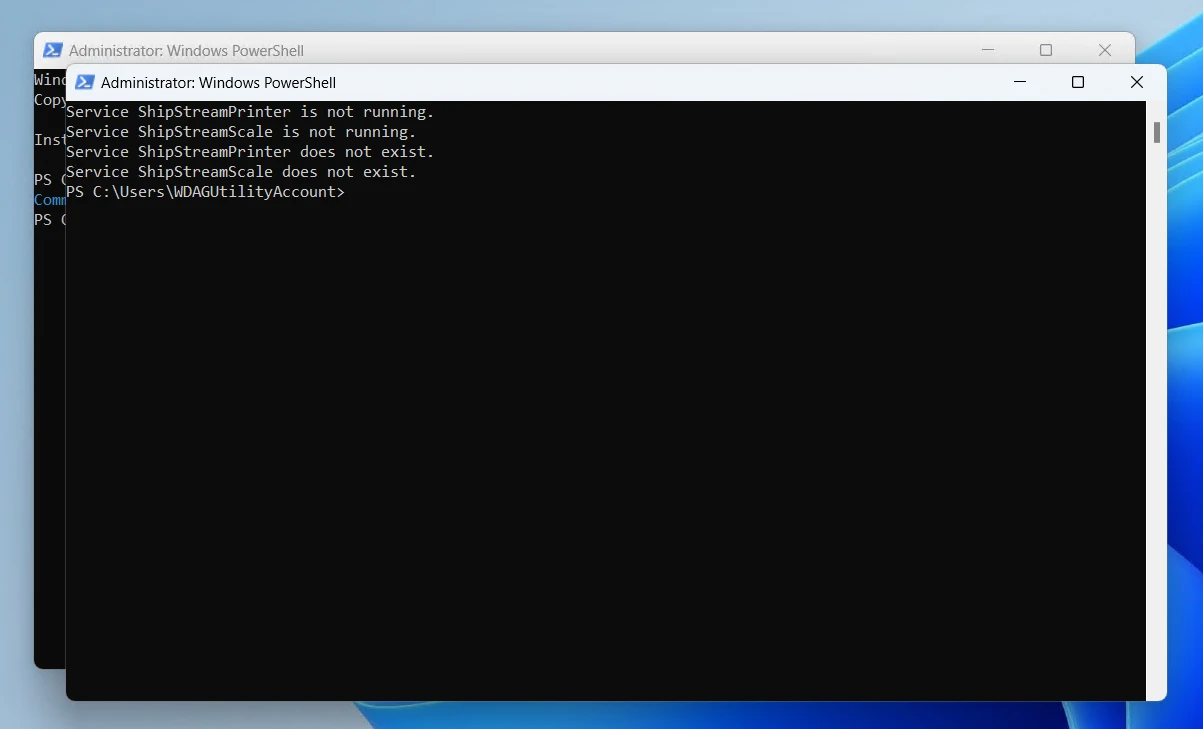
All done! The PowerShell windows should now appear like this and are safe to close:
Alternative 1 Uninstallation Steps 1
- Download the "legacy-removal.ps1" file by clicking this link: https://shipstream-hub.s3.us-east-2.amazonaws.com/legacy-removal.ps1
- Locate the downloaded file in Windows Explorer. (e.g. click Show in folder" or open your Downloads folder from the start menu)
- Right click the file and click Run with PowerShell
Alternative 2 Uninstallation Steps 2
Stop the Services
- Open the Windows "Services" app by searching for "Services" in the start menu and click "Run as Administrator"
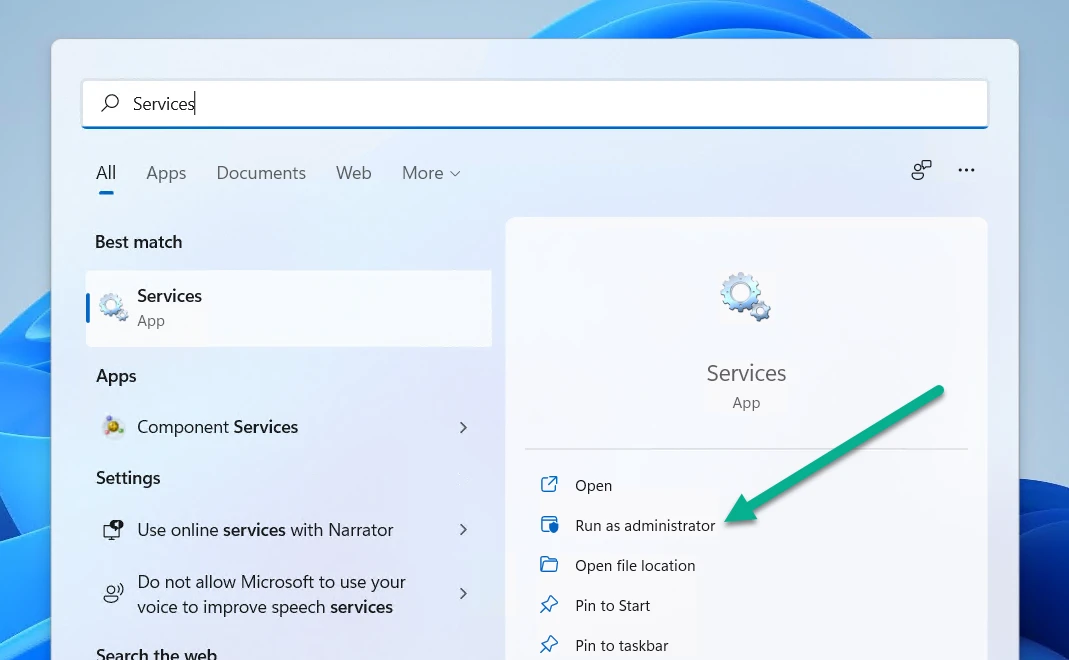
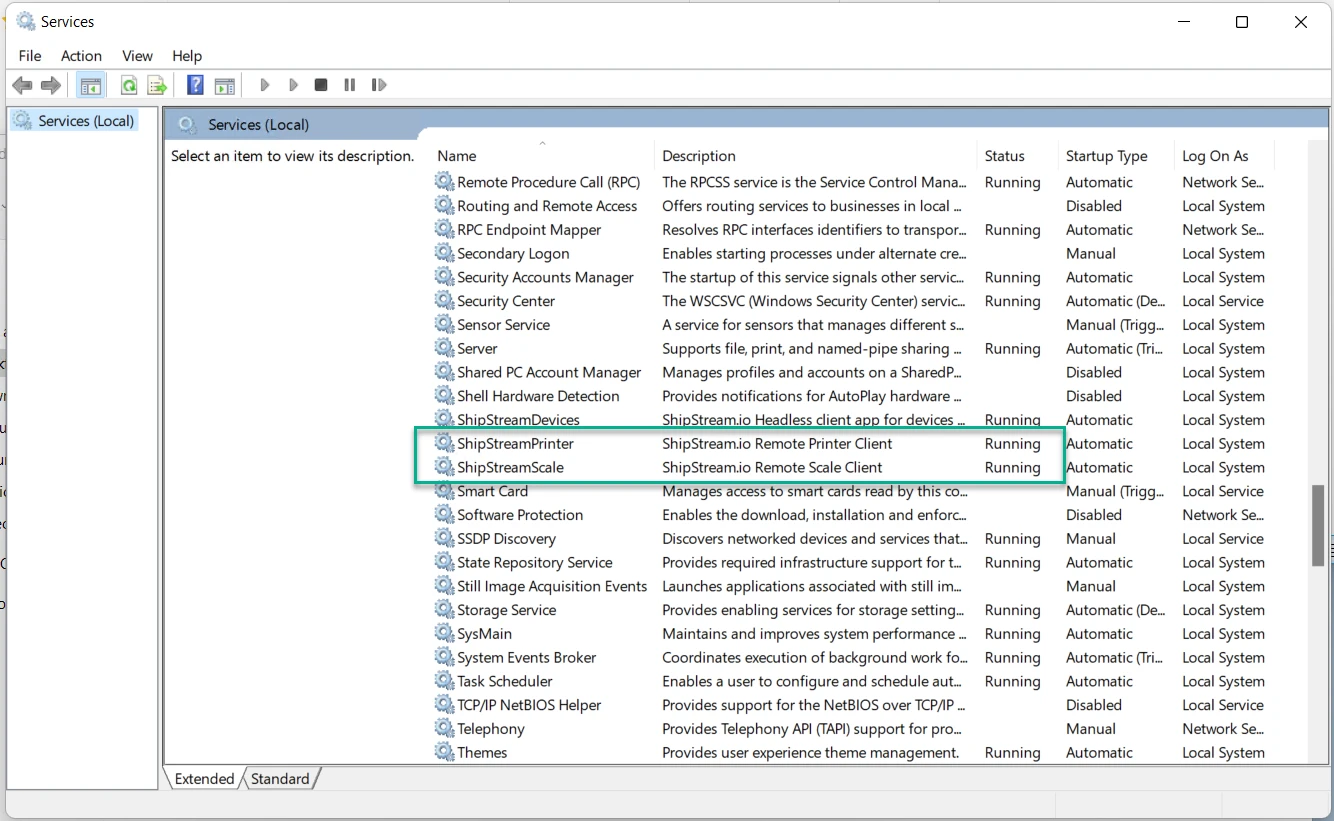
- Scroll down to locate "ShipStreamPrinter" and "ShipStreamScale" services.
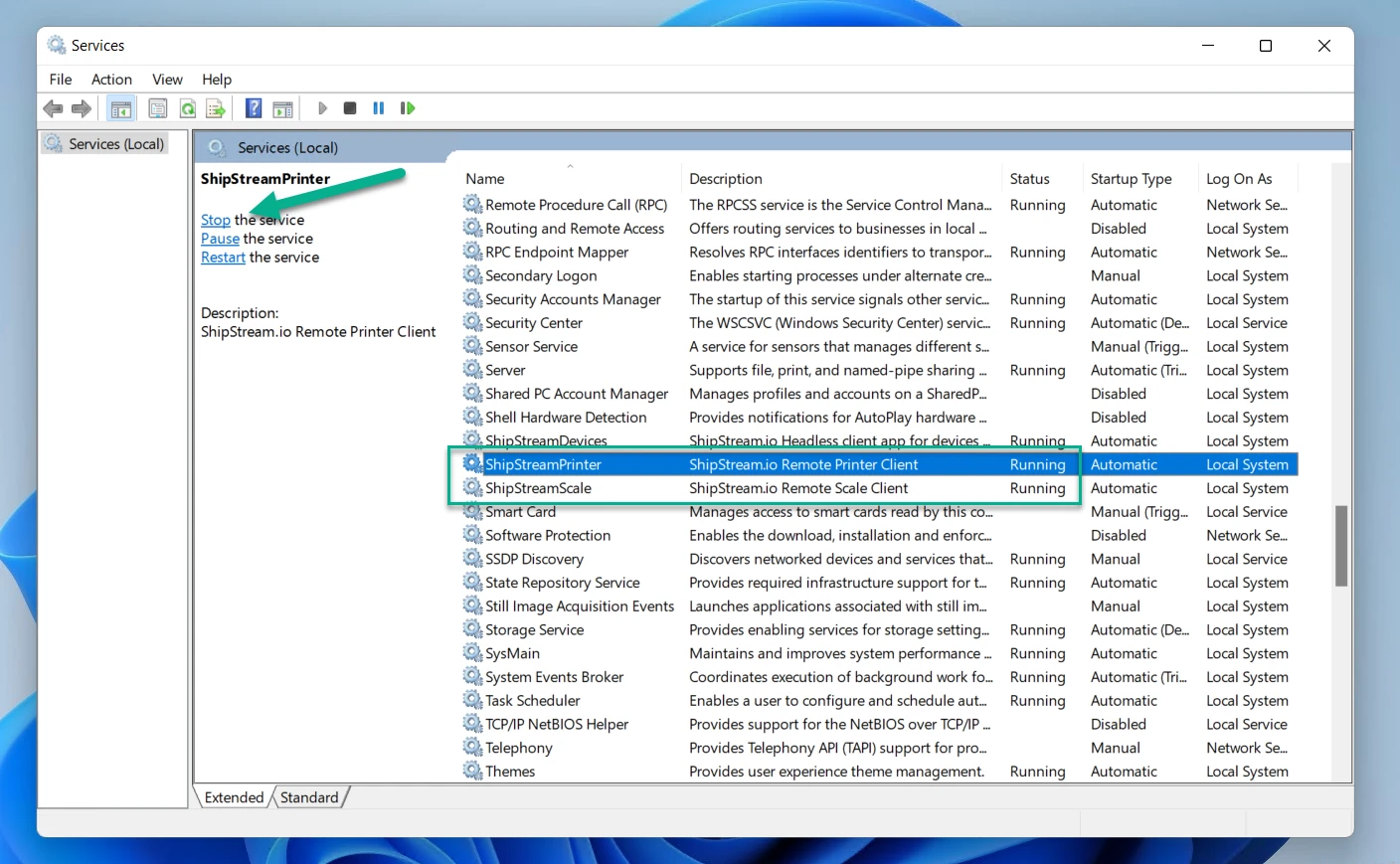
- Select the service and click "Stop the service". Repeat for both "ShipStreamPrinter" and "ShipStreamScale" services.
Run the Uninstaller
After stopping the services the uninstaller can be invoked using one of the following methods:
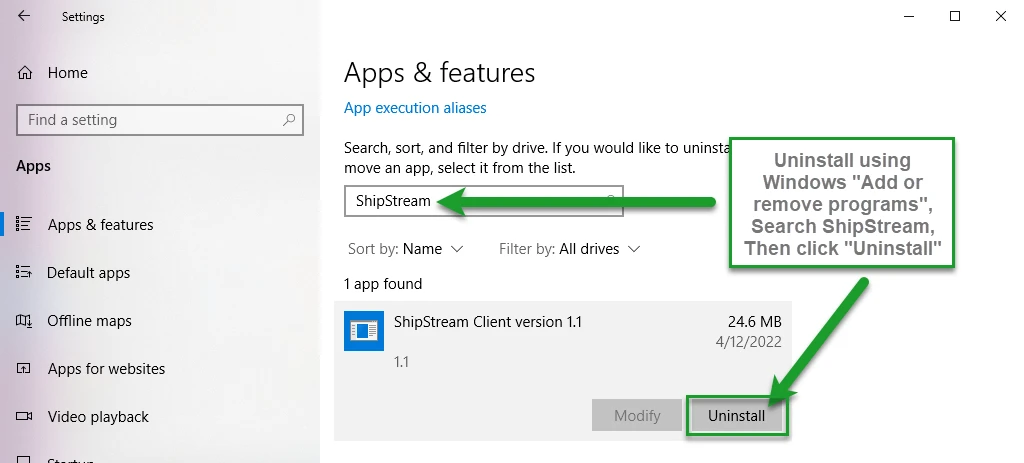
Method 1: Uninstall ShipStream Client using Windows "Add or remove programs"
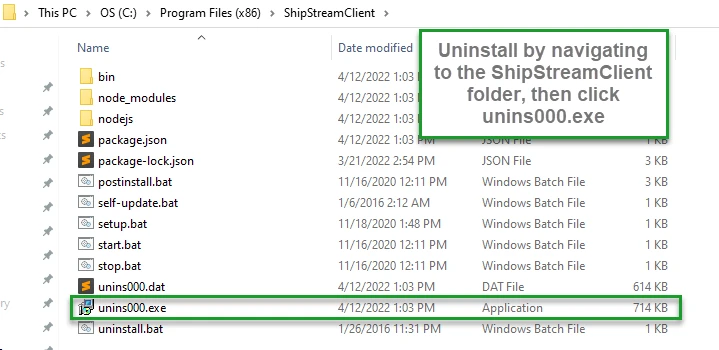
Method 2: Use File Explorer to launch the uninstaller:
C:\Program Files (x86)\ShipStreamClient
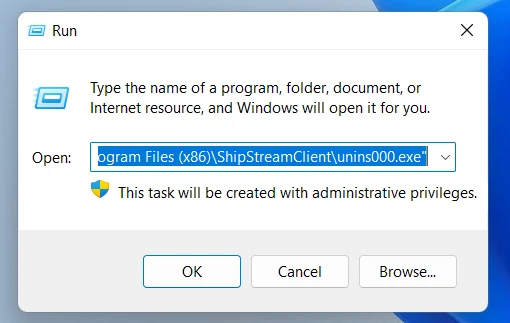
Method 3: Use the "Run" dialog if logged in as the Administrator to launch the uninstaller:
Press Win+R key to open the "Run command" dialog and then type or paste the following command and click OK:
"C:\Program Files (x86)\ShipStreamClient\unins000.exe"