
Shopify
This article describes the capabilities and features of ShipStream's Shopify integration and provides instructions to help you setup and configure Shopify integration subscriptions.
ShipStream's Shopify integration is a merchant-level integration meaning each connection is limited to the scope of a single ShipStream Merchant. Each connection (called a subscription) connects to a single Shopify store, but you may create any number of subscriptions to connect Shopify stores to ShipStream merchants. One ShipStream merchant may have multiple Shopify stores connected, often with one store per ShipStream Brand.
The Shopify integration in a nutshell consists of two main parts: a Fulfillment Service and a Carrier Service.
Connecting to Shopify
How you connect to Shopify will depend on if you are using a Public App or a Custom app. If using a Public app, your users may simply visit your app listing or the ShipStream app listing (TODO: get app published and add link here) and click Install to authorize the app.
For a Custom app, please follow the "Obtaining a Custom App Access Token" instructions. Create a new Shopify subscription by navigating to System > Integrations > Merchant Integrations and clicking Add New Subscription. Then choose a Merchant and the Shopify plugin.
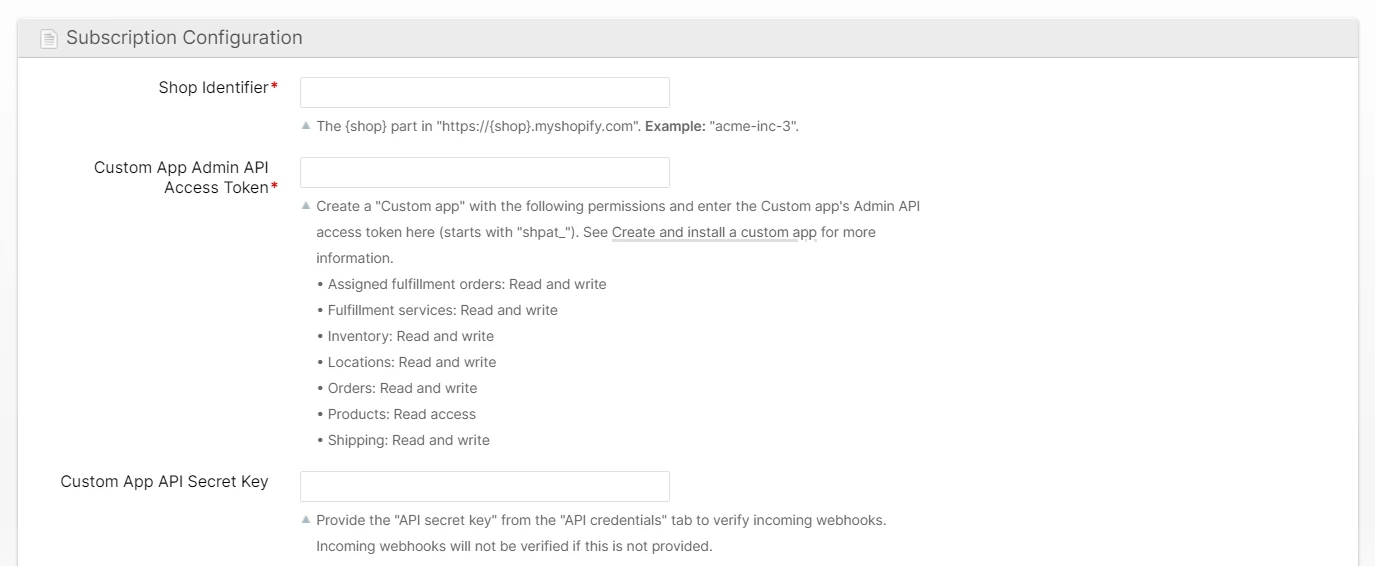
Lastly, provide the "Admin API access token" and "API secret key" obtained from Shopify into the appropriate fields as seen below and click Save Subscription.
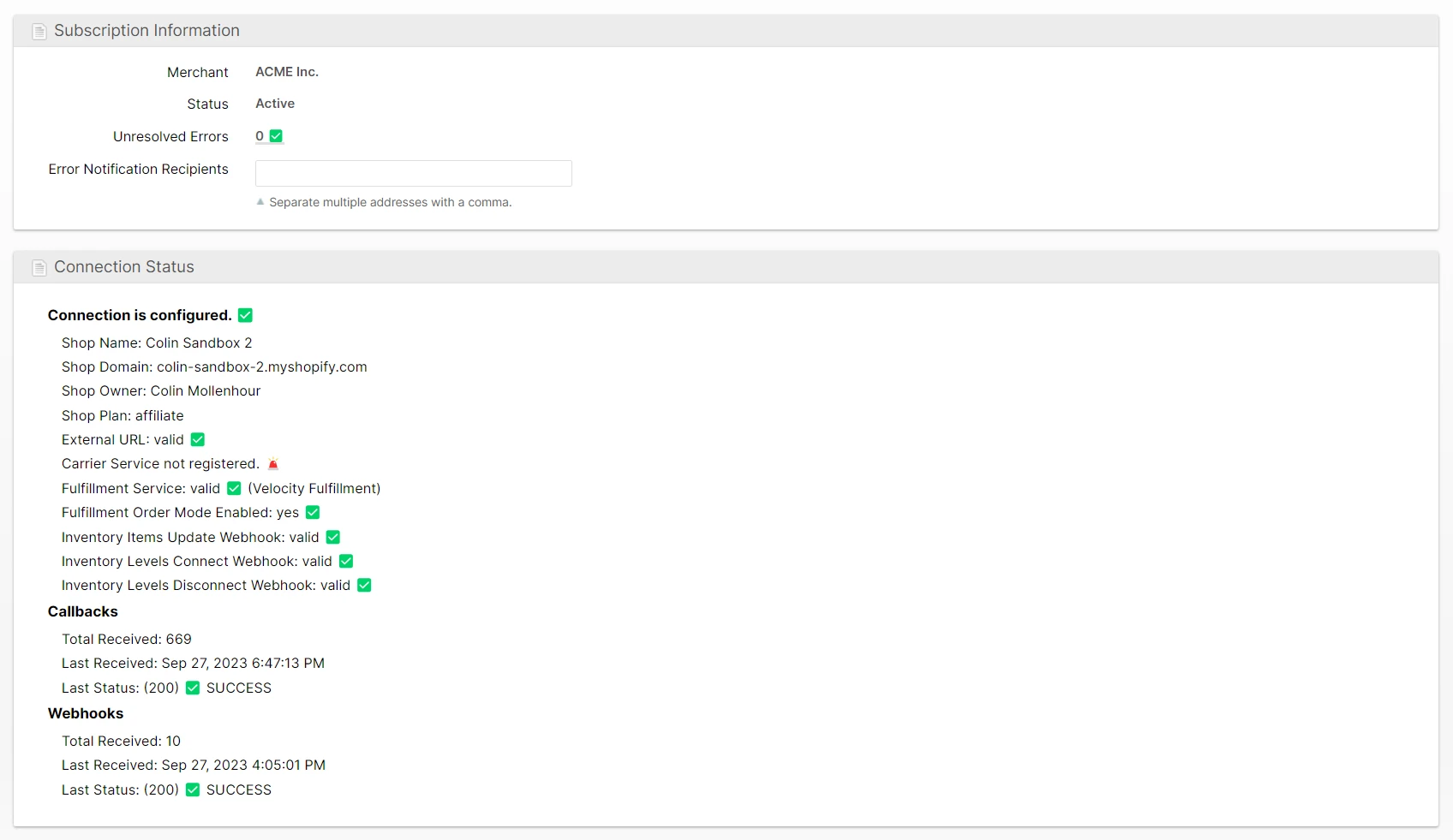
Once the connection to Shopify is established, you can visit the Subscription page any time to see the connection status and diagnostics.
Fulfillment Service
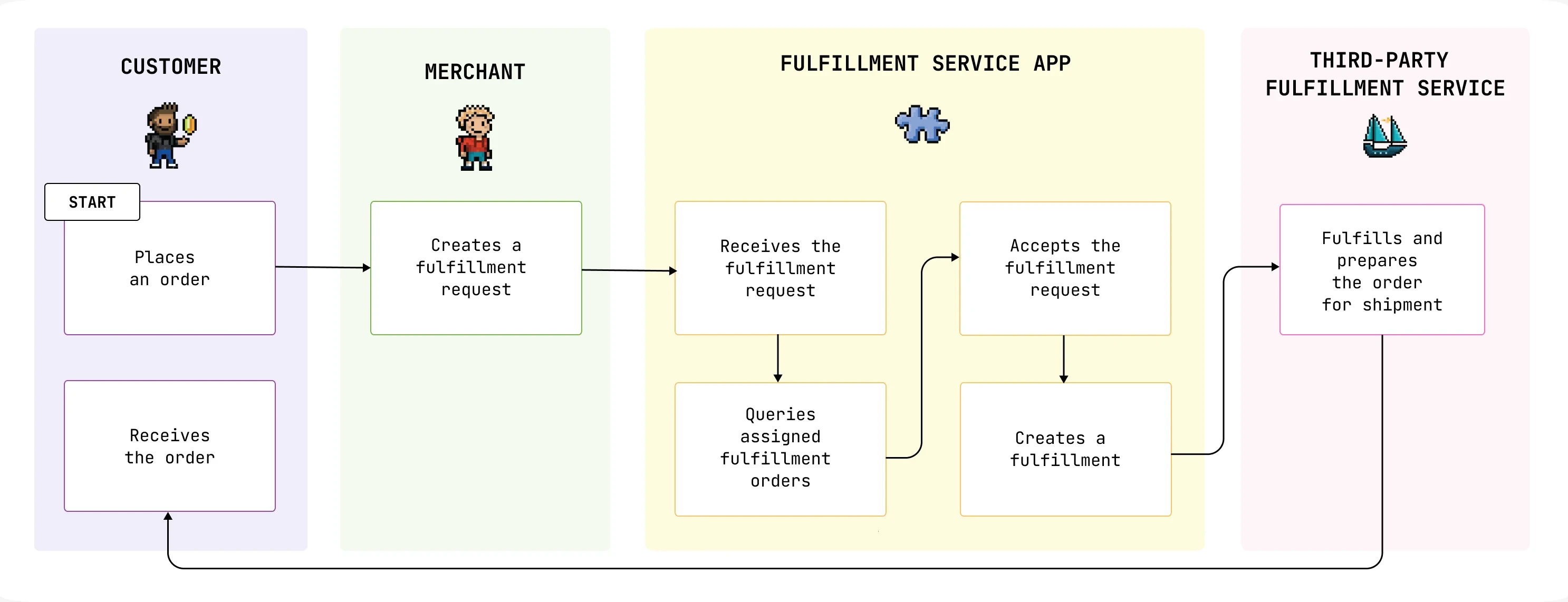
ShipStream implements a proper Fulfillment Service App for your Shopify store, which allows you to assign your products to the stock locations registered by the fulfillment service, then keep inventory in sync with your warehouse and receive and accept Fulfillment Orders which Shopify assigns to the ShipStream-backed location.
Carrier Service
The Carrier Service inserts your ShipStream merchant as a carrier service into Shopify, which is capable of providing real-time quotes to your Shopify shoppers using ShipStream's Rating Data and Rate Shopping functionality. Using this service can help you provide the most accurate shipping quotes to your customers and give you fine-grained control over your costs to the end-customer.
Order Transform Script
The Order Transform Script is not required in most cases, but can be used to implement advanced logic which transforms the order data using the Shopify order data before it is submitted into ShipStream. See the Shopify Order Transform Scripts document for more information.
Next Steps
After establishing the Shopify connection to your ShipStream merchant via the Merchant Integration, you're almost done!
- Assign your products' inventory tracking to the new location
- Configure your Shipping Method Translation or Carrier Service
- Configure automatic fulfillment (optional)
- Write an Order Transform Script (optional)
Shipping Method Translation and Carrier Service
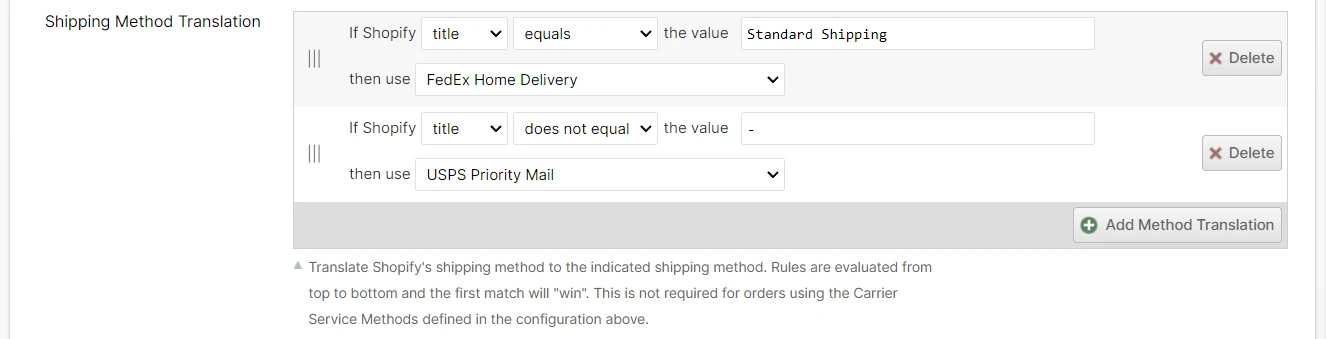
These two configuration options are mostly mutually exclusive. If you have configured the Carrier Service Methods and the customer chooses a shipping rate provided by ShipStream, the shipping method code recorded by Shopify will already match the ShipStream shipping method, so no Shipping Method Translation is needed. In all other cases, you need to ensure that the shipping method in the Shopify order data translates to the appropriate shipping method in ShipStream by specifying the Shipping Method Translation in the Subscription Configuration.
Shipping Method Translation
Each translation rule will attempt to match against the Shopify order data and, if successful, will set the shipping method for the new order accordingly.
After the first rule matches, no other rules will be checked so drag the most specific rules to the top of the list.
Carrier Service Methods
When using the Carrier Service you must specify one or more Carrier Service Methods in the Subscription Configuration. This allows you to customize which methods are quoted to customers and what they should be called in the Shopify shopping cart.

After saving the Carrier Service Methods, scroll down to the bottom of the subscription page to the Actions section and click Register Carrier Service. This will register ShipStream as a carrier service in your Shopify store so that the shopping cart will start requesting shipping quotes directly from ShipStream.

TODO - screenshot of setting up rates in Shopify showing the carrier service as an option for rate source
Shopify Settings
Some Shopify settings to be aware of:
Automatically Request Fulfillment
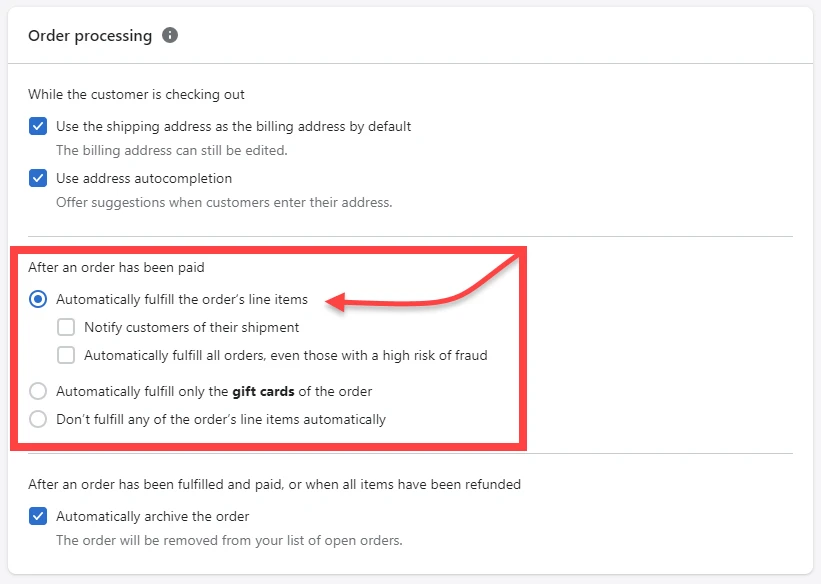
If the Merchant would like Shopify to automatically send fulfillment requests to ShipStream once the Order is marked "paid", then there is a setting in Shopify that allows this.
- Shopify: Settings > Checkout > Order processing > After an order has been paid
- Choose the option "Automatically fulfill the order's line items"
- There are two optional checkboxes beneath this option that change how Shopify handles particular orders. The merchant can decide how best they would like to handle these situations.
Configure Products
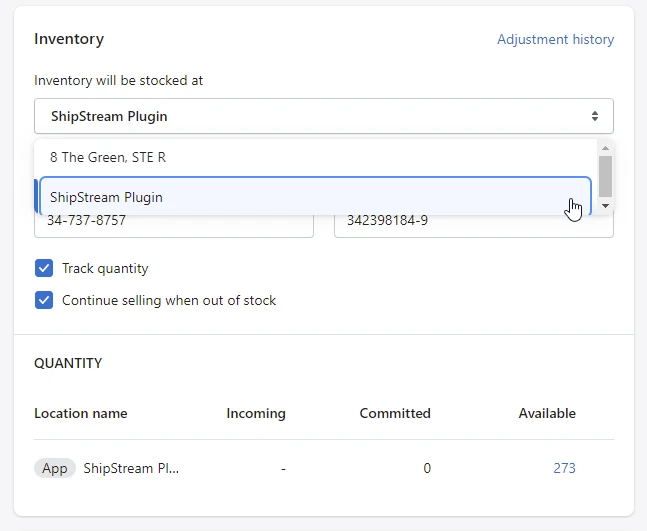
Once the Fulfillment Service has been registered one can then update the products in Shopify to use the registered Fulfillment Service. This is accomplished by setting the product's "Inventory will be stocked at" to the Fulfillment Service. Shopify Products must be set to the Fulfillment Service to allow Shopify to send fulfillment requests to ShipStream. If a product is not set to the Fulfillment Service then that product cannot be fulfilled by ShipStream.
Shopify: Product > Inventory > Inventory will be stocked at
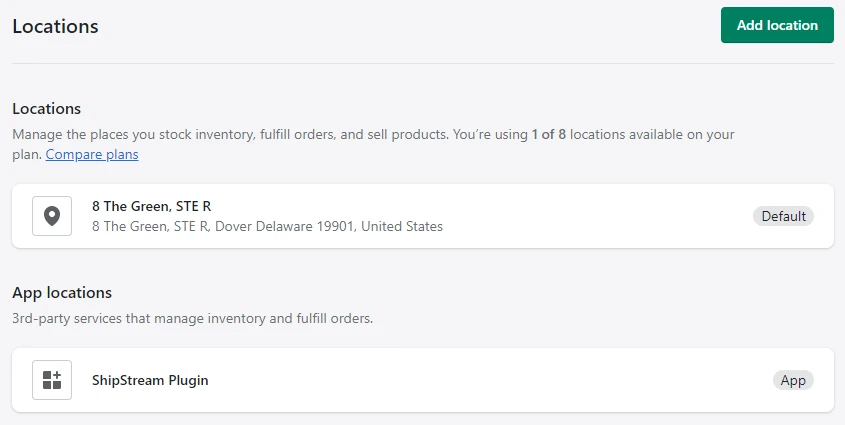
Shopify Locations
App Locations versus Locations. When an integration registers with Shopify as a Fulfillment Service, Shopify will create a special Location associated with this Fulfillment Service. This location is an App Location. Unlike a normal Shopify Location, these can not be edited by the user. App Locations are created automatically upon registration. Any products that are assigned to use this Fulfillment Service will also be assigned to this app's location for inventory and fulfillment purposes.
If your order's fulfillment is assigned to a location that is not the name of your Fulfillment Service indicates that one or more products are not being managed by the registered Fulfillment Service.
Shopify: Settings > Locations