

Pick Routes
A Pick Route is a named, warehouse-specific ordering of your Racks that defines the path a picker travels when picking a batch, a Bulk Fulfill, or a Work Order. Every Warehouse starts with a single Default route, and you can create additional routes so that different operations — for example a forward-pick area versus a bulk-pick area — can each follow their own pick path.
Pick Routes build directly on Racks: the route's Picking Order values sequence the Racks for a specific pick path. A batch is assigned exactly one Pick Route when it is created, and that route determines the order in which its pick locations are presented during picking.
The Default Route
Every Warehouse has exactly one Default Pick Route, which ShipStream creates and maintains for you:
- It is the warehouse-wide pick path used when no more specific route is assigned.
- It always includes every Rack in the warehouse.
- When you add a new Rack, it is automatically added to the Default route at the end of the path until you assign its route order.
- The Default route cannot be deleted.
Batches and Bulk Fulfill picks use the Default route unless an Asset Policy pins a different one; Work Orders always use the Default route. See Assigning a Route below.
Creating a Pick Route
- Navigate to Operations -> Warehouse -> Pick Routes.
- Click Create New Pick Route.
- Fill in the Name and choose the Warehouse the route belongs to.
- Click Save Pick Route, or Save Pick Route and Add Another to immediately start another.
A Warehouse may have at most 10 Pick Routes, including its Default. A route belongs to a single Warehouse, and that Warehouse cannot be changed after the route is created.
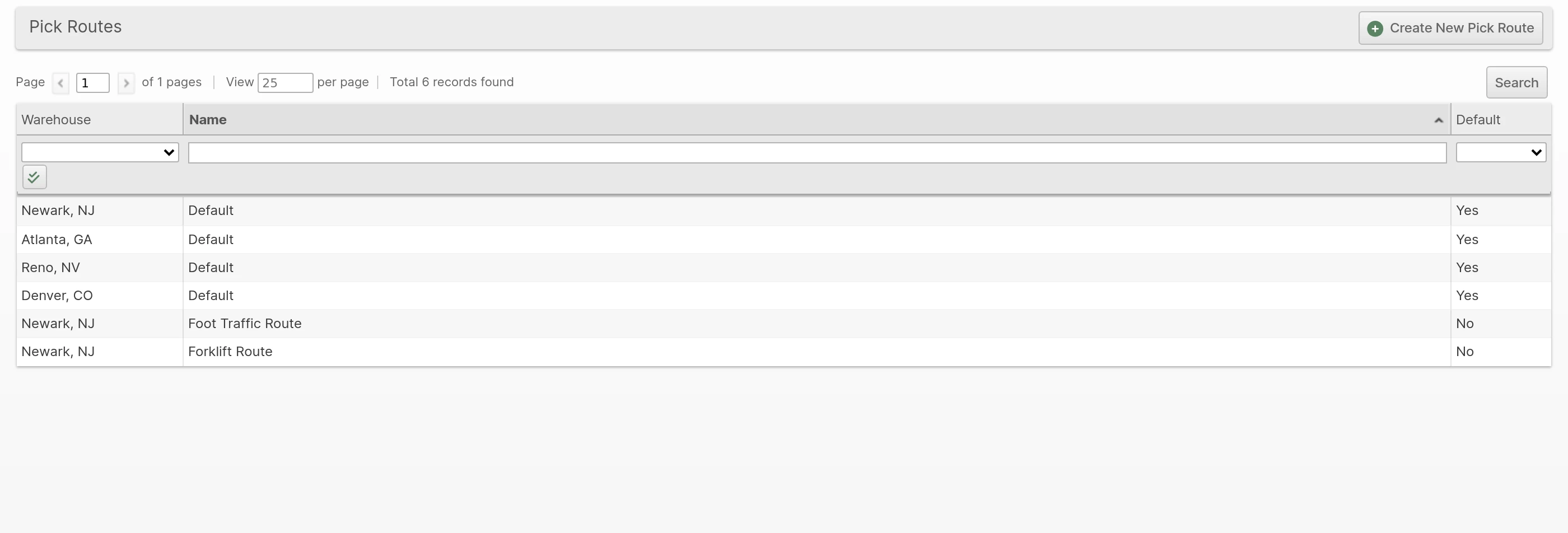
The grid lists each route's Name and whether it is the Default. In a multi-warehouse view a Warehouse column is also shown so you can filter routes by warehouse.
Defining the Rack Order
A Pick Route's full rack sequence is edited as a spreadsheet. Open a route and use the buttons in the header:
- Download CSV or Download Excel — exports the route's current racks as two columns, Rack Name and Picking Order, sorted in pick-path order.
- Import — uploads an edited spreadsheet (CSV or Excel) to replace the route's rack ordering.
Set each Rack's Picking Order to position it along the path; lower numbers are picked first. As with Racks, pad the numbers (10, 20, 30, …) so you can later insert a Rack between two others without renumbering the whole list.
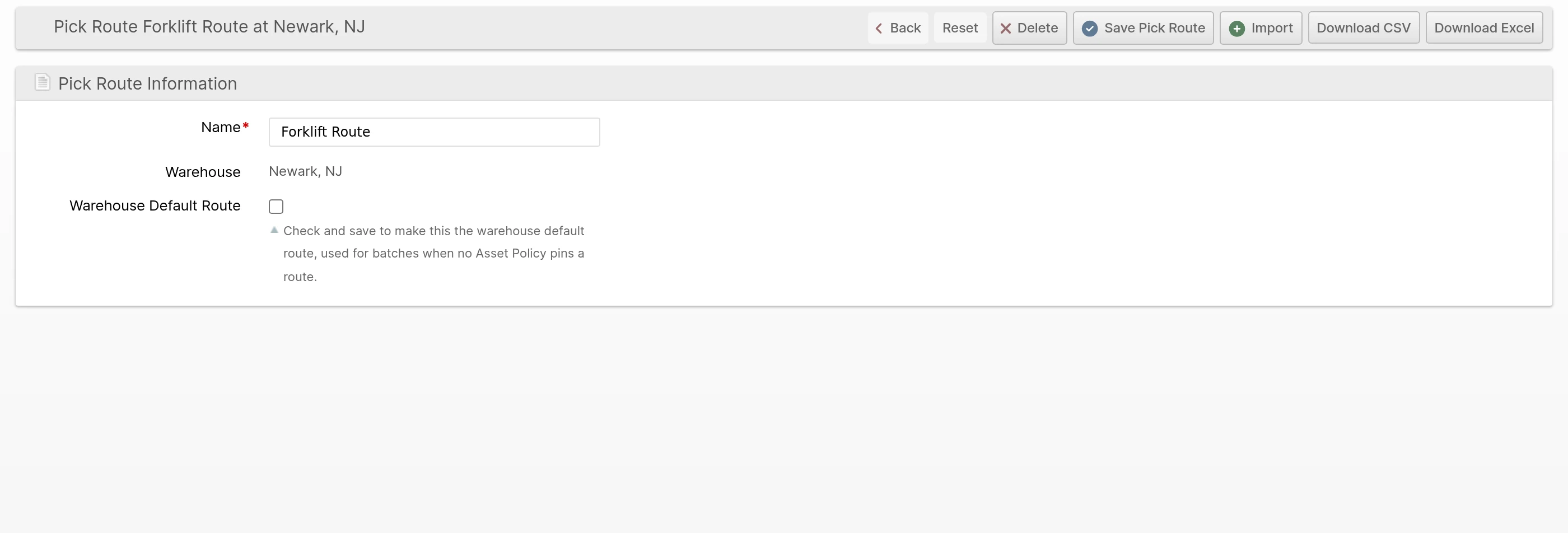
To adjust one Rack across routes, open that Rack and edit Picking Order by Route on the Rack form.
Setting the Warehouse Default
Which route acts as a Warehouse's Default is controlled by a configuration field:
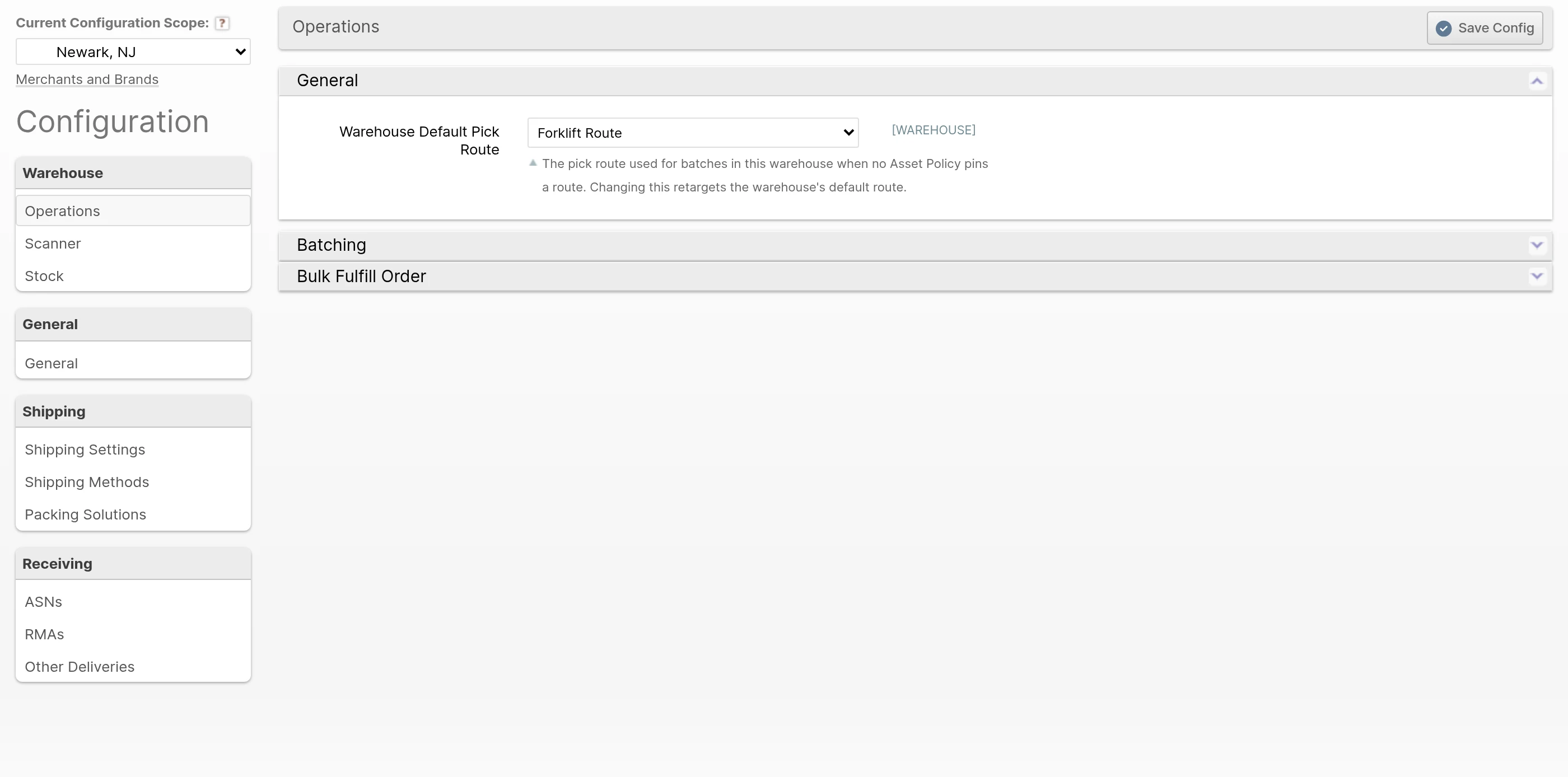
- Navigate to System -> Configuration -> Warehouse -> Operations -> General.
- Set Warehouse Default Pick Route to the route you want, scoping the change to the warehouse you are configuring.
- Click Save Config.
Changing this retargets the Warehouse's Default route to the route you select. The new route then becomes the one used by every batch that is not pinned to a specific route by an Asset Policy.
Assigning a Route
By default a batch or Bulk Fulfill follows its Warehouse's Default route. To make an operation follow a specific route instead, pin the route on an Asset Policy:
- On the Asset Policy edit form, the Pick Routes field lists every Warehouse with a dropdown to choose that Warehouse's route. Leave a Warehouse on Use warehouse default to inherit its Warehouse Default Pick Route. (Asset Policies cover Batch Pick and Bulk Fulfill Pick operations.)
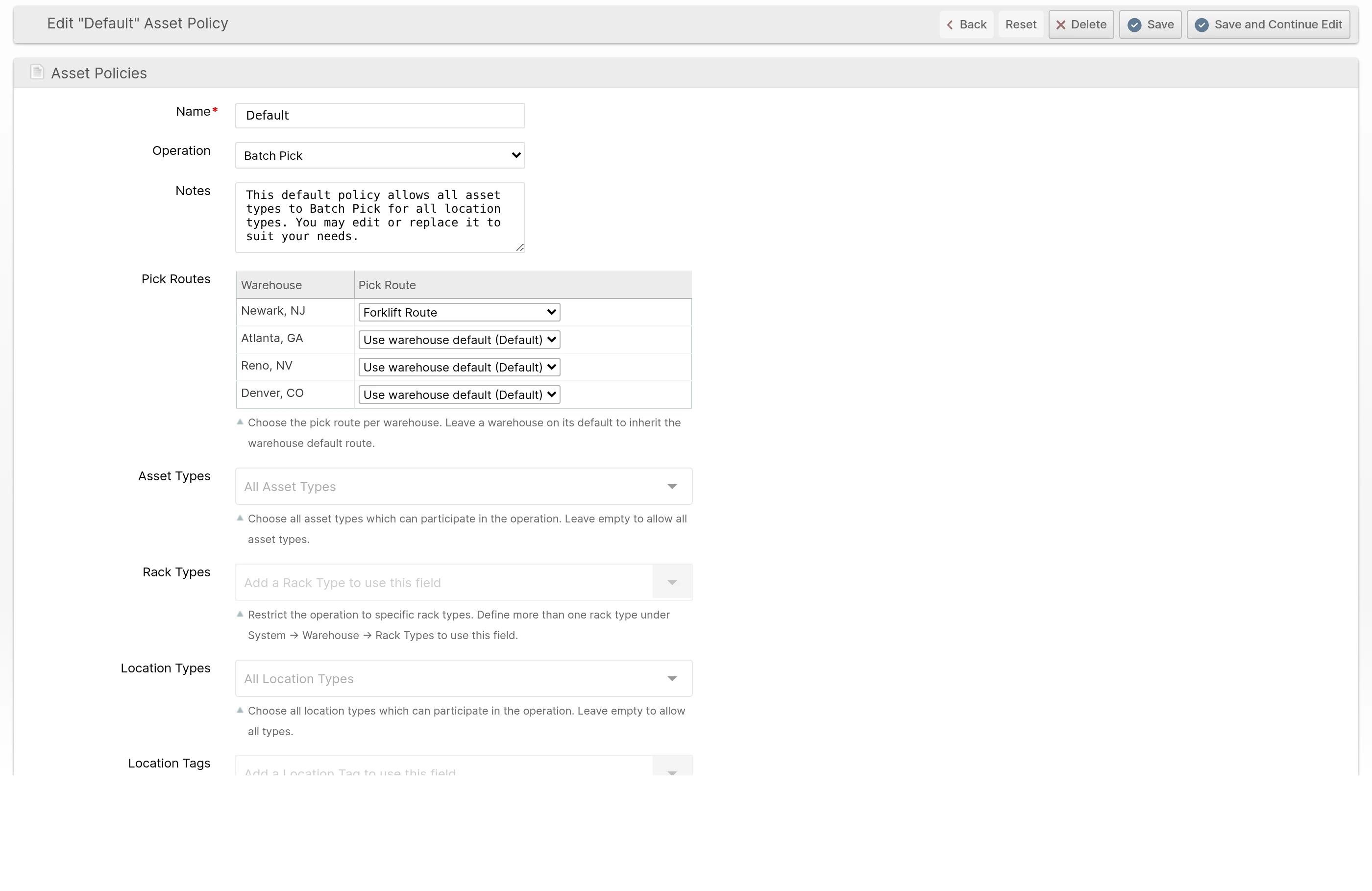
When a batch or a Bulk Fulfill is created, ShipStream resolves its route in this order:
- If the Asset Policy in effect — from the chosen Batching Preset or Asset Type — pins a route for the Warehouse, that route is used.
- Otherwise the Warehouse Default route is used.
Work Orders always use the Warehouse Default route.
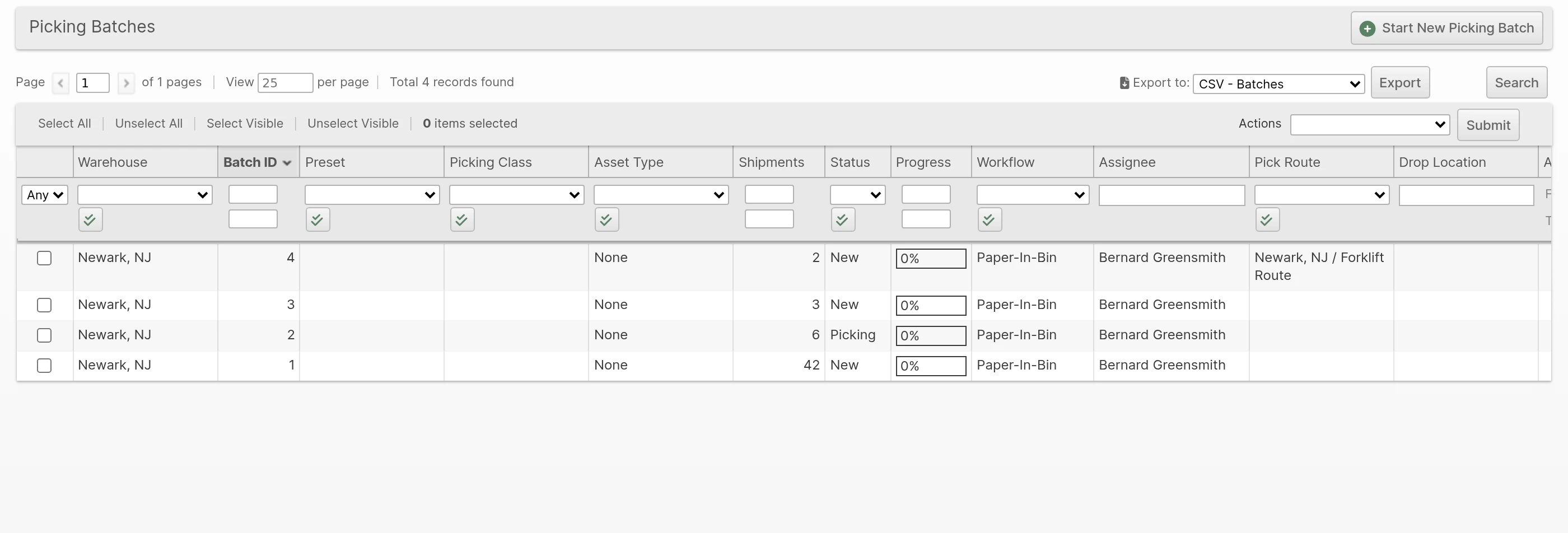
A batch's resolved route is shown in the Pick Route column on the Operations -> Picking Batches grid, which you can also filter by route.
How the Route Affects Picking
During picking — whether by Scanner or Pick by Paper — a batch's pick locations are presented grouped by Zone and then ordered by each Rack's Picking Order within the batch's Pick Route. A batch assigned a route that covers a smaller or differently sequenced area of the warehouse will guide pickers along that area's path rather than the warehouse-wide default path, reducing wasted travel.