

Version 2026.3
Asset Policy: Rack Types and Location Tags
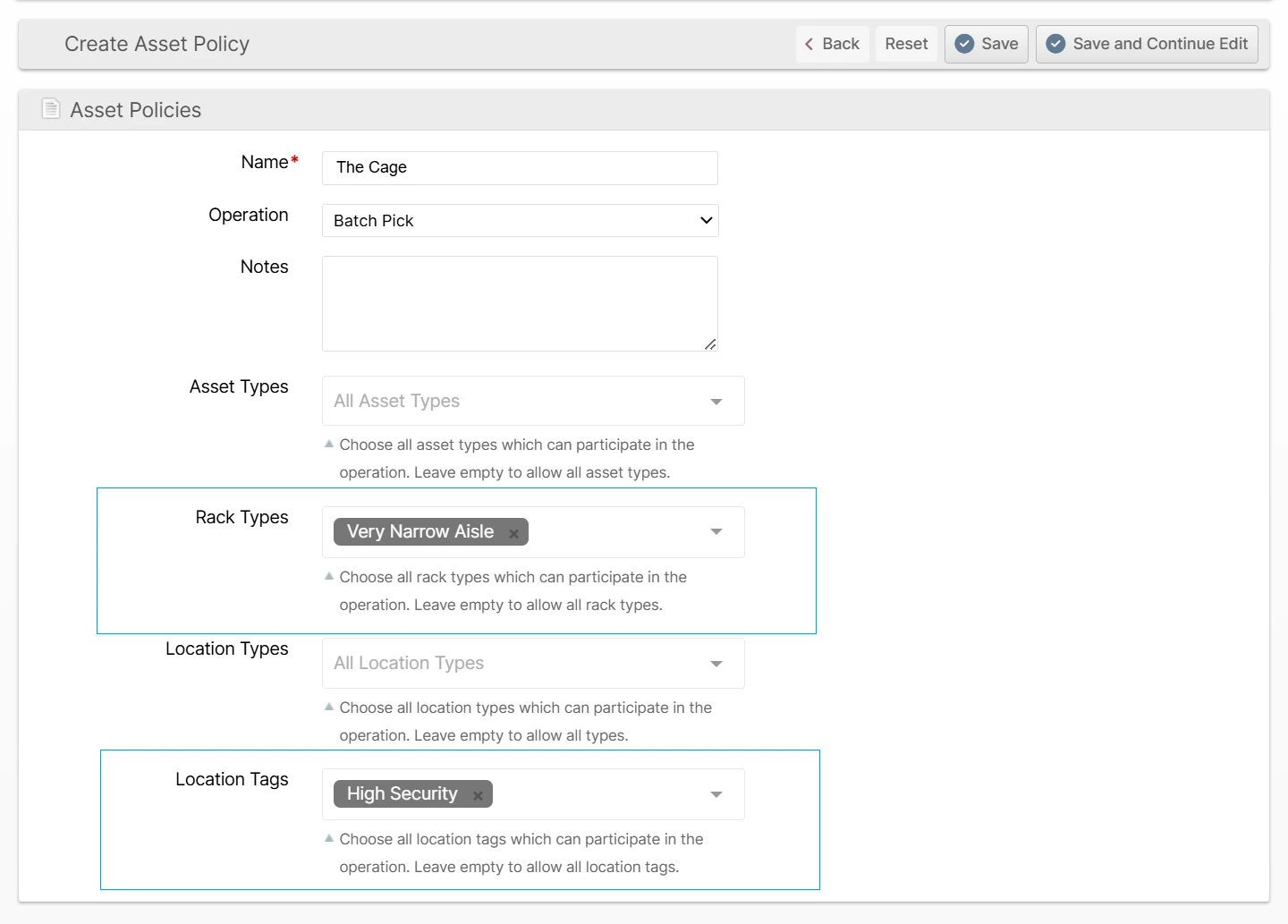
Asset Policies can now restrict the locations a batch may pick from by Rack Type and Location Tag, in addition to the existing Asset Type and Location Type dimensions. Combined with Rack Types and Location Tags introduced in 2026.1, this lets you carve up accessibility by physical configuration — wide vs. narrow aisle, mezzanine, cold storage — without having to redefine Location Types.
The Asset Policy edit form gains two new multiselects: Rack Types (visible once two or more Rack Types exist) and Location Tags (visible once any tag has been defined for locations). Leaving either empty means "no restriction" on that dimension. Batch creation, Bulk Fulfill Order, and the Asset Policy Exclusivity setting on Batching Presets all honor the new dimensions — a location must match every configured dimension to be considered preferred. When multiple Asset Policies are in scope, each dimension is unioned independently; pin a single Asset Policy on a Batching Preset for strict per-policy semantics.
USPS Cubic Pricing
USPS Cubic Pricing can now participate in Rate Shopping for small, dense USPS shipments. You can create USPS Rate Plans that price eligible Priority Mail Cubic and Ground Advantage Cubic packages by cubic-foot tier instead of billable weight, helping ShipStream choose the more economical USPS option when the package qualifies.
On a USPS Rate Plan, the new Pricing Type field lets you choose Weight or Cubic. Cubic plans use the same Zone table upload format as Weight plans, but the first column contains cubic tiers such as 0.10, 0.20, and 0.30 instead of whole pounds. ShipStream validates uploaded tables against the selected Pricing Type so Cubic tiers are not accidentally rounded or mixed with Weight rows.
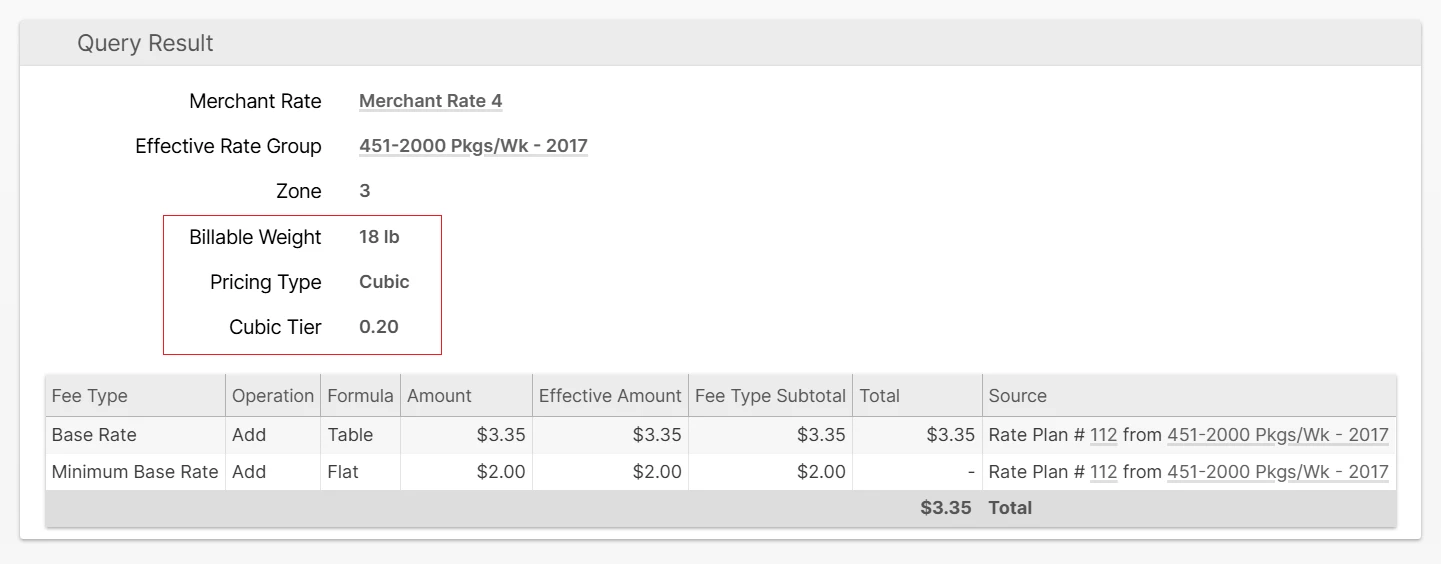
The Rating -> Rate Calculator now shows Pricing Type and Cubic Tier when a quote resolves to a Cubic Rate Plan, making it easier to confirm why a specific base amount was selected. Packages that do not qualify for Cubic Pricing can fall back to matching Weight Rate Plans, so existing USPS rating coverage continues to work.
Oversize and AHS Variances
Clients whose packages routinely measure just over a carrier's Oversize, Dimension, Weight, or USPS Additional Handling Surcharge (AHS) threshold can now be given a per-Fee-Adjustment tolerance buffer so borderline shipments don't trigger the surcharge. A Surcharge Variance replaces the default threshold value the carrier uses when evaluating a surcharge — for example, raising the FedEx Oversize Length + Girth threshold from 130" to 132" suppresses the surcharge for packages in that buffer.
Variances live on a Fee Adjustment alongside its fees and inherit the same Carrier, Services, Applies To scope, and effective dates.
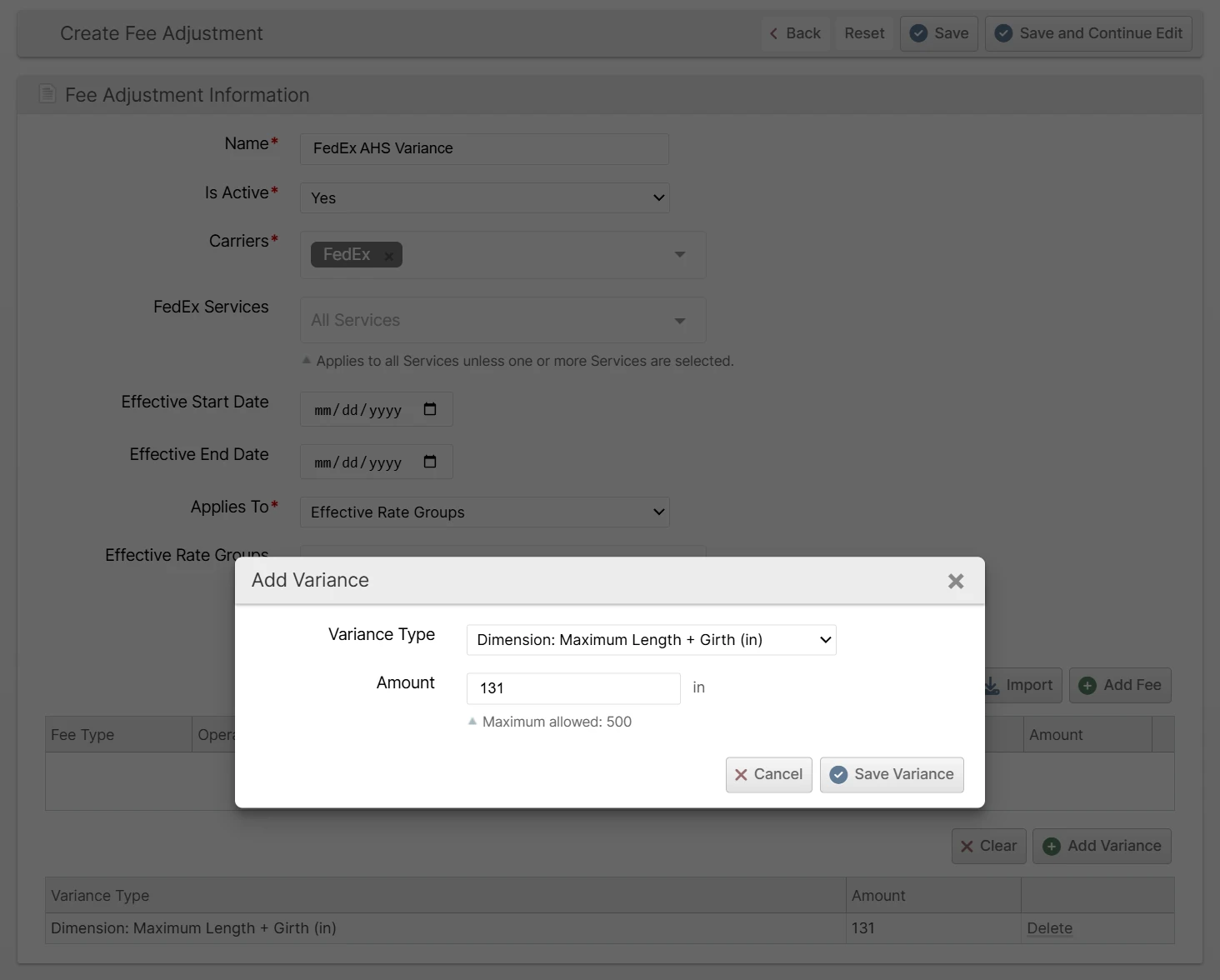
Twelve Variance Types are available across FedEx, UPS, OnTrac, and USPS, covering the standard Oversize, Dimension, and Weight thresholds plus the USPS AHS tier and volume thresholds. When more than one active Fee Adjustment defines the same Variance Type, the most specific scope wins, using the same ordering as fees. The Rate Calculator result grid now shows the resolved Variance values alongside the fee changes for each quote.
Asset Type Restriction by Picking Class
Asset Types can now declare the Picking Classes they must not pick, so pickers stop being offered work that their cart was never meant to handle. Previously the matrix between an Asset Type and a Picking Class only controlled cart capacity — there was no way to say "this cart can't do that work" at all, and a regular picking cart could still surface a Heavy/Bulky batch.
A new Picking Class Exclusions fieldset on the Asset Type edit form lets you select any Picking Classes that the Asset Type must not pick. Excluded Picking Classes are then hidden from the Quick Batch and Create Batch dialogs whenever that Asset Type is selected and that combination will be excluded from user-composed batches (unless Force Compose Picking Batch is used).

Cart capacity (the per-Picking-Class Max Shipments value configured on the Picking Class) continues to work exactly as before — exclusions are a separate, additive control.
Lot and Delivery Traceability
Tracing a Lot back to the Delivery it arrived on — or seeing every Lot a Delivery brought into inventory — previously meant cross-referencing Put-Away records by hand. ShipStream now links the two directly, in both directions, which is invaluable during a recall, a supplier quality issue, or an inventory audit.
A Lot Record gains a Deliveries tab listing every Delivery that contributed inventory to that Lot. Conversely, a Delivery's view gains a Lots/Expirations tab listing every Lot it put away, with the same columns as the Catalog -> Lots/Expirations grid and the same CSV / Excel export. Both tabs are available in the Admin UI and the Client UI, and each row links straight to the related record. See Lots/Expirations Tracking for the full picture.
Filtered Webhooks
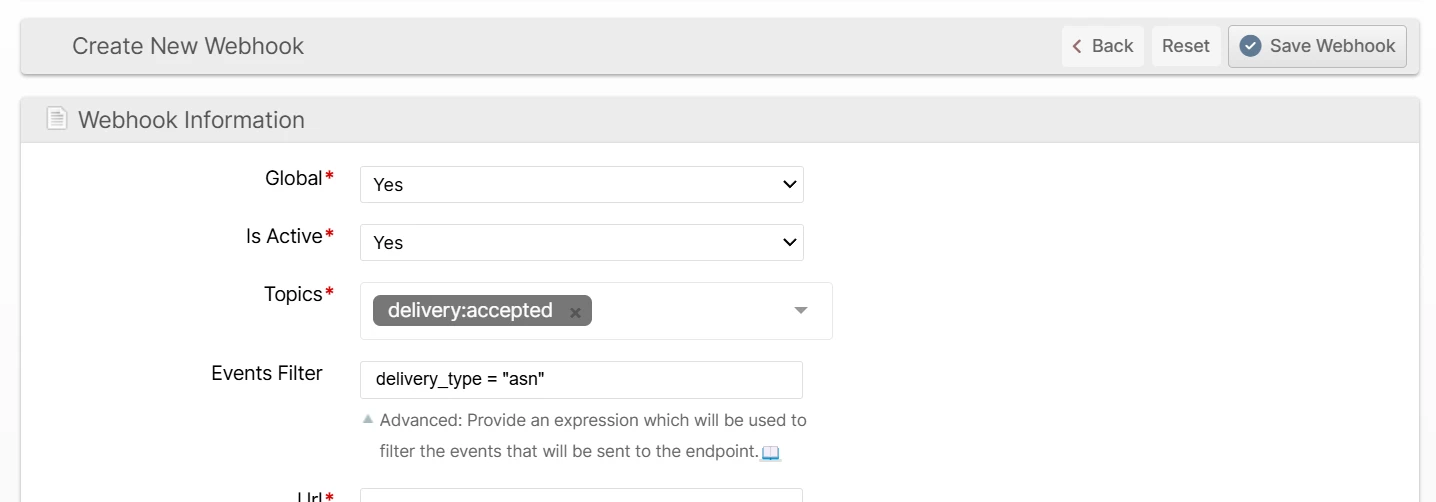
Webhooks now let you decide which events actually fire, instead of sending every event on a subscribed topic. A new Events Filter field accepts a CEL (Common Expression Language) expression that is checked against each event before the request is sent — so you can subscribe to a topic once and still receive only the events you care about. This cuts noise and avoids paying for events you'd otherwise discard on per-request platforms like Pipedream.
The Events Filter field appears after Topics on the webhook create/edit form in both the admin panel and the client portal. Expressions read the fields of each event directly — for example, source == "shopify", status == "complete" && source != "manual", or qty_ordered >= 10. When the expression is true the webhook fires normally; when it is false the event is skipped silently; and if an expression can't be evaluated, the webhook fires anyway so a filter mistake never causes you to miss events. Filters are validated when you save, so syntax errors are caught up front.
Shipment Batching Priority
Some client SLAs don't require every shipment to leave on its target ship date — but certain ones always should, like Express/Priority orders the customer paid a premium for, or Amazon Seller Fulfilled Prime shipments that carry strict late penalties. Batching Priority lets you rank shipments so the most important work is favored when batches are created, no matter how the rest of your batching is tuned.
Every shipment now carries a Batching Priority from 0 (highest) to 9 (lowest), shown as a colored badge on the shipment view and as a new Priority column next to Picking Class on the Shipments grids and exports. Batch creation uses this value as its primary sort order, fully exhausting one priority level before pulling in the next — so premium shipments lead every batch.
Configure your priorities at Operations -> Picking Batches -> Priorities, where you can name and color up to ten levels. They come seeded with Urgent, High, Normal, and Low (Normal is the default), matching the familiar ClickUp scheme. On the same page you can add Service Overrides to give a shipping method its own default priority — for example, sending everything on an Express service out at the top of the queue.
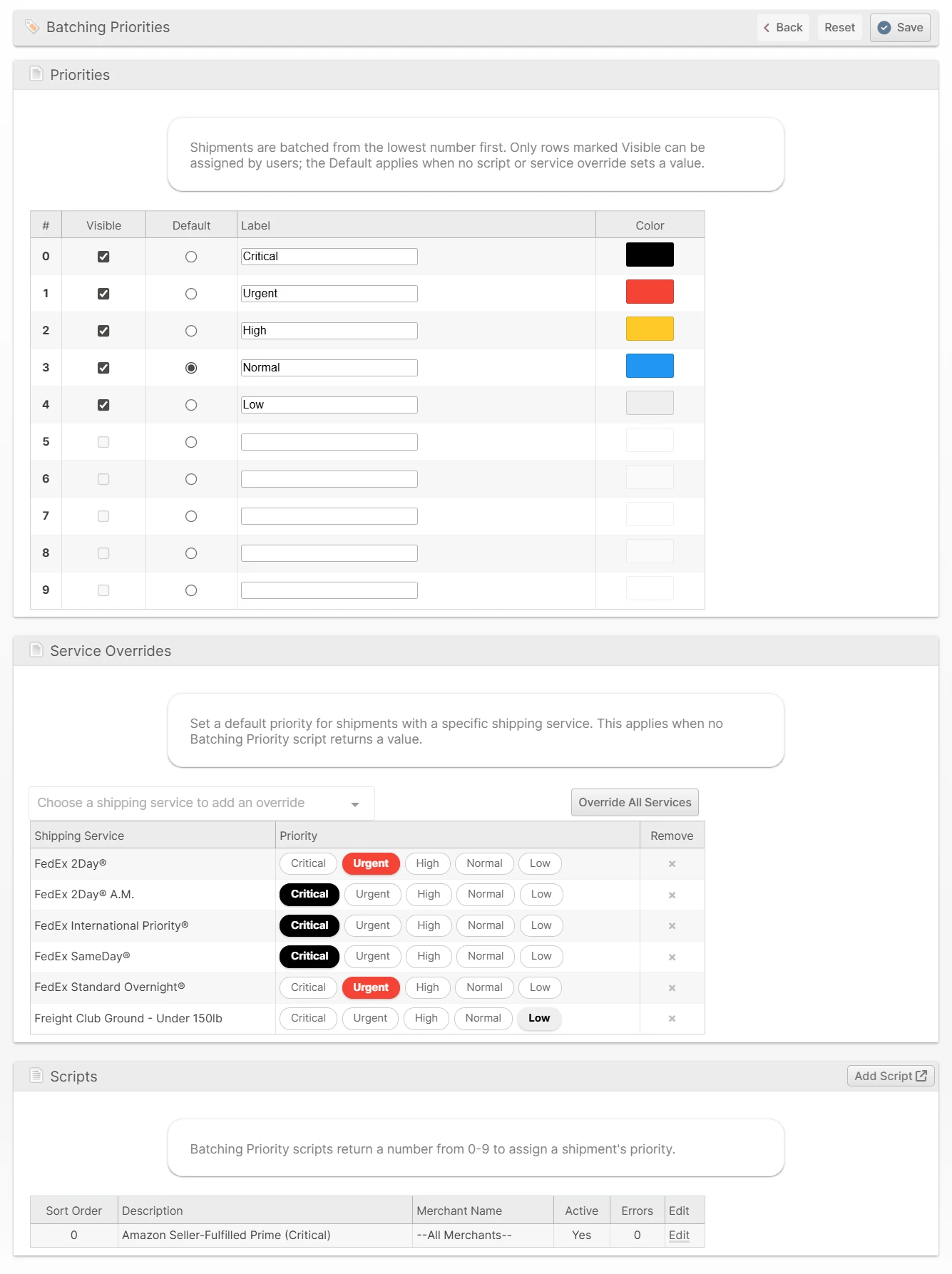
A shipment's priority is set automatically when it's created or its shipping method changes, resolved from a new Batching Priority script, then the shipping method's override, then the system default. A priority you set by hand is never overwritten. You can also set it in bulk with a new Batching Priority mass action on the Shipments grids.
See Batching Priorities for the full configuration guide.
Other Improvements
- Added a new General system hold reason as a generic catch-all, positioned at the top of the list. General defaults to QH on 846 Inventory Advice and AJ on 947 Inventory Adjustment Advice. The 947 default for Recalled changes from AJ to AF; subscriptions with a saved 947 Recalled mapping keep their saved value, while default-only subscriptions emit AF after this release. (backported to 2026.2)
- Added an Exclude checkbox to the Merchants field on the Hold Reasons form so that mutually exclusive hold reasons could more easily be managed. (backported to 2026.2)
- Added a cap on the number of active Rate Groups — the greater of 20 or 3 per active merchant — to prevent unbounded growth as obsolete groups accumulate. Creating a new Rate Group beyond the cap is blocked with a message prompting you to delete unused groups; existing Rate Groups and the Base Rate Group are unaffected.
- Added an Update Available notification on the Scanner UI. When ShipStream has been updated since you opened the page, a toast prompts you to refresh — so warehouse staff don't get stuck working from an outdated screen after a release.
- Optimized order lookups that filter by Source — used by the Shopify integration, the Merchant API source filter, and other integrations — eliminating a recurring multi-second delay so these searches resolve near-instantly even at high order volumes.
Bug Fixes
- Fixed "Unable to safely round qty" errors that could appear when viewing historical Put-Away and Delivery records for products whose Bill of Materials had changed since the record was created. ShipStream now stores the Lowest Common Multiple (LCM) at the time each item is processed, so historical records stay readable as the BOM evolves.
- Fixed a burn-order conflict on a single SKU aborting batch creation for the entire filter combination when Sort Shipments by Picking Order was enabled on a Batching Preset. Affected shipments are now deferred to the end of the sort so the remaining shipments batch normally.
- Fixed an error that prevented saving an API Role (API -> Roles) when the role's users included an API user belonging to an inactive or archived merchant.
- Fixed batch creation counting shipments that could not actually be picked from the locations allowed by the selected Batching Preset. ShipStream now checks eligible inventory more accurately before creating the batch, resolving "no items added" failures for location-restricted presets.
Merchant API Updates
- Added per-package measurement, dimension, and serial fields to the
packagesarray on every webhook payload that emits one, bringing theshipment:packed,shipment:shipped,shipment:delivered,shipment:reverted,shipment:labels_voided,tracker:updated,tracker:delivered, andtracker:exceptionevents into parity withshipment.info. New keys:carrier,billable_weight,billable_weight_unit,dimensional_weight_divisor,dimensional_weight_divisor_unit,dimensional_weight,rating_weight_unit,dimensions(length/width/height),dimension_unit,sscc,serial_number_data, andmanifest_courier_code(omitted when the shipment has no manifest code).