

Replenishment Report
The Replenishment Report shows every live replenishment need: which Replenishment Lane owns it, why the need is active, and what inventory the decision used. One row is one SKU's need in one Lane of one Warehouse. A SKU appears when it matches an active Replenishment Policy in that Lane, even when it currently needs nothing, so you can see both the SKUs to act on and the ones that are fine.
Rows are kept up to date as inventory moves, usually within about a minute, rather than only when the whole Warehouse is rebuilt. Trigger levels that depend on demand still refresh on the regular Product Velocity cadence, and configuration changes appear after the rebuild they request.
Opening the Report
Navigate to Operations -> Replenishment.
The report is read-only and for planning: no button creates replenishment work. You can export the current view to CSV or Excel from the Export control.
At least one Replenishment Policy must exist for the selected Warehouse, or for an active Warehouse when viewing all Warehouses, before replenishment results can be built. The report offers Create Replenishment Policy when none exists and you may create one.
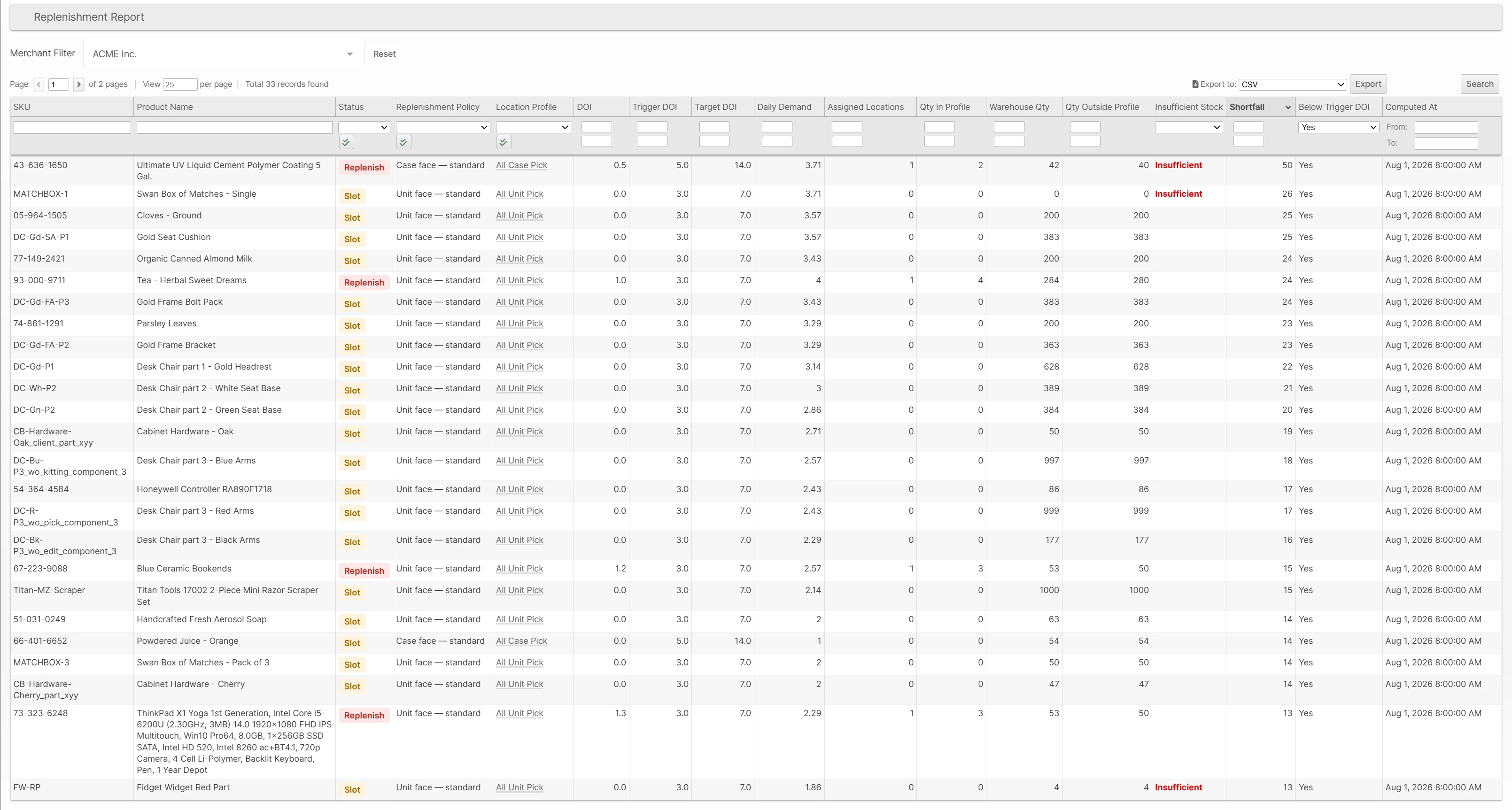
Reading the Report
By default the report shows rows with an eligible trigger (the Trigger filter is set to Eligible now), sorted by the largest Shortfall first. Clear the filter to see every published row, including OK rows and rows with no demand. Use the Merchant Filter at the top to narrow the view to one Merchant.
- Lane names the Lane that owns the row and links to the Lane when you may manage Lanes. The column appears when you view all Warehouses or when the selected Warehouse has more than one Lane. Exports always include the Lane name and code.
- Status summarizes the SKU's situation in its Lane:
- Slot (amber) — the SKU matched the Lane but has no Location assigned in the Lane's destination Location Profile, so it must be slotted before it can be replenished. A SKU that ships only from reserve appears here only when its Policy's Demand Basis is Overall.
- Replenish (red) — at least one trigger is eligible right now, so the SKU needs stock.
- OK (green) — the SKU is slotted and no trigger is currently eligible.
- Trigger explains the need. The badge names the strongest trigger that is eligible now, Min Threshold (Inventory Position is below the trigger level) or Top-off (Inventory Position is below the Policy's Top-Off percentage of target), or None eligible. Beneath it, Conditions lists every trigger whose condition holds, Eligible now lists the ones allowed to act, and Eligible at shows when a Top-off that is waiting for its schedule window next becomes eligible.
- Advisories carries row notes. Zero demand marks a SKU with no recorded picks that stays in the report because a fixed-quantity override or stock already at the destination keeps it relevant.
- Suppressed In lists the other Lanes where the SKU also matched a Policy but lost to this row's Lane, with the Policy that would have won there. Demand is counted once, in the winning Lane only.
- Inventory Position is the number the triggers compare against. It counts unreserved stock in the Lane's destination, put-away stock that can still be picked, and stock already on its way in open replenishment tasks, less demand that is already spoken for. The pieces behind it are shown in their own columns: Available Now, Serviceable Pick, Reserved Physical, Held Unreserved, All Putaway, Serviceable Putaway, Serviceable Reserved, Open Destination Tasks, and Projected Uncovered Demand.
- DOI, Trigger DOI, and Target DOI show the SKU's days of inventory and the band its Policy targets. Fixed Minimum and Fixed Maximum show the pair when a Product Override uses fixed quantities instead.
- Slot Type shows the pick face resolved for the SKU, even when the Policy fallback supplied the band. It shows No Slot Type when the SKU had no Location with a Slot Type in the Location Profile.
- Sizing Source explains where the effective sizing came from: Policy fallback, Slot Type default, Policy override, or Product override.
- Qty in Profile, Warehouse Qty, Qty Outside Profile, Shortfall, and Insufficient Stock describe physical coverage: how much stock sits in the destination, elsewhere in the Warehouse, and how much must move to restore the target. They can disagree with the trigger verdict, because a face full of stock reserved for a wave has plenty of physical coverage but an Inventory Position near zero.
All values are the snapshot captured when each row was computed. Current Policy, Lane, and override settings may differ.
Every unit on the shelf is unreserved, so Qty in Profile and Inventory Position agree: 40.
Build Freshness
A chip above the grid reports the state of the Warehouse's publication:
- Fresh — the results fully reflect the latest inventory and configuration, with the time of the last full build.
- Catching up — rows are live and readable while recent changes are still being folded in. The chip counts the pending changes.
- Building… — a full rebuild is running or pending, so results may be incomplete.
- Failed — the last rebuild failed, or some rows exhausted automatic retries and need attention. The message includes a Request ID you can give to support.
- Not built yet — no results have been published for this Warehouse.
Below the chip, a detail line shows the built generation, pending changes with the age of the oldest, and the last reconciliation pass. If you can manage Replenishment Policies, a failed build offers Retry Rebuild. Super administrators also see Force Rebuild, which abandons any running build and starts over.
With all Warehouses in view, the chip instead counts the Warehouses that are failed, building, catching up, or not built yet. Inactive Warehouses do not contribute rows. Reactivating a Warehouse with active Replenishment Policies queues a fresh build.
Each row also carries a Replenishment Build column (Current, Rebuild pending, Building, Build failed, or Not built yet, with previous data shown when older rows remain readable) and a Replenishment Published At column. Both are included in CSV and Excel exports.
Advisories Above the Grid
- Lane conflict appears when the last build found two Lanes whose destination Locations overlap, or a Lane whose source overlaps another Lane's destination. The named Lanes are suppressed until the Location Profiles are corrected.
- Suppressed matches counts, per Lane, the Products whose match was suppressed by a winning Lane.
- Reconciliation drift reports that a routine check found rows out of sync and requested a repair rebuild. No action is needed.
- Right after the update, an Index publication advisory may appear while the first Lane-aware results are built. The grid fills in once they publish.