

Slot Types
Slot Types allow you to assign labels or "types" to your Locations. ShipStream comes loaded with some default Slot Types for you to use, but of course you can establish your own standards for naming your slot types based on your needs.
The default Slot Types are provided without any Auto-Assignment patterns and listed below:
| Name | Pickable | Sort Order |
|---|---|---|
| Default | Yes | 65535 |
| Non-Pickable | No | 65535 |
For existing installations before the 2021.4 release the following Slot Types will be added as well to replace the previous "Pallet" attribute of locations which has since been removed.
| Name | Pickable | Sort Order |
|---|---|---|
| Pickable Pallet | Yes | 10 |
| Pickable Shelf | Yes | 20 |
| Pallet | No | 30 |
| Other | No | 40 |
Pickable
The Pickable designation identifies the Locations intended for normal floor picking. Strict batches use it when no Asset Policy restrictions are configured. Sweep batches always use actual Pickable Locations first and draw from non-pickable Locations only when a Shipment needs them, while Disregard allows inventory without applying Asset Policy restrictions. See Picking Batches for the complete Accessibility behavior. You should assign Pickable Slot Types to the Locations your floor pickers normally visit and non-pickable Slot Types to reserve or air Locations.
Replenishment Defaults
A Slot Type can provide a default replenishment schedule for the pick faces it describes. Set both Trigger DOI and Target DOI in the Replenishment Defaults section. The target must be at least as large as the trigger; clear both fields when the Slot Type should not provide a default.
These values are used only by Replenishment Policies whose DOI Basis is By Slot Type. They let a dense shelf replenish more frequently with a smaller target while a larger pallet face holds more days of stock. A Policy can override a particular Slot Type, and its Policy fallback is used when neither an override nor Slot Type defaults exist.
ShipStream displays a non-blocking advisory when a non-pickable Slot Type has DOI defaults. DOI schedules are intended for pickable Slot Types, so review and remove those values if they were entered by mistake.
Changing a default requests a background Replenishment rebuild for every affected Warehouse with an active Policy using By Slot Type. Until each Warehouse publishes the new calculation, its Replenishment Report continues to show the previous result.
Location-priority and Location Profile membership changes update a SKU's resolved Slot Type after the Warehouse's next Replenishment rebuild. Ordinary inventory movements do not change which Slot Type is selected.
Fixed Capacity
Beyond naming and pickability, a Slot Type can declare the physical size of the slots it describes so ShipStream can work out how much each Location of that type can hold. When editing a Slot Type, tick Fixed Capacity and record the slot's interior dimensions in the Width, Height and Depth fields, along with an optional Weight Capacity for slots with a load limit. Use Fixed Capacity only when the Locations assigned to the Slot Type are a consistent physical size, since the same dimensions apply to every one of them.
Once a Slot Type has a fixed capacity, ShipStream automatically computes how many units of each Product fit in that type of slot using the Product's dimensions, weight and Can Tip setting. When all three Storage Dimensions are present on the Product, they replace its general shipping Dimensions for this calculation; a partial storage triplet is ignored. The same complete-triplet rule applies to local estimates, Paccurate refinements, replenishment estimates, and cubic inventory reporting. Products with identical physical characteristics share a single computed result, and capacities are recomputed automatically whenever the effective dimensions change, including changes made by product mass update or import. Reported, Prohibited, and Unlimited capacity overrides remain in effect while the computed value is refreshed in the background.
Computation Settings
How capacities are computed is configured at System > Configuration > Warehouse > Stock > Slot Capacity:
- Enable Volumetric Capacity - The master switch for computed capacities. When enabled, ShipStream estimates how many units fit based on the slot's volume and the Product's dimensions. If a long item only fits when angled across the slot, the base calculation instead forms a same-angle band: adjacent long sides touch, each unit is staggered along that shared edge, and the outer corners stay on the same front and back planes. The layer then repeats up the slot's height.
- Volumetric Efficiency - The percentage applied to the local volumetric and ShipStream Packer capacity estimates (default 90%), including angled layers. Paccurate refinements are physical packing results and are not scaled by this local-estimate setting. Changing the percentage causes local computed capacities to be recomputed.
- Enable ShipStream Packer - Refines capacities above one unit with a same-orientation, axis-aligned grid: the repeatable arrangement a person restocking a slot would use. It does not control the angled fallback described above. Changing this setting causes computed capacities to be recomputed.
- Enable Paccurate - Further refines the estimate where the ShipStream Packer reports no fit or low packing efficiency. Profiles needing more than 5,000 units to fill one slot skip this refinement. Turning Paccurate off uses the local result without discarding completed refinements, so turning it back on does not repeat those requests. Requires a Paccurate account.
When an item requires the angled fallback, every unit faces the same direction. Adjacent units touch along their long sides and are staggered along those edges so their outer corners meet the same front and back planes. The same arrangement repeats vertically:
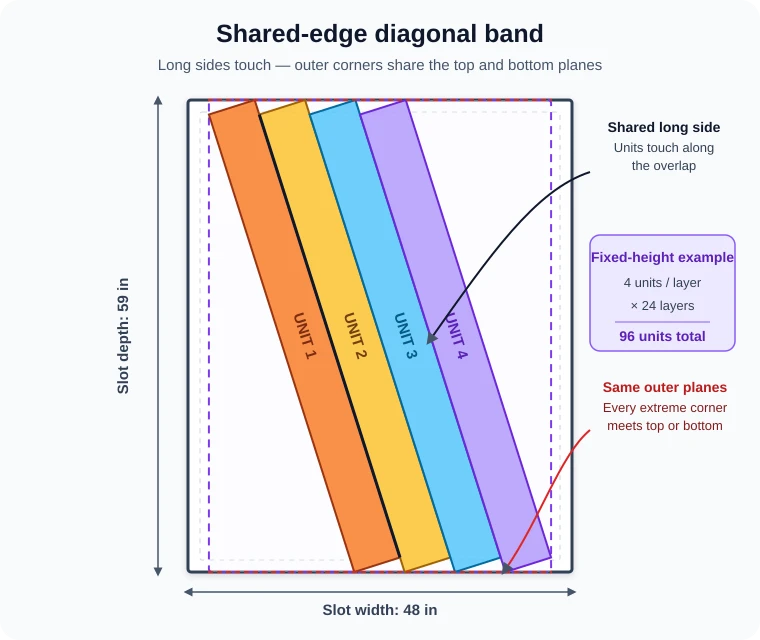
Paccurate is the same bin-packing engine used for Packing Solutions.
Where Capacities Appear
- The Utilization chip on the Location page and the Locations grid shows how full each Location is relative to its capacity.
- The Scanner shows capacity chips during Put-Away and Relocation, advising (or, if configured, enforcing) whether inventory will fit before it lands on the shelf.
- The Slot Capacities tab on the Product page shows each computed capacity and lets you override it per Slot Type.
- The Import Slot Capacities spreadsheet import sets per-product capacities in bulk.
Auto-Assignment
When a new location is created either during put-away, cycle count or relocation, if it did not previously exist it will be created on the fly and assigned a slot type automatically. You can also create locations one-by-one or via import and specify the slot type with the input data but in some cases, this could be quite tedious. This is where auto-assignment comes in handy!
Auto-Assignment allows you to specify patterns called regular expressions to match the location labels to a slot type. When a location's type is set to "Automatic" the system will evaluate each slot type in ascending order based on the Sort Order until one matches. If there are no patterns specified for a given type then it will not match any locations automatically, but it can still be assigned to a location manually using the location edit page, the Operations > Warehouse > Locations grid mass action titled "Assign Slot Type" or an import file (see Import Locations).
Example
If you wanted all areas of your warehouse to be in a pickable area, but only the bottom three shelves of the racks to be pickable and your locations were labeled as {rack}-{shelf}-{slot} and the bottom three shelves were "1", "2" and "3" then your slot types may be configured like so:
| Name | Pickable | Patterns | Sort Order |
|---|---|---|---|
| Default | Yes | .+-(1|2|3)-.+ | 10 |
| Non-Pickable | No | .+ | 20 |
This would match location labels that had any character repeated one or more times (.+) followed by a literal hyphen (-) followed by a single "1", "2" or "3" ((1|2|3)) followed by another literal hyphen (-) and then any character repeated one or more times again (.+) to the "Default" slot type and all others to the "Non-Pickable" slot type.
The result for some sample location labels would be:
| Label | Slot Type | Why |
|---|---|---|
| A5-1-F | Default | Shelf 1 matches Default pattern |
| C4-4-A | Non-Pickable | Shelf 4 does not match Default pattern |
| C4-10-D | Non-Pickable | Shelf 10 does not match Default pattern |
| SP-2-floor | Default | The "2" appears to be a shelf number so it matches the Default pattern |
| Dock2-14 | Non-Pickable | The label does not match the {rack}-{shelf}-{slot} pattern |