

Shopify Fulfillment Order Migration
ShipStream's Shopify integration implements a proper "fulfillment service app" in Shopify terminology, which means that the app registers and manages a Fulfillment Service and a corresponding Location which you can assign to your inventory items.
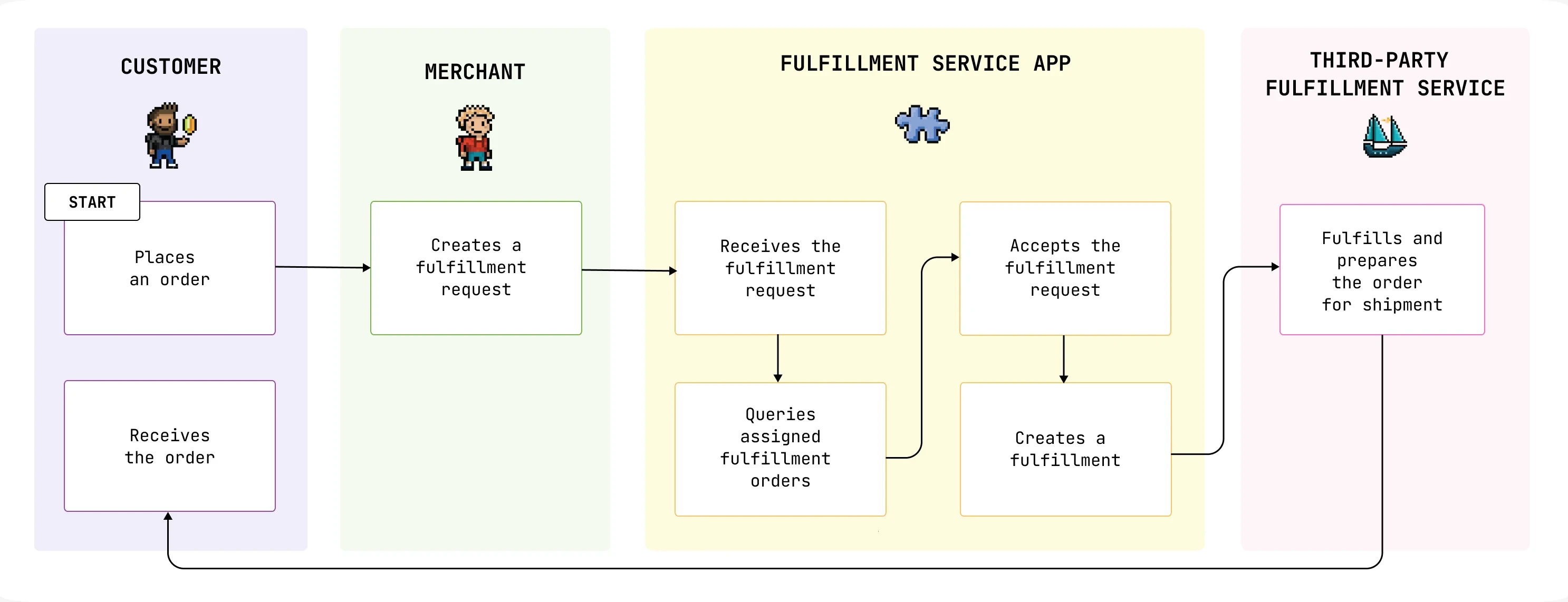
Since the original Shopify integration was built, Shopify released a new feature called Fulfillment Orders which improves upon the old model for a fulfillment service to integrate with Shopify.
- A Fulfillment Order represents one or more order line items which are to be fulfilled from the same location.
- A Fulfillment represents a physical shipment that is completed as part or all of a Fulfillment Order.
Benefits
The new Fulfillment Order Mode behaves fundamentally different from the previous mode whereby Shopify would create a Fulfillment and ShipStream would receive and update it when it is shipped. In the new mode, the process is formalized using a "fulfillment request" which the fulfillment service accepts, thus creating a Fulfillment Order. The fulfillment service then creates one or more Fulfillments as they are processed.
This mode solves issues with partial shipments because the Fulfillment can be created by the app rather than Shopify and it can create multiple Fulfillments if needed instead of there being only one Fulfillment. There is now a one-to-one relationship between a Shopify Fulfillment Order and a ShipStream Order and between a ShipStream Shipment and a Shopify Fulfillment.
It also handles edge cases better such as the fulfillment service needing to reject the fulfillment request or the merchant wishing to cancel the fulfillment request.
Migration
To enable the new Fulfillment Order mode for an existing integration, Shopify requires that there can be no "open" or "pending" fulfillments assigned to the fulfillment service when the feature is opted-in. ShipStream provides a button on the integration page called Migrate to Fulfillment Orders which will automatically handle this migration for you, but it is helpful to understand what the migration is doing behind the scenes and do some prep work to make sure it goes smoothly.

Before Migration
Archive inactive orders. The migration process will look at orders up to 60 days old but it is still best to clean up your old Unfulfilled orders before the migration if there are any which do not actually need to be fulfilled still. They do not have to be archived but should not be listed under Unfulfilled unless they are truly awaiting fulfillment.
Leave the active orders alone as they will be migrated automatically. If the corresponding order in ShipStream is Complete or Canceled then the order should be likewise closed out in Shopify.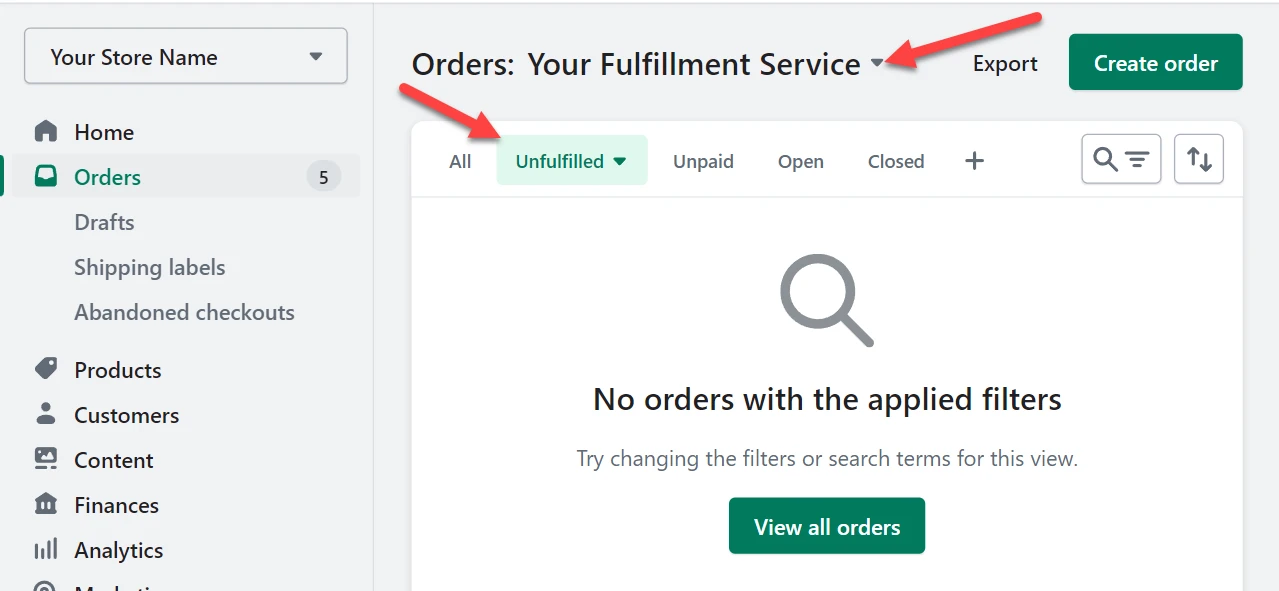
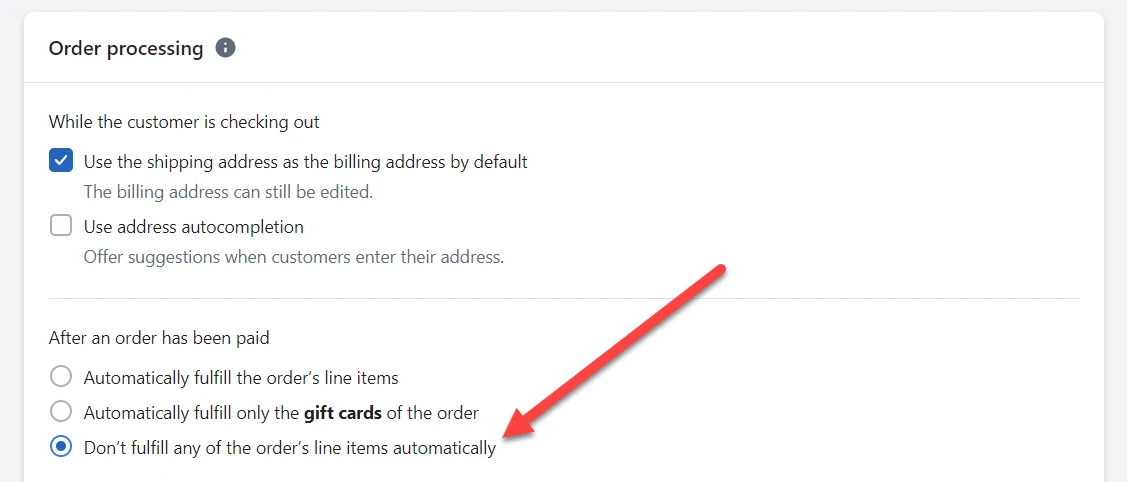
- Disable automatic fulfillment. Open fulfillments have to be canceled by the migration process so new fulfillments arriving during migration can interrupt and delay the process. You can also just try to migrate off-peak, but preferably this should be disabled and can be re-enabled afterwards.
During Migration
The Connection Status section will show the Fulfillment Order Mode Enabled status as well as Fulfillment Order Migration while the migration is still in progress.
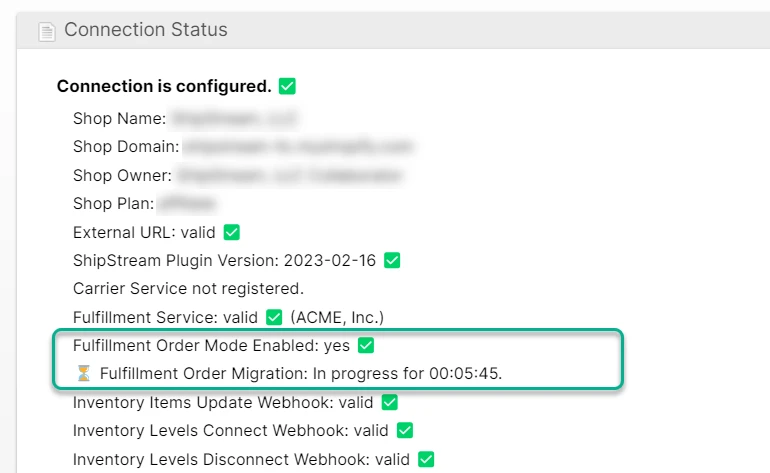
When the migration is complete the Fulfillment Order Mode Enabled status will change to "yes".
While the migration process is running, it will perform the following actions:
- All "open" or "pending" Fulfillments assigned to the fulfillment service are canceled in Shopify.
- The fulfillment service is updated to enable Fulfillment Order mode.
- A fulfillment request is generated for all of the fulfillments deleted in step 1 with the same line items.
- The integration will receive and accept each fulfillment request and link the existing ShipStream Order to the Shopify Fulfillment Order.
- A fulfillment is created for each packed Shipment in the case of partially fulfilled orders.
After Migration
Please be patient as the final steps of the migration can take a while if there were many open orders when the migrations started, during which time the Connection Status will show the migration as In progress.
- Check your Shopify admin for orders with the migration-error tag. These may have already been addressed but double-check to be safe that the order exists in ShipStream and the statuses are correct in both ShipStream and Shopify.
- Check for orders that have the Fulfillment status as Unfulfilled. You may simply need to click Request fulfillment, but confirm that there are not duplicates to be safe.
- Re-enable automatic fulfillment if you disabled it as suggested in Before Migration.
Troubleshooting
If the migration fails, this should be evident in the Connection Status with the error message stating a reason. If the error is not something you can rectify by manipulating your Shopify or ShipStream orders, feel free to contact our support staff at help@shipstream.io.