

Shopify Integration
ShipStream's Shopify integration is a direct, two-way integration that registers ShipStream as a Fulfillment Service in your Shopify store and keeps orders, shipments, and inventory in sync in real time. It provides the following functionality:
- Import Orders assigned to your warehouse via Shopify fulfillment requests
- Keep Shopify inventory levels synchronized with your available warehouse inventory
- Push tracking information to Shopify as Shipments are packed and shipped, including partial shipments and multiple packages or tracking numbers
- Accept or reject fulfillment requests and cancellation requests with meaningful status messages
- Provide real-time shipping quotes in the Shopify checkout via a Carrier Service
- Translate Shopify shipping methods to ShipStream shipping methods using flexible rules
- Customize incoming order data with an Order Transform Script
The Shopify integration is a merchant-level integration, so each connection (called a subscription) connects a single Shopify store to a single ShipStream Merchant. You may create any number of subscriptions, and one Merchant may have multiple Shopify stores connected — often one store per Brand.
How It Works
ShipStream implements a proper Fulfillment Service app in Shopify terminology. When a subscription is activated, ShipStream registers a Fulfillment Service in your Shopify store, and Shopify automatically creates a matching Location (an "app location") for it. You then assign the products stocked in your warehouse to this Location, and Shopify routes their fulfillment to ShipStream.
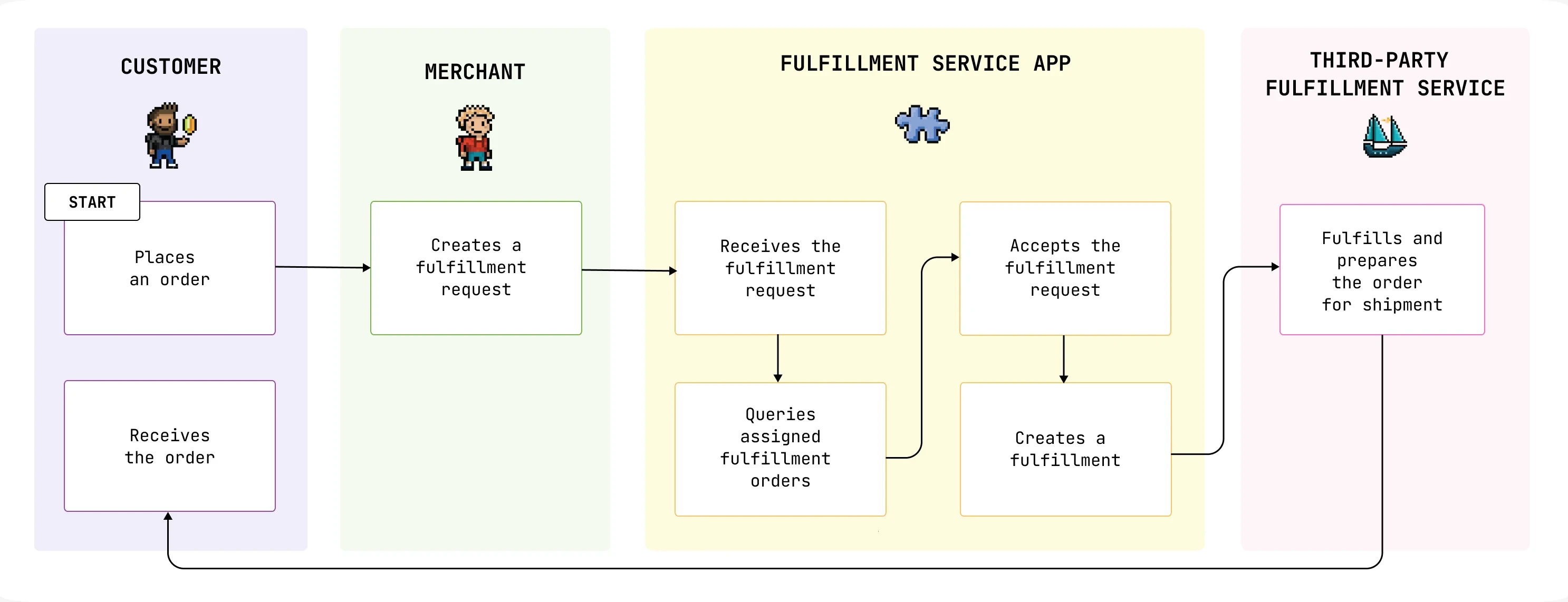
The integration is built on Shopify's Fulfillment Orders model:
- A Fulfillment Order represents the order line items that should be fulfilled from the same location. Each Shopify Fulfillment Order assigned to ShipStream corresponds one-to-one with a ShipStream Order.
- A Fulfillment represents a physical shipment. Each ShipStream Shipment corresponds to a Fulfillment in Shopify, so partial shipments and multiple tracking numbers are reported accurately.
When a fulfillment request is sent to ShipStream (manually or automatically), ShipStream imports the Fulfillment Order as a new Order and accepts the request with a status message, or rejects it with the reason if the order cannot be imported. From then on, shipment and cancellation activity flows between the two systems automatically.
Requirements
- A Shopify store using Multi-Location Inventory (all current Shopify plans include this).
- A Shopify app to authenticate the connection — either a Custom app created in your Shopify admin (recommended for most merchants) or a Public app (typically used by 3PLs offering a branded app). See Shopify Public and Custom Apps for a comparison and the required permissions.
- To offer live rates in the Shopify checkout, your Shopify plan must include third-party carrier-calculated shipping rates. Contact Shopify support if this feature is not enabled on your plan.
Connecting Your Store
Global Configuration
A few settings apply to all Shopify subscriptions and are configured at System -> Configuration -> General -> Integrations in the Shopify Plugin section:
| Setting | Description |
|---|---|
| Fulfillment Service Name | The name of the Fulfillment Service and Location that will be registered in each connected Shopify store. Defaults to "ShipStream". |
| Use OAuth | Choose Yes for Public apps and Custom apps created in the Shopify Partner Dashboard; choose No for Custom apps created in the Shopify admin. |
| Client ID / Client Secret | The app credentials from your Shopify app, required only when Use OAuth is Yes. |
| PCD Coordinator | Email addresses that ShipStream will notify when Shopify sends a request regarding protected customer data (GDPR). Applies to OAuth apps only. |
Create the Subscription
- Navigate to System -> Integrations -> Merchant Integrations and click Add New Subscription.
- Choose the Merchant and select the Shopify plugin.
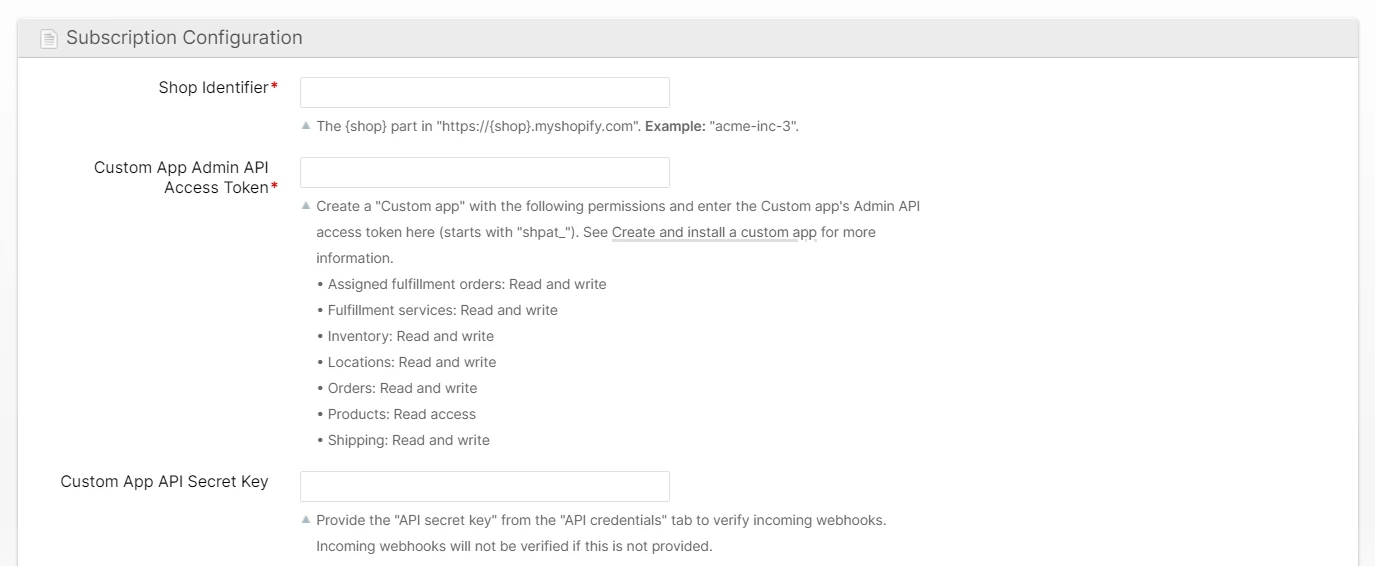
- Enter the Shop Identifier — the
{shop}part ofhttps://{shop}.myshopify.com(e.g. "acme-inc-3"). If using a Custom app, paste the Custom App Admin API Access Token and the Custom App API Secret Key obtained from your Shopify app's API credentials page.
See Obtaining a Custom App Access Token for step-by-step instructions, including the exact permissions the app requires.- Click Save Subscription.
- If using OAuth (Public app), click the Connect Shopify Store button that appears on the subscription page and approve the app installation in Shopify.
- Activate the subscription. ShipStream registers the Fulfillment Service and its Location in your Shopify store and subscribes to the inventory webhooks automatically.
Verify the Connection
Visit the subscription page any time to review the Connection Status section, which reports the shop name, domain, owner and plan, and verifies each part of the integration: the server is reachable from Shopify, the Carrier Service and Fulfillment Service registrations, the inventory webhooks, and whether all required access scopes have been granted.
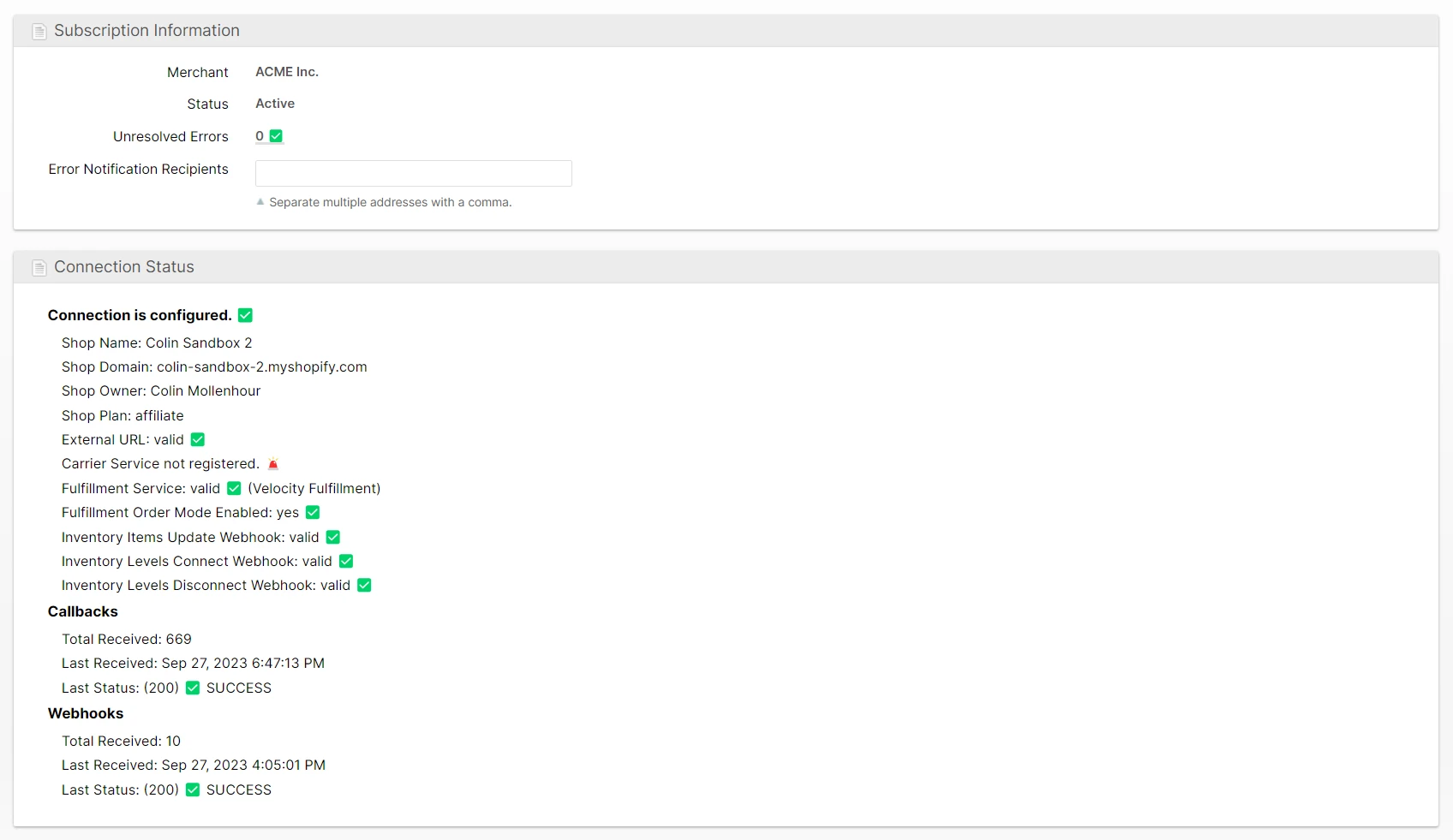
If you change the app's permissions in Shopify (for example after an upgrade requires new access scopes), the diagnostics will prompt you to Re-activate the subscription to refresh them.
Configure Your Shopify Store
Assign Products to the ShipStream Location
Shopify will only send fulfillment requests to ShipStream for products that are stocked at the Location registered by the Fulfillment Service. For each product in Shopify, set Inventory will be stocked at to the Fulfillment Service name (found on the product's Inventory section).
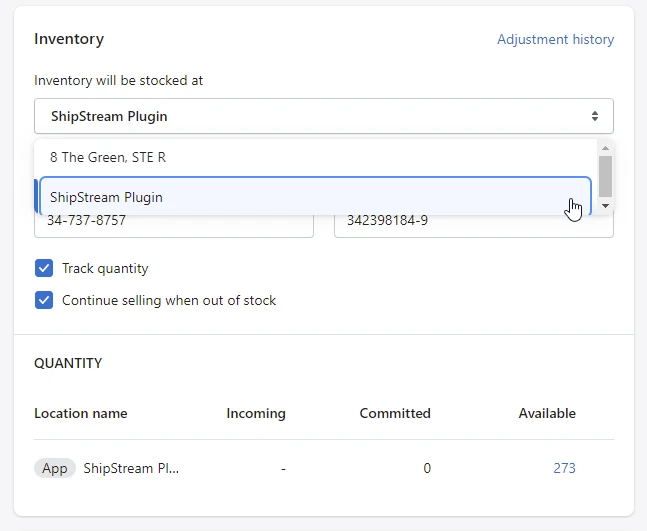
Each Shopify product variant must also exist as a Product in ShipStream with an exactly matching SKU. The integration does not create or import products, so keep SKUs consistent in both systems.
Automatic Fulfillment Requests
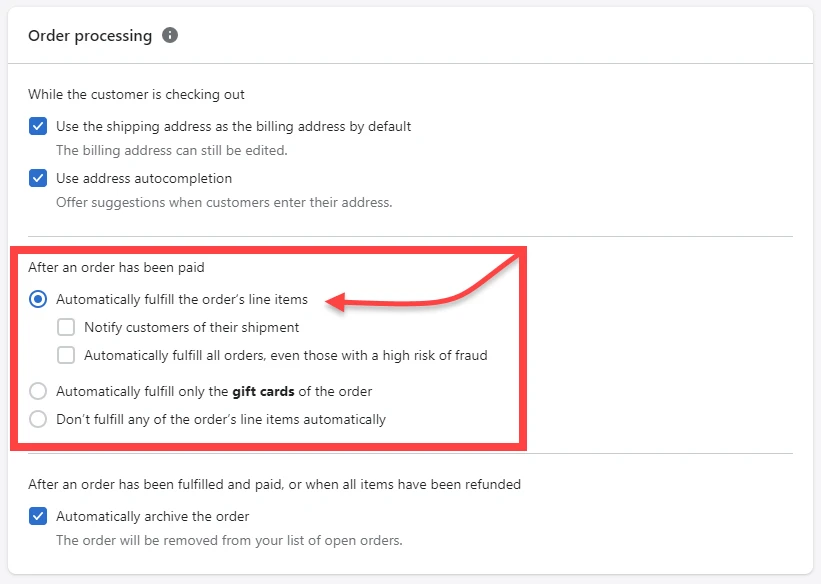
By default, someone must click Request fulfillment on each Shopify order. To fully automate order flow, enable automatic fulfillment in Shopify under Settings -> Checkout -> Order processing -> After an order has been paid by choosing Automatically fulfill the order's line items. Shopify will then send the fulfillment request to ShipStream as soon as the order is paid.
Subscription Configuration
The subscription's Plugin Configuration section contains the following settings:
| Setting | Description |
|---|---|
| Shop Identifier | The {shop} part of https://{shop}.myshopify.com. |
| Custom App Admin API Access Token | The Custom app's Admin API access token (starts with "shpat_"). Alternatively, for short-lived client-credentials tokens, enter {client_id}:{client_secret} and ShipStream will fetch and refresh the 24-hour tokens automatically. Not shown when using OAuth. |
| Custom App API Secret Key | The "API secret key" from the app's API credentials page, used to verify that incoming webhooks genuinely come from Shopify. Incoming webhooks are not verified if this is not provided. Not shown when using OAuth. |
| Carrier Service Methods | The shipping methods offered as live rates in the Shopify checkout and the names the customer sees. See Carrier Service. |
| Shipping Method Translation | Rules that translate the shipping method on incoming Shopify orders to ShipStream shipping methods. See Shipping Method Translation. |
| Order Transform Script | Optional JavaScript for modifying order data before the Order is created. See Shopify Order Transform Scripts. |
Order Import
When Shopify sends a fulfillment request for a Fulfillment Order assigned to the ShipStream Location, ShipStream imports it within seconds. An hourly check also picks up any fulfillment requests or cancellation requests that may have been missed.
The new ShipStream Order is created with:
- The Shopify order number (e.g. "#1001") as the Order Ref
- Only the remaining unfulfilled quantities of each line item, so orders partially fulfilled elsewhere import correctly
- The ship-to address, email, and phone from the Shopify order
- The Shopify order note as the ShipStream order note
- The message entered by the merchant when requesting fulfillment, recorded as an order comment
- The shipping method resolved from your Carrier Service Methods or Shipping Method Translation rules
If the order is imported successfully, the fulfillment request is accepted with a status message that reflects the state of the new Order, which is visible on the order's timeline in Shopify:
| ShipStream Order status | Message sent to Shopify |
|---|---|
| Ready to ship | "The order is ready to ship." |
| Backordered | "The order is currently backordered." |
| On hold with a Requested Ship Date | "The order is on hold until {date}." |
| On hold | "The order is on hold." |
If the order cannot be imported — for example a SKU does not exist in ShipStream, the shipping method cannot be identified, or the address is invalid — the fulfillment request is rejected with the error message. After resolving the issue, click Request fulfillment on the Shopify order again to retry. Import errors are also recorded at System -> Integrations -> Errors (see Error Handling).
Shipping Methods
There are two ways to determine the ShipStream shipping method for incoming orders, and they are mostly mutually exclusive. If the shopper chose a rate quoted by the Carrier Service, the method is already a ShipStream shipping method and no translation is needed. In all other cases, the Shipping Method Translation rules are applied.
Carrier Service (Live Rates at Checkout)
The Carrier Service inserts ShipStream as a shipping rate provider in your Shopify store, quoting real-time rates in the checkout using ShipStream's Rating Data and Rate Shopping functionality. This provides your customers the most accurate shipping prices and gives you fine-grained control over the costs quoted to them.
To use it:
- In the subscription's Carrier Service Methods configuration, add each shipping method you want to offer and the display name the customer should see in the checkout.
- Scroll to the Actions section of the subscription page and click Register Carrier Service.
- In Shopify, add the new rate provider to your shipping zones (Settings -> Shipping and delivery).


Shipping Method Translation
Each translation rule matches a property of the Shopify order's shipping line — the title, code, or source — using the equals, does not equal, or matches (regular expression) operator, and selects the ShipStream shipping method to use. Rules are evaluated from top to bottom and the first match wins, so drag the most specific rules to the top of the list.
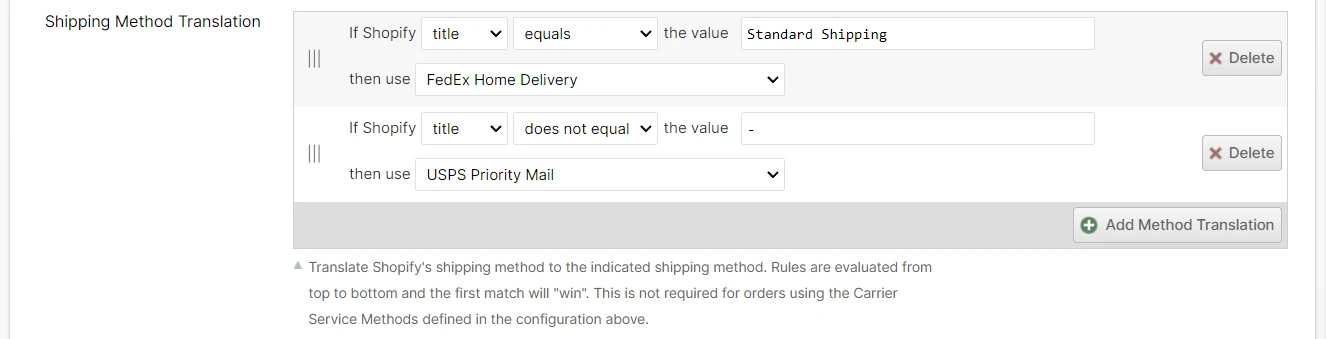
If no rule matches, the order fails to import with a "Cannot identify shipping method" error and the fulfillment request is rejected.
A rule may also select the special SKIP method, which causes matching Fulfillment Orders to be ignored entirely — useful for orders that should never be fulfilled by ShipStream.
Inventory Sync
ShipStream keeps the inventory levels of the ShipStream Location in Shopify up to date automatically:
- What is synced: the Advertised quantity — the quantity available for sale — plus the quantity on open orders that have not yet shipped. The unshipped order quantity is included because Shopify subtracts its own "Committed" quantity from what is available to sell, and this prevents that inventory from being deducted twice.
- When it is synced: adjustments are pushed in real time as warehouse activity changes availability — Deliveries are committed, cycle counts adjust quantities, and orders from other sales channels reserve or release inventory.
- Shopify notifies ShipStream when product SKUs change or products are connected to or disconnected from the Location, so the SKU mapping stays current without any manual action.
Two subscription actions help you audit and correct inventory at any time:
- Check Inventory compares the expected quantity against Shopify for every SKU assigned to the Location and reports warnings for mismatched quantities, duplicate SKUs, untracked SKUs, and SKUs missing on either side.
- Reset Inventory force-sets the Shopify on-hand quantity for all assigned SKUs to the expected values. Use this to correct any drift reported by Check Inventory.
Shipments and Tracking
When a Shipment for a Shopify order is packed or shipped, ShipStream creates a matching Fulfillment in Shopify with all of the shipment's tracking numbers and tracking URLs. Partial shipments create partial Fulfillments, so the Shopify order reflects exactly what has left the warehouse.
- The customer shipping notification is sent (or not) according to the Notify customer of shipment choice the merchant made when requesting fulfillment in Shopify; when unspecified the customer is notified.
- The tracking carrier is reported to Shopify for all major carriers (UPS, FedEx, USPS, DHL Express, DHL eCommerce, OnTrac, and many more detected from the tracking URL). If a single Fulfillment mixes carriers, the generic "Tracking Number" carrier is used so links remain valid.
- A Warehouse:{name} tag is added to the Shopify order identifying the warehouse that fulfilled it.
- Tracking numbers added to a Shipment after it was already reported are pushed to the existing Fulfillment.
- If a Shipment is reverted or its shipping label is voided, the corresponding Shopify Fulfillment is canceled and the order is automatically re-linked so it can be fulfilled again.
Cancellations
Cancellations flow in both directions:
- Canceled in Shopify: when the merchant clicks Request cancellation on the fulfillment in Shopify, ShipStream attempts to cancel the Order. If successful, the cancellation request is accepted and the confirmation appears on the Shopify order timeline; if the Order can no longer be canceled (for example it has already shipped), the cancellation request is rejected.
- Canceled in ShipStream: when the Order is canceled in ShipStream, any open Fulfillments are canceled and the Fulfillment Order in Shopify is canceled or closed. Refunds and restocking in Shopify remain the merchant's responsibility.
Subscription Actions
The Actions section at the bottom of the subscription page provides the following tools:
| Action | Purpose |
|---|---|
| Register / Unregister Carrier Service | Adds or removes the live-rate provider in the Shopify checkout. |
| Register / Unregister Fulfillment Service | Adds or removes the Fulfillment Service and its Location. Normally handled automatically on activation. |
| Register / Unregister Inventory Update Webhooks | Re-subscribes the notifications that keep the SKU mapping current. Normally handled automatically. |
| Import Assigned Fulfillment Orders | Immediately checks for pending fulfillment requests and cancellation requests instead of waiting for the hourly check. |
| Import Unsubmitted Fulfillment Orders | Imports Fulfillment Orders for which Shopify never sent a fulfillment request, which happens when a product's location was changed after the order was placed. Successfully imported orders are tagged "Accepted-{service}" in Shopify; failures are tagged "Rejected-{service}" with a note describing the error. |
| Clear Inventory Item Cache | Clears cached Shopify product data. Use after making bulk SKU changes in Shopify. |
| Check Inventory | Audits Shopify inventory levels against ShipStream and reports warnings. |
| Reset Inventory | Force-sets Shopify inventory levels for all assigned SKUs. |
Limitations
- Fulfillment holds are not supported. Holds placed on a Fulfillment Order in Shopify (including via the Shopify Flow "Hold fulfillment" action) after the fulfillment request has been accepted are not detected, and the warehouse will continue processing the Order. To pause an order, place the Order on hold in ShipStream instead. If a hold is placed before ShipStream imports the order, the fulfillment request is rejected — release the hold and request fulfillment again.
- Products are not imported or created. Products must exist in both systems with exactly matching SKUs.
- Refunds and returns are not synced. Process returns in ShipStream using RMAs and issue refunds in Shopify separately.
Troubleshooting
- Start with the Connection Status section on the subscription page — it verifies every registration, webhook, and permission, and tells you when a Re-activate is needed.
- Review integration errors at System -> Integrations -> Errors, where you can inspect each occurrence and Retry after fixing the cause. See Error Handling.
- A rejected fulfillment request is not retried automatically — after resolving the issue, click Request fulfillment on the Shopify order again.
- If the Fulfillment Service fails to register because a Location with the same name already exists in Shopify, rename or delete the conflicting Location and re-activate the subscription.