

Slotting Rules
Slotting Rules let you encode your storage policy once and have ShipStream enforce it at the moment of placement. Without them, a worker can put a product into any open location, and a mis-slotted item — a temperature-sensitive SKU on a dry-storage shelf, an oversized item in a forward-pick bin — is only caught when someone notices. With rules in place, the Scanner checks every put-away and relocation scan against your policy before the mistake is made.
Slotting is built from four pieces: Product Profiles and Handling Classes classify your catalog into labels a rule can refer to, Location Profiles name the sets of locations a rule can point at, and Slotting Rule Sets pair those labels with the location sets they must, must not, or should ideally live in.
Classifying your Products
Products are matched to rules through two kinds of classification, both evaluated automatically in the background as your products and stock change.
Product Profiles
A Product Profile is a reusable flag a product can carry — Fragile, Hazmat, Requires Overbox — and a product can match as many profiles as apply. Manage them at System -> Product -> Product Profiles.
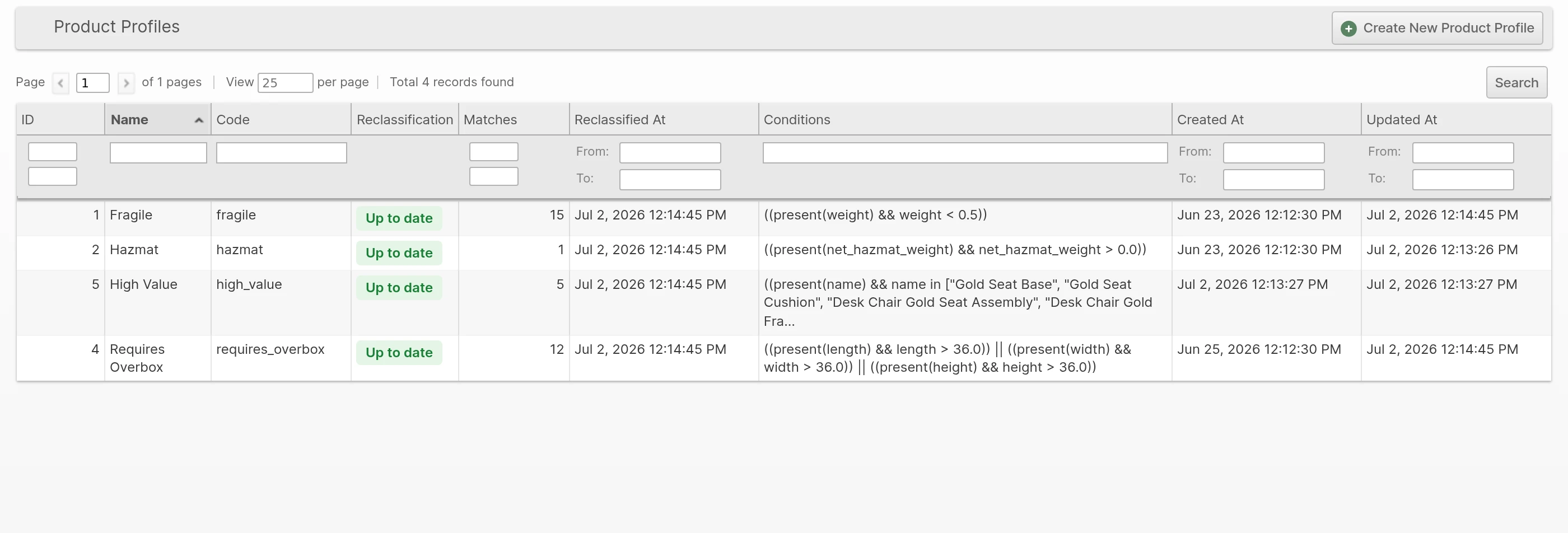
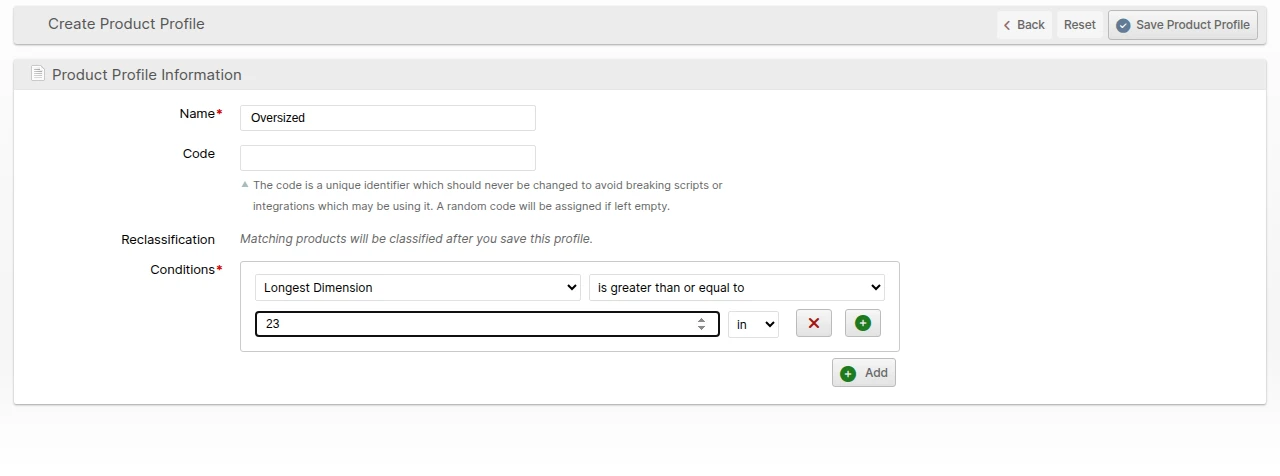
To create one:
- Navigate to System -> Product -> Product Profiles and click Create New Product Profile.
- Fill in the Name and a Code (the code is used by integrations and cannot be changed later).
- Build the matching conditions with the visual condition builder over product attributes — weights and dimensions are unit-aware — or switch to an advanced expression for anything the builder does not cover.
- Click Save.
The grid shows how many products currently match each profile and whether its classification is up to date. Products are reclassified automatically after you change a profile's conditions; the Reclassification column tracks the progress.
Handling Classes
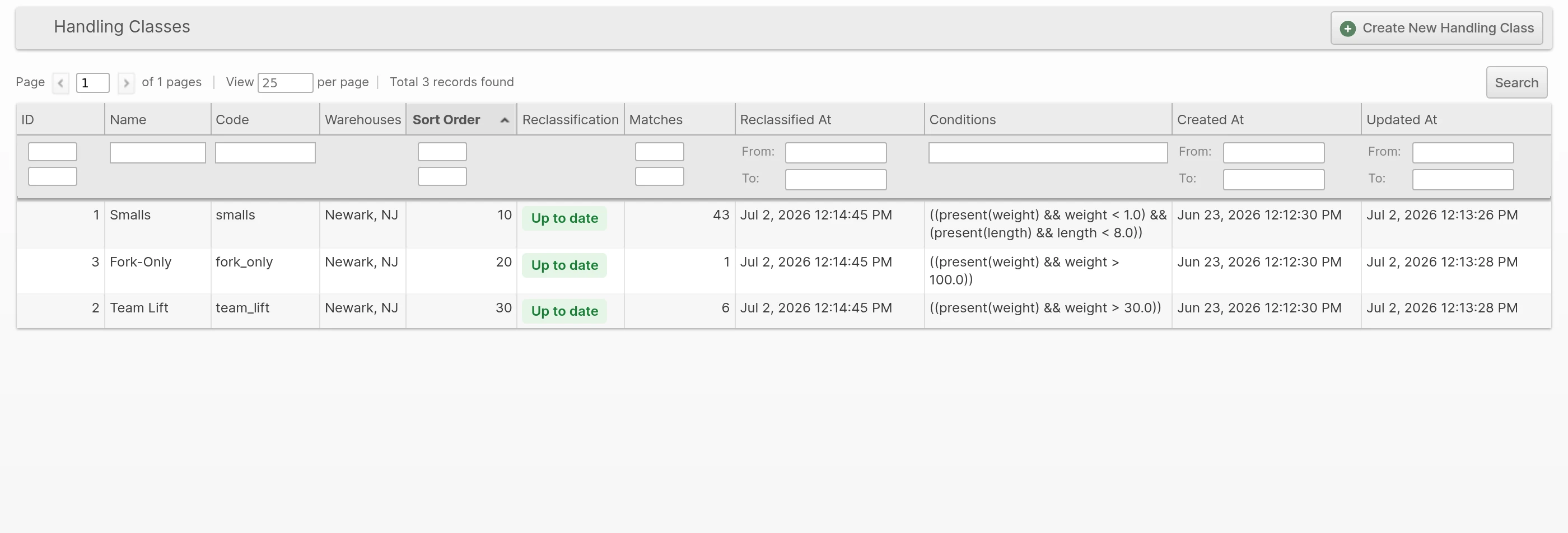
A Handling Class is a mutually exclusive, per-warehouse bucket — Smalls, Team Lift, Fork-Only — where each product lands in at most one class per warehouse. Manage them at System -> Product -> Handling Classes.
Classes are evaluated in the Sort Order you control, and the first class whose conditions match wins, so classification is always predictable. Assign each class to the Warehouses it applies to; the same product can land in different classes at different warehouses.
A product that matches no class at a warehouse stays unclassified there rather than falling into a default bucket, and rules that act on a Handling Class will not apply to it. If you want every product covered, give the last class in the Sort Order conditions that match anything left over. Only enabled simple products are classified — disabled and non-simple products stay unclassified no matter what the classes say.
Defining Rules
Slotting Rule Sets live at System -> Operations -> Slotting Rules. A rule pairs a subject (products, chosen by Merchant, Product Profile, or Handling Class) with a relation and a Location Profile (the named set of locations the relation applies to). The Relation list groups the four relations by what they do:
- Constraints — Require and Forbid decide where a product may go. A placement that violates them is blocked.
- Preferences — Prefer and Discourage never block a placement. On the Scanner they warn, and in Directed Put-Away they decide which allowed Location is filled first. Every Prefer and Discourage rule needs a Preference Strength (Low, Normal, High, or Critical). When several apply, the stronger rule decides where Directed Put-Away sends stock and which warning the operator sees.
A rule's subject criteria are combined, so a product must match every criterion you fill in: one of the listed Merchants, the listed Product Profiles under the chosen match mode (Any, All, or None), and one of the listed Handling Classes. An empty criterion matches every product.
Naming Merchants on a rule does not reserve its Location Profile for them, and neither does a Prefer rule. Directed Put-Away plans one Put-Away at a time, so other products can still be placed there whenever it is their best Location. To reserve a Location Profile, add a Forbid rule for everyone else, for example with the other Merchants as its subject (add new Merchants to it as you onboard them).
To keep certain products inside a Location Profile, add a Require rule for them. A narrow Require rule can send lines to manual put-away, because the Directed Put-Away search is bounded and may stop before it reaches enough of the matching Locations. The search reads the Location Profiles of a product's Prefer rules first, so a Prefer rule on the same Location Profile helps the search reach those Locations.
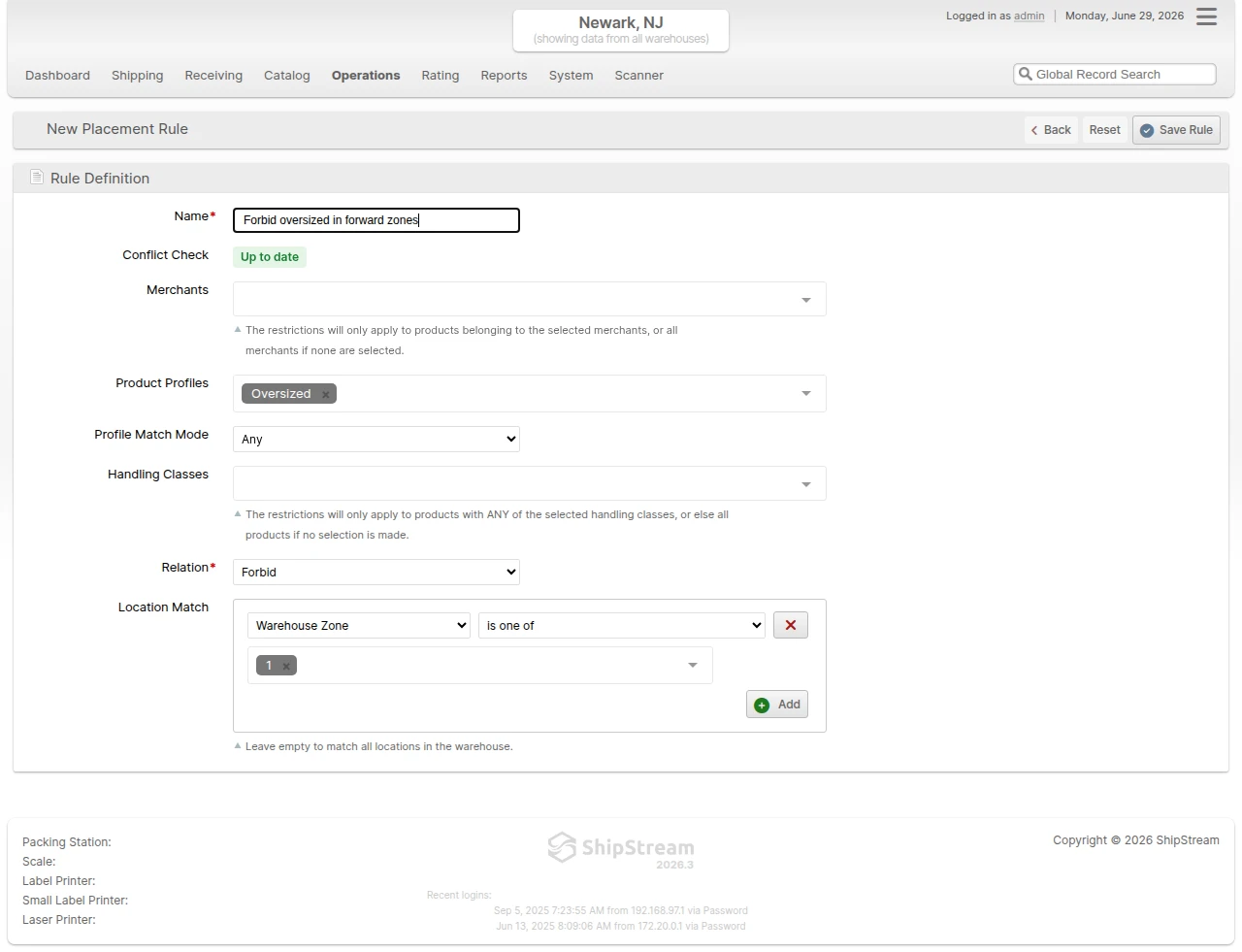
The Location Profile field is required. Pick an existing profile belonging to the rule set's warehouse. Profiles are created and edited on the Location Profiles page, where their membership is defined by Zones, Racks, Location Labels, Slot Types, or Location Tags. A newly created profile builds its location list in the background, and a rule referencing it can be saved once the profile is ready.
Rules are grouped into rule sets that you enable or disable as a unit — a hazmat segregation program, a Q4 seasonal layout — so a whole policy can be turned on for the season and off again without touching individual rules. Each rule set belongs to a single Warehouse.
When you Duplicate a rule set into a different Warehouse, warehouse-specific Zone and Rack criteria cannot carry over — each affected rule is linked to a different, broader Location Profile in the target warehouse, and the copy is saved inactive so you can re-scope the rules before activating.
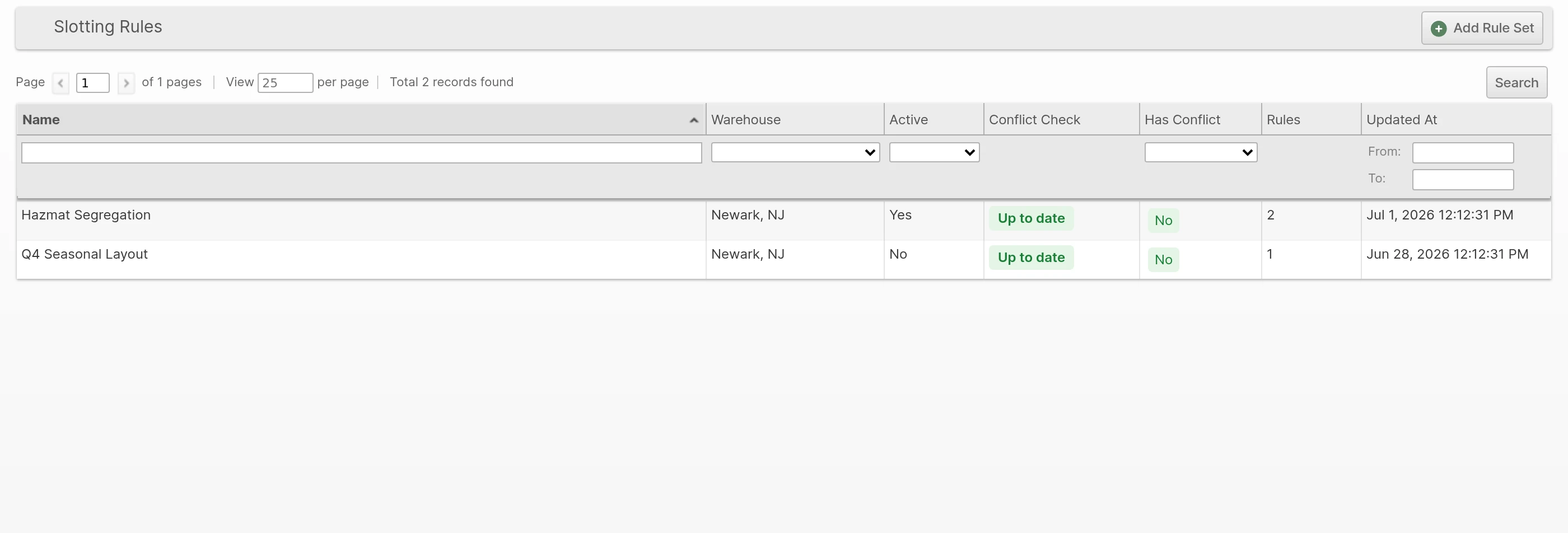
ShipStream continuously checks your active rules for contradictions — combinations that would leave some products with no valid location at all — and flags the affected rule sets in the Conflict Check column, so you catch an unworkable setup before it reaches the floor.
Enforcement on the Scanner
During Put-Away and Relocation, the Scanner shows the operator the rules that apply to the product in hand and delivers a single verdict when a location is scanned:
- A forbidden location (or one excluded by a Require rule elsewhere) blocks the placement and names the rule that blocked it.
- A discouraged or non-preferred location shows a warning the operator can acknowledge and continue past. When several Prefer and Discourage rules apply, the Scanner uses the same deciding rule as Directed Put-Away. If a Prefer rule decides the location, the only rule that still warns there is a Prefer rule of higher Preference Strength that the location misses, because only its locations rank better. Discourage rules and missed Prefer rules of the same or a lower strength stay quiet, whatever their Priority. At any other location, the operator sees the warning of the rule that ranks first in that order.
- A location that satisfies a rule continues quietly — no confirmation toast on the quantity counter.
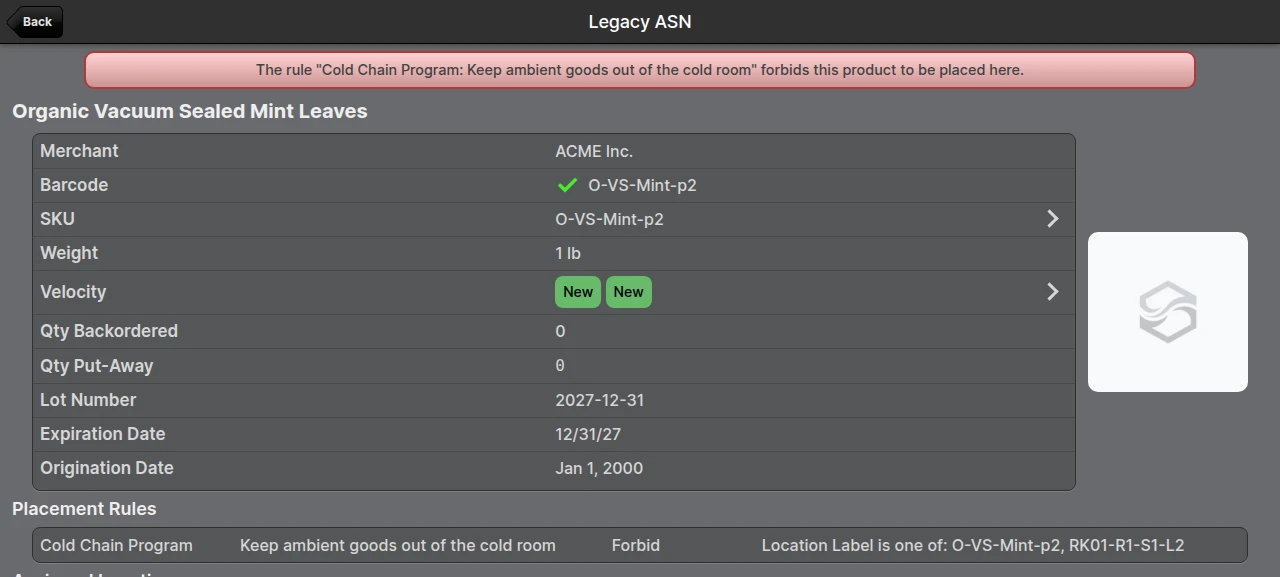
Warehouses with no active rule sets see no change to these flows.
Preferences in Directed Put-Away
Directed Put-Away uses Prefer and Discourage rules to rank the Locations a product is allowed into. For each product, every allowed Location lands on one slotting rung: Preferred (Critical, High, Normal, then Low), neutral, or Discouraged (Low, Normal, High, then Critical). ShipStream fills a better rung before a worse one, after any pick face that needs stock and ahead of Location Priority. A Location that a Prefer rule names therefore receives stock before a neutral Location with a better Priority, and a Discouraged Location is used only when the Preferred and neutral Locations found for the line have no room.
When several Prefer and Discourage rules apply to the product at one Location, one rule decides its rung: the rule with the higher Preference Strength, then the more specific rule (the higher Priority in the rule set's list of rules), and on an exact tie a Discourage rule wins over a Prefer rule. For example, an Acme product at a Location matched by both "Discourage all Merchants from Zone 051 (Low)" and "Prefer Acme in Zone 051 (Critical)" is Preferred Critical there, while every other Merchant's products are Discouraged Low.
A Prefer rule lifts only the Locations in its Location Profile; Locations outside it stay neutral, not Discouraged. Strength also decides between products in the same Put-Away: a product that prefers a slot takes it before a faster-moving product for which the slot is neutral or less strongly preferred. On the same rung, the product with the higher Slotting Density Rank chooses first.
Preferences never block a Directed Put-Away. When the Preferred Locations have no room, the line falls back to neutral and then Discouraged Locations. Manual put-away and relocation still treat Preferences as warnings only, as described above. A tour stop sent to a Location by a Prefer rule shows the reason Slotting Rule preference with the rule's name; see Directed Destination Reasons.
Where Classifications Appear
Read-only Profiles and Handling Class columns — both filterable — are available on the Products, Velocities, and Inventory Holds grids, so you can audit how your catalog is classified without opening each product.