

Batching Priorities
A Batching Priority is a number from 0 to 9 assigned to every Shipment that controls the order in which Shipments are pulled into Picking Batches. When ShipStream composes a batch, eligible Shipments are taken lowest number first, so a Shipment at priority 1 is exhausted before a Shipment at priority 3 is considered. This lets you push rush, expedited, or otherwise time-sensitive shipments to the front of the line without changing how your operators create batches.
Each priority value can be given a label and a color so it reads clearly wherever it appears — the Shipments grid, the Order View, and the Shipment page all show a colored badge for the Shipment's priority.
Every Shipment is assigned a priority automatically when its Order is processed into Shipments, and operators with the appropriate permission can also set it manually. You configure the labels, colors, defaults, and automatic rules on the Priorities page.
The Priorities Page
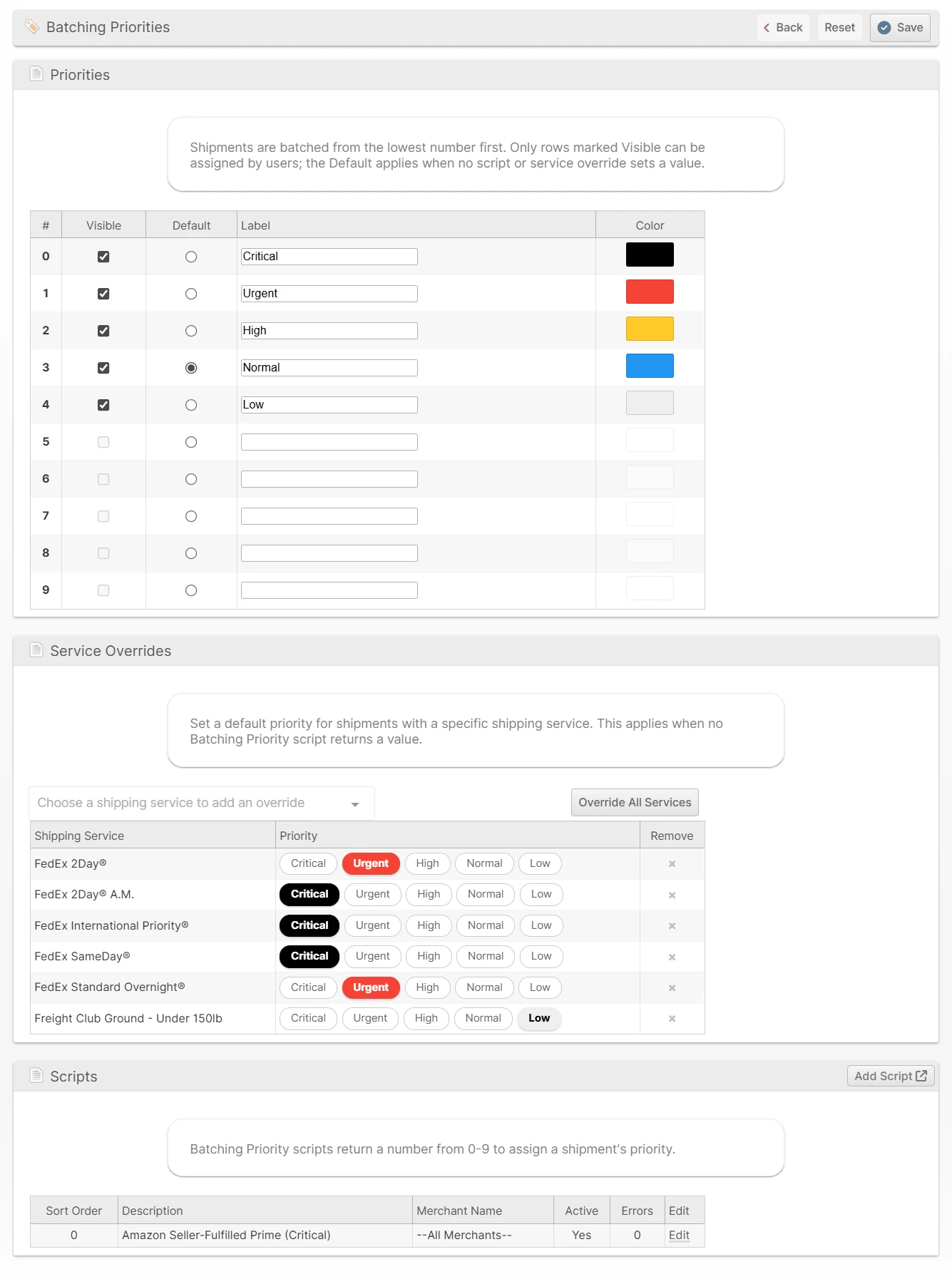
Navigate to Operations -> Picking Batches -> Priorities to configure your priorities. The page has three sections: Priorities, Service Overrides, and Scripts.
Use Save in the page header to persist your changes, Reset to discard unsaved edits and return the form to its last-saved state, or Back to return to the Picking Batches grid.
Priorities
The Priorities section lists all ten values (0–9). For each one you can set:
- Visible - whether operators can choose this priority when setting it manually (for example via the Shipments grid mass action). A priority must have a label before it can be made visible.
- Default - exactly one priority is the system default, applied when nothing else assigns a value (see How a Priority Is Assigned below).
- Label - the name shown on badges and in dropdowns. A value with no label is treated as a bare number everywhere it appears.
- Color - a swatch from the standard tier color palette, used for the badge background. A label is required before a color can be chosen.
ShipStream ships with four labeled priorities out of the box: Urgent (1), High (2), Normal (3), and Low (4), with Normal set as the default.
Service Overrides
A Service Override sets a default priority for every Shipment using a particular shipping service. This is the simplest way to, for example, push all overnight shipments to a higher priority without writing a Script.
To add one, choose a service from the Choose a shipping service search box — it is added immediately at the current default priority. Then click a colored priority chip on that row to change it. To override every available service at once, click Override All Services, then adjust individual rows as needed. Click the ✕ in the Remove column to delete an override.
A Service Override only applies when no Script returns a value for the Shipment.
Scripts
A Batching Priority Script lets you assign a priority with custom logic — based on the Order and Shipment fields listed under Script Variables. A script returns a number from 0 to 9; the first active script that returns a valid value wins, and the value takes precedence over Service Overrides and the default.
The Scripts section lists your Batching Priority Scripts with their Sort Order, Description, Merchant Name, Active status, and a count of recent Errors. Click Add Script to create a new one (it opens in a new tab with the Batching Priority type already selected), or Edit to modify an existing script. Scripts are written in JavaScript; see Scripting Basics for the editor, the time and memory limits, and how to activate a script.
Reach for a script only when a Service Override can't express the rule. If the priority depends on nothing but the shipping service, a Service Override is simpler and can't fail.
When Scripts Run
ShipStream runs the Batching Priority Scripts for a Shipment:
- When the Order is processed into Shipments, including when it is processed again, for example after it is released from hold.
- When the Shipment's shipping method or Target Ship Date changes.
- When one of the Order fields the scripts read changes: the Order Priority, Order Ref, Batch Tag, Requested Ship Date, Custom Fields, or the ship-to country, region, address type, validation result or email.
- When you choose Recalculate or Reset to Automatic in the Set Batch Priority mass action (see Setting a Priority Manually).
The priority only decides which Shipments a new Picking Batch takes, so it is only worked out again for Shipments that are still New and whose Order is not on hold. A Shipment that is already in a Picking Batch keeps its priority, and an Order released from hold gets its priorities worked out again. Scripts never run for a Shipment whose priority was set manually, until you choose Reset to Automatic for it.
Nothing runs the scripts again just because time passes. A rule that reads the current time, such as the age of the Order, is only evaluated at the moments listed above.
Creating or editing a script, a Service Override or the Default does not change the priority of existing Shipments by itself. To apply the new rules to Shipments that already exist, select them on the Shipments grid and choose Set Batch Priority -> Recalculate.
Each run considers the active scripts assigned to the Order's Merchant together with those assigned to All Merchants, in ascending Sort Order.
Return Value
The script must use return to hand back a priority:
- An integer from
0to9becomes the Shipment's priority, and no further scripts run. Lower numbers are batched first, so0is the most urgent value. A numeric string such as"2"is accepted too. - Anything else has no effect and the next script runs. That includes returning nothing,
null, a decimal such as2.5, a number outside 0–9, or text that isn't a number.
If no script returns a valid value, the Shipment gets its Service Override priority, or the system Default when there is no override. To leave a Shipment to those rules, end the script without returning anything.
Script Variables
Two variables are defined in the scope of these scripts: order and shipment. Both are read-only snapshots; changing them has no effect on the Order or the Shipment. Here is an example of each, expressed in JSON:
let order = {
    "merchant": "acme",
    "brand": "acme_retail",
    "created_at": "2026-11-03T09:48:01-05:00",
    "address": {
        "country_id": "US",
        "region": "Tennessee",
        "region_code": "TN",
        "classification": "res",
        "is_valid": true,
        "email": "jane@example.com"
    },
    "options": {
        "shipping_method": "ups_03",
        "priority": "50",
        "order_ref": "SO-10442-VIP",
        "unique_id": "100000316",
        "batch_tag": "wholesale",
        "requested_ship_date": "2026-11-05",
        "custom_fields": {
            "sales_channel": { "id": 3, "label": "Retail Partner" },
            "gift_wrap": { "value": "1" }
        }
    }
}

let shipment = {
    "shipping_method": "ups_03",
    "total_qty": "3.0000",
    "total_weight": "4.2500",
    "picking_class_id": "2",
    "stock_id": "1",
    "target_ship_date": "2026-11-04"
}
| Variable | Description |
|---|---|
order.merchant | The Merchant's Code. |
order.brand | The Brand's Code. |
order.created_at | When the Order was created, as an ISO 8601 date and time in the Merchant's time zone (for example 2026-11-03T09:48:01-05:00). new Date(order.created_at) reads it correctly. |
order.address.country_id | The two-letter country code of the ship-to address (for example US). |
order.address.region | The ship-to state, province or region name (for example Tennessee), or null. |
order.address.region_code | The ship-to region's code (for example TN), or null when the country has no region list. |
order.address.classification | The ship-to address type: res (residential), com (commercial), po (post office), mil (military), unk (unknown), or null if it hasn't been classified. |
order.address.is_valid | true if the ship-to address passed address validation, false if it failed, or null if it hasn't been validated. |
order.address.email | The ship-to email address, or null if the Order has none. Compare it case-insensitively, for example (order.address.email || '').toLowerCase().endsWith('@example.com'). |
order.options.shipping_method | The shipping method requested on the Order, in {carrier}_{service} format (for example ups_03). It may be a Virtual Shipping Method. |
order.options.priority | The Order's Order Priority, from 0 to 100 (default 50). This controls inventory allocation, not batching, but it is a convenient signal for orders you have already marked as urgent. |
order.options.order_ref | The Order's Order Ref, or null if it has none. |
order.options.unique_id | The Order's Order ID. |
order.options.batch_tag | The Order's Batch Tag, or an empty string if it has none. |
order.options.requested_ship_date | The Order's Requested Ship Date as YYYY-MM-DD, or null. |
order.options.custom_fields | The Order's Custom Fields that have a value, keyed by the field's Code. A Select field is { id, label }, a Multiselect field is an array of { id, label }, a Currency field is { amount }, and every other type is { value }. A field without a value is absent, so check before reading it. |
shipment.shipping_method | The shipping method the Shipment will actually ship with, in {carrier}_{service} format. It can differ from the Order's method, for example when the Order uses a Virtual Shipping Method and ShipStream chose a carrier service for the Shipment, or when a Preprocess Packing Solution Script changed it. |
shipment.total_qty | The total number of units in the Shipment. |
shipment.total_weight | The estimated weight of the Shipment including its packaging, in the system's default weight unit (for example pounds in the United States). |
shipment.picking_class_id | The ID of the Picking Class the Shipment was matched to, or null if it matched none. The ID appears in the address bar (.../picking_class_id/2/...) when you edit the Picking Class. |
shipment.stock_id | The ID of the Shipment's Warehouse. Warehouse IDs are listed under System -> Enumerations -> System -> Warehouses. |
shipment.target_ship_date | The Shipment's Target Ship Date as YYYY-MM-DD in the Warehouse's time zone, or null if it has none. |
The full shipping method codes available in your environment are listed under System -> Enumerations -> Shipping -> Shipping Methods.
The ship-to address deliberately leaves out the name, company, street, city, postal code and telephone. The email is the one Protected Customer Data field a script can read. If a script's error message or print() output contains the email, ShipStream replaces it with ########## before the error is shown or recorded.
"3.0000", "2"), and some values may be null. Convert with Number() before comparing quantities and weights, and compare IDs with Number(shipment.stock_id) === 1 rather than === against the raw value.No other data or helper functions are available to these scripts, apart from the standard JavaScript built-ins.
Errors
A script that fails, through a syntax error, an exception it throws, or exceeding the time or memory limit, is treated like a script that returns nothing: the next script runs, then the Service Override and the Default. The priority is only a sort order for batching, so a broken script never stops an Order from being processed, held or edited.
Each failure is recorded in the script's Errors column on this page, with the Shipment number and the line of the script, for example Shipment 100000316-1: Line 4: TypeError: .... Because a broken script silently falls back to the Service Override or the Default for every Shipment it fails on, check the Errors column after you activate or edit a script. Write scripts defensively: guard against null values ((order.options.order_ref || '')) and test a new script on a single Merchant before assigning it to All Merchants. Output from print() isn't recorded for this script type, so it can't be used for debugging here.
Examples
Orders already marked urgent. Shipments of Orders whose Order Priority was raised (any value below the default of 50) go to the front of the line.
let orderPriority = Number(order.options.priority)
if (orderPriority < 50) {
    return 1  // Urgent
}
VIP orders identified by their Order Ref. Orders whose Order Ref ends in -VIP are batched at High, unless they also ship overnight, in which case they are Urgent.
let isVip = /-VIP$/i.test(order.options.order_ref || '')
let overnight = ['ups_01', 'fedex_PRIORITY_OVERNIGHT', 'fedex_STANDARD_OVERNIGHT']
if (isVip) {
    return overnight.indexOf(shipment.shipping_method) !== -1 ? 1 : 2
}
One Merchant or Brand ahead of the rest. A 3PL with a premium service tier can raise every Shipment of one Merchant, or of a single Brand.
if (order.merchant === 'acme' || order.brand === 'globex_wholesale') {
    return 2  // High
}
Small, quick Shipments first. Single-unit Shipments under 1 lb are fast to pick and pack, so clearing them first moves the most Orders out the door per hour. Heavy Shipments are pushed back.
let qty = Number(shipment.total_qty)
let weight = Number(shipment.total_weight)
if (qty === 1 && weight < 1) {
    return 2  // High
}
if (weight >= 50) {
    return 4  // Low
}
A rule for one Warehouse only. At Warehouse ID 2, everything in the Picking Class with ID 5 (for example, a dedicated cart-picking class) is raised; other Warehouses keep their normal priorities.
if (Number(shipment.stock_id) === 2 && Number(shipment.picking_class_id) === 5) {
    return 2
}
Driven by the Batch Tag. If your team or an integration already tags Orders, the tag can set the priority directly.
switch (order.options.batch_tag) {
    case 'rush':
        return 1  // Urgent
    case 'wholesale':
        return 4  // Low
}
Driven by an Order Custom Field. Orders for a retail partner with strict shipping windows are raised, using a Select Custom Field with the Code sales_channel. A field without a value is absent, so the script checks for it first.
let channel = order.options.custom_fields.sales_channel
if (channel && channel.label === 'Retail Partner') {
    return 2  // High
}
Backorders that finally ship. An Order that is processed into Shipments more than three days after it was created, typically a backorder whose stock has just arrived, is raised so it doesn't wait behind newer Orders. The age is measured when the Shipment is created; a Shipment already sitting in New does not move up as it gets older (see When Scripts Run).
let ageInDays = (Date.now() - new Date(order.created_at).getTime()) / 86400000
if (ageInDays > 3) {
    return 2  // High
}
International and military destinations first. These Shipments need customs documents and usually have earlier carrier cutoffs, so they are raised.
if (order.address.country_id !== 'US' || order.address.classification === 'mil') {
    return 2  // High
}
Combining rules in one script. A single script can rank several rules, with the most important checked first. Anything it doesn't match falls through to the Service Overrides and the Default.
let ref = order.options.order_ref || ''
let method = shipment.shipping_method
let overnight = ['ups_01', 'ups_13', 'ups_14', 'fedex_PRIORITY_OVERNIGHT', 'fedex_STANDARD_OVERNIGHT']
let twoDay = ['ups_02', 'fedex_FEDEX_2_DAY']

// Overnight services and raised Order Priorities beat everything else
if (overnight.indexOf(method) !== -1 || Number(order.options.priority) < 50) {
    return 1  // Urgent
}
// Two-day services and VIP orders
if (twoDay.indexOf(method) !== -1 || /-VIP$/i.test(ref)) {
    return 2  // High
}
// Large wholesale orders can wait
if (Number(shipment.total_qty) > 100) {
    return 4  // Low
}
If you keep rules in separate scripts instead, use the Sort Order to decide which wins: the first script that returns a value ends the evaluation, so put the most specific rules at the lowest Sort Order.
How a Priority Is Assigned
Each time a Shipment's priority is worked out (see When Scripts Run), ShipStream resolves it in this order:
- The first active Batching Priority Script that returns a valid 0–9 value.
- The Service Override configured for the Shipment's shipping service, if any.
- The system Default priority.
Setting a Priority Manually
You can override the priority on specific Shipments directly from the Shipments grid:
- Navigate to Shipping -> Shipments.
- Select the Shipments you want to change.
- Choose Set Batch Priority from the mass-action menu and pick a priority.
- Click Submit.
Only Visible priorities are offered in the mass action. A manually set priority is pinned and won't be changed by the automatic rules.
Two more choices in the same list work out the priority from the Scripts, Service Overrides and Default instead of setting a value:
- Recalculate - works out the priority again for the selected Shipments that are not set manually, and leaves manual priorities alone. Use it to apply a new or edited script, Service Override or Default to Shipments that already exist.
- Reset to Automatic - removes the manual priority from the selected Shipments and works out their priority again.
Either way, the priority only changes for Shipments that are still New and whose Order is not on hold. Shipped, canceled and voided Shipments are never changed.
Where Priorities Appear
The Shipment's priority is shown as a colored badge in several places:
- The Batch Priority column on the Shipments grid (and in CSV/Excel exports).
- The Order View Shipments tab.
- The Batch Priority field on the Shipment page.
A priority with a visible label and color renders as a colored badge; an unlabeled value renders as its plain number.