

Assets
In ShipStream we refer to equipment that is used for daily operations as "assets". Examples would be various types of picking carts, and pick trucks.
Asset Types
An Asset Type defines the characteristics of a class of assets used in your warehouse. For example, your "large carts" may have a weight limit of 400lb and 7000 cubic inches of space, so would be defined as follows:
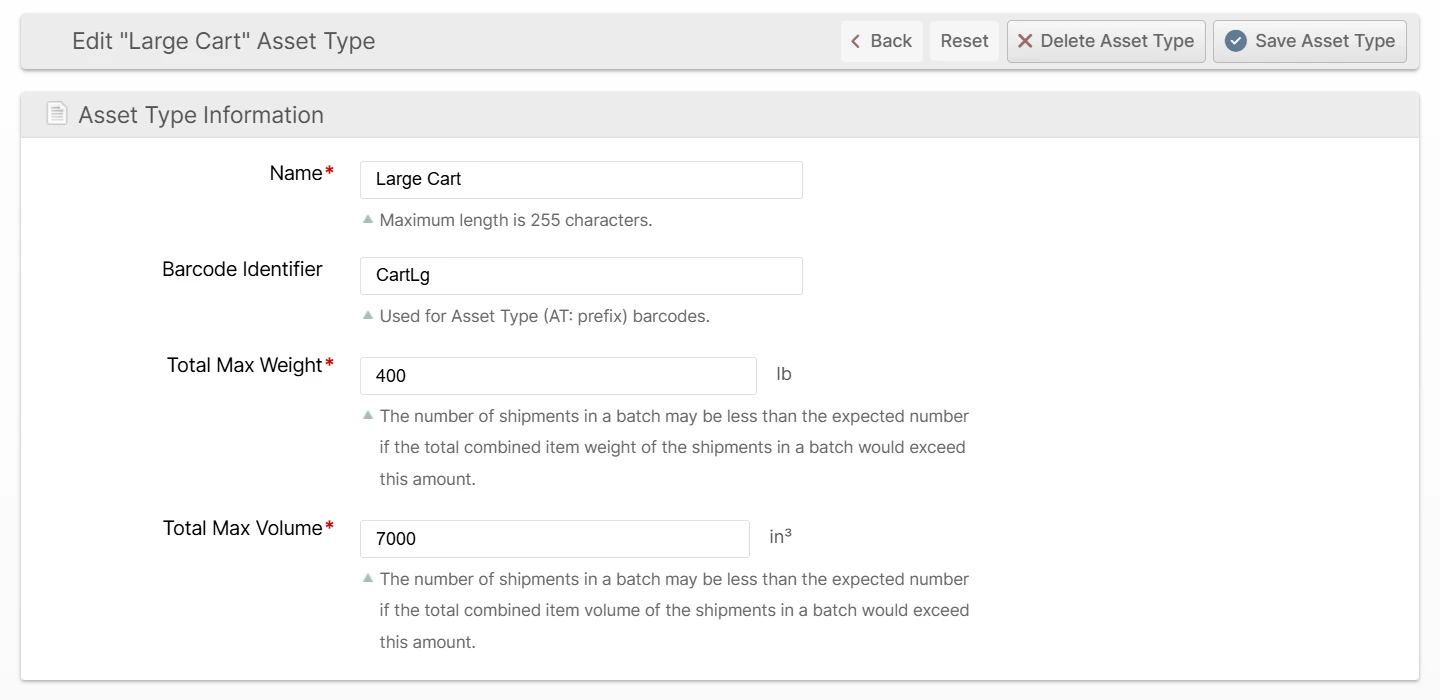
Navigate to System -> Operations -> Asset Types and click Create New Asset Type to define your own asset types according to your needs.
You cannot delete an Asset Type while an Asset Policy lists it. Remove the Asset Type from that policy first.
Name
Use a human-friendly name, ideally just matching what a person would say to refer to the asset type in daily conversation.
Barcode Identifier
The Asset Type's Barcode Identifier can be used to link barcodes to the assets of this type in daily operations. That is, scanning an Asset Type Barcode tells the Scanner UI that as a picker, when you attempt to create a batch, the system should assume the restrictions defined by the selected asset type.
Example: If specified as "CartLg", then a barcode encoding the value "AT:CartLg" should be made and affixed to all of the assets with the given type.
Total Max Weight
Define the maximum amount of weight that this asset should be allowed to hold.
Total Max Volume
Define the maximum combined product volume that this asset should be allowed to hold.
Picking Class Exclusions
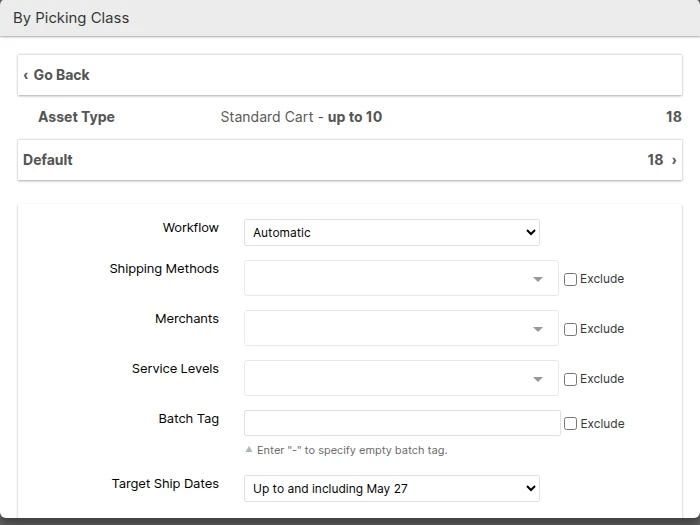
Choose any Picking Classes that this Asset Type must not pick. Excluded Picking Classes are hidden from the Quick Batch and Create Batch dialogs whenever this Asset Type is selected, and an attempt to create a batch that combines this Asset Type with an excluded Picking Class is rejected.

After selecting an Asset Type in the Create Batch dialog, only the Picking Classes it is allowed to pick are listed:
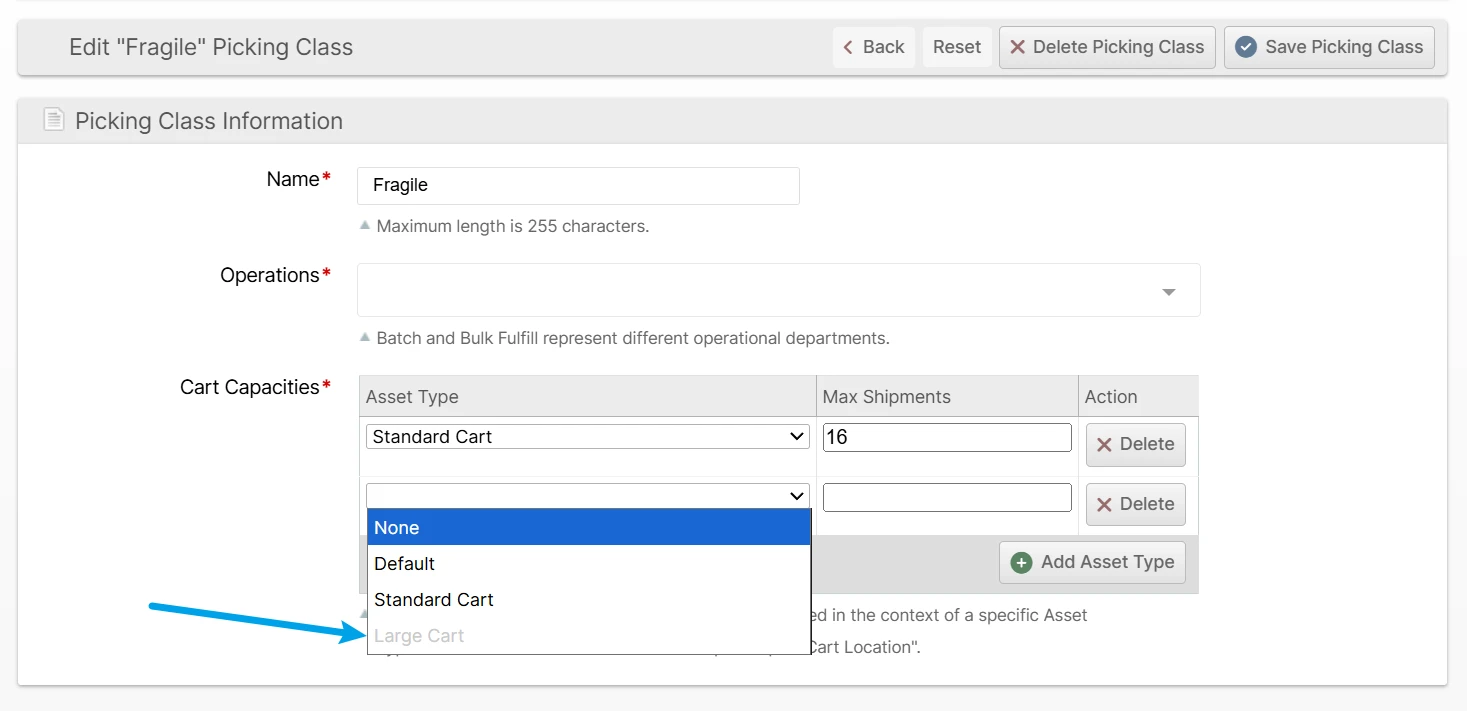
The exclusion is reflected on the Picking Class as well: an excluded Asset Type's cart capacity field is disabled on the Picking Class edit page, since it can no longer pick that Picking Class.
Asset Policies
Whereas an Asset Type defines the physical characteristics of an asset, an Asset Policy declares what the asset is intended to be used for.
Asset Policies apply across all Warehouses. For Directed Put-Away, policies with the Other Operation tell operators which equipment can access each destination.
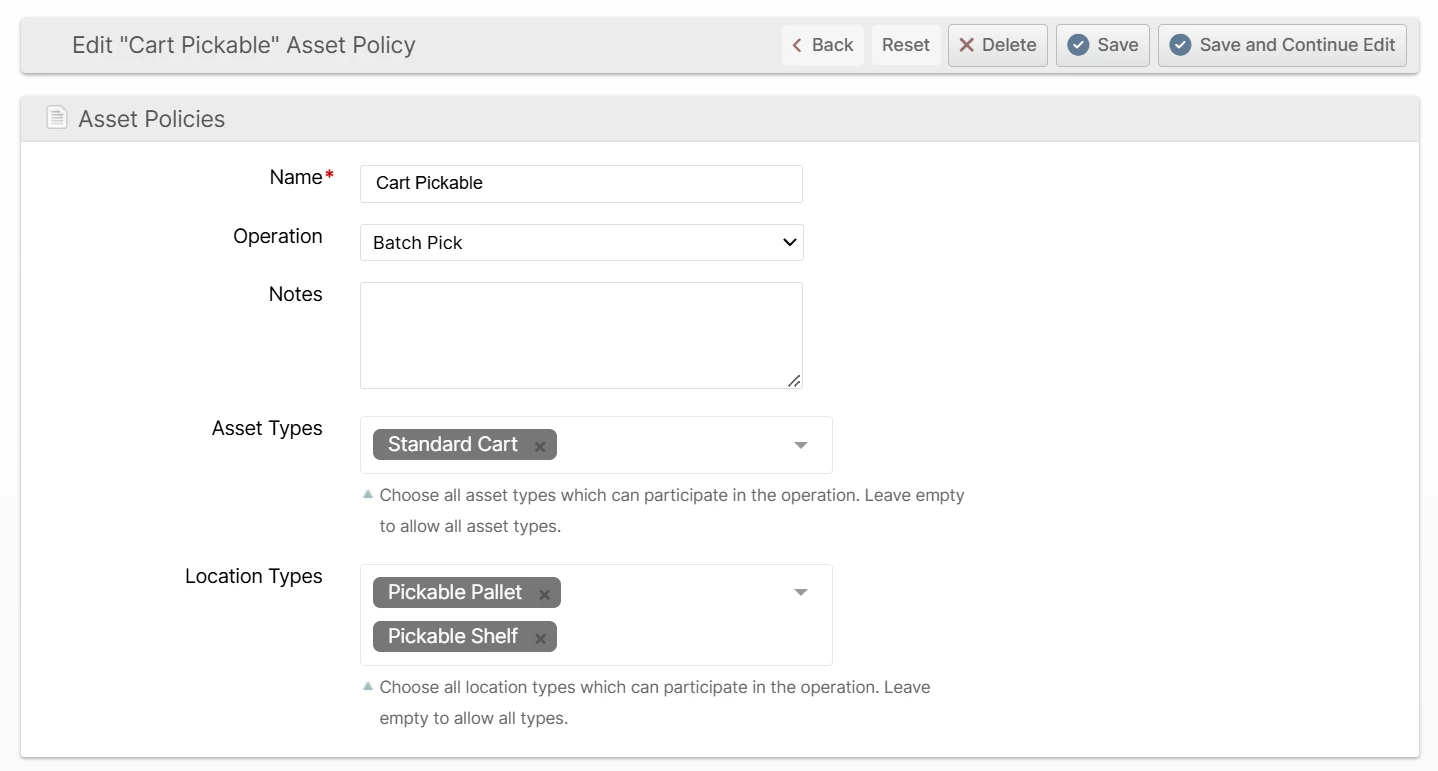
Navigate to System -> Operations -> Asset Policies and click Create New Asset Policy to define your own asset policies according to your needs. The fields are:
Name
A recognizable name that will be visible to users.
Operation
Choose the operation this policy applies to:
- Batch Pick - Used by Picking Batches.
- Bulk Fulfill Pick - Used by Bulk Fulfill Orders.
- Other - Applies to operations that are not Batch Pick or Bulk Fulfill Pick. Currently, Directed Put-Away reads these policies to show allowed Asset Types on tour stops.
Other policies are excluded from the Asset Policy choices in Picking Batches, Batching Presets, and Bulk Fulfill Orders.
A policy used by a Batching Preset, or already recorded by a Picking Batch or Bulk Fulfill Order, cannot be changed to Other. Create a separate Other policy for Directed Put-Away.
Notes
Internal notes, only visible on this page.
Pick Routes
Pin a Pick Route for each Warehouse so that batches governed by this policy follow that route's pick path. Each Warehouse has its own dropdown; leave a Warehouse on Default to inherit its Warehouse Default Pick Route. This is how you give an operation a pick path other than the warehouse default.
Pick Routes is hidden when Operation is Other. Saving a policy as Other removes its existing route pins in every Warehouse. Directed Put-Away follows the Warehouse Default Pick Route.
Asset Types
Choose all of the Asset Types that are able to normally access the selected Slot Types, Rack Types, and Location Tags (below). Leave this field empty to allow all Asset Types.
Rack Types
Choose all of the Rack Types that are normally able to be accessed by the selected Asset Types (above). Leave this field empty to allow all Rack Types. The field is disabled until more than one Rack Type exists; while disabled it shows the prompt "Add a Rack Type to use this field" so you can discover the feature. Define Rack Types under System -> Warehouse -> Rack Types.
Slot Types
Choose all of the Slot Types that are normally able to be accessed by the selected Asset Types (above). Leave this field empty to allow all Slot Types.
Location Tags
Choose all of the Location Tags that are normally able to be accessed by the selected Asset Types (above). A location with any selected tag is considered a match. Leave this field empty to allow all Location Tags. The field is disabled until at least one Location Tag has been defined; while disabled it shows the prompt "Add a Location Tag to use this field" so you can discover the feature.
Matching Locations for Directed Put-Away
A Location matches an Other policy when its Slot Type, its Rack's Rack Type, and its Location Tags satisfy that policy together. An empty field allows all values; when Location Tags are selected, at least one must match. Restrictions from different policies are never combined to make a match.
When several Other policies match a destination, the stop lists their combined Asset Types, sorted by name. If any matching policy has an empty Asset Types field, the stop shows Any Asset Type. If Other policies exist but none matches the destination, the stop shows No Asset Policy. See Allowed Asset Types for the Scanner display and placement behavior.