

Inventory Holds
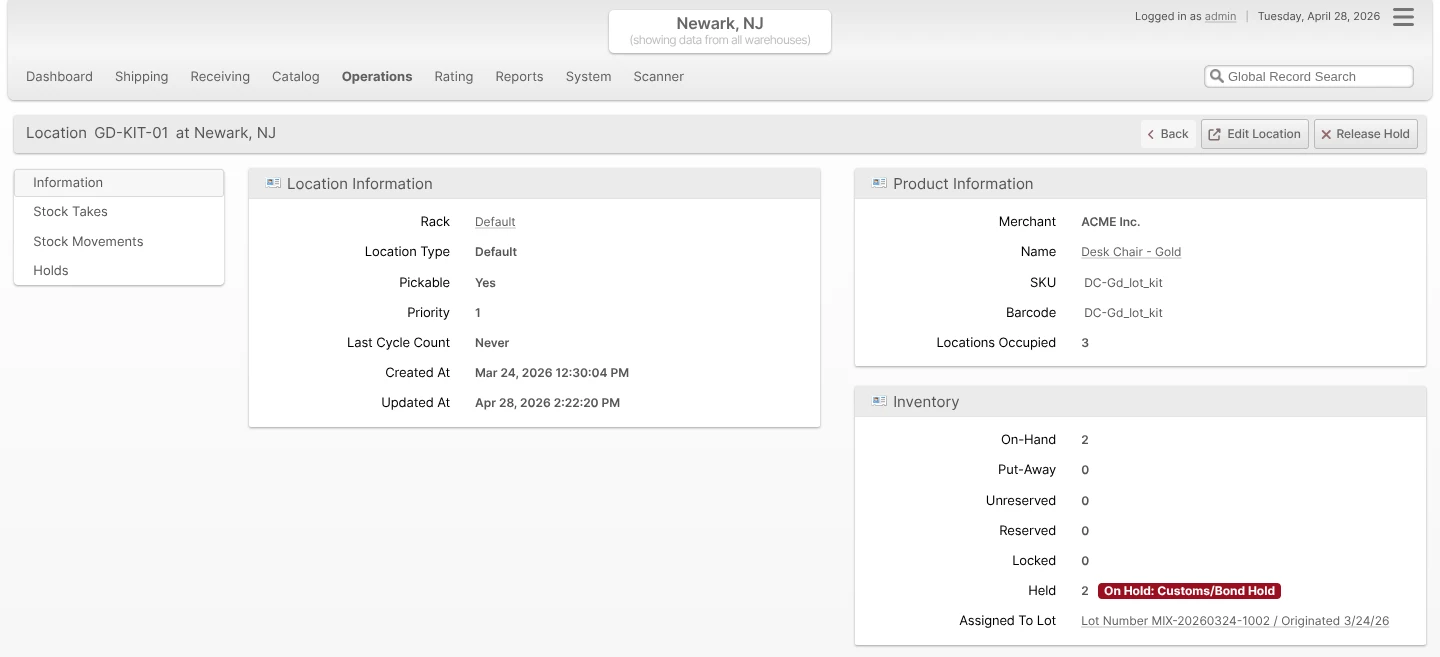
An Inventory Hold freezes a Location so that ShipStream will not allocate, pick, pack, or manifest its inventory. A hold always covers the entire Location — everything on the shelf is set aside, and any inventory that arrives at the Location while the hold is active (a delivery put-away, a committed put-away, a return) is automatically held as well. Held inventory remains physically present and counted as on-hand, but it is excluded from the availability that drives allocation — so it cannot back any new Shipment until the hold is released.
A Lot quarantine also covers off-shelf inventory attributed to that Lot. Processed quantities awaiting Put-Away, Picked quantities awaiting packing, and Packed quantities awaiting shipment are included in the held totals reported for the Lot, even though those units are not currently stored at a Location.
Holds are intended for the everyday situations that pull inventory out of the sellable pool without removing it from the warehouse: QC inspections, cycle counts in progress, damaged goods awaiting disposition, recalled lots, expired and near-expiring stock, contamination, customs/bond hold, and pending vendor returns. Each Hold is recorded against a Hold Reason that explains why the inventory is set aside, and every placement and release is logged in the Stock Movement Log with an audit trail.
How Holds Affect Inventory
Every Location, Stock Item, and Product carries a Qty Held quantity alongside the familiar Put-Away, Unreserved, and Reserved buckets. A held Location reports its full on-shelf quantity as Qty Held — Put-Away, Unreserved, and Reserved units alike — and inventory that arrives while the hold is active is counted as held the moment it lands. When the hold is released, availability is restored. The total On-Hand count never changes as a side effect of placing or releasing a hold — held units remain physically on the shelf.
Partial holds are not supported: a Location is either entirely on hold or not on hold at all. Each Location carries at most one active hold at a time. To set aside only part of a Location's inventory, first relocate the affected units to their own Location and hold that.
While a held Location contains inventory, its Lot cannot be changed or merged into a different Lot. Release the hold or relocate the inventory before changing which Lot it belongs to. You can still correct details such as the Lot Number, Expiration Date, or Origination Date on the existing Lot.
The advertised quantity used by integrations and the order processor automatically excludes held inventory, so Shopify, Amazon, and any other connected sales channel will see a lower availability the moment a hold is placed.
Hold Reasons
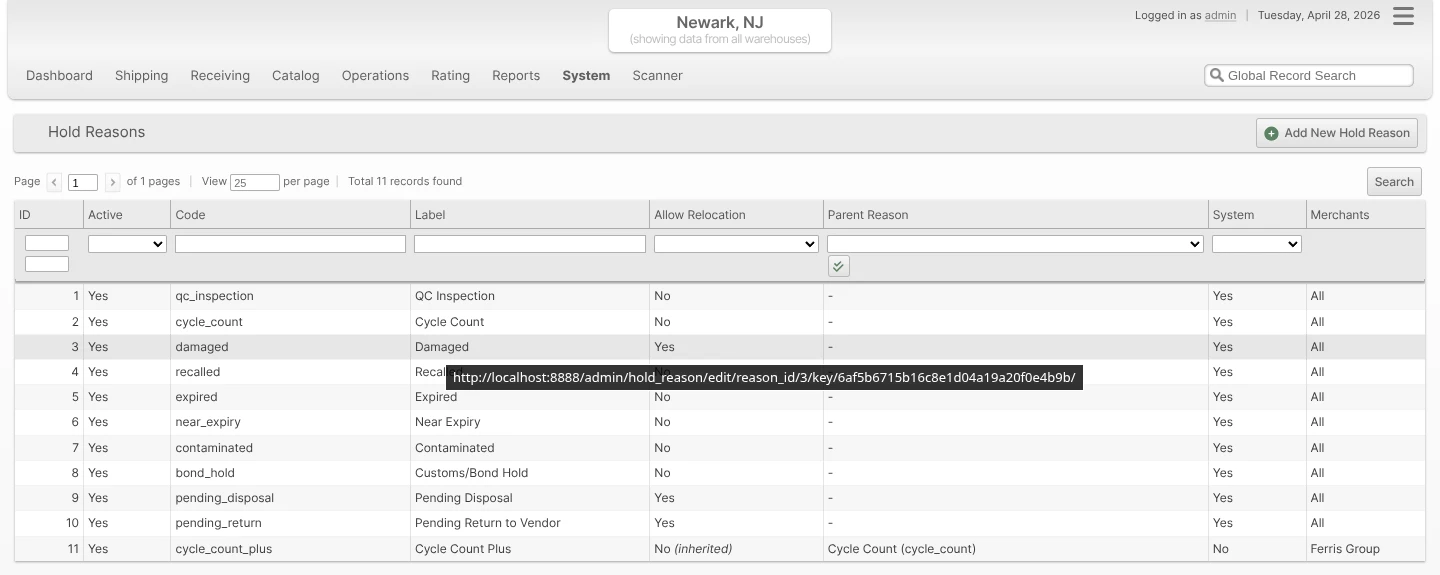
Hold Reasons are managed at System -> Operations -> Hold Reasons. ShipStream ships with a fixed set of system Hold Reasons that integrations and automated rules rely on. You can also create your own user-defined Hold Reasons for finer-grained reporting.
System Hold Reasons
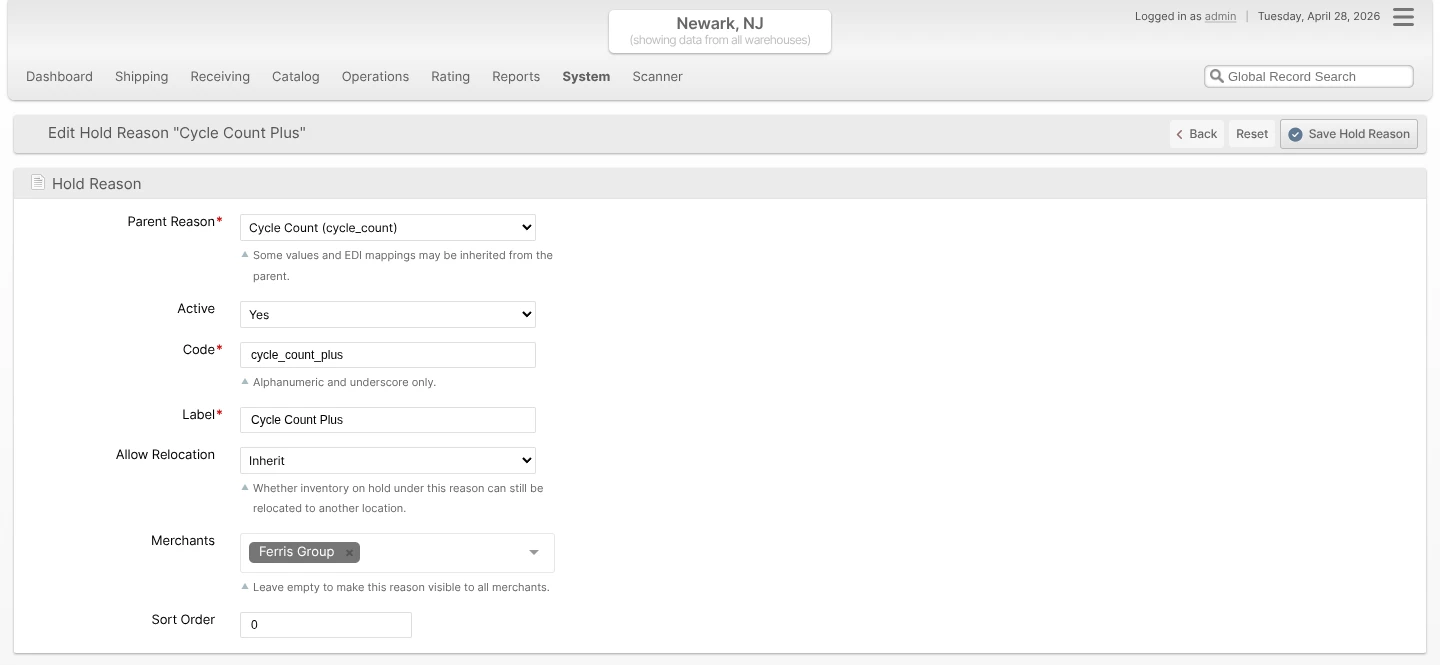
These reasons are seeded automatically and cannot be deleted. Their codes are immutable so EDI mappings and automation continue to work across upgrades. The Label, Active flag, Display Group, and Sort Order can still be edited.
- General (
general) — generic catch-all hold for inventory that should not ship, for any reason not covered by the more specific reasons below. - QC Inspection (
qc_inspection) — held while the item undergoes quality control checks. - Cycle Count (
cycle_count) — held while a count is in progress. - Damaged (
damaged) — physically damaged units awaiting disposition. - Recalled (
recalled) — vendor or manufacturer recall. - Expired (
expired) — lots past their expiration date. Placed automatically by the Automatic Hold on Expiration feature. - Near Expiry (
near_expiry) — lots within the configured days-before-expiration window. - Contaminated (
contaminated) — failed an inspection, awaiting destruction or recall. - Customs/Bond Hold (
bond_hold) — held under customs or bonded-warehouse rules. - Pending Disposal (
pending_disposal) — staged for disposal. - Pending Return to Vendor (
pending_return) — staged for an outbound return to the vendor.
User-Defined Hold Reasons
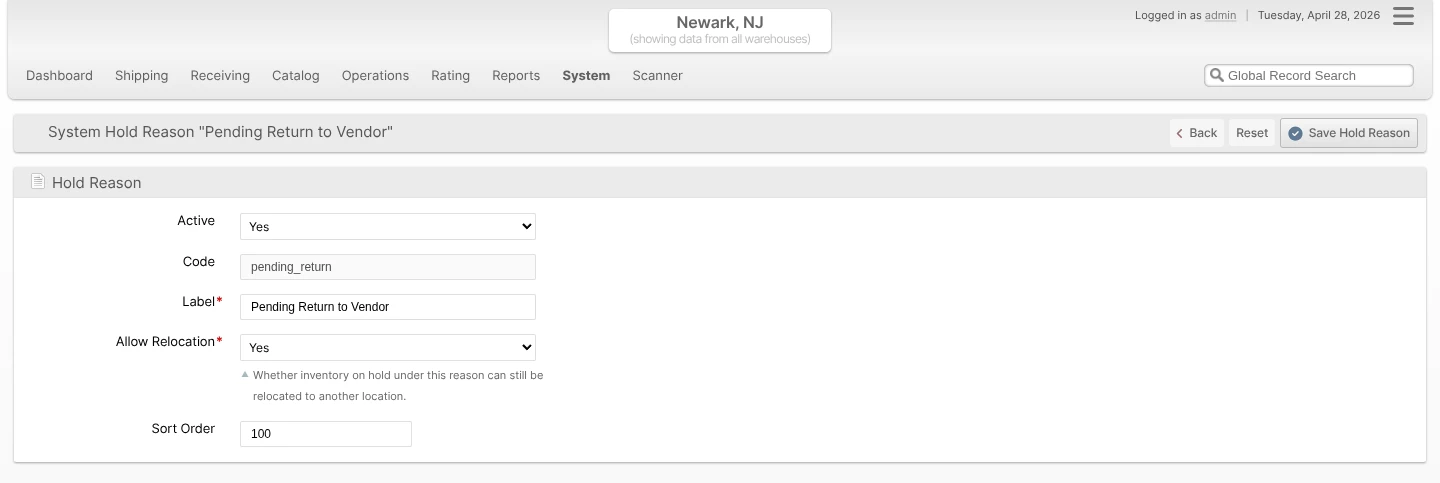
To add a custom reason, click Add Hold Reason on the Hold Reasons grid. User-defined reasons are always nested under one system reason — pick the parent that best matches the EDI category and operational behavior you need. For example, you might create Cosmetic Damage and Functional Damage under the Damaged parent, or Customer Recall and Vendor Recall under Recalled.
The form fields are:
- Parent Reason - The system Hold Reason this user-defined reason inherits from. Required for user-defined reasons; hidden for system reasons.
- Active - When set to No, the reason cannot be selected when placing new holds. Existing holds keep working.
- Code - Internal identifier (alphanumeric and underscore). Used by integrations and EDI mappings. Read-only for system reasons.
- Label - Human-readable name shown across the Admin UI, Client UI, and grids.
- Display Group - Short label (max 25 characters) used to group held quantity into named columns on the Product Inventory Report and other inventory grids. Defaults to Hold. Type any value or pick from the datalist (Hold, Review, Expired, Unsellable, plus any value already saved on another reason). Reasons that share a Display Group fold into the same column.
- Allow Relocation - Whether warehouse staff are allowed to relocate inventory that is on hold for this reason.
- Yes - Relocation is allowed (with a warning). Held inventory stays on hold at the destination.
- No - Relocation is blocked.
- Inherit - User-defined only. Use the parent's setting at runtime.
- Merchants - User-defined only. Select the Merchants this reason should be visible to, or leave empty to expose the reason to every Merchant. Check Exclude next to the field to invert the selection — when Exclude is enabled, the selected Merchants are hidden from this reason and every other Merchant can see it.
- Sort Order - Determines ordering in dropdowns and the grid.
EDI Quantity Qualifier and Adjustment Reason codes for held inventory are configured per-subscription on the SPS Commerce integration — there is no EDI Code field on the Hold Reason itself.
Placing a Location Hold
Use a Location Hold when a specific Location's inventory needs to be set aside — for example, while a counter investigates a discrepancy, or when staff find damaged units in a single location.
- Open the Location's view page and click Hold Inventory in the page header. Clicking a Location opens that page from anywhere it is listed — the Locations grid at Operations -> Warehouse -> Locations, the Locations list on a Rack, the Operations -> Cycle Count grid, a Lot's Holds tab, or a Stock Take — and a Product's Inventory tab links to it with View Location.
- Choose a Hold Reason. The dialog shows the full on-shelf quantity that will be placed on hold — partial holds are not supported, so there is no quantity to enter.
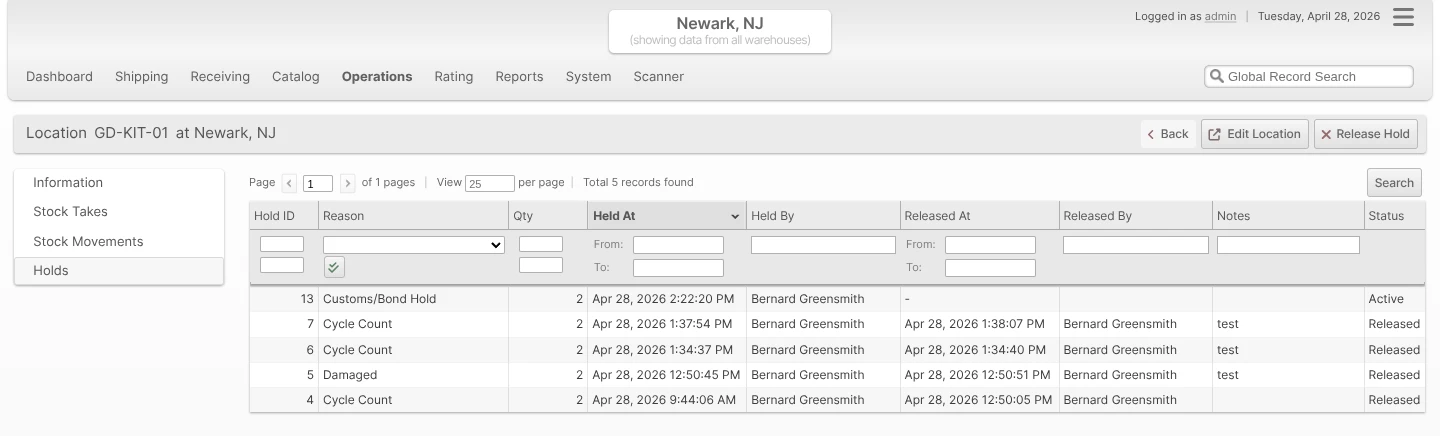
- (Optional) Add a Note explaining the hold. The note is shown in the Holds tab on the Location and on the Inventory Holds grid.
- Click Place Hold.
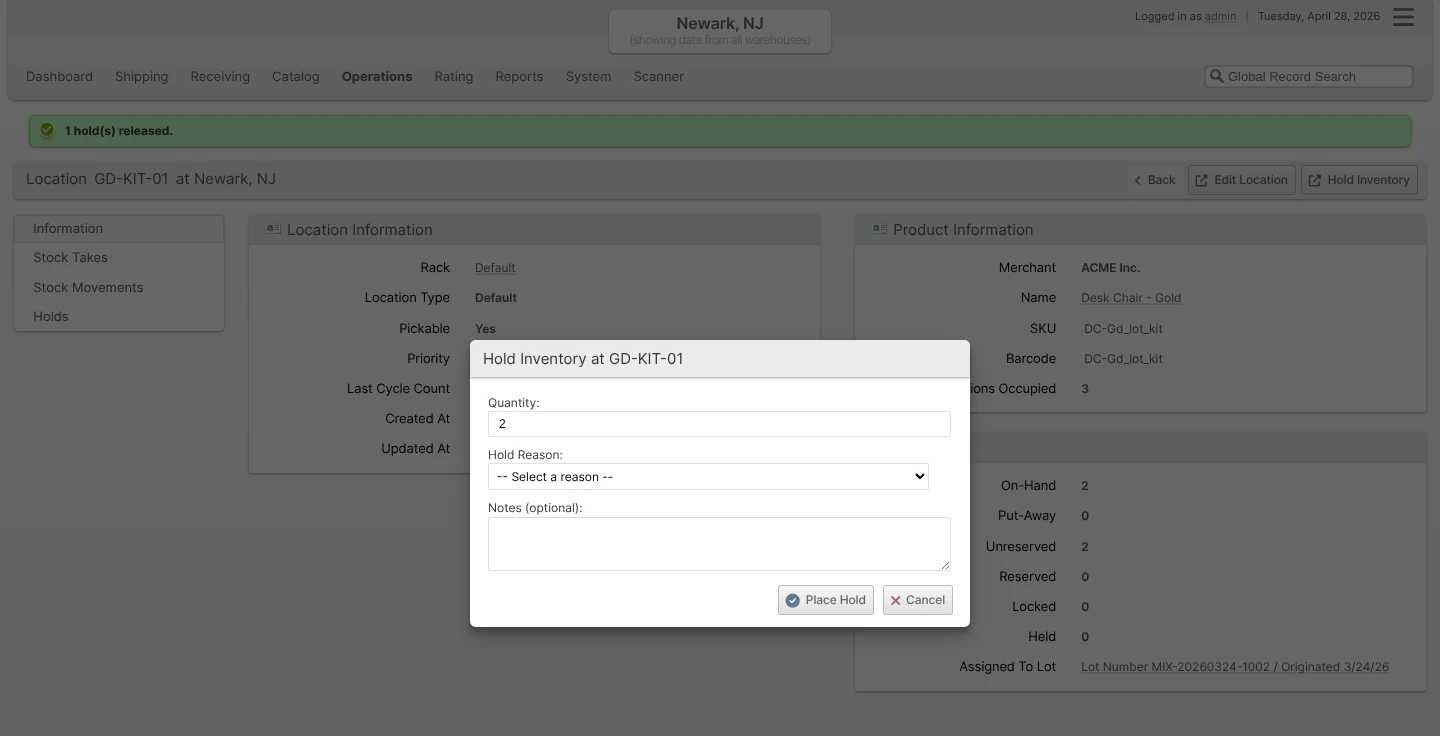
The entire on-shelf quantity moves to Qty Held, the Location is annotated with an On Hold badge, and any active Reservations at the Location are unreserved and rerouted via Order Allocation. The hold appears on the Location's Holds tab and on the centralized Inventory Holds grid.
Quarantining an Entire Lot
When a recall, contamination event, or near-expiry sweep affects every unit of a Lot, use Quarantine Lot to place a hold on every Location holding that Lot across all Warehouses in one action. The same action also quarantines every Lot that was made from it by kitting or de-kitting, so a recall follows the stock into kits and components. See BOM Lineage Cascade for which Lots are included.
- Open Catalog -> Lots/Expirations and click the Lot you want to quarantine.
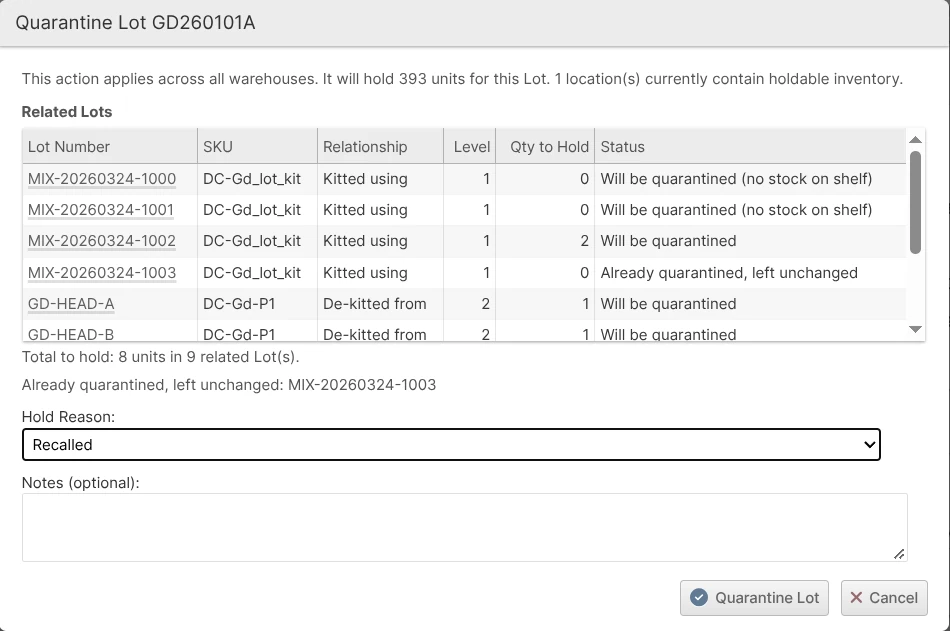
- Click Quarantine Lot in the page header. The popup states that the action applies across all Warehouses and confirms the total units for the Lot and the number of Locations that currently contain holdable inventory. Below that, Related Lots lists the Lots made from this Lot that will be quarantined with it.
- Choose a Hold Reason and (optionally) add Notes. The related Lots are quarantined with the same reason.
- Click Quarantine Lot to apply.
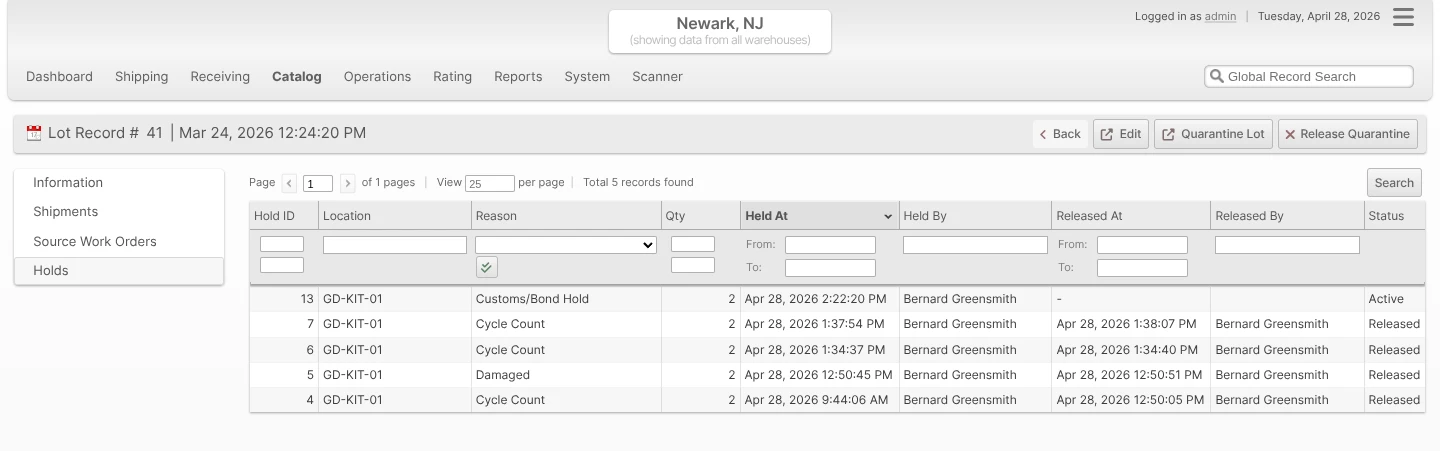
Behind the scenes ShipStream creates one Hold record per affected Location across all Warehouses, each linked to the Lot, and does the same for every related Lot. The success message counts both, for example Lot quarantined: 4 hold(s) placed, 2 related Lot(s) quarantined. When no stock on the shelf needed a new hold, because the Lots are not stored anywhere yet or every Location holding them is already held, the message says so and confirms that stock put away later will be held.
The set behaves as a single quarantine for the purpose of release: clicking Release Quarantine on the Lot view releases eligible active Holds attached to that Lot in one action, and can release the related Lots with it. A shortage Hold owned by an open count request remains until the Location is counted; other eligible Holds are released, and the message reports the number actually released. See Releasing a Quarantine.
The Lot view displays a Hold Status badge while the quarantine is active. Its Inventory section reports Lot totals for the current Warehouse scope and shows a separate row for each Hold Reason Display Group. The quarantine also covers the Lot's off-shelf Processed, Picked and Packed quantities, so a Display Group's held total can be greater than the quantity currently shown across the affected Locations. ShipStream keeps the quarantined Lot active and visible even when all of its quantities are zero, allowing you to see and release the quarantine without inventory first having to return to the Lot.
On a related Lot, the Hold Status also reads Quarantined with Lot X, linking to the Lot whose quarantine reached it, followed by (released) once that Lot has been released on its own. A Lot that kept a hold of its own reads Also covered by the quarantine of Lot X instead. See Related Lots That Are Already Quarantined.
If the Lot or one of its related Lots changes while the quarantine is being placed, for example because a kit is assembled from it at that moment, nothing is held and the message The Lot changed while this request was running. Please try again. asks you to submit again.
BOM Lineage Cascade
Quarantine Lot follows the Work Order history of the selected Lot and quarantines every Lot made from it. This matters most for recalls of food, medical, or hazardous products: a recalled component may already be inside finished kits, and a recalled kit may already have been broken back down into its components.
- Kitted using — kit Lots assembled using the selected Lot as a component.
- De-kitted from — component Lots recovered by de-kitting the selected Lot.
Each Lot found is followed the same way, level by level, so a kit assembled from components that were de-kitted from a recalled kit is covered as well. The cascade only runs downstream. The Lots the selected Lot was made from, such as the components of a recalled kit, are never held, and neither are its siblings, the other component Lots that went into the same kits. Lots of a different Merchant are never held either: a recall on one Merchant's Lot never reaches another Merchant's inventory.
Related Lots are held in every Warehouse, including Warehouses where the selected Lot itself has no stock. Stock of a related Lot that is put away later is held too, exactly as for the selected Lot.
Previewing the Related Lots
The Related Lots list loads when the popup opens, and the Quarantine Lot button becomes clickable once it has loaded. The list shows the first 100 related Lots:
| Column | Description |
|---|---|
| Lot Number | The related Lot. Click it to open its Lot page. |
| SKU | The Product of the related Lot. |
| Relationship | Kitted using or De-kitted from, as described above. |
| Level | How far the related Lot is from the selected Lot. Level 1 Lots were made directly from it, level 2 Lots were made from a level 1 Lot, and so on. |
| Qty to Hold | Units of the related Lot that will be newly held: on-shelf units that are not already on hold, plus Processed, Picked and Packed units. |
| Status | Will be quarantined, with a remark when no stock needs a new hold right now (no stock on shelf, stock already on hold, or no holdable stock), or Already quarantined, left unchanged. |
Below the list, the popup shows the total units to hold across the related Lots and names the related Lots that are already quarantined. If the list cannot be loaded, the popup shows the error and Quarantine Lot stays available, because the quarantine checks the Lots again when you submit.
Related Lots That Are Already Quarantined
A related Lot that is already quarantined for any reason, whether by a person, an integration, the expiry check, or another recall, keeps that hold unchanged. After you submit, a notice names these Lots: These related Lots were already quarantined and were left unchanged. Such a Lot still joins the recall, and its Lot view reads Also covered by the quarantine of Lot X. When its own hold ends while the recall is still open, the Lot moves into the recall's hold instead of becoming available.
The same applies in reverse when a Lot in a recall expires: the expiry check may replace the Lot's hold with its own Expired hold, but the Lot stays in the recall and goes back to the recall's hold when the Expired hold ends.
Lineage Limits
ShipStream follows up to 8 levels and 1,000 related Lots. When the Lots made from the selected Lot go beyond either limit, only the selected Lot is quarantined. The popup warns about this before you submit, and the message after you submit says that the Lots made from it were not quarantined. Both list up to 10 of the Lots made directly from the selected Lot, followed by and N more when there are others, so you can quarantine them from their own Lot pages.
Releasing a Hold
Holds can be released from a Location, from a Lot, or from the centralized grid. The held Quantity normally moves back to Unreserved and the Stock Movement Log records a release entry. If an independent Location hold is released while its Lot remains quarantined, the quarantine hold takes over immediately and the Quantity remains held.
- From a Location view page — click Release Hold to release eligible active holds at that Location; count-owned shortage Holds require counting the Location first.
- From a Lot view page — click Release Quarantine to release eligible active holds linked to that Lot across every affected Location; count-owned shortage Holds remain until their Locations are counted. See Releasing a Quarantine for Lots quarantined together with related Lots or held for more than one reason. After a Lot was released on its own, Release Related Lots releases the related Lots still quarantined with it, see Releasing the Related Lots Later.
- From Catalog -> Inventory Holds — select one or more rows and choose Release Selected Holds from the mass-action menu.
Releasing a Quarantine
When the Lot was quarantined together with related Lots, the Release Quarantine popup lists them by Lot Number and SKU and offers a checkbox, Also release these N related Lot(s), which is unchecked by default.
- Checked — the Lot and its whole group of related Lots are released in one step, in every Warehouse.
- Unchecked — only this Lot is released. The related Lots stay quarantined, and their Lot views show Quarantined with Lot X (released). Release them together later with Release Related Lots on this Lot's view page, or each from its own Lot page.
A Lot that another open quarantine still covers does not become available when it is released. It moves into that quarantine's hold, and a notice names the Lots that stay quarantined and the Lot whose quarantine still covers them.
The list also includes related Lots that the quarantine covers while they are held for another reason: as Expired by the expiry check, or by a hold of their own that they already had when the quarantine was placed. A Stays Held For column then shows that reason. Releasing with the related Lots ends the quarantine for them too: they keep that hold and are no longer in the quarantine, so they do not go back to the quarantine's hold when it ends. A notice names them. The checkbox is offered as long as the quarantine is open, also when every related Lot still in it is held as Expired.
Releasing a single Location hold that belongs to a quarantine, from the Location page or the Inventory Holds grid, exempts only that Location. Stock put away into that Location later is not held, while stock of the same Lot put away to any other Location is still held. The exemption belongs to that quarantine and lasts while the Lot stays in it, also when the expiry check holds the Lot as Expired for a while and the Lot then goes back to the quarantine's hold. It ends when the quarantine holds that Location again, for example when the quarantine is run again through the API while the Lot has stock there, or when the Lot is released and later quarantined again. Another quarantine of the same Lot does not inherit it.
If the Lot changes while the release is running, for example because another user releases one of its holds at the same moment, nothing is released and the message The Lot changed while this request was running. Please try again. asks you to submit again.
Releasing the Related Lots Later
While related Lots are still quarantined with a Lot that was released on its own, that Lot's view page shows a Release Related Lots button, as long as the Lot was not quarantined again. The button also shows when another recall that covers the Lot holds it again, next to Release Quarantine. Clicking it opens a popup that asks Release the N Lots still quarantined with this Lot? and lists the first 100 of them by Lot Number and SKU. Click a Lot Number to open its Lot page.
Click Release Related Lots in the popup to release them in one step, in every Warehouse. The message counts the Lots that became available, for example 3 related Lot(s) released. The quarantine ends with this release:
- A related Lot that is also held for another reason, as Expired or by its own older hold, keeps that hold and leaves the quarantine. The popup shows the reason in Stays Held For, and a notice names these Lots. The button is offered also when every related Lot still in the quarantine is held as Expired.
- A related Lot that another open quarantine still covers moves into that quarantine's hold, and a notice names it.
- Holds that the Lot itself got after it was released, such as a Location hold or the hold of another recall that covers it, are not changed.
If the Lot was quarantined again in the meantime, release it with Release Quarantine first. The button then appears for the related Lots of the earlier quarantine.
Lots Held for More Than One Reason
A Lot can be held for more than one reason at the same time, for example its own Damaged quarantine plus a recall that reached it through BOM lineage. The Release Quarantine popup then lists each reason with its Hold Reason, Quarantine of Lot, and Held By, and a checkbox for each:
- Tick a recall to take the Lot out of that recall. The Lot's own hold stays.
- Tick the Lot's own hold to release that hold. If a recall still covers the Lot, the Lot moves into the recall's hold instead of becoming available.
If no reason is ticked, the popup asks you to select one. Also release these N related Lot(s) can be ticked only together with the Lot's own quarantine, because the related Lots belong to that quarantine.
Automatic Release
A hold exists to freeze inventory, so when a held Location is completely emptied — for example the units are relocated away, or an authorized workflow removes the last of them — ShipStream releases the hold automatically shortly afterward so the empty Location can be reused. The automatic release is logged exactly like a manual one.
Similarly, if an operator puts new inventory away to a held Location that has been sitting empty, the Scanner treats the leftover hold as stale: it releases the hold without requiring confirmation, then applies the governing Lot quarantine if one exists. Putting away to a held Location that still contains inventory keeps the Location hold — the new units join the Location and are frozen with it after the operator acknowledges that warning.
Inventory Holds Grid
The centralized Holds grid lives at Catalog -> Inventory Holds. It defaults to showing every active Hold across every Warehouse you have access to, with the following columns:
Hold ID, Status (Active / Released), Group (Display Group), Warehouse (when you have access to multiple), Merchant (when not in single-website mode), Location, SKU, Product Name, Hold Reason, Qty Held, Lot Number, Expiration, Held Since, Held By, Notes.
Held By names whoever placed the hold: the Admin user, the Global API token, or the Lot Expiry Check background job for holds placed by the nightly expiry check.
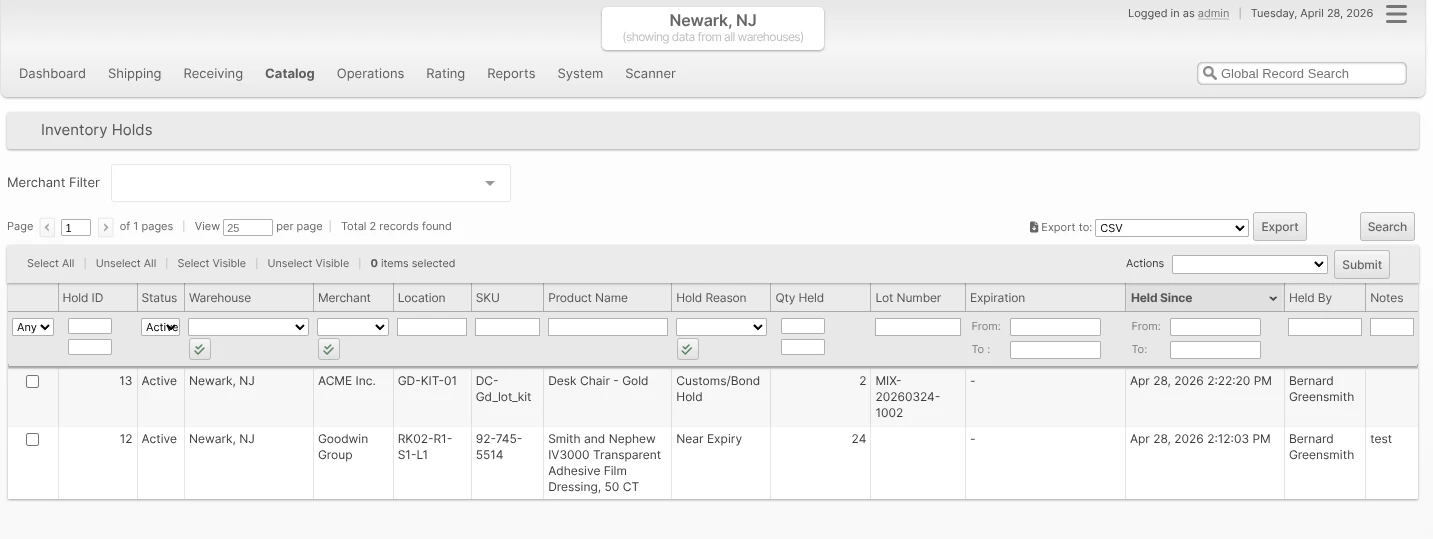
Filters work the same as any other ShipStream grid. Common filtered views:
- Status: Released — audit historical holds, including who placed and released them.
- Group: Expired — see only the inventory currently held under the Expired Display Group, regardless of which underlying Reason was used.
- Hold Reason: Damaged — drill into one specific reason.
- Held Since: last 24h — find brand-new holds, useful in a recall response.
Click any row to open the Location view for that hold. Mass actions support Release Selected Holds. Count-owned shortage Holds remain until their Locations are counted; other eligible selected Holds are released, with the actual release count reported. CSV and Excel exports are available from the Export menu.
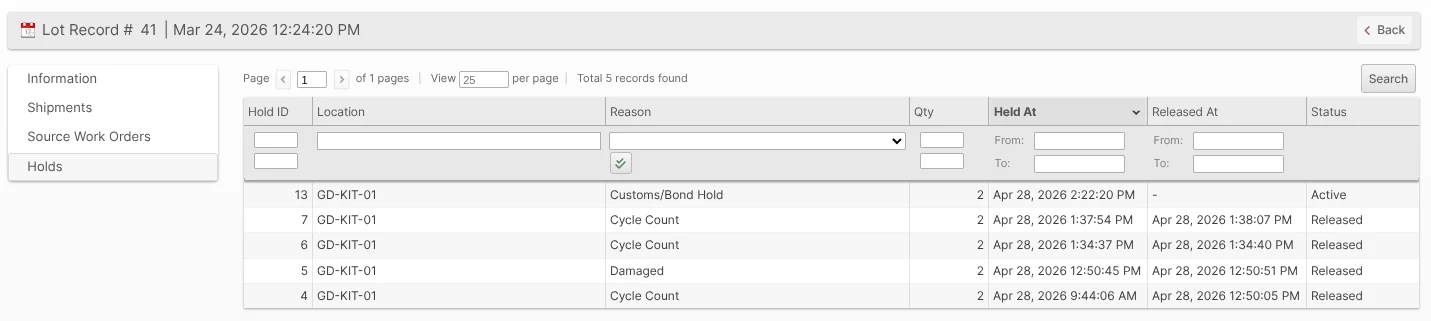
Qty Held shows the quantity currently held at the Location, including Put-Away and Reserved inventory. It updates as inventory changes while the hold is active. Released holds show a blank quantity in the grid and exports, even if the same Location is placed on hold again. The quantity columns in the Location and Lot Holds tabs, Product Active Holds grids, and Client Portal follow the same rule.
Active Holds on the Product Inventory tab
Each Product's Inventory tab gains an Inventory Report that breaks Qty Held into one column per Display Group between Picked and On Hand, plus a summary box at the top of the report showing the per-group held totals next to Qty On Hand, Qty Backordered, and Qty Advertised. Below the report, an Active Holds mini-grid lists the currently-active holds on that Product (Warehouse, Status, Reason, Lot Number, Expiration, Location, Held At, Held By, Quantity) so you do not have to leave the Product page to see what is held and why.
Holds in the Client Portal
Merchants get a read-only view of holds on their own inventory at Stock -> Inventory Holds in the Client UI. The grid shows the same Hold information as the Admin UI but excludes any internal Admin user names — only Client user attributions appear in the Held By column. A Merchant cannot place new holds, release existing ones, or manage Hold Reasons.

The Client Product Inventory tab also mirrors the admin layout: per-Display-Group breakdown columns between Picked and On Hand, and the per-group totals beside Qty On Hand and Qty Advertised in the summary box. The Client Lot view displays a read-only Hold Status badge and the same Lot totals and per-Display-Group rows in its Inventory section. A Holds tab shows which Locations of a Lot are currently quarantined and why.
Holds in the Scanner UI
Warehouse operators do not place or release holds from the Scanner — that remains an Admin function. The Scanner is hold-aware in four flows:
- Picking — Order Allocation routes around held inventory, so picks normally never target a held Location. When a hold is placed after a Shipment or Batch was already assigned its pick Locations, the Scanner protects the operator: the pick shows a warning banner ("Location X is on hold and cannot be picked."), the affected item is badged with its Hold Reason, confirming the Product is disabled, and the instructions direct the operator not to scan or pick the item while the Location is held. In a Batch, the message also suggests releasing the hold or removing the Shipment from the Batch.
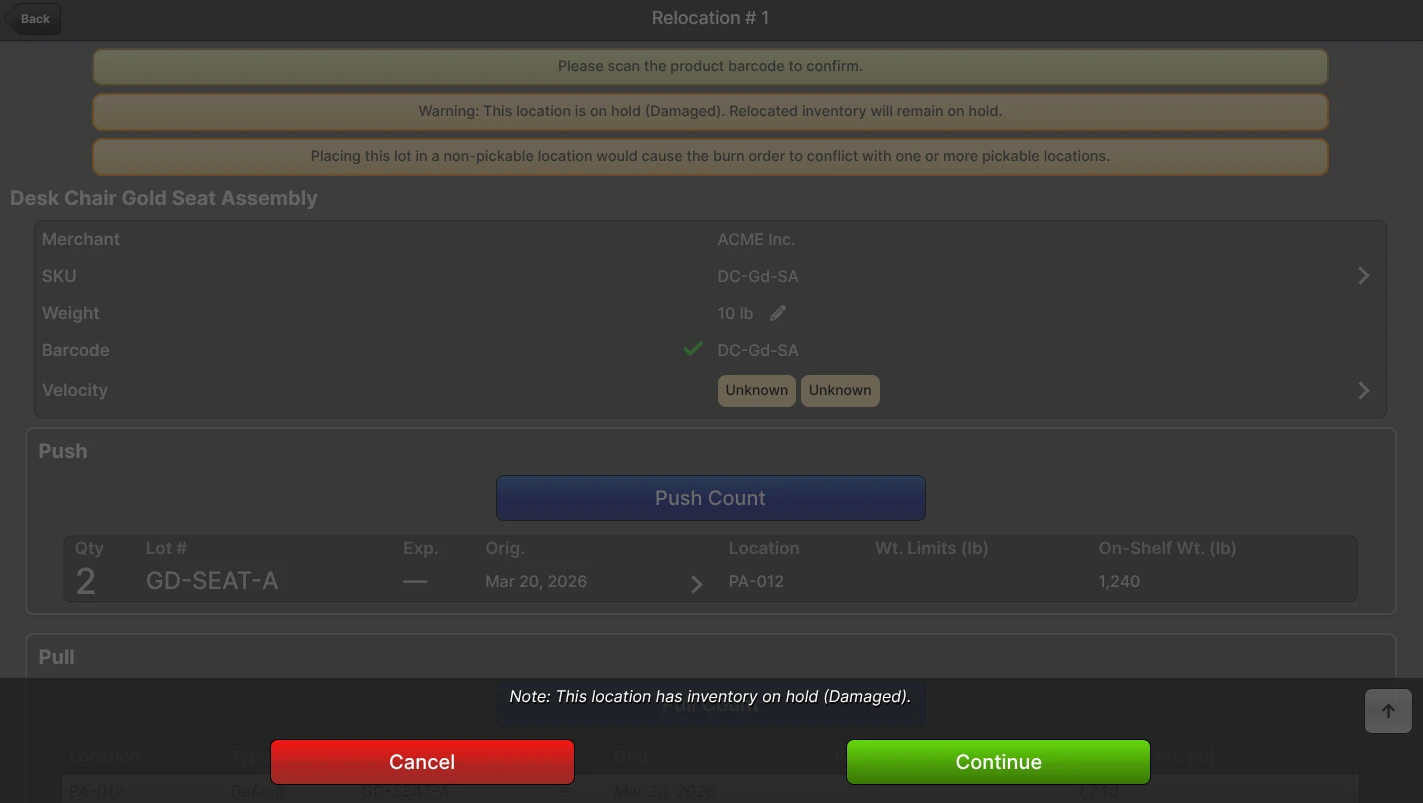
- Relocation — When the source Location is on hold for a reason whose Allow Relocation is No, the Scanner blocks the pull with a buzzer and the message "This location is on hold (Reason). Relocation is not permitted.". When the reason allows relocation, the Scanner shows a warning and the hold travels with the moved units: a partial move splits the hold (the source stays held on whatever remains and releases automatically once drained), and the destination is held under the same reason — merging into an existing same-reason hold if one is present. Held inventory can only move onto an empty Location or one already held under the same reason; moving it onto a different-reason hold or mixing held and unheld stock in one Location is hard-blocked with a buzzer. See Relocating Held Inventory for the operator workflow.
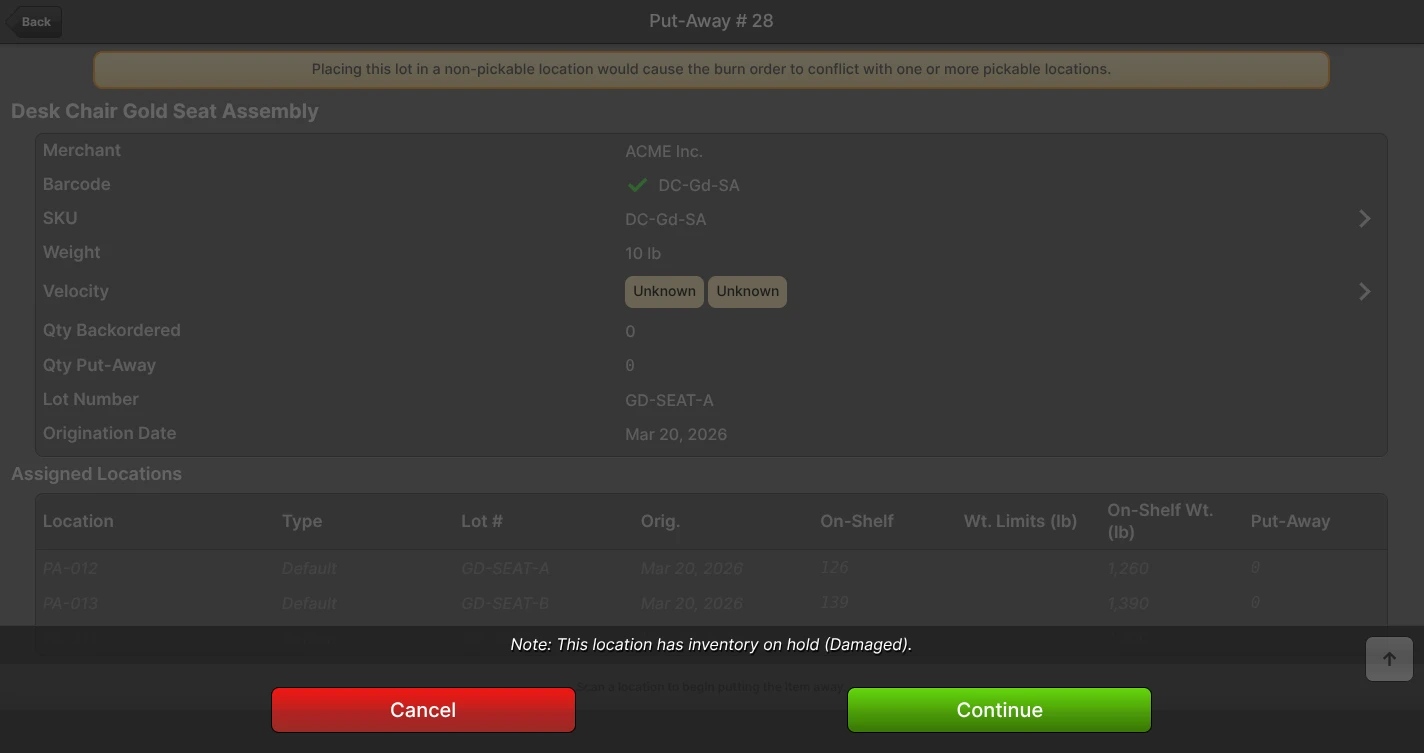
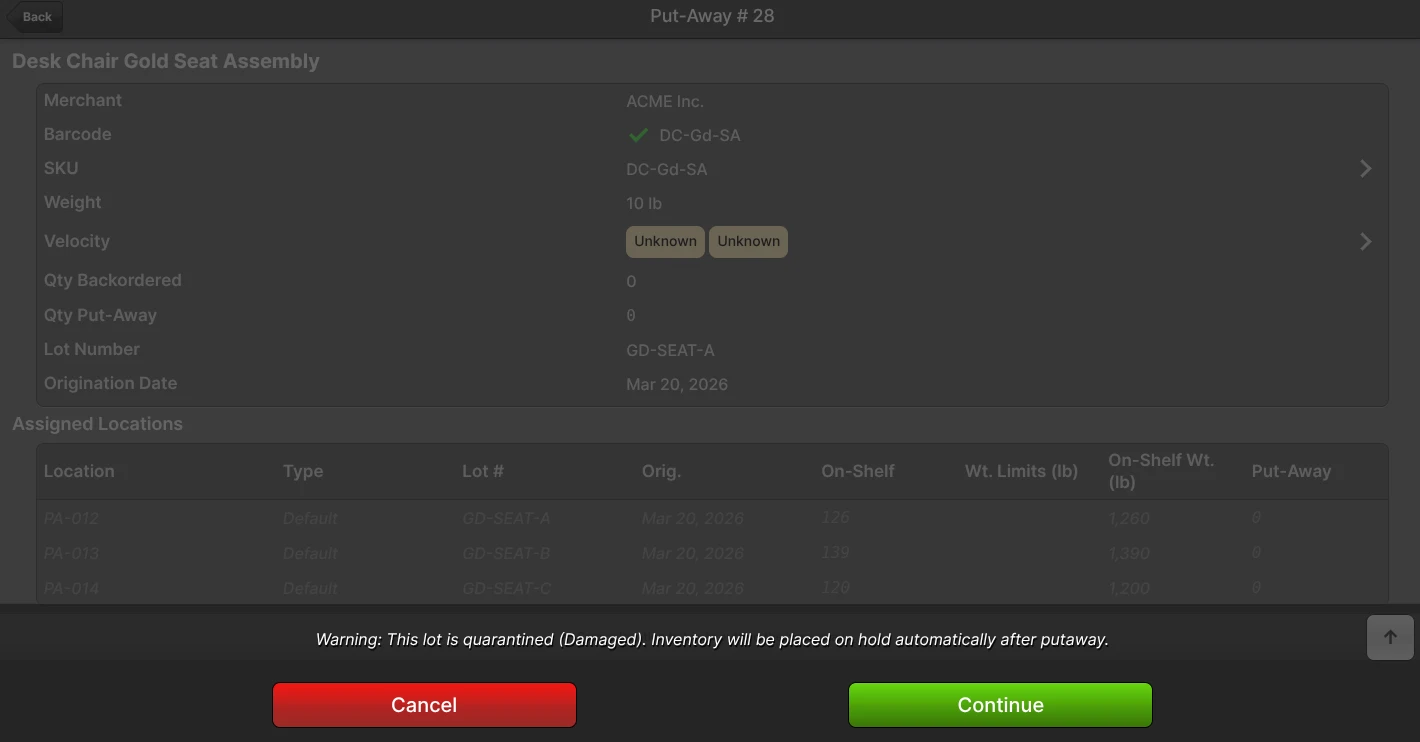
- Putaway — Putting away to a populated held Location is allowed after the operator acknowledges the Location hold warning; the new units join the Location and are frozen by that hold. An empty stale Location hold is released without confirmation. Putting away inventory of a quarantined Lot is also allowed (the priority is to clear the dock). The Scanner shows only the hold that will govern the arriving inventory: a populated Location hold takes precedence, an applicable Lot quarantine warns that the units will be held automatically, and an explicit Location exemption produces no hold warning.
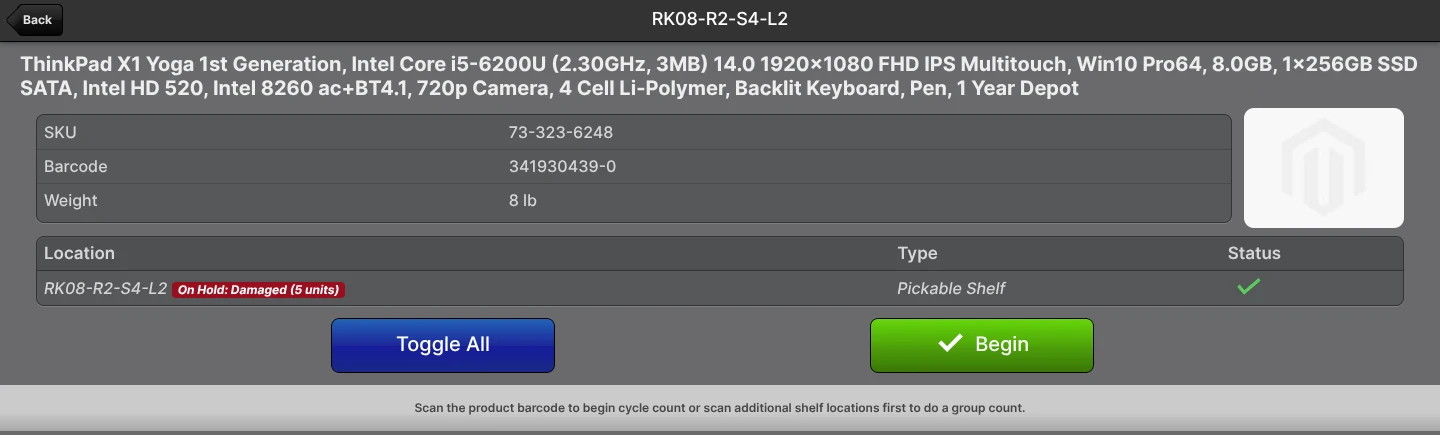
- Cycle Count — When a Location carries an active hold, the location row displays an inline On Hold: Reason badge and the count comment shows the On Hold quantity. You can count the Location up when extra units are found; the additional units remain held and do not increase advertised availability. You cannot ordinarily count a held Location down. The supported shortage-count workflow can count down stock covered by its own shortage Hold and releases only that Hold on completion; unrelated Holds retain their normal restrictions. Release the hold or, when the Hold Reason permits it, use Relocation to remove held inventory rather than counting it away. A count also cannot move the inventory onto a different Lot while the Location is held.
Packing and Manifesting do not need any Scanner-specific handling — the model layer blocks Packing in every entry point (Scanner, Admin, Bulk Fulfill) if a Lot becomes quarantined after the Shipment was picked. The Packing rejection message identifies the held Lot and Reason.
Permissions
Hold-related permissions live under two ACL paths:
- Catalog -> Inventory Holds - Grants access to the Inventory Holds grid, the Holds tab on Location and Lot view pages, and the Hold Inventory / Quarantine Lot buttons.
- Catalog -> Inventory Holds -> Release Holds (sub-permission) - Grants access to Release Hold, Release Quarantine, Release Related Lots, and the grid's mass-action release.
- System -> Operations -> Hold Reasons - Grants access to the Hold Reasons CRUD page.
Configure these on each User Role as appropriate.
API Access
Held quantities are reported by the inventory endpoints of both the Merchant API and the Global API. The Merchant API also lets integrations look up holds and Hold Reasons, but it cannot place or release holds.
The Global API can place and release holds. Quarantining a Lot with POST /v1/inventory/holds/lot holds only the named Lot unless cascade_bom=true is sent; with it, the Lots made from the named Lot are quarantined too, following the same BOM Lineage Cascade rules as the Admin UI. Releasing the Lot with release_cascaded=true releases the Lot and its whole group; on a Lot that was released on its own, it also releases the related Lots still quarantined with it. Unlike Release Related Lots, it also releases eligible holds the Lot itself received since; count-request holds remain active until the count is completed. To release only the related Lots, as Release Related Lots does, the Global API has a separate release-related-Lots call. A release can also name only some of the reasons that hold a Lot, matching the checkboxes of the Release Quarantine popup for Lots held for more than one reason. A lookup returns those reasons, the Lot it was quarantined with, the related Lots that a release with release_cascaded=true would release, and the related Lots still quarantined with a Lot that was released on its own. Holds written through the Global API record the API token in Held By.
Hold Reasons are also exposed through System -> Enumerations under the Catalog -> Hold Reasons category for any integration that already consumes the Enumerations feed.
EDI Reporting
The SPS Commerce integration reports held inventory on outbound EDI 846 (Inventory Advice) and EDI 947 (Warehouse Inventory Adjustment Advice) documents. Each subscription carries two reason-code maps — one for 846 Quantity Qualifier codes, one for 947 Adjustment Reason codes — that translate ShipStream Hold Reasons into the codes your trading partner expects. See the Hold Reason EDI Mappings section of the SPS Commerce integration page for the full default tables and instructions for overriding the maps per subscription.
See Also
- Lots/Expirations Tracking - especially the Automatic Hold on Expiration section for the daily expiry sweep.
- Stock Movement Log - audit trail for every hold placement and release.
- Relocations - hold splitting and merging, the no-mixing rule, and the SKU-conversion guard for held inventory.
- Cycle Count and Inventory Adjustments - how cycle counts behave at locations with held inventory.