

Replenishment Tasks
A Replenishment Task is a piece of warehouse work that moves stock from a source Location, such as reserve, into the forward-pick Location that a Replenishment Lane fills. Tasks are created automatically when a Replenishment Policy finds a need, or manually by a user. Operators carry them out in the Scanner UI, and supervisors handle anything that goes wrong.
| To... | See |
|---|---|
| Pick and place a Task | Replenishing from the Scanner |
| Release a claim, reassign, cancel, or resolve a problem | Supervising Replenishment Tasks |
| See the need that Tasks are created from | Replenishment Report |
How a Task Works
A Task keeps its planned quantity divided into six buckets, so you can always see where every unit is:
| Bucket | Meaning |
|---|---|
| Placed | Put into the destination Location. |
| In Custody | Picked by an operator and carried in the cart, not yet placed. |
| Open | Not picked yet. |
| Canceled | Unpicked quantity that was canceled. |
| Short | Missing at the source, or custody that a supervisor returned to its source or wrote off. |
| External | Covered by inventory that arrived at the destination some other way. |
A Task normally moves through Created -> Released -> Picking -> Placing -> Completed.
| Status | Meaning |
|---|---|
| Pending | Waiting for a current evaluation or release condition. |
| Deferred | Valid work held by a release or capacity gate. |
| Released | Available in the Scanner queue. |
| Picking | Claimed work moving source quantity into custody. |
| Placing | Picked quantity must be placed into an allowed destination. |
| Exception | Canceled work retains custody, or needs supervisor attention. Placement can continue when integrity is healthy. |
| Completed | The planned quantity was placed, externally satisfied, recorded short, or its custody exception was resolved. |
| Canceled | The remaining unpicked quantity was canceled and no custody remains. |
Blocked is an integrity finding that is separate from the status: the Task's ledger no longer agrees with inventory. An Exception with custody becomes Exception Overdue after four hours. That alone does not mean the ledger is blocked. See Recovering a Blocked Task.
Reviewing Tasks
Navigate to Operations -> Replenishment Tasks. Use the Warehouse and Merchant controls with the grid filters to find work by Status, Trigger, SKU, or Lane. Blocked rows appear in red, and Blocked tasks filters the grid to them.
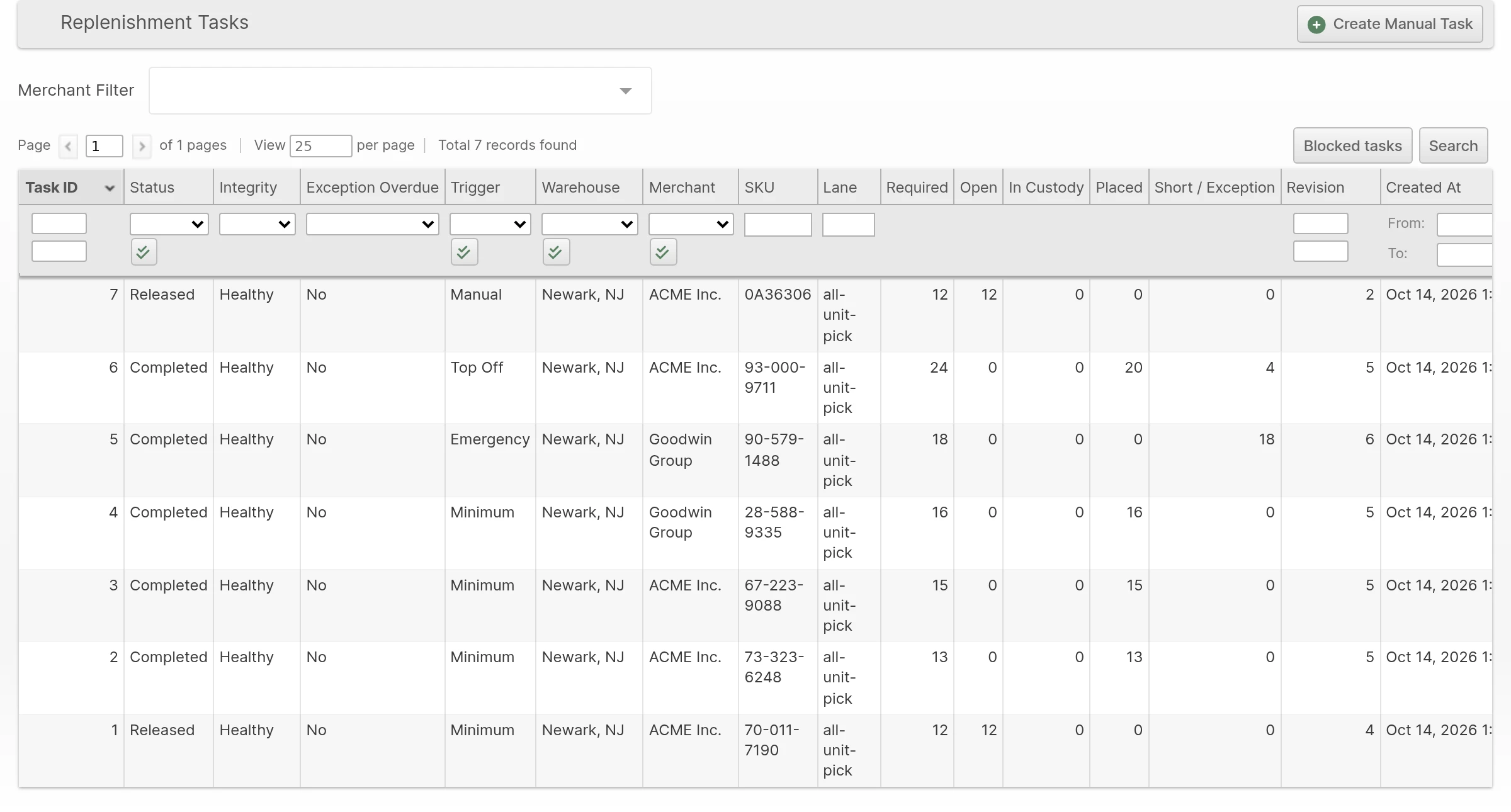
Click a row to open the Task.
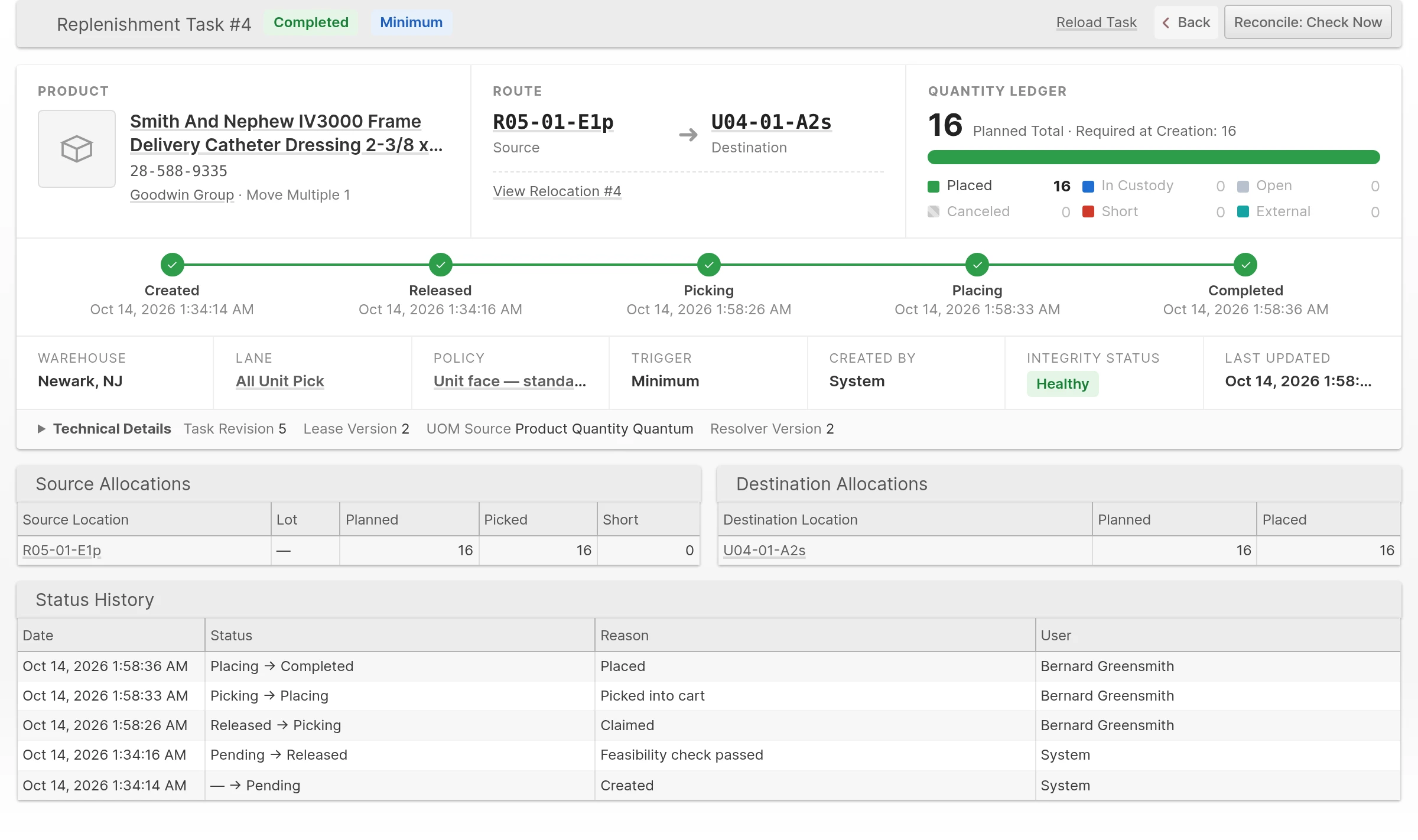
- Quantity ledger - the segmented bar shows placed (green), in custody (blue), open (gray), canceled (striped), short (red) and external (teal) quantity.
- Lifecycle timeline - marks only the stages the Task actually reached. A Task fulfilled externally does not show picking as completed.
- Facts row - Warehouse, Lane, Policy, trigger, Created By (the requesting user, or System for automatic dispatch), integrity status, and last update.
- Source and Destination Allocations, Status History, External Fulfillment, Custody Exceptions - the recorded movement evidence.
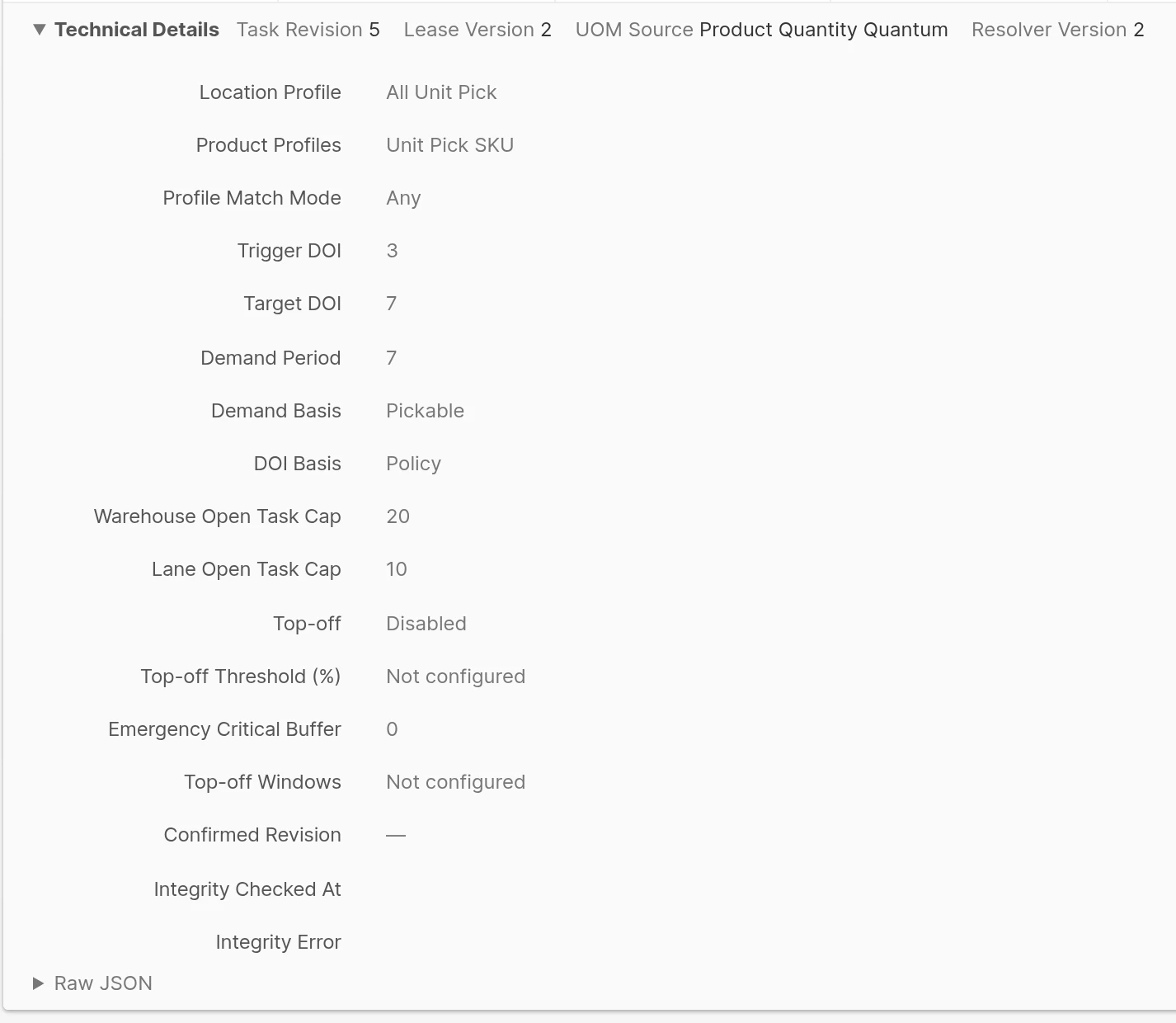
- Technical Details - collapsed at first. It holds the named Policy snapshot, resolver and integrity metadata, and an optional raw JSON view. The snapshot is read-only, so later configuration changes never rewrite it.
Turning On Automatic Dispatch
Dispatch is disabled by default, so a new Warehouse creates no automatic Tasks until you configure it. You need the Configure Task Dispatch permission.
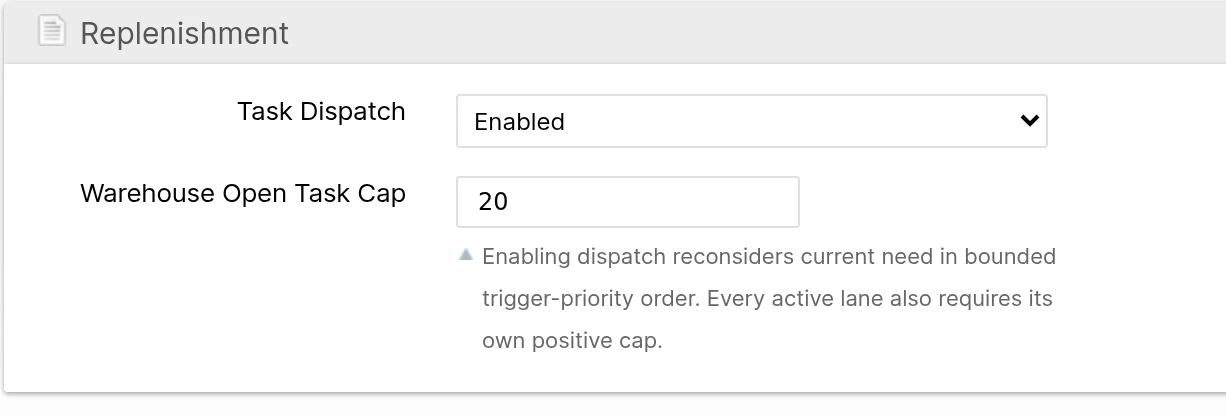
Open System -> Warehouses, select the Warehouse, and find its Replenishment settings. Set Task Dispatch to Enabled and enter a Warehouse Open Task Cap.
Open System -> Operations -> Replenishment Lanes, edit each Lane that should dispatch work, and enter its Open Task Cap.
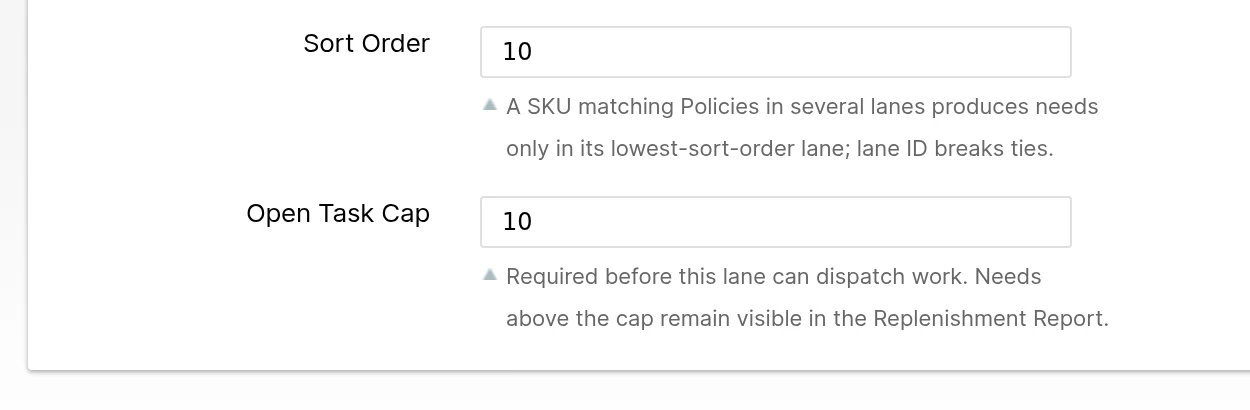
A positive Warehouse cap and a positive cap on each dispatching Lane are both required. Enabling dispatch reconsiders current need in trigger-priority order, with Emergency first. Within a priority, the need that has waited longest goes first. Recalculating a need does not restart its wait; the wait restarts only after the need disappears and later returns. Needs above a cap stay visible in the Replenishment Report for a later pass.
A Policy with Flagging Only turned on keeps flagging need without ever creating Tasks.
Disabling Task Dispatch stops new automatic Tasks and automatic quantity increases. Work that is already planned, and the original quantity of manual requests, continue through planning and execution. An Emergency can still raise their priority.
Creating a Manual Task
If your Role allows it, you can ask for replenishment yourself, for example before a promotion.
- Open Operations -> Replenishment Tasks and click Create Manual Task.
- Select the Warehouse and choose a Product from the searchable chooser. The chooser respects your Warehouse and Merchant access and fills in the Product's Merchant.
- Choose a Lane and Policy that cover the Product. The choices account for its Merchant, Product Profiles, and Handling Class.
Enter the Required Quantity and a concise Reason, then click Create Task.
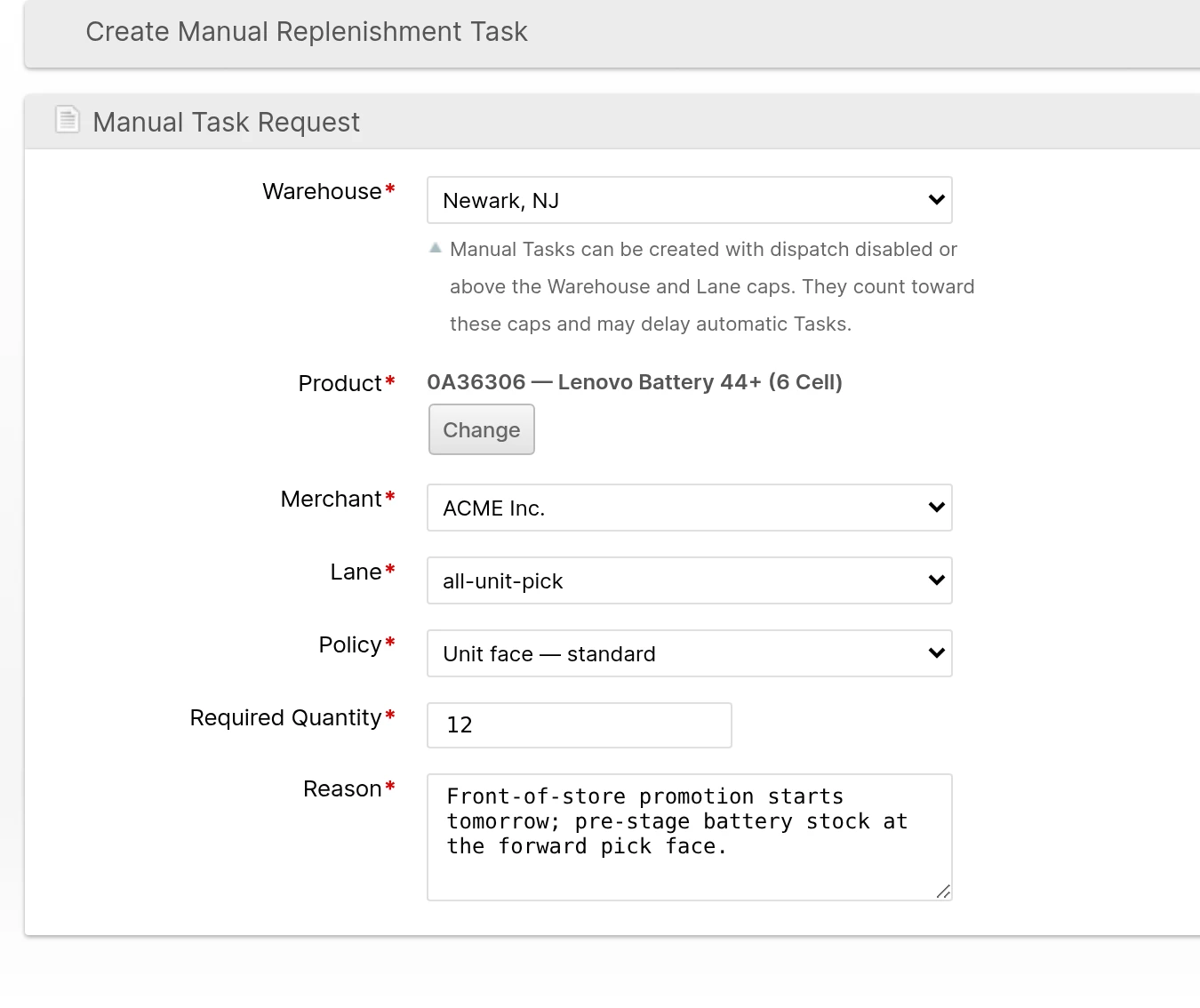
ShipStream revalidates the Product, Lane, Policy and quantity when it saves, and checks source inventory, destination capacity and move quantity before release. The new Task shows your Manual Request and name.
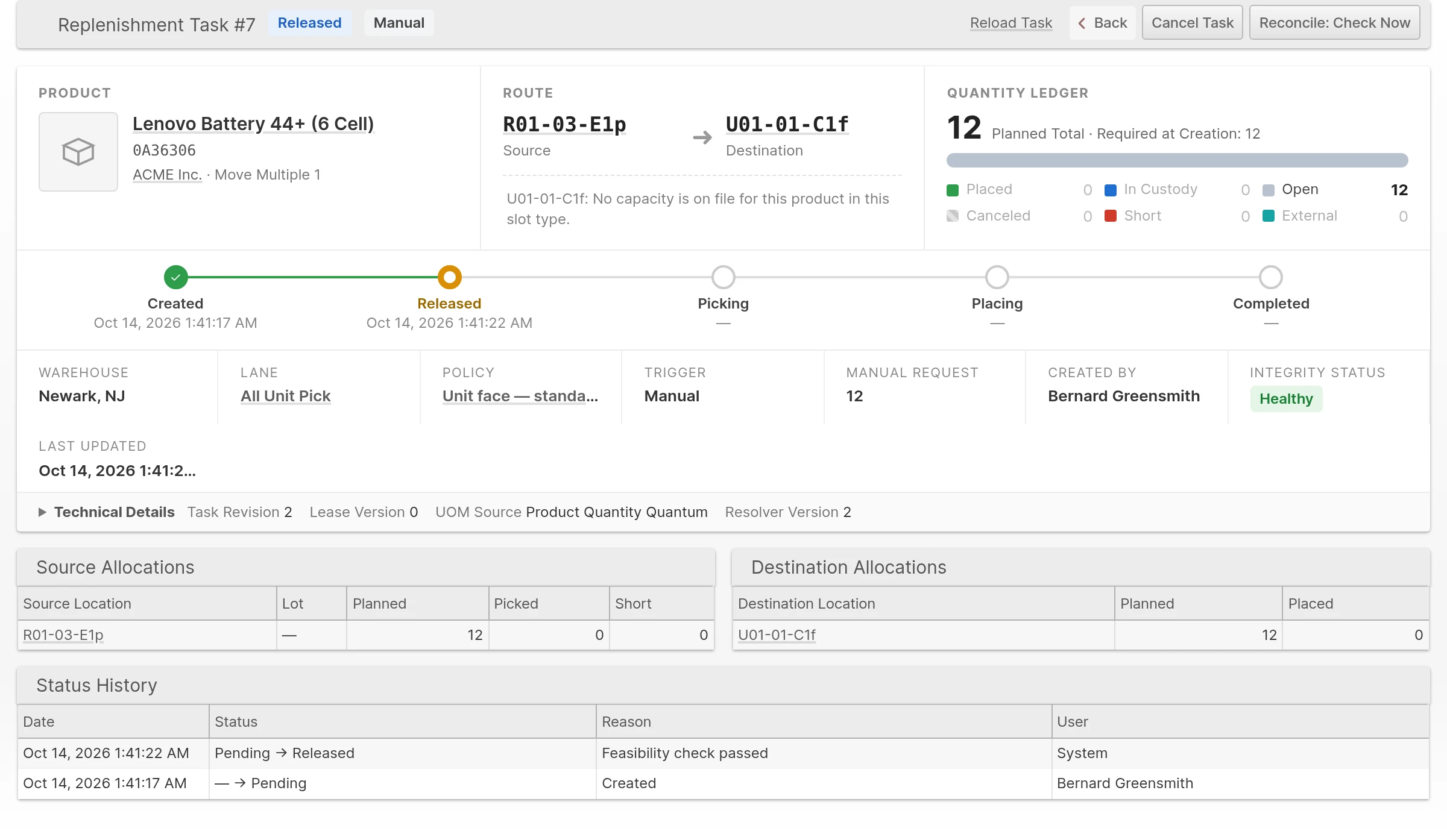
A Task can stay Pending briefly while its need is refreshed. Do not create a second Task for the same Product and Lane. If a request is refused, correct the form and submit it again.
Required Quantity
Enter the Required Quantity as a whole number of the Product's confirmed move units. The form shows the whole-move-unit rule beside Required Quantity when the selected Product and Policy use a move unit larger than one Product unit. For a move unit of 12 Product units you can request 12 or 24, but 11, 13, 25 and 12.5 are refused. Without a replenishment override, any positive quantity on the Product's quantity grid is accepted. While a manual Task is active, automatic Min and Top-off Tasks are not created for that Product and Lane.
Emergencies and Manual Tasks
A later Emergency can raise a manual Task's priority while keeping its original quantity, creator, reason and Policy.
- Before release, planning uses the larger of the manual request and the current Emergency gap rounded up to a move multiple. With a case size of 12, a manual request for 48 and an Emergency gap of 12 still plans up to 48. A manual request for 12 and an Emergency gap of 24 can plan 24. If the Emergency clears before release, the manual request remains.
- After release, only the additional uncovered Emergency quantity can be added. A claimed Task receives it as supplemental work under the same Task.
Automatic additions need dispatch enabled for the Warehouse and an active Emergency Policy that is not Flagging Only and has a confirmed move unit matching the Task. Otherwise the priority rises and the quantity stays the same. Priority and Quantity Changes records the Policy behind each decision, the quantity added, and any blocking reason, and a later planning pass retries when the blocker clears.
Choosing the Source
When choosing a source for a new plan, ShipStream skips an older source that has less than one move unit available and cannot be cleared completely. A movable whole remnant keeps its priority, and a destination restriction does not let a newer Lot bypass that remnant.
If no usable source remains because reservations or promises to other Tasks leave less than one move unit available, the Task reports FEFO source is reserved or promised to another task. This can happen even when the source's total on-shelf quantity exceeds a move unit.
Destination Capacity
Replenishment shares destination space with directed Put-Away, so the two never promise the same shelf space:
- Directed put-away counts quantities already headed to a Location in Replenishment Tasks, including custody kept after a cancellation.
- Replenishment planning counts space promised to active directed put-away sessions.
- Placed and externally satisfied quantities leave the promise as they become physical inventory, and every placement is checked against current inventory.
While a Location is promised to open Replenishment work, it cannot be assigned to a different Product, receive an incompatible Lot through an ordinary Relocation, or be deleted.