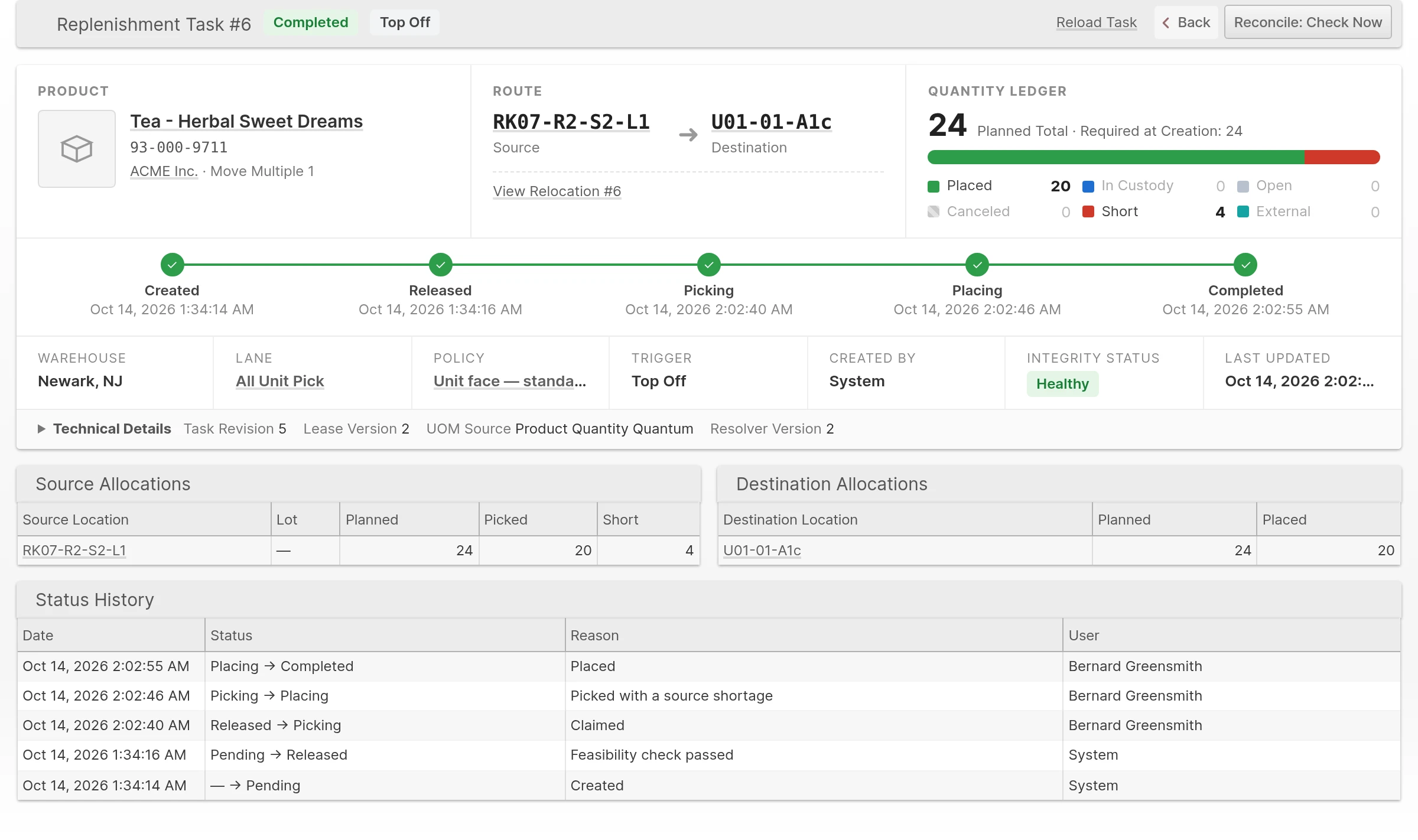

Replenishing from the Scanner
Operators carry out Replenishment Tasks in the Scanner UI. You claim a Task, scan the source Location, pick the stock into your cart, and scan the destination Location to place it. Each movement is confirmed once, without counting units one by one.
The Queue
Open Scanner -> Replenishment to see the queue. Your tasks are listed above Released tasks.
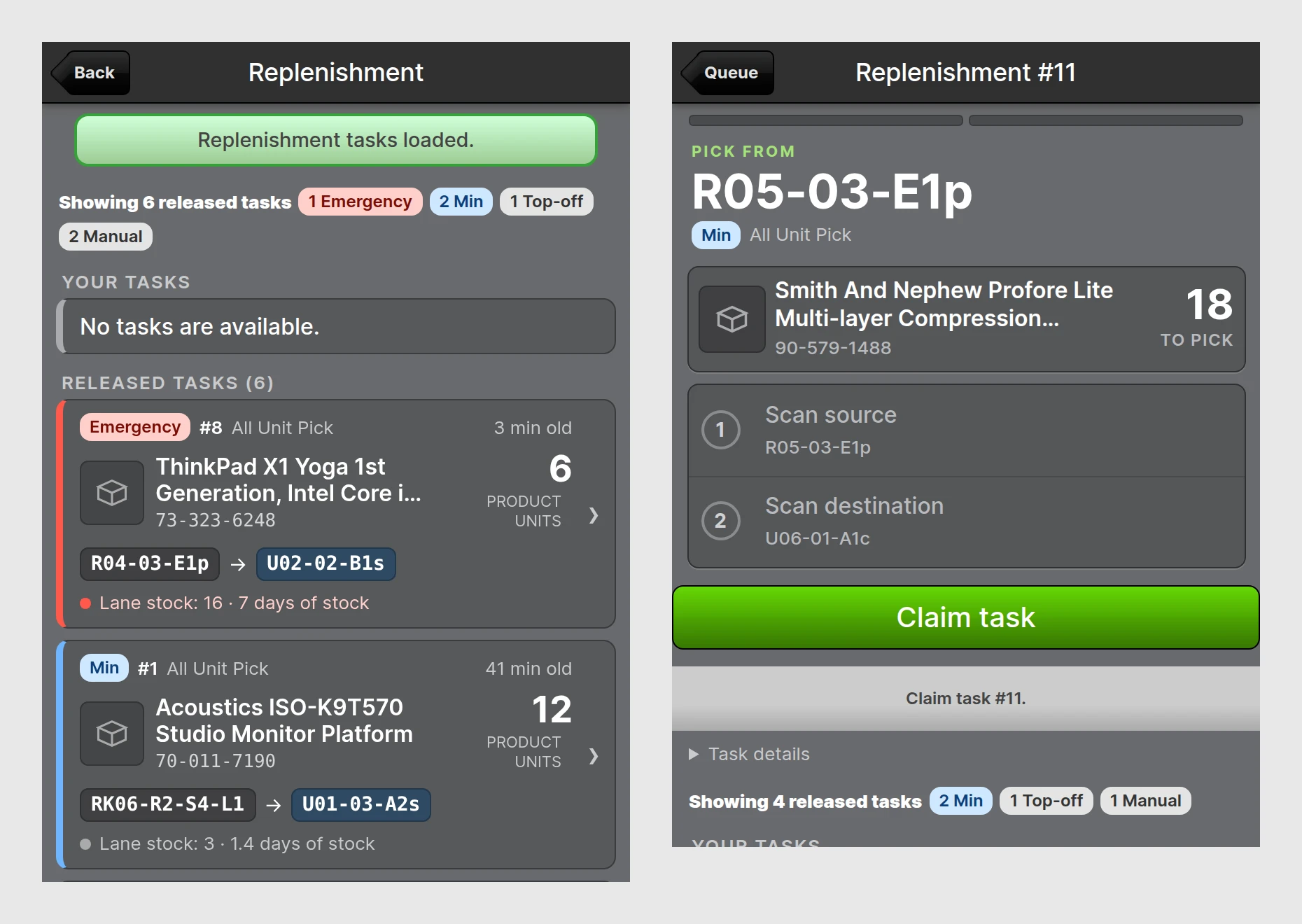
Each card shows the Product name and SKU, priority, Lane, age, the source-to-destination route, and the quantity to move.
| Card color | Priority |
|---|---|
| Red accent | Emergency - work first |
| Blue accent | Min |
| Gray accent | Top-off or Manual |
| Green background with a status badge | A Task you have claimed |
The summary line counts the released Tasks currently shown. Lane stock and days of stock are the last calculated totals for all Locations in the Lane's destination Location Profile, including reserved, held and put-away stock. A value that is unavailable is marked as such rather than shown as zero. Assigned open-order units are in Task details.
The full SKU always wraps onto extra lines. Product names stop at two lines, and long Lane names and route chips may be shortened. Expand Task details to read them in full.
Picking and Placing a Task
- Tap a released Task, then tap Claim task. The work is reserved for your Scanner session and linked to one Relocation. The Scanner renews the claim automatically while the Task is open.
- Scan the indicated source Location.
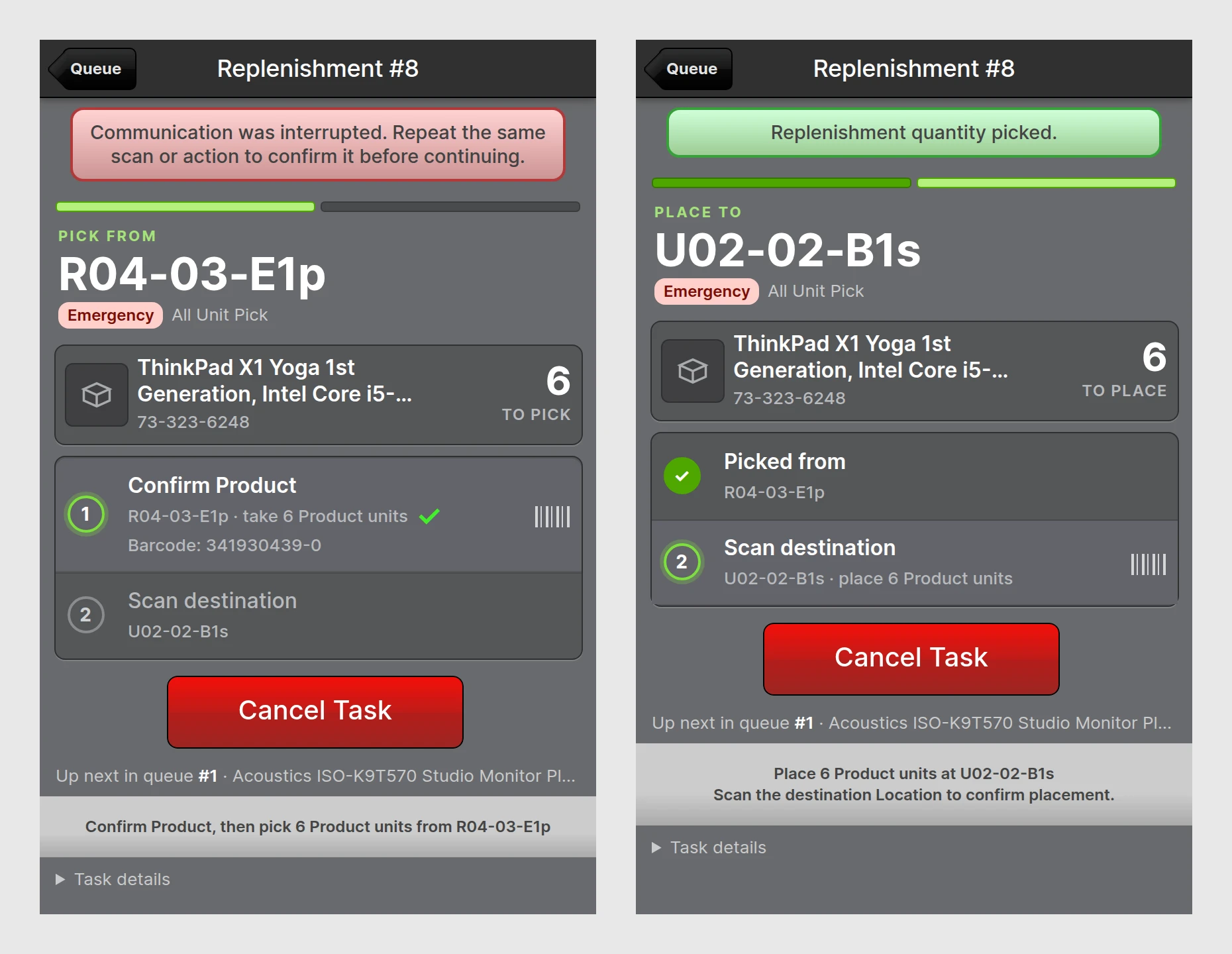
Confirm the Product by scanning its barcode, or by tapping Confirm Product when that button is enabled. A Product without a barcode proceeds once the source scan is correct.
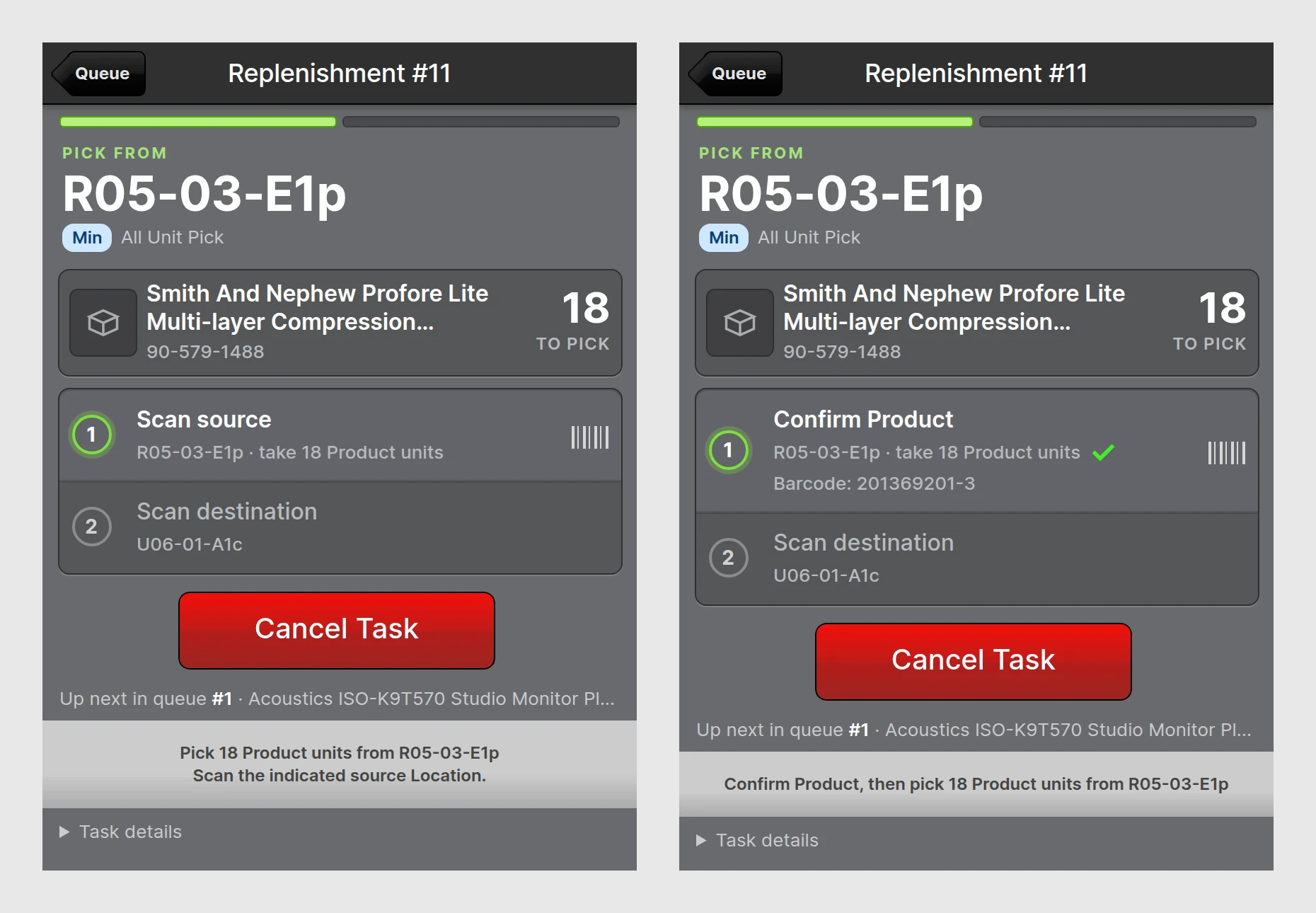 ShipStream records no more than the quantity shown. If the available stock dropped before you confirmed, a message tells you the smaller quantity to take and records the shortage. Take only the confirmed quantity.
Scan the destination Location to place everything in your cart. You do not scan a Product or Lot at the destination.
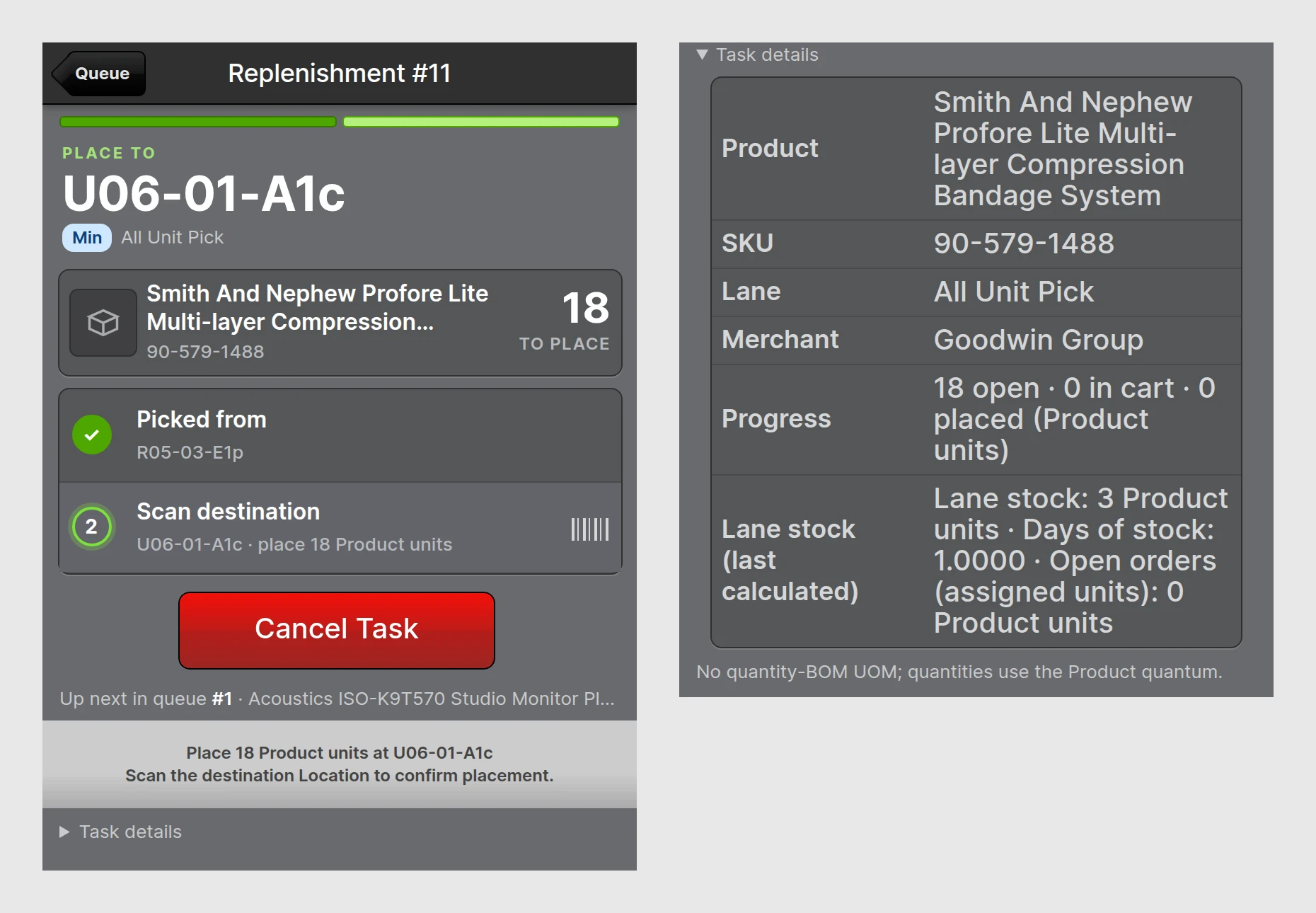
- Repeat for any further movements, such as supplemental work added to the same Task. The Task completes when all planned quantity is placed or accounted for.
The Task screen highlights the current Location, the Product, and the quantity for the next movement. The two scan steps show where you are: a green outline is the current step, a filled green circle with a check is done, and a gray outline is next.
Queue takes you back to the list. Task details shows the full SKU and Lane, the open, cart and placed quantities, calculated stock context, and unit information. Location labels wrap in full so you can tell similar codes apart. Quantities appear in the Product's move unit when it has one (fractions are shown as fractions). When a Product has no quantity unit, the details say that quantities use its smallest unit.
A few rules apply to every Task:
- The Lot comes from the source Location. ShipStream checks the Location and Lot again before moving stock and refuses a changed Lot.
- A source that must be cleared completely moves its entire indivisible remainder, or nothing, even when the remainder is smaller than the normal move multiple.
- Source and destination Location Profiles are checked again before each movement.
- Reloading the Task, or returning to the queue before you confirm the Product, means you scan the source again.
Leaving a Task
Queue keeps your claim until it expires. With an empty cart, the claim expires after five minutes without renewal and the Task returns to the queue automatically. Stock in your cart stays assigned to you until you place it or a supervisor resolves it.
When Something Goes Wrong
| What you see | What it means and what to do |
|---|---|
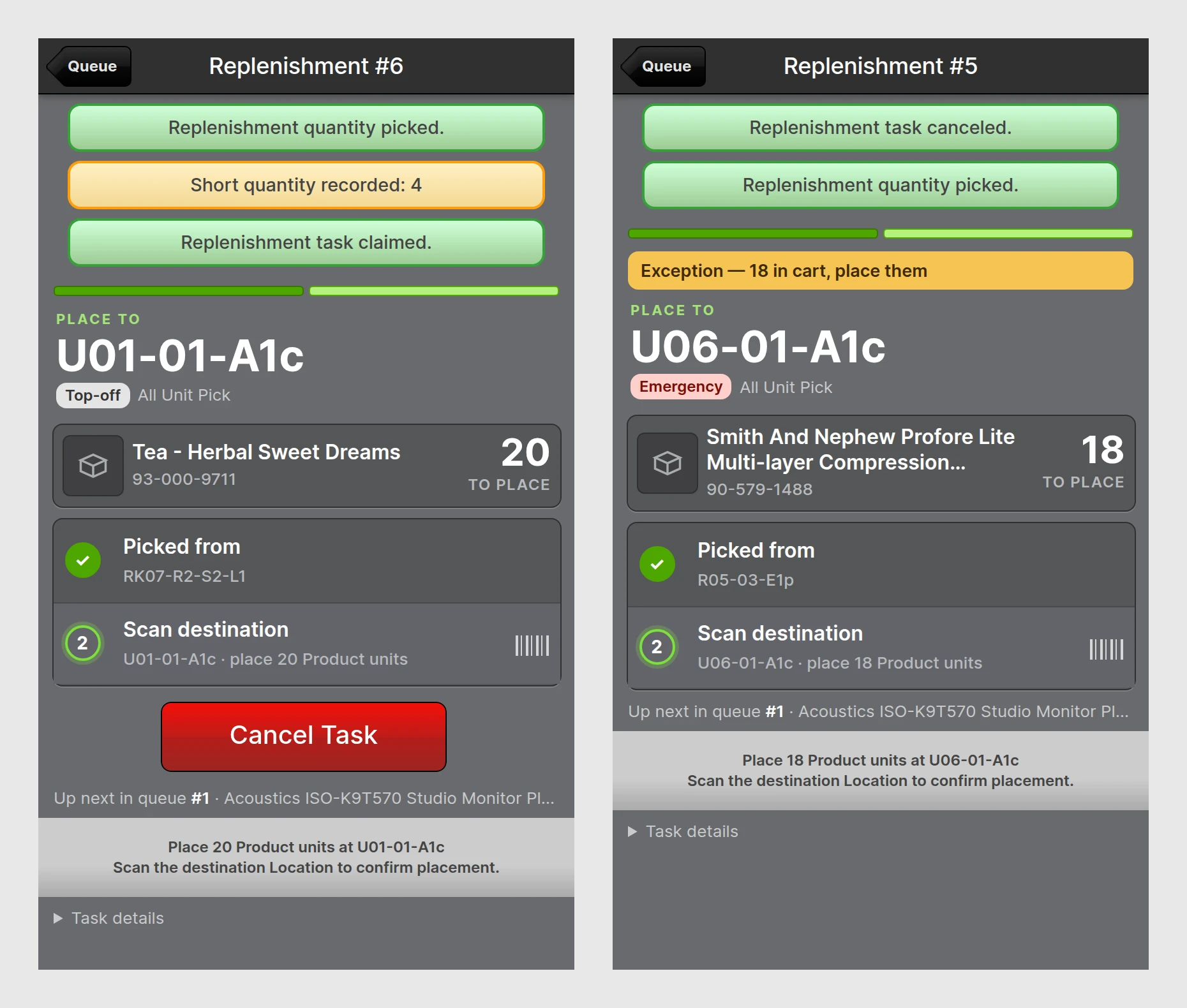
| Short quantity recorded: N | The source held less than planned. You pick only what exists, the shortage is recorded on the Task, and you place the rest. |
| The quantity to take changed. Scan the source Location again. | Stock changed before your pick was recorded. Scan the source again to confirm the new quantity. |
| The scanned Location is not expected for this task. or You scanned the wrong product. | The scan is refused and nothing moves. Scan the indicated Location or Product. |
| Communication was interrupted. Repeat the same scan or action to confirm it before continuing. | The Scanner did not hear back from ShipStream, so it cannot tell whether the action happened. Repeat the same scan. If the action already happened, you see its result and nothing is done twice. You cannot select another Task until this is resolved. |
| A claim warning that stays after repeated tries | Automatic recovery has stopped, but you can still repeat the original action. If it cannot be confirmed, choose Queue, confirm that you want to leave, and ask a supervisor to check the Task and the physical stock. Leaving does not undo a movement that already finished. |
| Work claimed by another operator, or an expired claim | The action is refused. Reload the Task. A committed pick still shows its result. |
| A source or destination on hold or locked for a count | It cannot be used until the restriction is resolved. Reload the Task and scan the source again afterwards. A finished destination does not stop you picking for another usable one. |
If more stock arrives at a source that was planned as a whole remnant, an unclaimed Task is replaced with a new plan, and claiming the old one is refused while it awaits replanning. If you had already claimed it, the next refresh cancels the unpicked work:
- Empty cart - your claim ends and a replacement can be planned automatically.
- Goods in the cart - the Task becomes an Exception and the goods stay assigned to you. No replacement is created until the custody is resolved, so place the goods or ask a supervisor (see Custody Exceptions).
The Scanner shows the change after its next request or automatic claim renewal.
Canceling a Task
Tap Cancel Task. If unpicked quantity remains, you confirm to cancel it; with none, the Task proceeds directly. Stock already in your cart is never silently canceled. The Scanner shows Exception — N total in cart, continue placing, with the move unit or Product units beside the total. The to place quantity is the next placement, which may be smaller than the total when a Task has supplemental work or several destinations. Scan each indicated destination until the cart is empty. If no destination is usable, or the stock is damaged, ask a supervisor to resolve the Task. See Custody Exceptions.
Supervisors see the same shortage in the Task's quantity ledger.