

Pickup Schedules
Pickup Schedules record when each Manifest Courier picks up at each Warehouse, by weekday. Seasonal schedules and one-day closures are entered ahead of time with dates, so the times for any day are known in advance. The Dashboard marks the pickups on its pace charts and compares each courier's packed and due work with its next pickup, and integrations can read the pickup times through the Global API.
Pickup Schedules are informational: ShipStream does not use them to plan or release work.
Open System > Shipping > Pickup Schedules, or click Pickup Schedules on a Warehouse page to open them for that Warehouse.
Permissions
The page needs the System > Pickup Schedules role permission. Roles that could manage Manifest Couriers when Pickup Schedules were added received it automatically. Grant it to other roles under System > Users > User Roles. See User Roles.
A User whose User Group is limited to some Warehouses sees the schedules for All Warehouses and for any of their Warehouses. They can change a schedule only when it lists none but their own Warehouses; any other schedule opens read-only, with a note naming the Warehouses they cannot access.
Effective Pickups
The top of the page shows the pickups in effect at one Warehouse, in that Warehouse's time zone. Choose the Warehouse at Warehouse, and use Previous and Next to move through the dates, 14 at a time starting today.
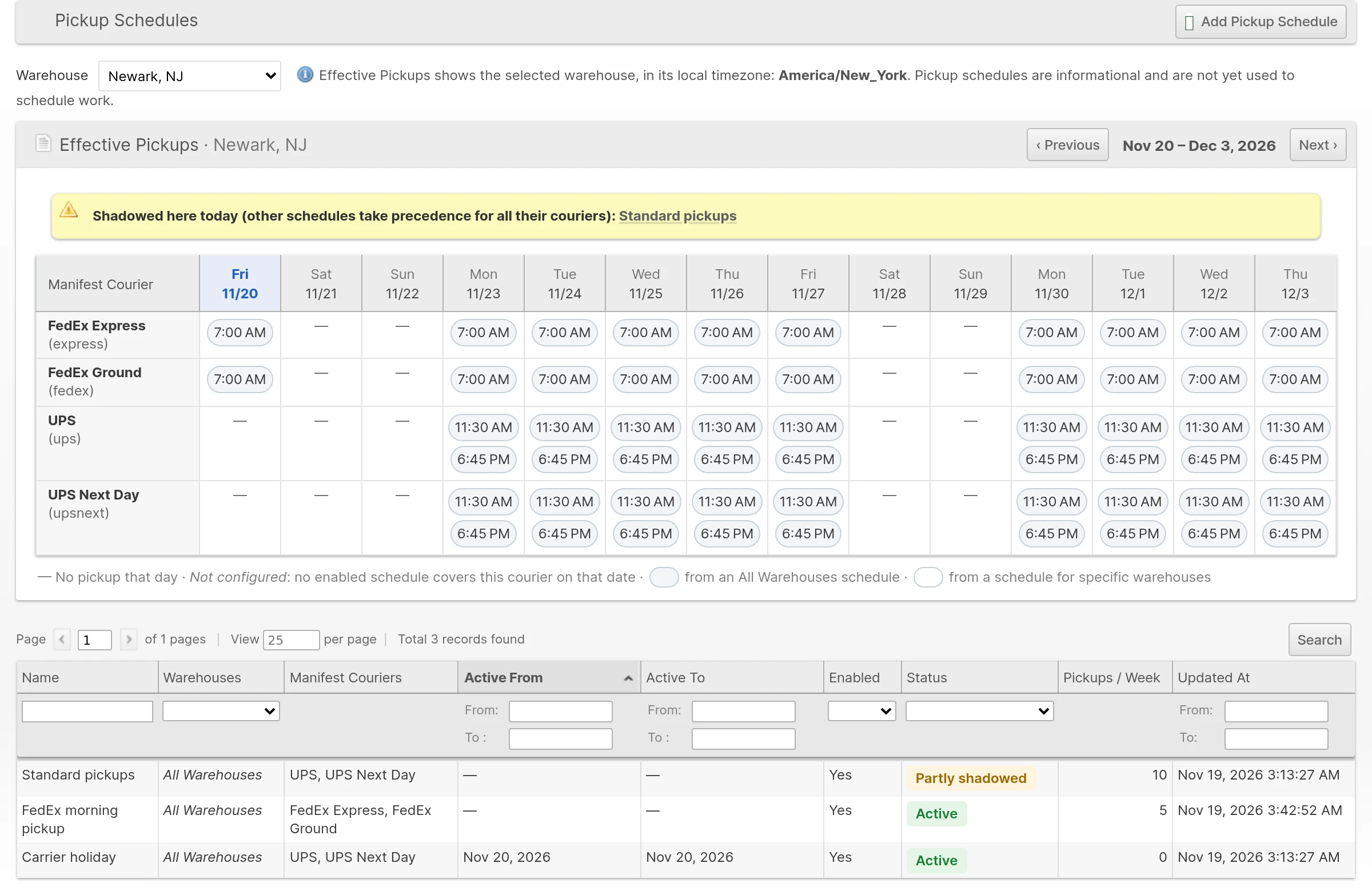
Each row is a Manifest Courier and each cell lists its pickup times that day. Click a time to open the schedule it comes from. A dash means that schedule sets no pickup that day, and Not configured means no enabled schedule covers the courier on that date. The time's border shows whether it comes from an All Warehouses schedule or one for specific Warehouses.
Notices above the table name schedules that another schedule overrides at this Warehouse today, and enabled schedules without Manifest Couriers.
Schedules
The grid lists the schedules that apply to the selected Warehouse. With the header's warehouse selector showing all warehouses, it lists every schedule you can see and can be filtered by Warehouses.
| Column | Shows |
|---|---|
| Warehouses | The listed Warehouses, or All Warehouses. |
| Manifest Couriers | The couriers the schedule sets pickups for. |
| Active From, Active To | The dates it applies, or a dash for no start or no end. |
| Status | How the schedule stands today. See below. |
| Pickups / Week | The number of pickup times in its weekly pattern. |
| Status | Meaning |
|---|---|
| Active | It sets the pickups today for all its couriers at every Warehouse it covers. |
| Partly shadowed | Another schedule overrides it today for some of its couriers or Warehouses. |
| Shadowed | Other schedules override it today everywhere it applies. |
| Scheduled | Its Active From date has not arrived. |
| Expired | Its Active To date has passed. |
| Disabled | Enabled is set to No. |
| No couriers | Its Manifest Couriers have all been deleted. |
| No active warehouses | It lists only inactive or deleted Warehouses. |
Adding a schedule
Click Add Pickup Schedule, or open a schedule from the grid to change it.
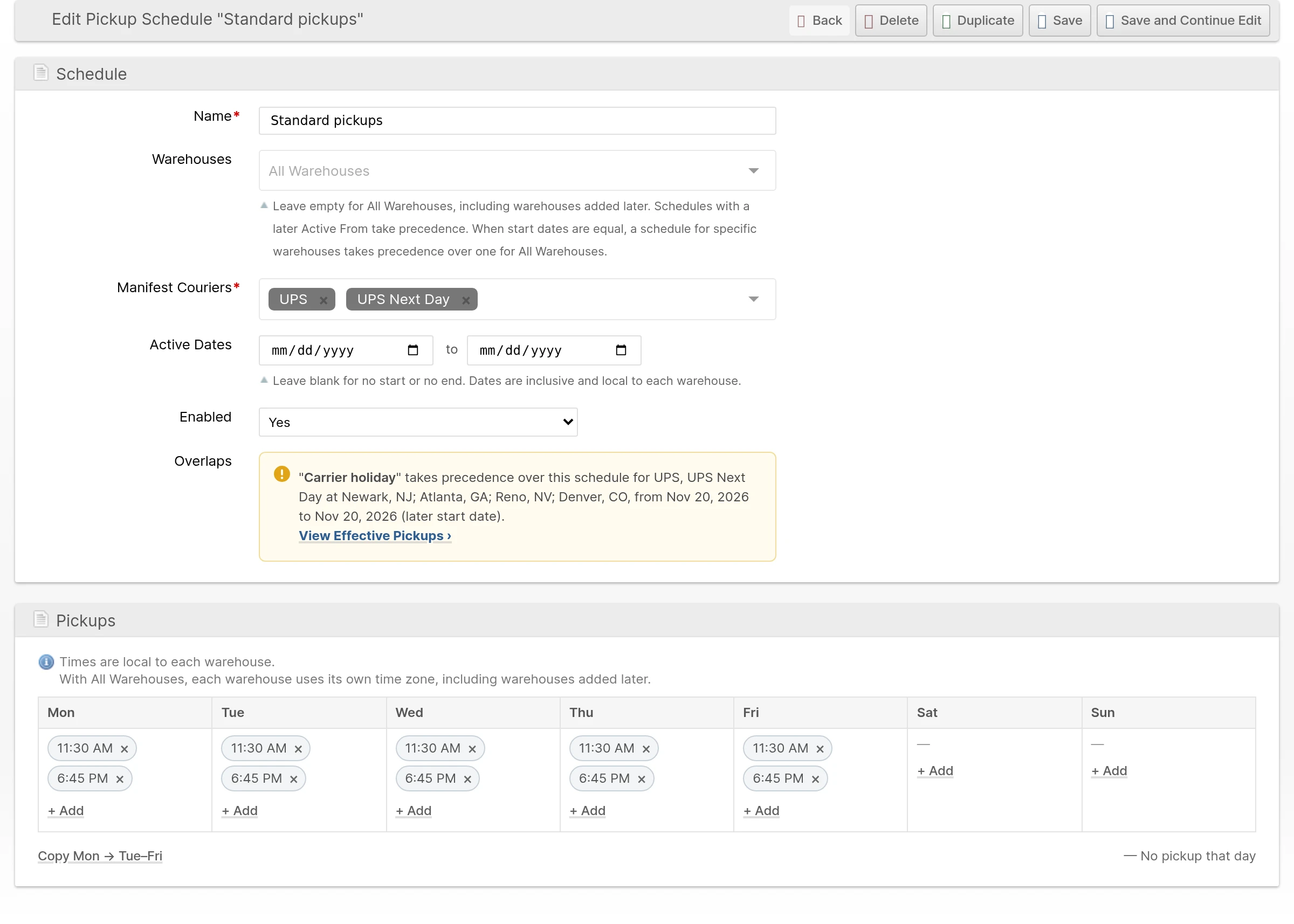
| Field | Description |
|---|---|
| Name | A name to recognize the schedule, such as "Holiday season" or "Carrier holiday". |
| Warehouses | The Warehouses it applies to. Leave it empty for All Warehouses, including Warehouses added later. |
| Manifest Couriers | One or more couriers that pick up at these times. |
| Active Dates | The first and last date it applies, both included. Leave either blank for no start or no end. Dates are local to each Warehouse. |
| Enabled | Set to No to keep a schedule without applying it. |
| Overlaps | Shown for a saved schedule: which other schedules overlap it, for which couriers, Warehouses and dates, and which one takes precedence. |
Under Pickups, click + Add under a weekday, enter the time and click Add. Click × on a time to remove it. Copy Mon → Tue–Fri replaces Tuesday to Friday with Monday's times. A weekday without times means no pickup that day. Times are local to each Warehouse, so an All Warehouses schedule at 5:00 PM means 5:00 PM in each Warehouse's own time zone.
Click Save or Save and Continue Edit. If someone else changed or deleted the schedule while you had it open, your changes are not saved; reload it and make them again. Duplicate opens a new schedule filled in from the saved one, named "(copy)" and with Enabled set to No; it is created when you save it. Delete removes the schedule. To keep a schedule for later, set Enabled to No instead.
Which schedule applies
For each Warehouse, courier and date, exactly one schedule sets the pickups. Among the enabled schedules that cover them on that date:
- The schedule with the latest Active From wins. A schedule without Active From counts as the earliest.
- With the same Active From, a schedule for specific Warehouses wins over an All Warehouses schedule.
- With both the same, the newest schedule wins.
The winning schedule sets the whole day. If it has no times on that weekday, there is no pickup, even when another schedule has times. That makes changes easy to stage:
- Regular pickups: one schedule without Active Dates.
- A season: a schedule with the season's dates and its own times. When it ends, the regular schedule applies again.
- A carrier holiday: a one-day schedule with Active From and Active To set to that date and no pickup times. The courier has no pickup that day, and the Dashboard shows a notice on that day and the day before.
- One Warehouse that differs: a schedule for that Warehouse with the same Active From as the All Warehouses schedule.
Deleting a Manifest Courier removes it from its schedules.
Reading pickup times through the API
Integrations can read the effective pickups of a Warehouse with GET /api/global/v1/inventory/warehouses/{id}/pickup-times, for up to 35 dates. The response gives each courier's pickup times as local times and UTC instants, and a version that changes whenever the schedules change. The token's user needs the System > Pickup Schedules permission and access to the Warehouse. See the Global API documentation.