Table of Contents
- Cycle Count Validation & Stock Take History
- Bulk Fulfill Orders Improvements
- Warehouse-Level Service Level Overrides
- Merchant Custom Fields
- GLS Surcharge Stacking
- Rack Types
- Slot Dimensions
- EDI 947 Inventory Adjustment Advice (SPS Commerce)
- Pick to Box
- Lot & Serial Number Tracking for Work Order Kits
- Photo Galleries for Shipments
- Location Tags
- Enforce Packing Solution
- Other Improvements
- Bug Fixes
- Merchant API Updates
- Global API Updates
Version 2026.1
April 6, 2026. Cycle Count Validation & Stock Take History. Cycle counting just got a significant upgrade. ShipStream now records every cycle count as a Stock Take , giving you a full audit trail of…

- Cycle Count Validation & Stock Take History
- Bulk Fulfill Orders Improvements
- Warehouse-Level Service Level Overrides
- Merchant Custom Fields
- GLS Surcharge Stacking
- Rack Types
- Slot Dimensions
- EDI 947 Inventory Adjustment Advice (SPS Commerce)
- Pick to Box
- Lot & Serial Number Tracking for Work Order Kits
- Photo Galleries for Shipments
- Location Tags
- Enforce Packing Solution
- Other Improvements
- Bug Fixes
- Merchant API Updates
- Global API Updates
Cycle Count Validation & Stock Take History
Cycle counting just got a significant upgrade. ShipStream now records every cycle count as a Stock Take, giving you a full audit trail of counts, variances, and approvals — and optionally requiring a second set of eyes before inventory adjustments are applied.
Previously, scanning a location during a cycle count immediately applied any variance as an inventory adjustment. Now, counts are captured as Stock Takes with a status of Same (no variance) or Different (variance pending review). Whether those takes are applied immediately or held for approval is controlled by a new configuration option.
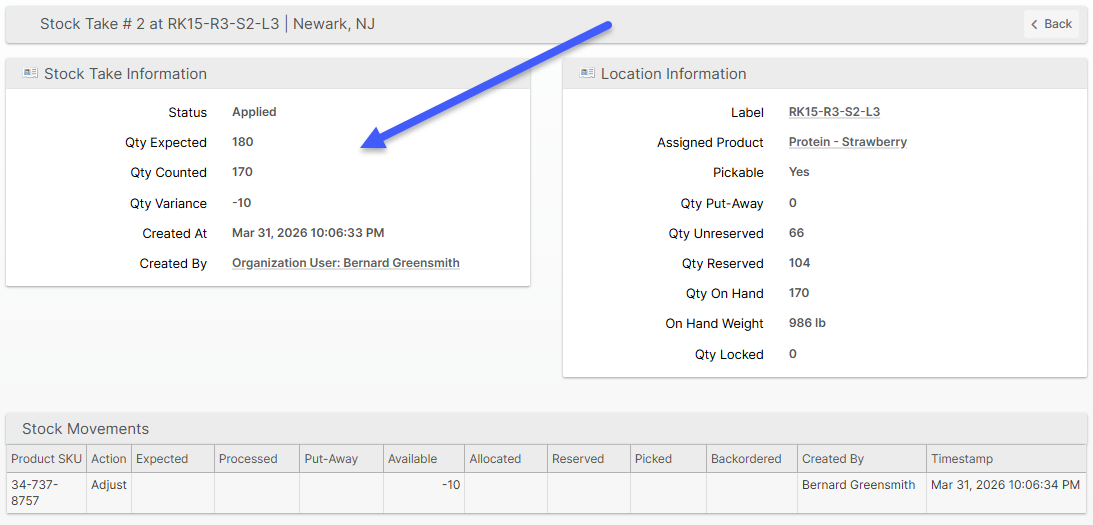
Cycle Count Validation
When Require Cycle Count Validation is enabled, takes with a variance are held in a pending state until an authorized user reviews them. From the new Operations → Cycle Count → Stock Takes grid, a validator can:
- Approve — applies the variance to inventory and supersedes any other pending takes for that location.
- Reject — dismisses the variance with an optional comment; the original count is assumed correct with no stock movement.
- Update — rejects the original take and creates a new auto-applied take, useful for correcting a count that was reviewed and found to be wrong.
A Require Cycle Count Validation configuration option (default: No) and an Allow Self-Approval option (default: No) are available at System → Configuration → Stock → Cycle Count.
Two new permissions control access: Cycle Count → Validate to approve, reject, or update takes, and Cycle Count → Validate → Self-Approval to override the self-approval restriction.
Cycle Count Location Page
Clicking a row in the Cycle Count grid now opens a new dedicated Location View page, showing location details, product information, inventory quantities, and the three most recent stock takes at a glance. Tabs provide access to the full Stock Takes history and Stock Movements for that location. The previous location edit page is still accessible via the Edit Location button.
Bulk Fulfill Orders Improvements
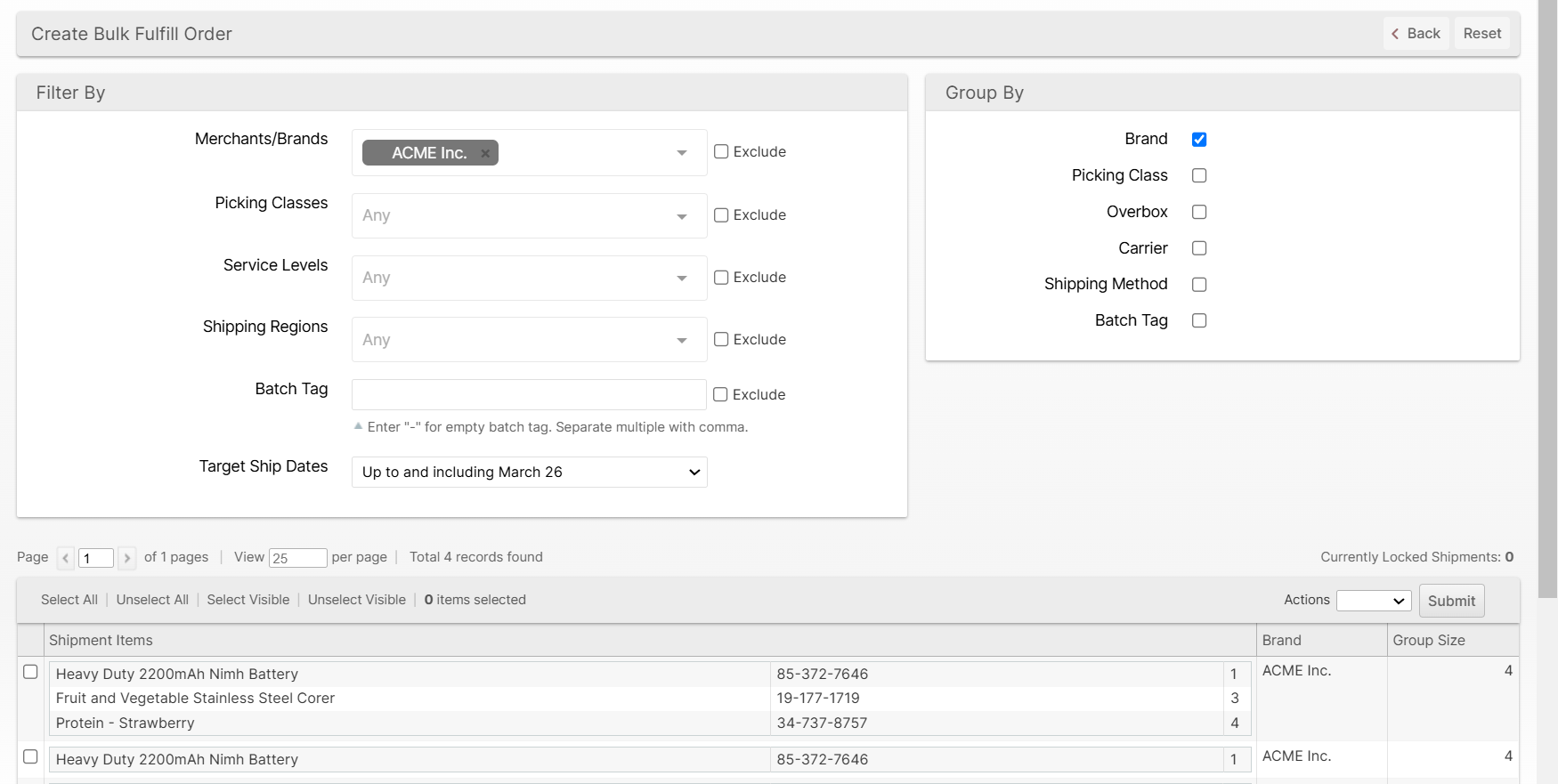
The Bulk Fulfill Orders (BFO) page has received several improvements to filtering, grouping, and packaging validation.
Filter & Group By Upgrades
The Filter By section has been updated with more powerful controls:
- Merchants/Brands is now multi-select and supports an Exclude option
- Picking Classes is now multi-select with an Exclude option
- Service Levels filter added, consistent with the batching filter
- Shipping Regions is now a multi-select with an Exclude option
- Batch Tag filter added, consistent with batching
- The filter form now updates the grid automatically without a separate Apply button
A new Group By Brand option has been added, allowing combos to be split by brand so shipments from different brands are never grouped together. It can be set to Optional, Always, or Never.
Container Allow/Disallow Enforcement
When generating a BFO, the system now validates that the containers in a packing solution are permitted for all brands in the combo. Previously, the template-based approach could silently apply a container to a shipment for a brand that had that container on its disallow list. Now:
- BFO creation is rejected if any shipment in the combo uses a container not allowed for its brand, with a clear error identifying the affected brand
- Label generation pre-validates container compatibility for all shipments before processing any, preventing partial failures
- BFOs are rejected if shipments in the combo have conflicting packing solutions assigned
Warehouse-Level Service Level Overrides
Service Levels can now be configured on a per-warehouse basis. Previously, a single Service Level applied uniformly across all warehouses, making it difficult to account for differences in staffing, local holidays, or cut-off times between locations. Now, each Service Level acts as a group that can contain separate configurations for individual warehouses, with an "All Warehouses" fallback for any warehouse that doesn't have a specific override.
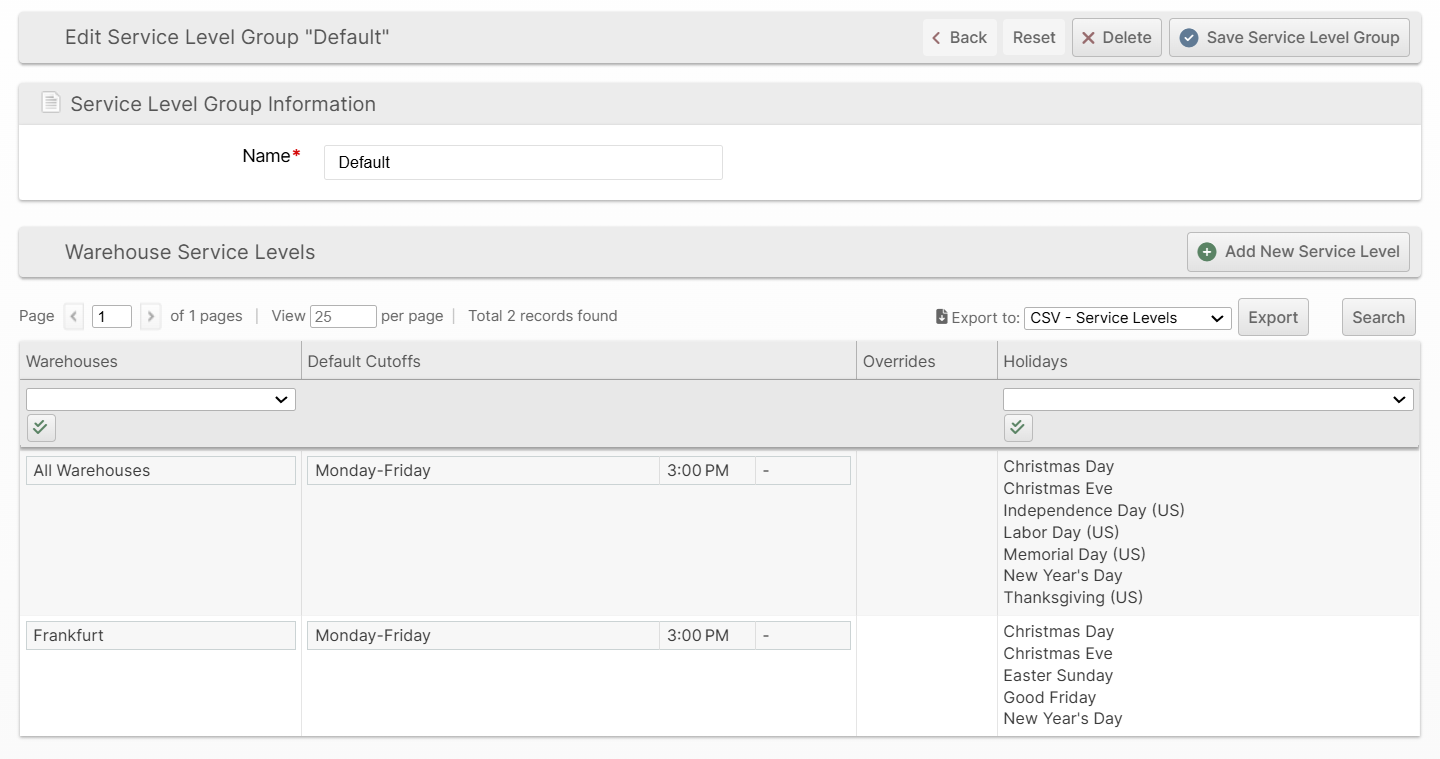
To manage this, navigate to System → Shipping → Service Levels. Clicking a Service Level opens its group page, where you can add warehouse-specific entries with their own cut-off times, holidays, and manifest courier overrides. If a specific warehouse entry exists, it takes precedence over the "All Warehouses" entry.
Merchant Custom Fields
Custom Fields — already available for Orders and Shipments — are now supported for Merchants/Brands as well. You can define fields of various input types, attach notes, control visibility in the admin grid and form, and restrict access by admin permission level.
To manage Merchant Custom Fields, navigate to System → Merchants and Brands → Custom Fields.
One particularly powerful field type is Admin User: when a custom field of this type is created, admin users can be associated directly with merchants. This unlocks a new Show All Merchants toggle in the Select Visibility Scope dialog. Users who are assigned to specific merchants via an Admin User custom field can uncheck this option to limit their view (and merchant filter) to only their associated merchants — making it easier to focus on the accounts they manage. Users without any assignments always see all merchants.
Custom field values are also exposed via the Global API on merchant records.
GLS Surcharge Stacking
ShipStream's rating engine now applies GLS weight and dimension surcharges independently, matching the way GLS actually bills. Previously, weight surcharges (Overweight) and dimension surcharges (Special Handling) competed in a winner-take-all group — only the most expensive one would be charged. GLS's actual billing model stacks them: a package can receive both an Overweight fee and a Special Handling fee simultaneously.
Under the new model, GLS surcharges are evaluated in three independent families:
- Overweight (OW): The highest applicable tier (OW1, OW2, or OW3) based on the package weight.
- Special Handling (SH): The highest applicable tier (SH0, SH1, or SH2) based on the longest dimension.
- Additional Handling Fee (AHF): Applied separately based on weight (75 lbs and above).
OW and SH charges stack independently of each other. The Oversize surcharge is suppressed when any OW or SH surcharge applies. All other carriers (UPS, FedEx, USPS, and others) continue to use the existing formula unchanged.
To use the new tier surcharges for GLS, configure your GLS fee schedules with the new fee types: Weight Tier 2 Surcharge, Weight Tier 3 Surcharge, Dimension Tier 2 Surcharge, and Dimension Tier 3 Surcharge.
Rack Types
Racks can now be categorized with a Rack Type, giving warehouse operators a simple way to distinguish different rack configurations — such as wide aisle vs. narrow aisle — across their facilities.
A new Rack Types page under Operations → Warehouse → Rack Types lets you define and manage your rack type taxonomy. Each type has a name and an optional notes field. Rack Types can be deleted as long as they are not in use by any rack.
The rack grid and edit form both include the new Rack Type field, and a Set Rack Type mass action on the Racks grid makes bulk reassignment straightforward. The Upload Racks CSV/XLSX format has been updated to include a Rack Type column, which must match an existing Rack Type name. The column is required when creating racks and optional when updating them.
All existing racks are automatically assigned to a new "Default" rack type on deployment.
Warehouse, Name, Rack Type, Location Pattern, Picking Zone, Picking Order. Existing upload files without a "Rack Type" column will fail header validation and must be updated before use.Slot Dimensions
Location Types now support optional Slot Dimensions — length, width, and height — using your warehouse's configured default units. Dimensions appear on the Location Type form and as columns on the Location Types grid.
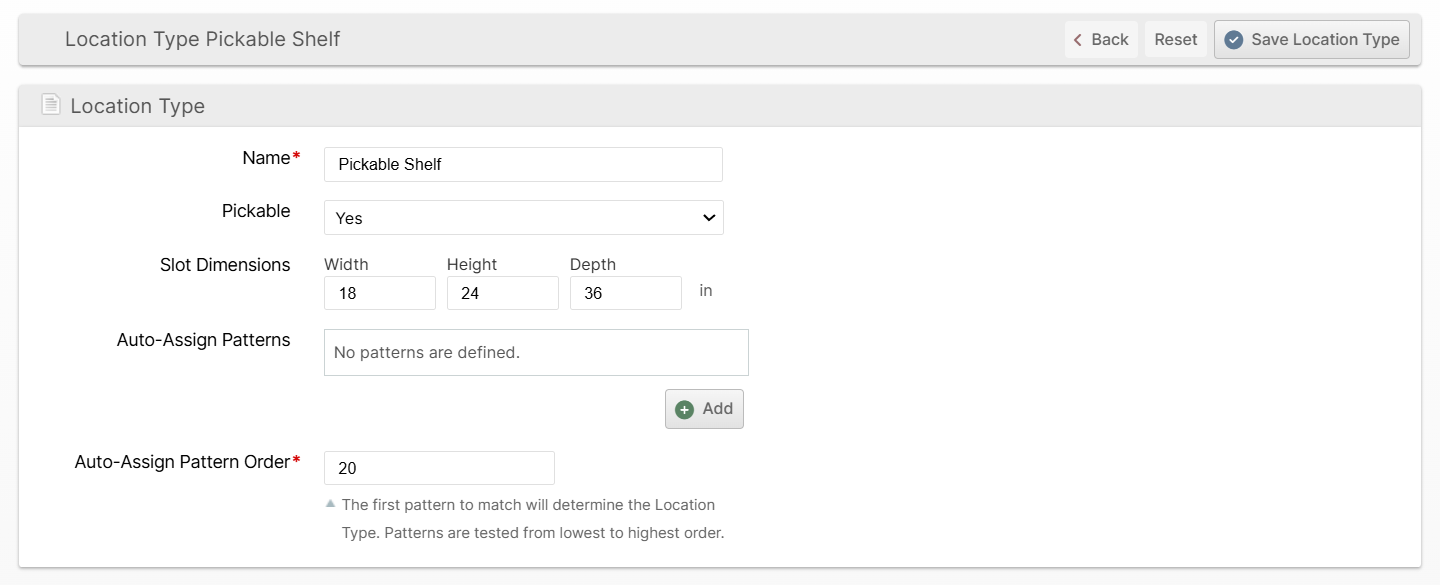
This is the first step toward slot capacity planning. For now, the values are purely informational; capacity computation per product will come in a future update.
EDI 947 Inventory Adjustment Advice (SPS Commerce)
ShipStream's SPS Commerce EDI integration now supports the 947 Warehouse Inventory Adjustment Advice document. When enabled, ShipStream will automatically notify your trading partners whenever inventory adjustments occur in the warehouse — including cycle counts, manual adjustments, and bulk imports — without waiting for the next scheduled 846 full inventory snapshot.
Once the feature is enabled, an hourly job checks for any inventory adjustments since the last run and emits a single 947 document to SPS Commerce. On first activation, a baseline timestamp is established without emitting a document, so the first 947 only includes adjustments that occur after the feature is turned on.
To enable, go to the SPS Commerce plugin configuration and set Send Inventory Adjustment Advice to Yes.
Pick to Box
As a first step toward supporting a Pick to Box workflow — where pickers collect the right boxes at the start of a pick route — ShipStream now surfaces container requirements earlier in the picking process.
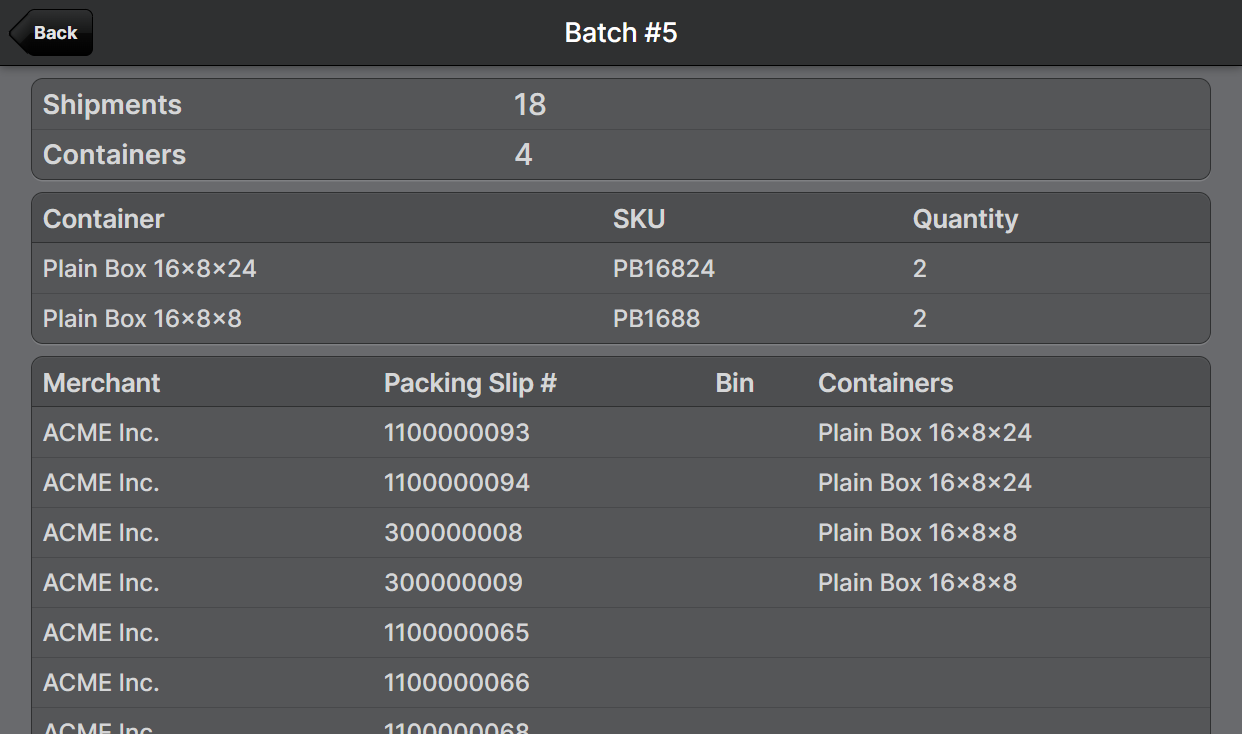
- A Containers column has been added to both the Batch View and Batch Setup pages, showing the required box type(s) for each shipment at a glance.
- Both pages now sort shipments by container name (with packing slip number as a tiebreaker), making it easier to group picks by box type.
- The View Container List page has also been updated: the container summary grid now appears first, and both grids are sorted alphabetically by container name.
Lot & Serial Number Tracking for Work Order Kits
ShipStream now gives you full end-to-end traceability for kit-to-stock work orders. When your warehouse workers assemble kits, the system can auto-generate unique lot numbers for the finished product, capture child serial numbers for each component, and link everything together so you can trace any kitted item — forward from component lots to shipments, or backward from a customer complaint to the exact component lots used.
Lot Number Generation
You can now configure a Lot Number Generator pattern on a Lot Type. The generator uses a simple syntax combining date codes and auto-incrementing numeric counters:
- Literal characters are escaped with
\(e.g.\K\I\T→KIT) - Unescaped letters are standard date format codes (e.g.
y= 2-digit year,m= month) #characters are counter digits that auto-increment per assembly run and reset when the date portion changes
For example, the pattern \K\I\T-ym### produces KIT-2604001, KIT-2604002, and so on — resetting to KIT-2605001 when the month changes.
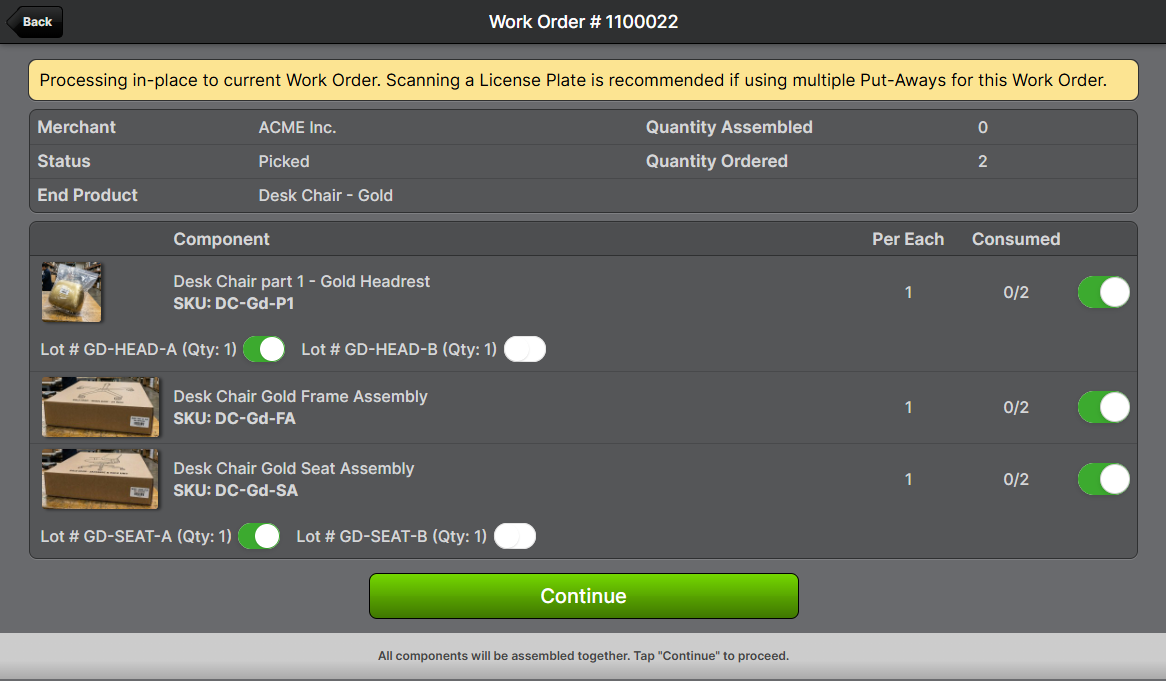
During kitting on the scanner, workers see the Lot Number that will be generated for the current batch they are working on. The generated lot is printed as a ZPL label if a label printer is configured.
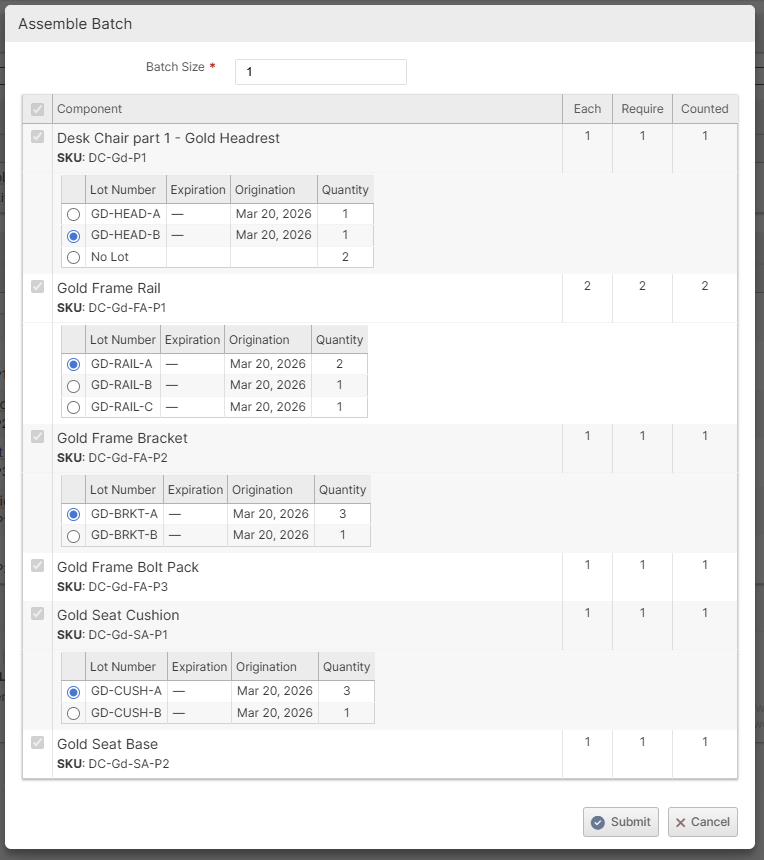
Per-Run Lot Traceability
A new traceability record captures exactly which component lot quantities were consumed in each output lot run. This ensures the data is traceable and accurate at the component level, not just at the work order level.
Admin UI assembly example:
Scanner UI Lot Assembly selection:
Serial Number Tracking for Kitted Products
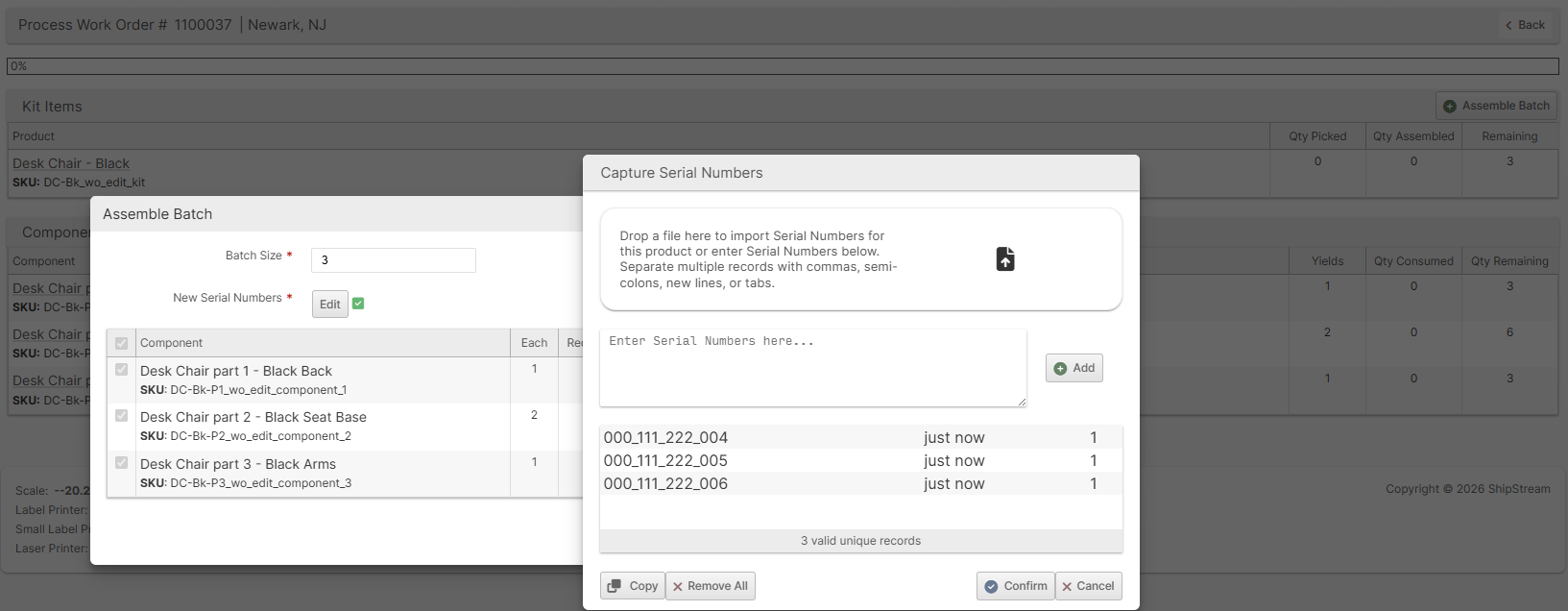
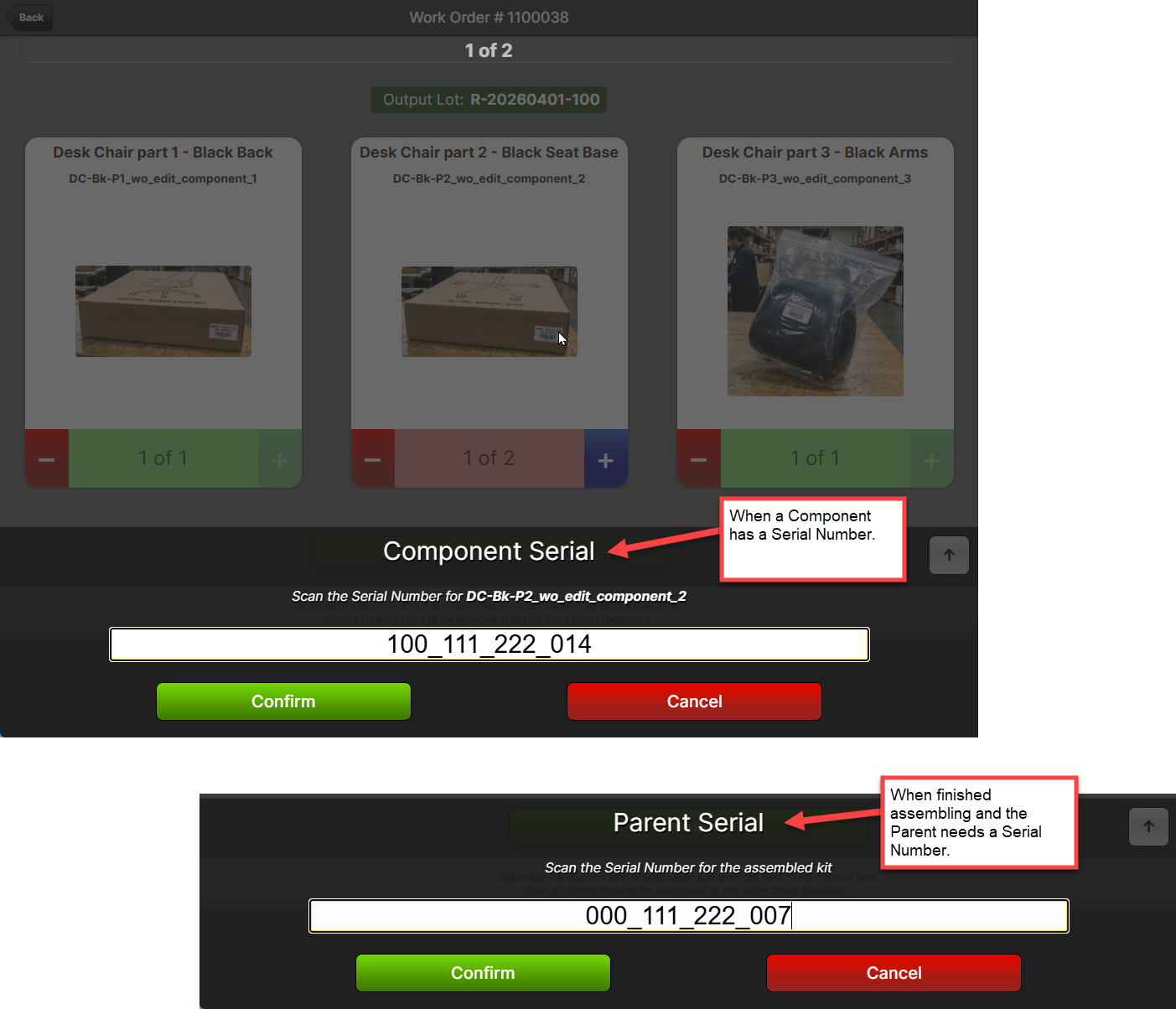
When the kit product or any of its components have serial number tracking enabled, the scanner and admin UI now capture serial numbers during assembly:
- Child serials: When a serial-tracked component is scanned or added, the system immediately prompts for its serial number.
- Parent Serial Numbers: When assembling a kit whose product has serial number tracking, a parent serial is captured and assigned to the completed work item. New parent serials are created on-the-fly if they don't already exist.
Child (component) serials must already exist in the system. - Deferred checkout cascade: When a parent serial is checked out at shipment, all linked child serials are automatically checked out.
- Partial-assembly merge: If two workers assemble different components for the same kit item referencing the same parent serial number on the same work order, the system merges the runs — provided there are no conflicting components.
Admin UI assembly example:
Scanner UI Serial Number selection:
Process Work Order Page Redesign
The admin Work Order page has been redesigned with a simplified single-page layout. The sidebar tabs and edit mode have been replaced by an Assemble Batch popup that guides you through component selection, lot selection, serial number capture, and destination selection in a single focused workflow. The outputs grid now shows lot, serial count, and destination in one view. When reusing an existing destination, assembled quantities are merged into a single row rather than creating duplicates.
Serial Number Visibility
- The Serial Number detail page now shows a Parent Serial Numbers fieldset and a Component Serial Numbers grid, letting you navigate the full parent-child chain.
- A new Serial Numbers tab on the Work Order detail page surfaces all parent and child serials for a work order.
- Serial number columns and export have been mirrored to the Client Portal Work Orders grid.
Photo Galleries for Shipments
Shipments and packages now support photo galleries, giving your warehouse team a simple way to document freight condition, packaging quality, or anything else worth a picture before a shipment leaves the dock.
Photos can be attached at two levels: the Shipment itself, and each individual Package/Pallet within it. They can be added during the packing process or after the fact from the admin UI.
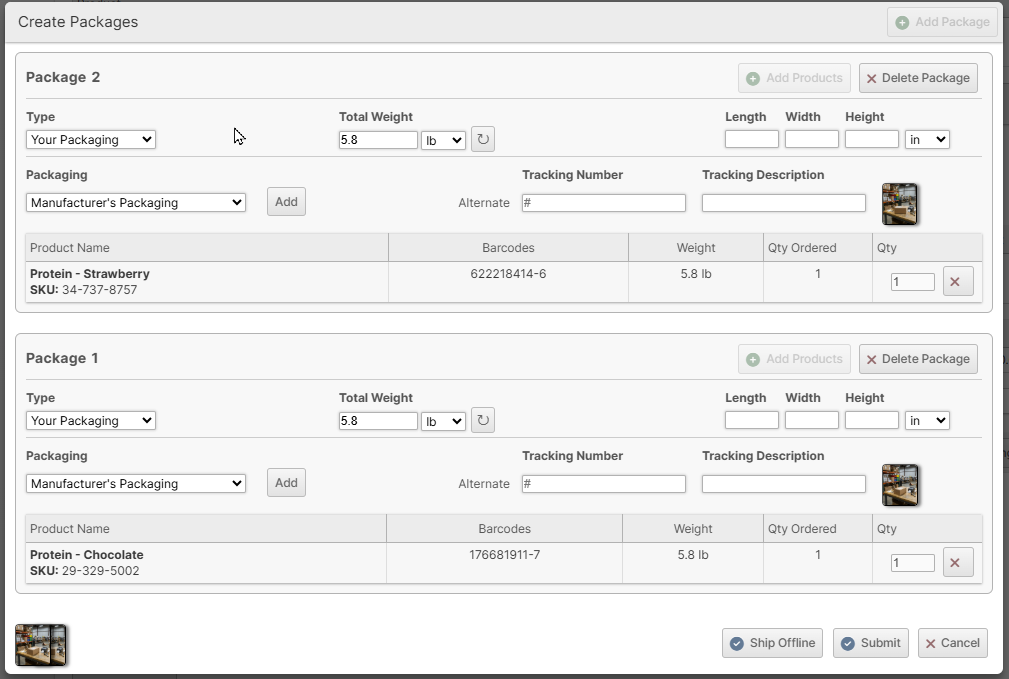
Pack and Ship Dialog
The Pack and Ship dialog now includes Add Photos buttons for the shipment and for each package. Clicking a button opens a photo gallery overlay — pre-scoped to whichever shipment or package you clicked — where you can view existing photos and upload new ones. Once photos are present, the button is replaced by thumbnail previews so you can see at a glance what's already been captured. Photos staged during packing are saved when the dialog is submitted; canceling the dialog preserves any staged photos in-session.
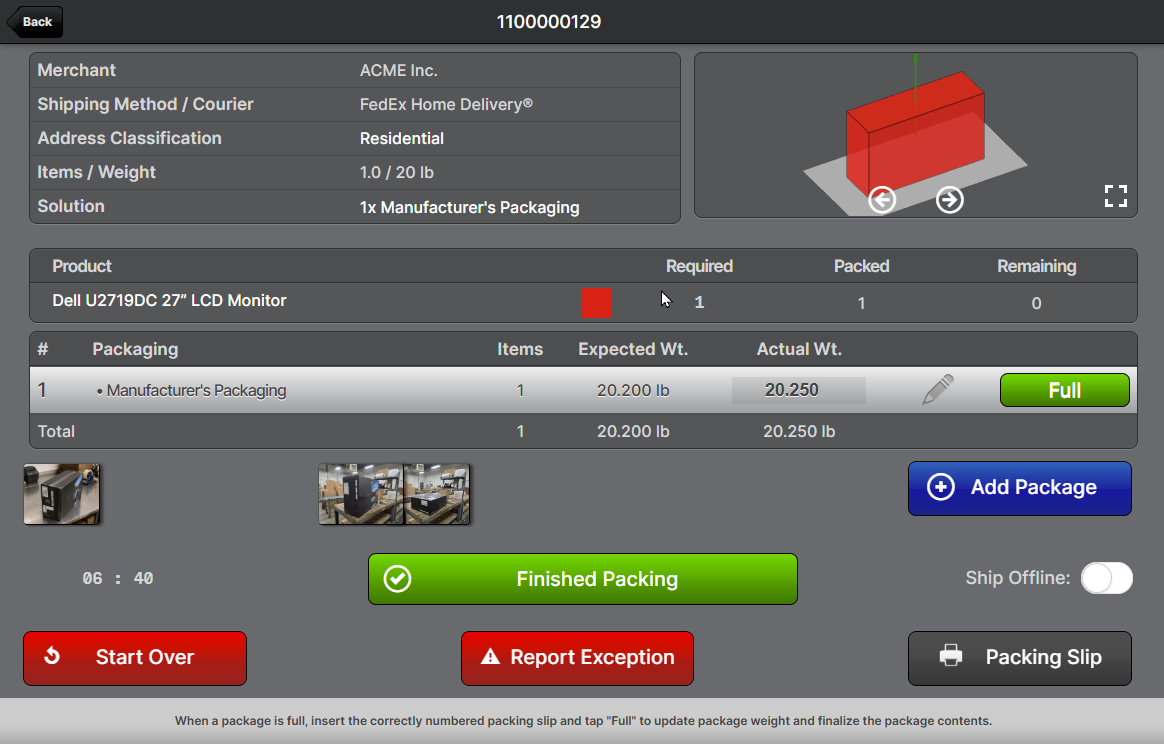
Scanner Packing UI
The Packing screen in the Scanner UI has been updated with Shipment Photos and Package Photos buttons, working the same way as the existing delivery photo capture widgets. Tapping a button lets you add photos scoped to the shipment or to the currently selected package. Once photos are captured, the button is replaced with a thumbnail image. Selecting a different package updates the Package Photos button or images to reflect that package's photos.
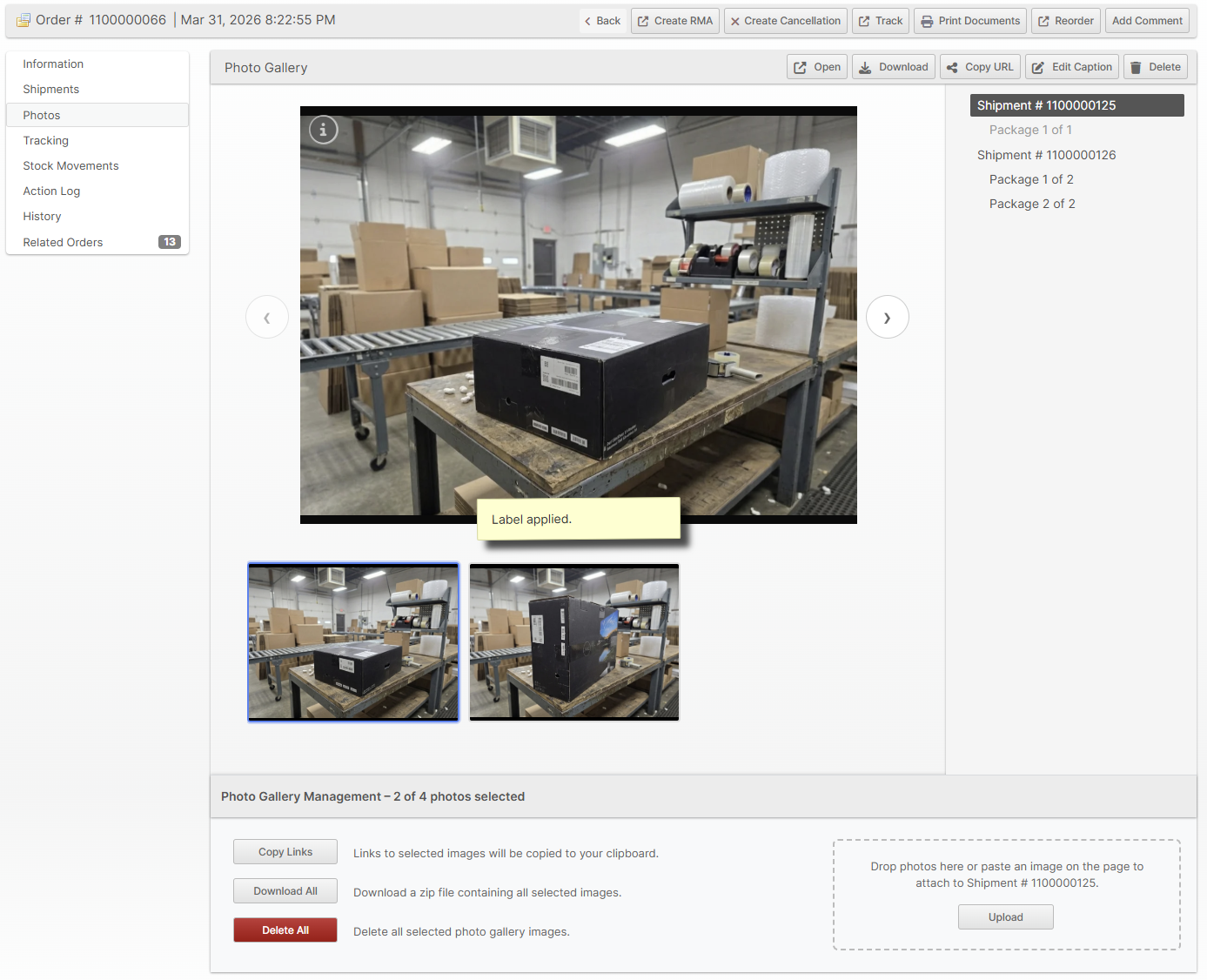
Photos Tab on the Order Page
A new Photos tab on the Order page (Admin and Client Portal) provides a read-only gallery view of all photos across every shipment and package on the order, so you have a consolidated record in one place.
Location Tags
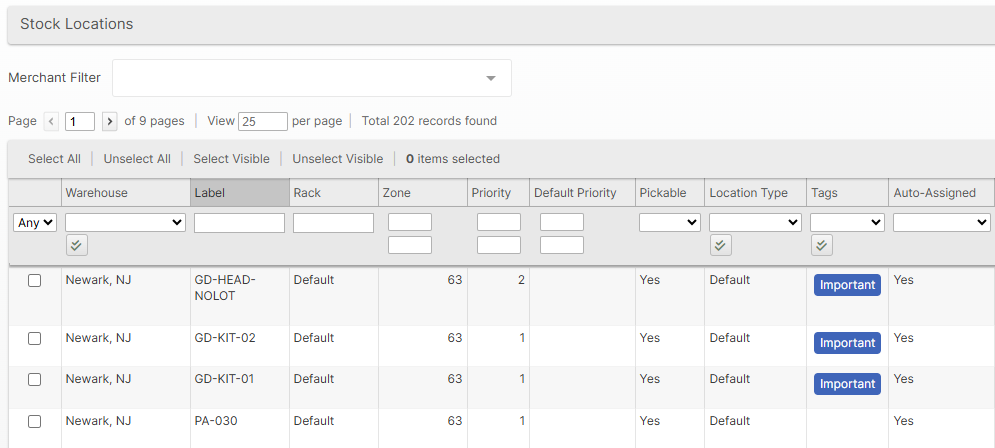
Locations can now be tagged with color-coded labels for categorization, filtering, and bulk operations. Use tags to flag locations for any purpose — cold storage, overbox, damage hold, or anything else that fits your workflow.
Tags are managed at System → Tags, where a tabbed interface lets you create, reorder, and color-code tags for each entity type (currently Locations). On the Edit Location page, a multi-select field with color swatches appears after Location Type. The Locations grid displays tags as colored badges with multi-select filtering, and three new mass actions — Add Tags, Remove Tags, and Replace Tags — make bulk updates easy.
The Location Import feature also supports three new columns (Add Tags, Remove Tags, Replace Tags) for managing tags via CSV/XLSX. See the Locations documentation for full details.
Enforce Packing Solution
There are edge cases where shipments with different packing solutions could be mixed on the same Bulk Fulfill Order (for example, branded boxes for a merchant with multiple brands). We've added a uniqueness check which prevents such a Bulk Fulfill Order from being created to avoid potentially improperly packed shipments.
Other Improvements
- Improved webhook delivery performance and fairness across merchants to reduce delays when high event volumes are generated.
- Improved the Paperless Picking scanner UI to handle long License Plate Number(LPN) values without overflow, using a responsive layout that flows vertically on small screens.
- Optimized several high-frequency database queries to reduce overall server load, including caching improvements for shipment status counts, order counts, and an index addition that significantly speeds up
order.searchqueries filtered by merchant. - Added GST ID (Australia) as a new Tax ID type for Duties & Taxes shipments. Merchants shipping low-value goods to Australia can now enter their Australian GST registration number on a Duties & Taxes Third-Party Billing Group and ShipStream will transmit it to the carrier automatically. Supported carriers include FedEx, UPS, and EasyPost.
- Allowed tracking details to continue to be synchronized while a merchant is inactive or archived.
- Improved the Work Order kitting scanner UI: the active output target (in-place or License Plate) is now shown in a status bar on both the Kitting Start and Kitting Step pages, the product name and SKU are displayed in a larger font on the Kitting Step page, and tapping Back from the Kitting Step page now reliably returns to a refreshed Kitting Start page.
- Completing a work order output now automatically prints put-away labels for any work outputs that do not have a License Plate assigned.
- Improved the Work Order Disassemble page to retain the selected License Plate as the default destination after submitting a count, until the LP is closed.
- Improve Global API performance when requesting shipments with included packages and galleries.
- Both scanner and admin de-kit paths now detect when the output serial is the same physical item that was just consumed as source, enabling the full kit → de-kit → re-kit cycle.
- When a Work Order is cancelled after partial or full picking, the system now retains lot tracking information on the putaway items created for unassembled components. Previously, lot information was lost during cancellation, requiring warehouse staff to manually re-identify lots during putaway.
- Kit Work Orders (assembly)
- Picked components that were tracked by lot now generate separate putaway items per lot, each with the correct lot_id and remaining quantity.
- Quantities already consumed by completed assemblies are subtracted so only the true remaining per-lot quantities are returned.
- Components with mixed lot/no-lot picks correctly split into separate putaway items.
- Components with no lot tracking are unaffected and continue to produce a single putaway item as before.
- Add validation for each Shipment's container's 'Allow for Shipping Methods' property when creating BFOs.
- Make Location, Product SKU, Entity Description clickable in all Stock Movement grids.
- Added new Reserved/Picked Component Lots grids to Work Orders page with export.
- Added an "Advertised" column to the Inventory Snapshots at the rightmost end.
Bug Fixes
- Fixed an issue where the "Resolve Burn Order Conflicts" batching accessibility option could allocate items from non-preferred locations even when no burn order conflict existed. Non-preferred locations are now only considered for the specific shipment item that actually has a conflict. Additionally, conflict error messages now indicate the specific cause (burn order, zone, or asset policy restriction), so it is clearer why a batch contains fewer shipments than expected.
- Fixed an edge case where an EDI file could be prematurely deleted from remote storage if a duplicate filename was later imported, causing the newer file to be removed when the older file's retention period expired.
- Fixed an issue where retrying a pick after a network error could fail with a server error instead of completing successfully.
- Fixed several issues with decimal input in the scanner UI counter: typing a decimal into a non-BOM counter now correctly rounds the submitted value (not just the display), decimal fractions typed into a BOM counter now overflow into the fractional part consistently with how whole-part overflow works, and Lowest Common Multiple(LCM) validation is now enforced on relocation actions.
- Fixed an error that would occur when a barcode that doesn't match a UPC or serial pattern is scanned after a serial scan.
- Fixed headers not being sent correctly for photo gallery downloads.
- Fixed an issue where
stock_movement.listqueries sorted bycreated_atcould skip or duplicate rows when multiple movements shared the same timestamp at a page boundary. - Fixed a deprecation error when API calls originate from a queue context (no HTTP request), which affected all plugins making queued API calls.
- Fixed an error in global search when the query contains non-ASCII characters.
- Implemented strict checking to prevent potential decimal value overflows in extreme cases.
Merchant API Updates
- Added a
skip_totalsoption toshipment.searchthat omits thetotalCountandnumPagesfields from the response, eliminating an extra database query for integrations that paginate without needing total counts. - Restored enforcement of product attribute client permissions (
Hidden,Read-Only,Restricted,Unrestricted) forproduct.createandproduct.updateMerchant API calls. A regression introduced in 2024 caused all permission levels to be silently bypassed for direct API calls. The intended behavior is now restored:- Unrestricted — update allowed
- Restricted — update silently skipped (no error returned)
- Read-Only — error: "Insufficient permission to edit attribute"
- Hidden — error: "Insufficient permission to edit attribute"
Update Impact: API integrations that updateRead-OnlyorHiddenattributes viaproduct.createorproduct.updatewill now receive errors where they previously succeeded silently. Notably, the defaultbarcodeattribute isRead-Onlyby default — integrations updating barcodes viaproduct.updatewill be affected. Review your attribute client permission settings at Catalog → Product Attributes and adjust them or your integration before upgrading. - To ensure maximum service quality (i.e. avoid being unnecessarily hammered by poorly designed integrations), we've implemented a concurrency-aware rate limiter keyed on API user ID. The limit is designed to be more than enough to accommodate integrations that follow best practices and will not go into effect until April 30, 2026. Please see the Rate Limits page for full implementation details.
- Added
weight_surcharge_tier2,weight_surcharge_tier3,dimension_surcharge_tier2, anddimension_surcharge_tier3fields (with_currencyvariants) to therate.quoteresponse for GLS shipments with applicable tier surcharges. Fields are omitted when zero. - Added
shipment.gallerymethod for retrieving and managing photo galleries on shipments, equivalent to the existingdelivery.gallerymethod.
Global API Updates
- Added
galleryas an optional field on the Shipment and Package entities. Request it via thefieldsparameter — e.g.?fields=packages,gallery&fields:packages=gallery— to include shipment-level and package-level galleries respectively in the response.
How did we do?
ShipStream Releases
Version 2026.0